

How to access your survey
The different ways your organization can send you a CultureMonkey survey - email, SMS, WhatsApp, Slack, Microsoft Teams, or a QR code or link - and exactly how to open and start it.
On this page
When your organization runs a CultureMonkey survey, the invitation comes straight to you. There's nothing to install and no separate account to remember. Your employer picks the channel that reaches you best, sends you a link, and you click it to answer.
This guide walks through every way a survey might land in front of you: email, SMS, WhatsApp, Slack, Microsoft Teams, and a QR code or shared link. For each one, you'll see what the invitation looks like, how to open it, and what to do if you can't find it.
A survey invitation always contains a link (or a scannable QR code) that opens the survey in your web browser. However it reaches you (email, text, chat app, or a poster on the wall), the steps are the same: find the invitation, tap the link, and answer. You don't need a password or a CultureMonkey login.
How survey invitations work
Before we go channel by channel, it helps to know the one thing they all share. Every CultureMonkey survey opens as a simple web page. Your organization loads the list of people to invite, chooses a delivery channel, and CultureMonkey sends each person their own unique survey link.
That link is personal to you, which is how the platform knows you've responded and stops reminding you once you're done. It is not a way for anyone to see what you answered. Your individual responses stay protected. If you're curious about exactly how that works, see Is my feedback anonymous?.
A single survey is usually sent through one main channel. So if your company runs surveys over Slack, your invitation will normally arrive in Slack rather than by email. If you're not sure which channel your organization uses, the fastest answer is to ask your HR team or people manager.
CultureMonkey surveys open in your normal web browser (Chrome, Safari, Edge, and so on). Tapping the link is all it takes. There's no app to download and, in most cases, no username or password to enter.
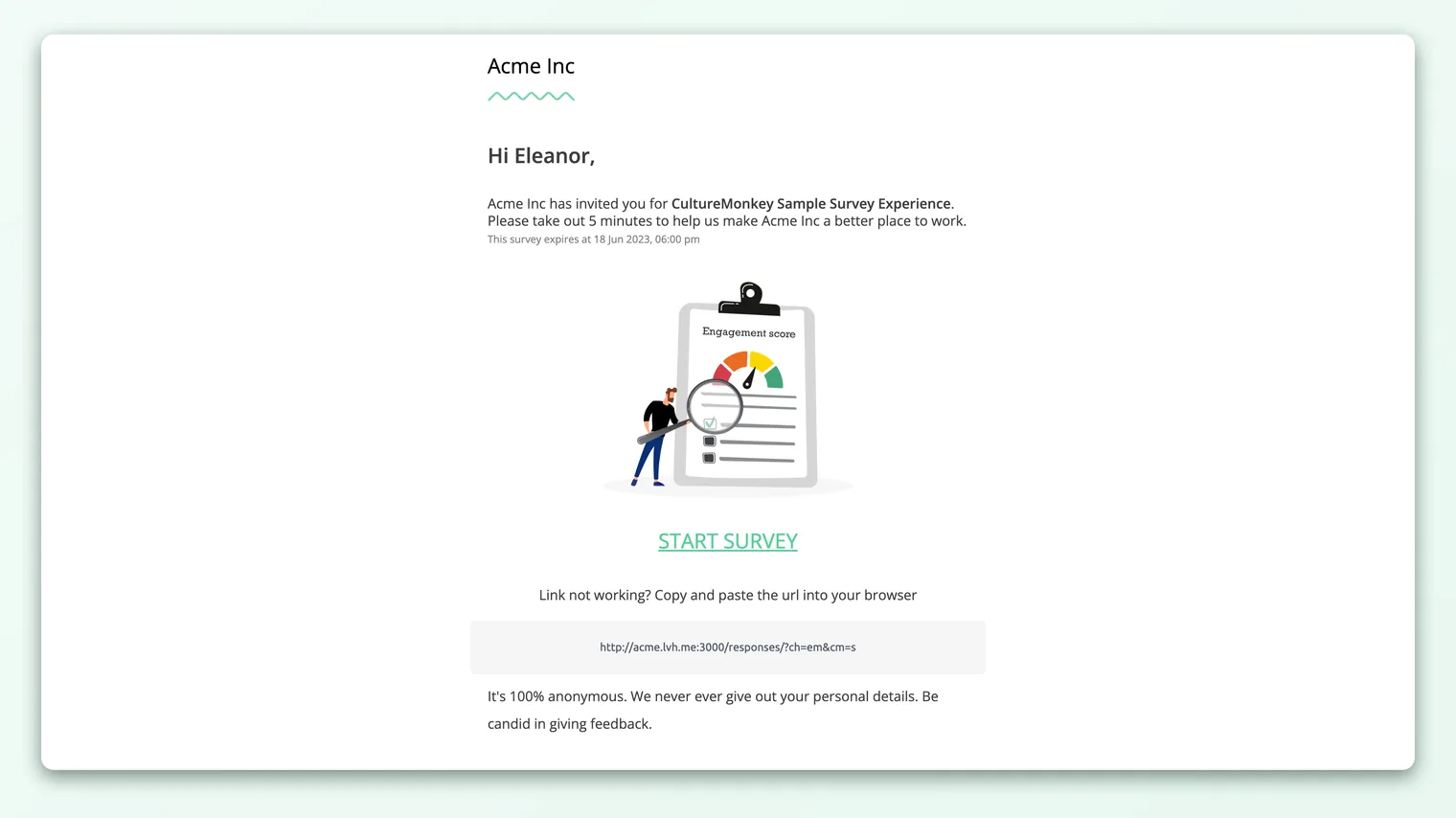
Email is the most common way people receive a survey. You'll get a message from your organization inviting you to take part.
- 1Open the email. Look in your work inbox for a subject line about a survey, feedback, or a check-in. It usually comes from your company's name or HR team.
- 2Read the short invite. The message explains what the survey is for and roughly how long it takes.
- 3Click the button or link. There's a clearly labeled button (or a plain link) that opens the survey in your browser.
- 4Answer and submit. Work through the questions and submit at the end. You can often save partway and come back later.
If you don't see the email, check your Spam, Junk, or Promotions folders, since automated messages sometimes land there. Searching your inbox for your company name or the word "survey" usually surfaces it quickly. For a fuller walkthrough, see Take a survey by email or SMS.
SMS (text message)
If your organization has your mobile number, it may send the survey as a text message. This is common for teams who aren't at a desk all day, such as retail, manufacturing, healthcare, or field staff.
The text is short and contains a survey link, along the lines of:
> "You have been invited for a quick survey to help make [Company] a better place to work. Survey link: ..."
Tap the link and the survey opens in your phone's browser. To keep the message short, the link is often shortened, so it may look a little different from a normal web address. That's expected and safe.
Survey texts sometimes arrive from a short code or an unfamiliar number rather than a saved contact. If the message names your company and describes a workplace survey, it's genuine. If you're ever unsure, don't tap the link. Check with your HR team first.
Some organizations send surveys over WhatsApp, which is handy where WhatsApp is the everyday way people stay in touch. The invitation arrives as a WhatsApp message from an official business number, with a short greeting and your survey link.
- 1Open the WhatsApp message. It greets you by name and invites you to a quick survey for your organization.
- 2Tap the survey link. This opens the survey in your browser.
- 3If the link won't open, tap "Continue." Some WhatsApp invitations include a Continue button right in the chat. If tapping the link doesn't work on your device, use that button instead.
- 4Answer and submit. Complete the questions in the browser and submit.
WhatsApp invitations go to the mobile number your organization has on file, so make sure your team has your current number if you'd expect to receive one this way.
Slack
If your workplace uses Slack, the survey can come to you there as a direct message from the CultureMonkey app (or your company's survey bot). This keeps everything inside the tool you already use for work chat.
- 1Look for a direct message. The invitation arrives as a DM, not in a public channel, so only you can see it.
- 2Read the short note. It invites you to take a quick survey to help improve your workplace.
- 3Click the survey link. This opens the survey in your browser, where you'll answer the questions.
- 4Submit when you're done. Your response is recorded once you finish.
Because it's a direct message, nobody else in your Slack workspace sees that you were invited or how you replied. If you can't find the DM, use Slack's search to look for the word "survey," or scroll your direct messages for the CultureMonkey app. There's a step-by-step version in Take a survey in Slack or Teams.
Microsoft Teams
If your organization runs on Microsoft Teams, surveys can be delivered there instead, through a chat message from the CultureMonkey app.
- 1Open the Teams chat. Look for a message from the CultureMonkey app in your chat list.
- 2Read the invitation. It's a short note inviting you to a quick survey.
- 3Click the link to open the survey. It opens in your browser so you can answer.
- 4Finish and submit. Your response is saved when you complete the survey.
As with Slack, the invitation is a private chat to you, so no colleague sees your response. If you don't spot it, search your Teams chats for "survey" or look for the CultureMonkey app in your app list. See Take a survey in Slack or Teams for more.
QR code or shared link
Not everyone has a work email, phone number, or chat account, so CultureMonkey also supports surveys you reach through a QR code or a shared link. This is common for frontline and shop-floor teams.
A QR code might be printed on a poster in the break room, added to a payslip, or shown on a screen. To use it:
- 1Open your phone's camera. On most phones, the built-in camera reads QR codes automatically.
- 2Point it at the QR code. Hold steady until a link or notification appears on screen.
- 3Tap the link that pops up. This opens the survey in your browser.
- 4Answer and submit. Complete the survey right on your phone.
A shared link works the same way. Your organization might post it in a company app, an intranet page, or a group chat. Tapping (or pasting) it into your browser opens the survey.
Some link and QR surveys ask for a detail like your email address, phone number, or employee ID, then send you a short passcode to enter. This is just to confirm you're the right person and to keep responses genuine. It is not a login, and it does not attach your name to your individual answers. Enter the passcode when prompted and continue to the survey. If your passcode expires, use the Resend option to get a new one.
What to do if you can't find your survey
If you know a survey is running but can't see an invitation, work through these checks:
- Search across your inboxes and apps. Search your email (including Spam and Junk), your text messages, WhatsApp, Slack, and Teams for the word "survey" or your company's name.
- Check the right account. Invitations go to the details your employer has on file. If your work email or phone number recently changed, the invite may have gone to the old one.
- Confirm you're in this survey's group. Not every survey goes to everyone. Some are sent only to a specific team, location, or department, so it's possible you weren't in this round.
- Look for a reminder. If the first invitation slipped past you, a reminder often follows a few days later through the same channel.
- Ask your HR team or manager. They can confirm which channel the survey uses, check the contact details on file, and re-send your invitation if needed.
Once you submit, CultureMonkey knows you're done and stops sending you reminders for that survey. If reminders keep arriving after you've finished, it's worth flagging to your HR team so they can check your record.
A quick comparison of channels
| Channel | Where it arrives | How you open it | Good to know |
|---|---|---|---|
| Your work inbox | Click the button or link | Check Spam and Junk if it's missing | |
| SMS | A text on your phone | Tap the (often shortened) link | May come from a short code or unfamiliar number |
| A WhatsApp message | Tap the link, or the Continue button | Uses the mobile number on file | |
| Slack | A private direct message | Click the link | Nobody else sees your DM or your answers |
| Microsoft Teams | A private chat message | Click the link | Same privacy as Slack |
| QR code / link | A poster, screen, or shared link | Scan or tap to open | May ask for a detail plus a passcode to confirm it's you |
Whichever channel you use, the survey itself is the same, and so is the protection around your answers.
Frequently asked questions
Do I need to log in or create an account to take a survey?
No. In almost every case you just tap your invitation link and start answering. Some QR or link surveys ask you to confirm a detail (like your email or employee ID) and enter a short passcode, but that's a one-time check, not an account or password.
My survey link won't open. What should I do?
First, try copying and pasting the full link into a different browser. On WhatsApp, use the Continue button if the link itself won't open. If it still won't load, the survey may have closed, or the link may have been cut off in the message. Ask your HR team to re-send it.
Can my manager see that I opened or answered the survey?
Managers and HR can see overall participation numbers so they know how many people have responded, but your individual answers stay protected and are reported together with everyone else's. For the full picture, see Is my feedback anonymous?.
I got the survey on two channels. Which one should I use?
Either is fine, but you only need to answer once. Your link knows once you've submitted, so pick whichever is most convenient and complete it there.
The survey asked for my email or a passcode. Is that normal?
Yes, for QR code and shared-link surveys. Because there's no personal link in those cases, CultureMonkey confirms who you are with a quick detail and a passcode. It keeps responses genuine and doesn't tie your name to your individual answers.
I can't find any invitation at all. Now what?
Search all your inboxes and apps for "survey," check whether your contact details are current, and confirm the survey was meant for your group. If you still come up empty, your HR team or manager can re-send it.
Where to go next
- Answering by email or text: Take a survey by email or SMS
- Answering in a chat app: Take a survey in Slack or Teams
- Worried about privacy? Is my feedback anonymous?
Your feedback helps us improve the Help Center.