

Add managers to your account
How to add a manager in CultureMonkey - what a manager is and how it differs from an admin, setting the reporting relationship that makes someone a manager, inviting them from the Managers page, the fields involved, how access activates, and when to add one at a time versus importing in bulk.
On this page
Managers are the people who turn engagement results into action. Once someone is a manager in CultureMonkey, they get a purpose-built Manager dashboard showing their team's scores, trends, participation and feedback - so the person closest to the work can see what their people are saying and do something about it. Setting managers up correctly is one of the highest-leverage things you'll do as an admin, because most of the "so what do we do now?" work happens at the team level.
This guide walks through what a manager actually is in CultureMonkey, how that differs from an administrator, how you add one, the fields involved, how a manager is tied to their own employee record and their direct reports, how they get invited and activate their login, and when to add managers one at a time versus importing them in bulk.
A person becomes a manager the moment other employees report to them in your data. Set someone as the Reporting Manager on an employee's record and CultureMonkey automatically marks that person as a manager. Then open the Managers page (app.culturemonkey.io/managers), find them, and invite them so they get a login. They activate by accepting the email invite and setting a password. There's no separate "create manager" form - a manager is an employee with reportees, plus a login.
What a manager is in CultureMonkey
Here's the most important idea, and the one that trips people up: a manager is not a separate kind of user you create from scratch. A manager is simply an employee who has other employees reporting to them, given login access to see their team's results.
That has two parts:
- The reporting relationship. Every employee record can point to a Reporting Manager. When employees report to a person, that person is a manager in CultureMonkey's eyes - they show up on the Managers page. Once they have enough reportees (CultureMonkey uses a minimum of 3), they're eligible to be invited to a manager login.
- The login (access). Being a manager in the data doesn't automatically let someone sign in. You grant that by inviting them from the Managers page, which creates their admin login and emails them to activate it.
So "adding a manager" is really two smaller steps: make sure the reporting relationship exists, then invite the person. If the relationship already exists (because you set reporting managers when you loaded your employees), adding a manager is just the invite.
Because manager status is derived from reporting lines, an accurate Reporting Manager field on your employee records is what keeps your manager list - and every manager dashboard - correct. Keep that field clean and most of this takes care of itself.
How a manager differs from an admin
Managers and administrators both log in, but they see very different slices of the account.
| Manager | Administrator (Super/Sub Admin) | |
|---|---|---|
| Where their access comes from | Automatically, from who reports to them | Granted manually from a person's profile |
| What they can see | Their own reporting line - direct and indirect reports | The whole org (Super Admin) or an assigned scope of teams/locations (Sub Admin) |
| Main workspace | The Manager dashboard for their team | Dashboards, reports, employees, admins, settings, integrations |
| Can manage employees/admins/settings? | No | Yes (Super Admin); scoped (Sub Admin) |
| Eligibility rule | Needs a minimum of 3 people reporting to them | None - any employee can be made an admin |
In short, a manager's scope follows your reporting structure automatically, while an admin's scope is something you decide and assign. A manager sees their team and nothing more; an admin sees far more of the account. For a full breakdown of every role, see Understanding roles.
Manager and admin aren't mutually exclusive. Someone can be a manager (with a team dashboard) and a Super or Sub Admin. The manager view is layered on the reporting relationship; the admin role is layered on their profile. They coexist.
Adding a manager individually
The everyday case - one new team lead, one person who was missed - is quick. It comes down to making sure they have reportees, then inviting them.
- 1Set the reporting relationship first. Open the employee record of someone who reports to this person and set the Reporting Manager field to the manager. Do this for each of their direct reports. (Adding people through the employee form or an import with a manager column does the same thing.) The moment an employee points to them, CultureMonkey flags that person as a manager.
- 2Open the Managers page. Go to Managers in the navigation at
app.culturemonkey.io/managers. Your new manager now appears in the list, on the All tab, with their direct- and total-report counts. - 3Find the person. Use the search box at the top of the list to locate them by name.
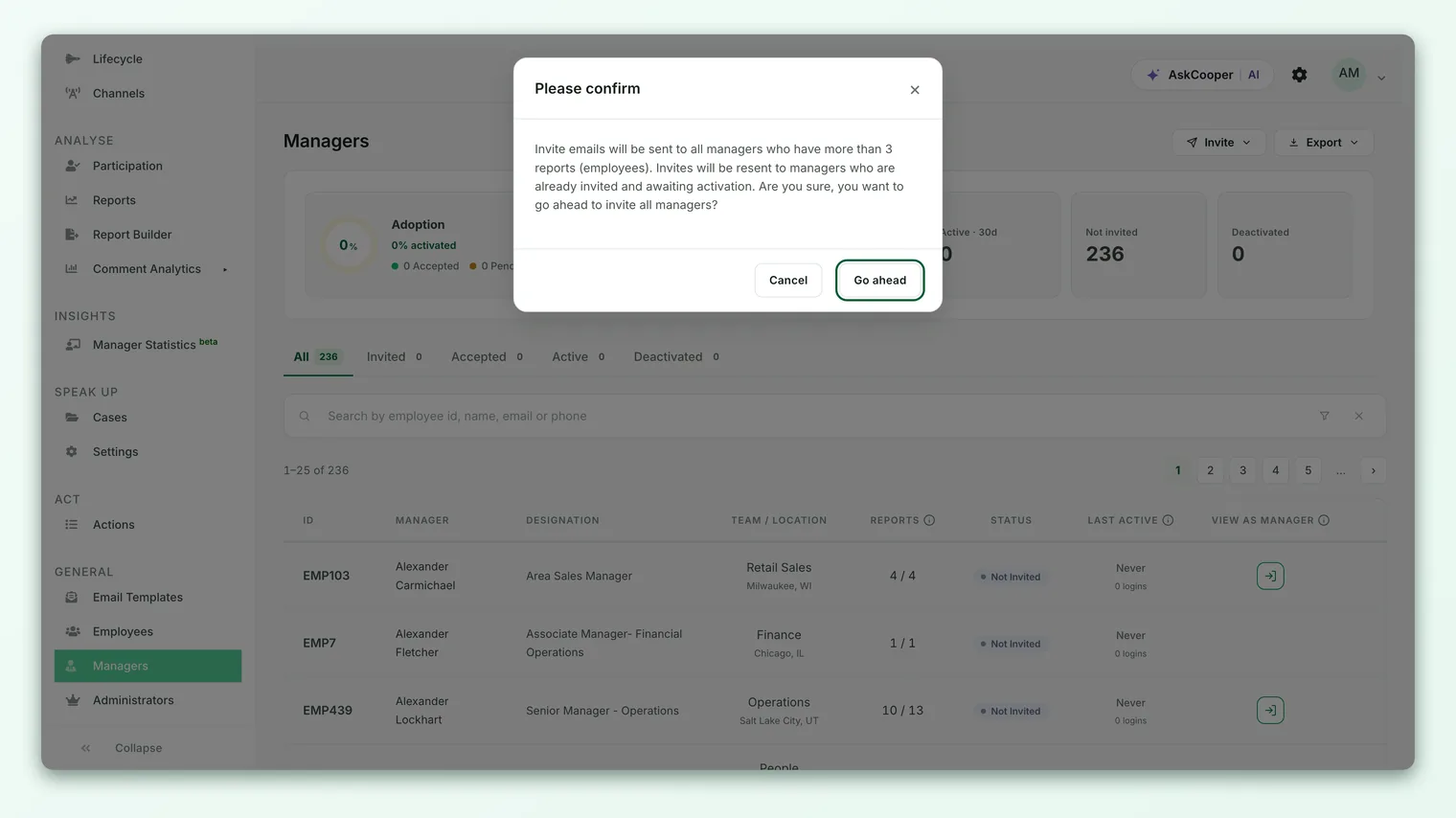
- 4Invite them. Send the manager invite from the Managers page. This creates their login and emails them an invitation to activate it. Until they accept, they show under the Invited tab as pending.
- 5Confirm activation. Once they accept the invite and set a password, they move to the Accepted tab and can sign in to their Manager dashboard.
That's the whole flow. Notice there's no long "new manager" form to fill in - because the manager's details already live on their employee record. You're not typing their name, email or team again; you're granting a login to a person who's already in your data and already has a team reporting to them.
If a person has no one reporting to them, they won't appear on the Managers page and can't be given a manager login - there'd be no team for them to see. Inviting a manager also needs a minimum of 3 reportees. If someone's missing from the list or can't be invited, the fix is almost always to set them as the Reporting Manager on their team members' records first.
The fields involved
Because a manager is an employee, the "fields" that define a manager are really the relevant fields on the underlying employee record plus the login that the invite creates. Here's what matters and where it comes from.
| Field | Where it lives | What it does |
|---|---|---|
| Name | The person's employee record | Identifies the manager throughout the Managers list, reports and dashboards. |
| Email Address | The person's employee record | The address the manager invite is sent to and the unique key for their login. Must be valid and unique. |
| Reporting Manager | On each reportee's employee record | The link that makes this person a manager - every employee who names them as Reporting Manager becomes one of their direct reports. |
| Team / Location | The person's employee record | Used to place the manager and to group their team's results. |
| Manager login (role) | Created by the invite | The access layer that lets them sign in and see their team's dashboard. Doesn't exist until you invite them. |
| Invite status | Tracked on the Managers page | Where they are in activation: not invited, Invited (pending), Accepted, active or deactivated. |
The key takeaway: the field you actually set to create a manager isn't on the manager's own record at all - it's the Reporting Manager field on the records of the people who report to them.
Linking a manager to their employee record and direct reports
This linkage is automatic, and it's worth understanding so the manager list behaves the way you expect.
- *The manager is the employee record.* There's no separate "manager profile" to keep in sync - a manager and their employee record are the same thing. Update their team, email or name on the employee record and their manager view updates with it.
- Direct reports come from the Reporting Manager field. Each employee who names this person as their Reporting Manager becomes one of their direct reports. Set five people's Reporting Manager to Priya, and Priya has five direct reports.
- Indirect reports roll up the tree. If one of Priya's direct reports is themselves a manager, their reportees become Priya's indirect reports. A manager's dashboard covers their whole reporting subtree - direct and indirect - so leaders see the full picture beneath them.
- The link maintains itself. Assign someone their first reportee and they're automatically marked as a manager. Remove their last reportee and CultureMonkey steps them down from active manager status (their historic reports stay accessible). You don't manage a manager list by hand - it tracks your org structure.
When you move people between managers, the dashboards and report counts refresh to match - but it can take a few minutes to propagate. If a report count looks off right after a big reshuffle, give it a little time and refresh. To plan larger changes, see Set up manager-employee relationships.
How managers get access and activate
Adding the reporting relationship makes someone a manager in the data; the invite is what lets them actually log in.
When you invite a manager from the Managers page, CultureMonkey:
- Creates their login. A manager login is generated and attached to their record.
- Emails them an invitation. The invite goes to the email address on their employee record.
- Waits for them to activate. The manager clicks the link, sets a password, and their login becomes active. Until then, they show as Invited (pending) on the Managers page.
Once activated, they sign in and land on their Manager dashboard, scoped automatically to their team.
An employee can have reportees (and so be a "manager" in the data) without ever being invited. Nothing breaks - they simply have no login and see nothing in the admin app until you invite them. Reserve invites for the managers who should actually be reviewing results.
You can track where everyone is from the tabs at the top of the Managers page:
- All - every manager in your account.
- Invited - invited but not yet accepted (pending activation).
- Accepted - accepted the invite and set a password.
- Active - signed in recently.
- Deactivated - former managers kept only for historic report access.
When to add individually vs. import
Both paths end in the same place - a person with reportees and (optionally) a manager login - so the choice comes down to volume.
| Situation | Best approach |
|---|---|
| One new team lead, or someone missed earlier | Add individually - set their reportees' Reporting Manager, then invite them from the Managers page. |
| A handful of new managers to invite this week | Add individually, or use the Invite all option to invite every eligible manager at once. |
| Onboarding managers for the whole org at once | Import managers in bulk - upload a CSV to invite many managers together. |
| Setting reporting lines for lots of people | Set Reporting Manager in your employee import - managers then appear automatically, ready to invite. |
As a rule of thumb: reach for the individual flow for one to a handful of managers, and import when you're setting up many at once. Whichever you choose, the underlying model is identical - a manager is an employee with reportees, given a login.
If your reporting lines are already in place, the Managers page can invite all eligible managers in one go, rather than inviting them one at a time. Use it when you've just finished loading your org structure and want every leader to get their dashboard.
Frequently asked questions
How do I actually create a manager - where's the "Add manager" form?
There isn't a standalone create form, because a manager isn't a new record - it's an existing employee who has people reporting to them. To "add" a manager, set them as the Reporting Manager on their team members' records (on the employee form or via import), then open the Managers page and invite them to give them a login. Inviting needs a minimum of 3 reportees.
Why doesn't a person appear on the Managers page?
Almost always because no one reports to them yet. A person only becomes a manager once employees name them as their Reporting Manager, and inviting one needs a minimum of 3 reportees. Set that relationship on their team members' records and they'll appear in the list, ready to invite.
What's the difference between a manager and an admin?
A manager's access is derived automatically from your reporting structure - they see their own team. An admin's access is granted manually and is much broader (the whole org for a Super Admin, an assigned scope for a Sub Admin). See Understanding roles for the full picture.
Does adding a manager email them right away?
Only when you invite them. Setting a reporting relationship makes someone a manager in the data silently - no email is sent. The invitation email goes out when you invite them from the Managers page, and they activate by accepting it and setting a password.
What happens if a manager loses all their reportees?
CultureMonkey steps them down from active manager status automatically, but keeps them as a deactivated manager so their historic team reports remain accessible. If people report to them again later, they become an active manager once more.
Can one person be both a manager and an admin?
Yes. The manager view (from their reporting line) and an admin role (from their profile) are independent layers and can both apply to the same person.
Where to go next
- Set up many managers at once: Import managers in bulk
- Get reporting lines right: Set up manager-employee relationships
- See how every role compares: Understanding roles
Your feedback helps us improve the Help Center.