

Set up manager-employee relationships
What a manager-employee reporting relationship is and why it's the backbone of team reporting in CultureMonkey, how to set it on the employee record and via import, the difference between direct and all reports and the toggle that controls a manager's view, and how to keep the reporting-manager field accurate.
On this page
- What a reporting relationship is
- Why it's the backbone of team reporting
- Setting the reporting manager on an employee
- Setting relationships in bulk with an import
- Direct reports vs. all reports
- The toggle that controls a manager's view
- How relationships scope manager dashboards
- Keeping the reporting-manager field accurate
- Common mistakes
- Frequently asked questions
- Where to go next
Almost everything CultureMonkey shows a manager - their dashboard, their team's participation, their driver scores, the actions assigned to them - rests on one small piece of data: who reports to whom. That relationship is set on each employee record as a reporting manager, and once it's in place it quietly powers the entire team-reporting experience.
This guide explains what a manager-employee relationship actually is, why it's the backbone of team reporting, the two ways to set it (on the employee form and through an import), the crucial difference between a manager's direct reports and their all reports, and the toggle that lets a manager switch between those two views. It closes with how to keep the reporting-manager field accurate and the common mistakes to avoid.
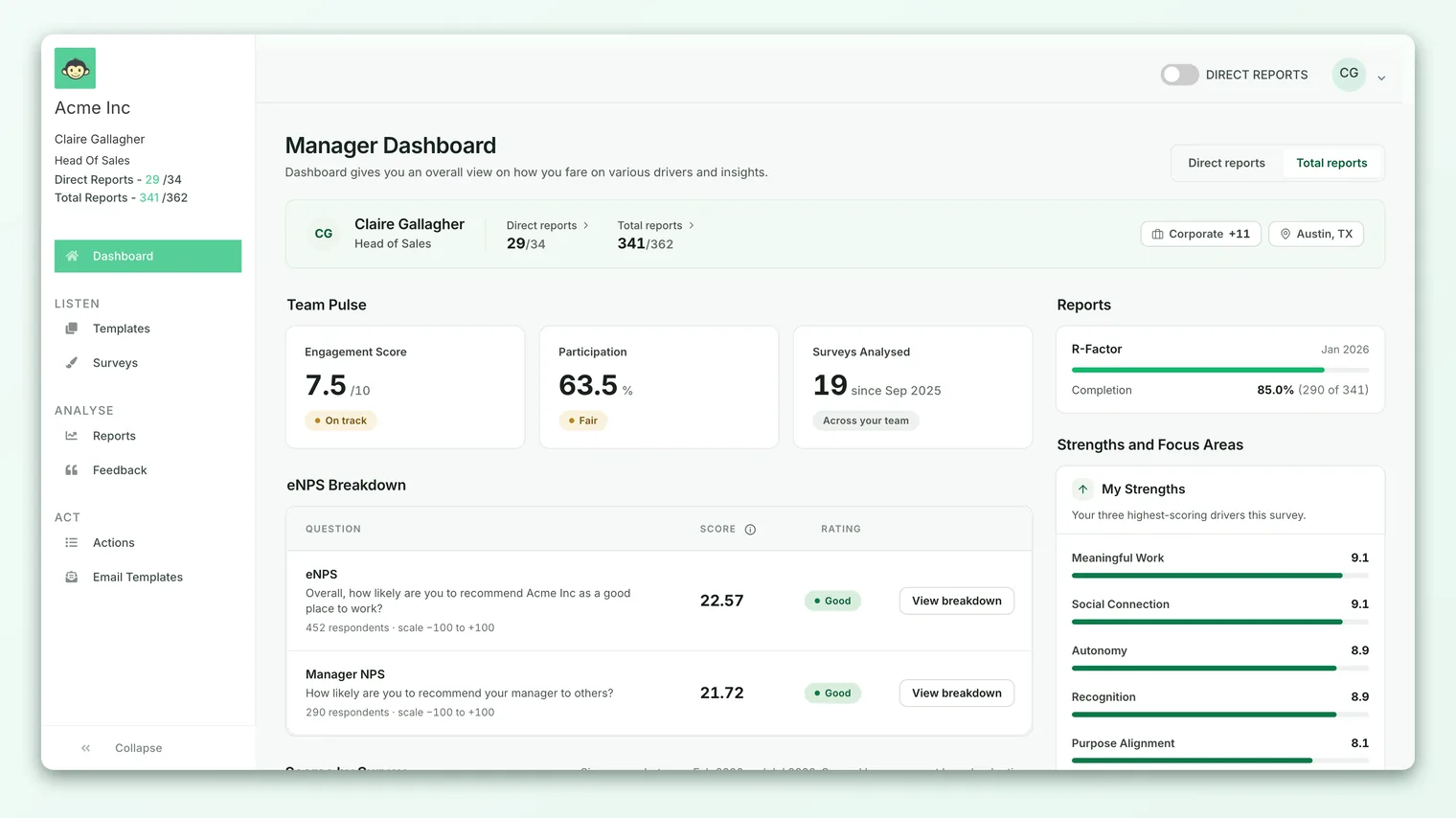
Every employee record can point to another employee as their Reporting Manager. Set it on the employee form or with the Manager Email Address column in an import. Those pointers, chained together, form your org hierarchy - and they're what CultureMonkey uses to scope each manager's dashboard to the right people. By default a manager sees their entire reporting line (direct reports plus everyone beneath them); a direct-reports toggle on the dashboard lets managers with three or more direct reports narrow the view to just their immediate team.
What a reporting relationship is
A manager-employee relationship in CultureMonkey is simply a link from one employee to another: this person's reporting manager is that person. It's stored on the employee's own record, not on the manager's - you open an employee, and one of their fields is Reporting Manager, which points at whoever they report to.
Because a manager is themselves an employee, these links chain together naturally. If Priya's manager is Sam, and Sam's manager is Dana, you've described three levels of a reporting line with two simple pointers. An employee can have many people reporting to them but reports to at most one manager - exactly like a real org chart.
Any employee who has at least one person pointing at them as their manager is recognized by CultureMonkey as a manager, gains a manager dashboard, and can be given login access to see their team's results. An employee with a blank reporting-manager field sits at the top of a reporting line - usually your CEO or a division head.
You set a single field - the reporting manager - and CultureMonkey derives a lot from it: the org hierarchy, each manager's dashboard scope, the direct-vs-all split, and who can be given a manager login. Getting this one field right is the highest-leverage data-hygiene task in your account.
Why it's the backbone of team reporting
Teams and locations are flat groupings - an employee is in "Engineering" or "London," and that's a single label. Reporting relationships are different: they're a multi-level chain that mirrors how your organization is actually run. That chain is what makes manager-level reporting possible.
- It scopes every manager's dashboard. A manager sees results for their people and no one else's. That scoping is derived entirely from who reports to them.
- It rolls results up your reporting lines. A director doesn't just want their handful of direct reports - they want the whole part of the business beneath them. Reporting relationships make that roll-up automatic.
- It puts engagement where accountability lives. Engagement is a management responsibility. Organizing results by who reports to whom means every manager can see their slice and own it.
- It builds the org hierarchy. The navigable org tree isn't drawn by hand - it's assembled from these relationships. See Enable and configure your org hierarchy.
In short: if the reporting-manager field is right, managers see the right people and the numbers roll up correctly. If it's wrong or blank, dashboards are empty, incomplete, or point at the wrong team.
Setting the reporting manager on an employee
The most direct way to set a relationship is on the individual employee record. When you add or edit an employee, the Employee Details section includes a Reporting Manager field.
- 1Open the employee. Go to General → Employees, find the person, and open their record (or click Add Employee for a new hire).
- 2Find the Reporting Manager field. It sits in the Employee Details section, alongside team, location, and designation.
- 3Pick their manager. Choose the employee this person reports to. Leave it blank if they sit at the top of a reporting line.
- 4Save. CultureMonkey validates the record and stores the relationship. The person is now slotted into the reporting hierarchy.
The reporting-manager field is optional on the form - you can save an employee without one - but a person with no manager won't appear in anyone's team view. For anyone who has a manager in real life, fill it in. For the full walkthrough of the employee form, see Add a single employee.
The reporting manager you pick has to be someone already on your roster - you're linking one employee record to another. You can't point at a name that isn't in the system yet. If a manager is missing, add them first, then set the relationship.
Setting relationships in bulk with an import
For anything more than a few people, set reporting relationships through an employee import rather than one record at a time. Your import file carries a Manager Email Address column (manager_email), and CultureMonkey uses it to link each person to their manager.
Here's how the matching works:
- For each row, CultureMonkey reads the value in Manager Email Address and looks for an existing employee whose email matches it (case-insensitively).
- If it finds one, that employee becomes the row's reporting manager.
- If the column is blank, the person is left with no manager - treated as a top-of-line node.
Because managers are matched by email, they have to exist before they can be referenced. If you're standing up a new account, load or confirm your managers first, then import the wider employee file so every Manager Email Address resolves cleanly on the first pass instead of bouncing back as an error.
The import doubles as a bulk editor. When people change managers, update the Manager Email Address values in your spreadsheet and import the file again - CultureMonkey matches each person by their own email and updates the relationship in place. It's the fastest way to re-parent a whole team at once. See Import employees from a CSV.
If you feed employee data from an HR system, let that system own the reporting-manager field so reorganizations flow through automatically. See Import employees from your HRIS.
Direct reports vs. all reports
This is the most important distinction in the whole feature, so it's worth being precise. For any manager, CultureMonkey recognizes two groups of people.
| Term | Who it includes | Example (Sam manages Priya & Lee; Priya manages Alex) |
|---|---|---|
| Direct reports | Only the people whose reporting manager is this manager - their immediate team, one level down. | Priya and Lee |
| All reports | Everyone in the manager's downstream line, at every level below them - direct reports plus their reports, and so on. | Priya, Lee, and Alex |
The key thing to hold onto: all reports includes the direct reports. It's the whole subtree beneath a manager, not just the skip-levels. So the "all" numbers are always the larger, more complete picture, and the "direct" numbers are the manager's immediate span of control carved out of it.
CultureMonkey works out a manager's full downstream group by walking the reporting chain recursively - following each pointer down from the manager, level by level, gathering everyone beneath them. That's the same recursion that builds the org hierarchy, which is why the two features always agree on who sits under whom.
You never set "direct" and "all" separately. You set one thing - each employee's reporting manager. Direct and all are simply two ways of reading that same structure: your immediate team versus your whole reporting line.
The toggle that controls a manager's view
By default, a manager's dashboard shows their entire reporting line - all reports, the full subtree beneath them. That's the most useful default for a leader who wants the complete picture of their part of the business.
For managers who also want to zoom in on just their immediate team, CultureMonkey offers a direct-reports toggle in the app header. Flipping it on narrows the whole dashboard - participation, driver scores, feedback, the lot - to direct reports only. Flipping it off returns to the full downstream view.
- 1Look in the app header. When a manager is signed in and viewing their dashboard, the direct-reports switch appears in the top bar.
- 2Toggle on for the immediate team. Switched on, every count and score reflects only the people who report straight to this manager.
- 3Toggle off for the whole line. Switched off (the default), the dashboard reflects the manager's entire downstream org.
- 4The choice sticks. CultureMonkey remembers each manager's preference, so the view stays where they left it next time they sign in.
Two conditions govern whether the toggle is available at all:
- The manager needs enough of a team to make the split meaningful. The direct-reports toggle only appears for managers with three or more direct reports. For a manager with one or two direct reports, "direct" and "all" are usually the same handful of people, so the switch is hidden and they simply see their reporting line.
- The account can hide it entirely. There's an account-level setting that removes the toggle for every manager in the account. If your organization prefers managers always see their full reporting line, this switch can be turned off account-wide.
It's a common misconception that a manager only sees their direct team. Out of the box they see their entire reporting line, and the toggle is how they narrow to direct reports - not how they expand beyond them. If a manager expects to see a skip-level's results and can't, the cause is usually a missing reporting relationship, not the toggle.
How relationships scope manager dashboards
Once the reporting-manager field is populated, it does the heavy lifting behind every manager's view:
- Dashboard scope. A manager's dashboard is automatically limited to the people in their reporting line. There's no filter to build - the relationship is the filter.
- Direct vs. all. The direct-reports toggle switches the same dashboard between the immediate team and the whole subtree, using the two groups described above.
- Roll-ups. Participation and driver scores roll up the reporting line, so a leader can see how their entire org is engaging without assembling it by hand.
- The org hierarchy. The relationships assemble into the navigable org tree, where results roll up and down reporting lines for admins too. See Enable and configure your org hierarchy.
- View-as. A Super Admin can step into a manager's shoes to see exactly what that manager sees - a fast way to confirm a manager's scope is right. See Enable view-as for managers.
Scoping results to a manager's line never bypasses anonymity. If a manager's direct team - or their full reporting line - is smaller than your anonymity threshold, those results stay hidden rather than exposing an individual. A leader with a large org may see their "all reports" numbers while their tiny direct team stays hidden. This is expected. See Why can't I see results yet?.
Keeping the reporting-manager field accurate
Because dashboards and the hierarchy are derived from this one field, keeping it correct is the whole game. A few habits keep your reporting lines trustworthy:
- 1Populate every manager. Anyone missing a reporting manager becomes a top-of-line node and won't appear in anyone's team view. If people who should report to someone are showing up unmanaged, their field is blank.
- 2Point at real employees. A reporting manager must resolve to an actual employee record. In imports, a Manager Email Address that doesn't match anyone is rejected - add the manager first, or fix the email.
- 3Never make someone their own manager. An employee can't be their own reporting manager, and CultureMonkey blocks it. In an import you'll see a self-reference error; leave the Manager Email Address blank for that row instead.
- 4Keep lines pointing upward. A healthy reporting chain flows in one direction. Avoid loops where A reports to B and B reports to A - a cycle has no top, and CultureMonkey guards against it.
- 5Update on reorgs. When someone changes managers, update their record (or re-import). The org structure refreshes after the change, so accurate inputs mean accurate dashboards.
- 6Let your HRIS own it where possible. If you sync from an HR system, let it maintain the reporting-manager field so reorganizations flow through automatically.
When a reporting relationship changes, CultureMonkey rebuilds the affected manager mappings in the background. The employee record updates immediately, but the fully rolled-up "all reports" numbers on dashboards can take a short while to catch up after a large reorg. If a roll-up looks briefly out of date right after a bulk change, give it a few minutes.
Common mistakes
A handful of issues account for most reporting-relationship problems:
- Leaving the manager blank. The single most common cause of an empty or missing manager dashboard. If a manager can't see a team member, check that the member's reporting-manager field points at that manager.
- Referencing a manager who isn't in the system yet. Managers must exist before they can be referenced. Load managers first, employees second.
- Assuming managers only see direct reports. They see the whole reporting line by default. The toggle narrows to direct reports; it doesn't expand the view.
- Trying to make someone their own manager. This is invalid - leave the field blank for a top-of-line employee rather than pointing them at themselves.
- Changing an email during a re-import. Since employees are matched by their own email, changing it reads as a new person and can orphan reporting links. Edit emails on the record directly. See Import employees from a CSV.
- Expecting a tiny team's numbers. If a manager's team is below the anonymity threshold, results are hidden by design - that's anonymity working, not a broken relationship.
Frequently asked questions
What's the difference between direct reports and all reports?
Direct reports are the people whose reporting manager is this manager - the immediate team, one level down. All reports is everyone in the manager's full downstream line, at every level below them. All reports includes the direct reports, so it's always the larger, more complete group.
Do managers see only their direct team?
No. By default a manager sees their entire reporting line - direct reports plus everyone beneath them. A direct-reports toggle in the header lets them narrow the view to just their immediate team. It appears for managers with three or more direct reports and can be hidden account-wide.
Why can't a manager see the direct-reports toggle?
Most often because they have fewer than three direct reports, in which case the switch is hidden (direct and all are effectively the same small group). It can also be turned off for the whole account. And if they aren't recognized as a manager at all, there's no toggle because there's no direct/all split to make.
How do I set a lot of reporting relationships at once?
Use an employee import with the Manager Email Address column. CultureMonkey matches each manager email to an existing employee and links the relationship. Re-importing an updated file is the fastest way to re-parent teams after a reorg. See Import employees from a CSV.
Why is someone showing up with no manager?
Because their reporting-manager field is blank. Anyone without a manager is treated as a top-of-line node. If they should report to someone, set their reporting manager and they'll be placed correctly - and start appearing in that manager's dashboard.
Can an employee have two managers?
No. An employee reports to at most one manager, just like a standard org chart. A manager, on the other hand, can have many people reporting to them. If you need someone visible to a second leader, that's what the roll-up along the reporting line - and the org hierarchy - provides.
Where to go next
- Turn relationships into a navigable tree: Enable and configure your org hierarchy
- Get your managers set up: Add managers
- Preview a manager's view: Enable view-as for managers
- Bulk-load reporting lines: Import employees from a CSV
Your feedback helps us improve the Help Center.