

Import managers from a CSV
How to bulk-invite your managers to CultureMonkey by uploading a CSV of their email addresses - what the file needs, how manager-reportee links actually get made, how to read validation errors, and how to keep the list in sync.
On this page
Once your organization grows past a handful of teams, giving each manager their own login is what turns CultureMonkey from an admin-only tool into something the whole leadership layer uses. Managers get their own dashboard, see results for their own teams, and can act on feedback without waiting on a central admin. But inviting them one by one doesn't scale - so CultureMonkey lets you bulk-invite managers by uploading a CSV of their email addresses.
This guide walks through exactly how that import works: what goes in the file, where the manager-reportee relationships actually come from (this is the part people most often get wrong), how to send invites to many managers at once, how to read the validation errors, and how to keep your manager list accurate over time.
The manager import on the Managers page is an invitation tool, not a hierarchy tool. Your file needs only one column - email_address - listing managers who already exist in CultureMonkey. Who reports to whom is defined earlier, in your employee import, via the manager_email_id column. The manager import simply sends login invites to the people that data has already identified as managers.
Two different imports - and why the order matters
The single most important thing to understand before you upload anything: there are two separate imports, and they do different jobs.
| Import | Where | What it does | Key column |
|---|---|---|---|
| Employee import | General → Employees | Creates your people and the reporting hierarchy | manager_email_id |
| Manager import | General → Managers | Sends login invites to people already flagged as managers | email_address |
The manager import cannot create a hierarchy and it cannot turn someone into a manager. It only works on employees who are already managers. So the sequence is always:
- Import (or update) your employees first, using the
manager_email_idcolumn to say who reports to whom. - CultureMonkey automatically flags anyone named as a manager.
- Then come to the Managers page and import a CSV of those managers' emails to invite them to log in.
If you skip step 1, step 3 will reject every row - because there are no managers to invite yet.
How manager-reportee links are actually established
Manager relationships are a by-product of your employee data, not something you set on the Managers page. When you import employees, each row can carry a manager_email_id - the email address of that person's manager. CultureMonkey resolves that email to an existing employee and stores the link.
The moment an employee is pointed at someone via the manager email column, CultureMonkey automatically treats that someone as a manager. That's what makes them appear on the Managers page and eligible for a login invite. You never toggle "is a manager" by hand during import - the reporting data does it for you.
A couple of behaviors worth knowing:
- Self-references are rejected. An employee's
manager_email_idcan't equal their ownemail_address. Leave it blank for people at the top of the tree (for example, your CEO). - The hierarchy is dynamic. If you later re-import employees and a manager ends up with no reports, CultureMonkey stops treating them as a manager and marks them deactivated. Move a report under someone new and that new person becomes a manager automatically.
If a manager is missing from the Managers page, or someone is on it who shouldn't be, don't try to fix it here - fix the manager_email_id values in your employee CSV and re-import. See Set up manager-employee relationships for the full picture.
The manager import file: template and columns
The manager import file is deliberately minimal. Rather than re-describe your whole org, it just answers one question: which existing managers do you want to invite?
Download the template from the import screen so you start with the exact header CultureMonkey expects.
- 1Open the Managers page - from the left navigation, go to General → Managers.
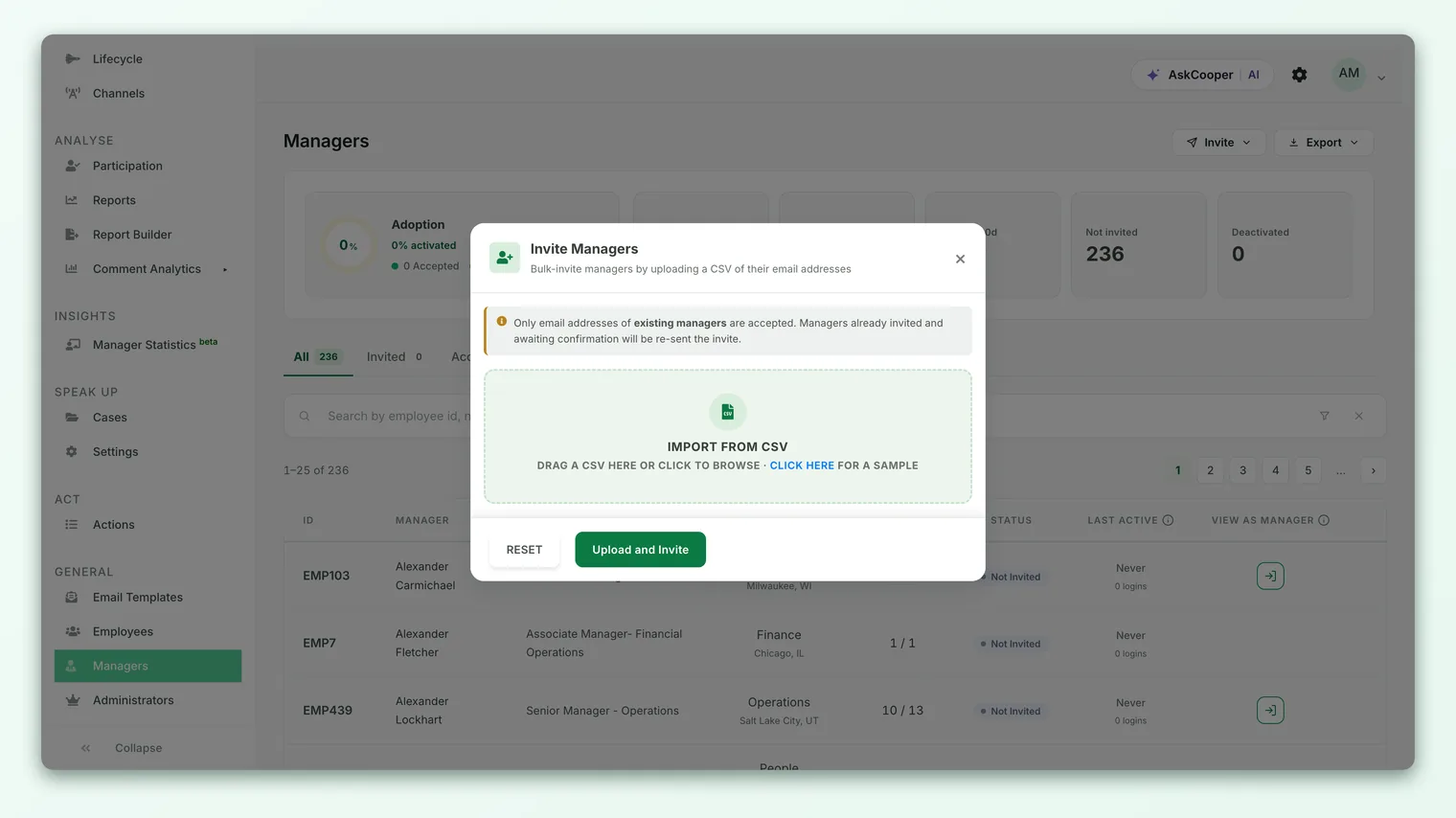
- 2Open the import dialog - click Invite Managers in the actions menu to open the upload panel.
- 3Download the sample - use the "click here for a sample" link in the upload panel to download a ready-made CSV template.
- 4Fill in emails - under the single
email_addresscolumn, list one manager's email address per row. - 5Save as CSV - keep the
.csvformat and the header spelled exactlyemail_address.
The template contains exactly one column:
| Column | Required | What to put in it |
|---|---|---|
email_address | Yes | The email address of an existing manager you want to invite. One per row. |
That's the whole file. There is deliberately no name, team, or reporting column here - all of that already lives in your employee data. The importer matches each email to an existing employee, so the address must match what's in CultureMonkey (matching is case-insensitive, but the address itself must exist).
The first column's header must read email_address. If it's missing or misspelled, the whole upload is rejected with "Missing column 'email_address'. Please verify the header name." Watch out for hidden characters too - copying from a spreadsheet or a rich-text editor can smuggle in invisible formatting marks. A plain-text CSV is safest.
Uploading and inviting many managers at once
With your file ready, the upload is a two-stage flow: CultureMonkey validates the file first, tells you what it found, and only then sends invites.
- 1Choose your file - in the Invite Managers panel, drag your CSV onto the drop zone or click to browse.
- 2Review the validation summary - CultureMonkey checks every row immediately and reports how many managers will be invited, or how many rows have problems.
- 3Fix and re-upload if needed - if there are errors, download the error file (see below), correct those rows, and upload again.
- 4Send the invites - click Upload and Invite. Invites are sent to the valid managers in the background, so a large list won't tie up your screen.
Each invited manager receives an email with an activation link. When they accept, they set a password and gain access to their own manager dashboard. Managers who were already invited but haven't activated yet will simply be re-sent their invite - the import won't create duplicate accounts.
Inviting your entire manager list in one click
If you want to invite every eligible manager rather than a curated list, you don't need a file at all. The actions menu on the Managers page also offers Invite All Managers, which sends an invite to every manager who meets the eligibility rule, and re-sends to anyone already invited and awaiting activation. It's the fastest way to onboard your whole leadership layer at rollout time.
Both the file upload and "Invite All" only invite managers who have more than 3 reports (employees under them). Managers with fewer than three reportees are skipped - this keeps small or incidental reporting relationships from cluttering the manager layer and protects team-level anonymity. If a manager you expected to invite is skipped, check how many active reports they have.
Validation and errors
CultureMonkey validates before it invites, and when a row fails it writes a downloadable error file - a copy of your upload with two extra leading columns, status and errors, so you can see exactly which rows failed and why. Fix those rows and re-upload; you don't need to remove the good ones.
Here are the errors you're most likely to see and how to resolve each:
| Error message | What it means | How to fix |
|---|---|---|
| Missing column 'email_address'. Please verify the header name. | The file has no email_address header (or it's misspelled / has hidden characters). | Rename the first column exactly email_address and re-save as CSV. |
e-mail address: <email> doesn't exist. | No employee in CultureMonkey has that email address. | Check for typos, or import the person as an employee first. |
Employee with email address: <email> is not a reporting manager. | The person exists but isn't flagged as a manager (no one reports to them). | Assign reports to them via manager_email_id in the employee import, then re-invite. |
Manager with email address: <email>, doesn't have more than 3 reports (employees). Only managers with 3 or more employees will be invited. | The manager has fewer than the required number of reportees. | Confirm their reports in the employee data; if correct, this manager simply won't be invited. |
| Forbidden access, employee out of scope | You're a scoped admin (e.g. sub-admin) and this manager is outside the employees you're allowed to manage. | Ask a full admin to invite this manager, or have them added to your scope. |
If any row is invalid, the upload's "Invite" step is blocked until you clean the file - this is intentional, so a partial or typo-laden file never sends a batch of half-right invites. When every row passes, you'll see a green "Success! N manager(s) will be invited" message and can proceed.
Keeping your manager list in sync
Your org chart changes constantly - people join, move teams, get promoted into management, or step out of it. The Managers page is designed to reflect that automatically, as long as your employee data stays current.
- New managers appear automatically once an employee points at them via
manager_email_id. Re-run the manager import (or "Invite All") to send them logins. - Managers who lose all their reports are deactivated automatically and drop off the active list; you'll find them under the Deactivated tab.
- Re-inviting is safe. Re-uploading a file or clicking "Invite All" never duplicates accounts - activated managers are left alone, and pending ones just get a fresh invite.
- Track adoption on the Managers page. The header shows how many managers have been invited, how many have activated, and how many are active in the last 7 and 30 days - a quick read on whether your rollout is landing.
The healthiest pattern is to treat the employee import as your source of truth for who's a manager, and the manager import as a periodic "send logins" action you run after the org chart changes. Keep the first accurate and the second stays trivial.
Frequently asked questions
Why does my file only need an email column?
Because the manager import doesn't build your org chart - it just sends invites. Everything about who a manager is and who reports to them already lives in your employee data. The email address is all CultureMonkey needs to find the right person and invite them.
I uploaded a manager but they were rejected as "not a reporting manager." Why?
Because no one currently reports to that person, so CultureMonkey doesn't consider them a manager. Assign at least one report to them via the manager_email_id column in your employee import, then invite them again.
What's the "more than 3 reports" rule about?
Only managers with more than three reportees are invited, whether by file or by "Invite All." This keeps very small or incidental reporting lines out of the manager layer and helps protect team-level anonymity in reports. Managers below the threshold are simply skipped.
Will re-uploading create duplicate manager accounts?
No. Managers who have already activated are left untouched, and managers who were invited but haven't accepted are simply re-sent the same invite. You can re-run the import as often as you like.
Can a sub-admin import managers?
A scoped sub-admin can only invite managers within the employees they're permitted to manage. Rows for managers outside that scope are rejected with a "Forbidden access" error. A full admin can invite any manager.
How do managers get access after I invite them?
Each invited manager receives an activation email. When they click the link and set a password, they gain access to their own manager dashboard with results and actions for their teams.
Where to go next
- Add or manage individual managers: Add managers
- Understand the reporting hierarchy: Set up manager-employee relationships
- Get your people and org chart in first: Import employees from a CSV
Your feedback helps us improve the Help Center.