

Understanding roles in CultureMonkey
A complete guide to the roles in CultureMonkey - Super Admin, Sub Admin, Manager, Report Viewer and Employee - what each one can see and do, how access is scoped, how to assign a role, and how to choose the right one for each person.
On this page
Roles are how CultureMonkey decides who can see what and who can do what. A Super Admin needs to configure the whole account; a manager should only see their own team; a sub-admin might own a region or a business unit. Getting roles right keeps sensitive results in the right hands, keeps people focused on the data that's theirs to act on, and - crucially - keeps employee responses anonymous.
This guide walks through every role in CultureMonkey: what each can access, how access is scoped to the right people and surveys, how the "view as" acting states let a Super Admin see the product through someone else's eyes, how to assign a role, and how to choose the right one for a given person.
CultureMonkey has one all-powerful Super Admin, plus three scoped login roles - Sub Admin, Manager and Report Viewer - that each see a limited slice of the account. Everyone else is an Employee: they answer surveys but have no login to the admin app. You grant a role from a person's profile, and for a Sub Admin you also choose which teams, locations and attributes they can see.
The roles at a glance
CultureMonkey separates who someone is (an employee in your org) from what they can access (their role in the admin app). Every person you upload is an Employee. From there, you can grant login access at one of a few permission levels.
- Super Admin - full control of the account. The owner who signs your organization up is the first Super Admin.
- Sub Admin - a scoped admin who can create surveys and see reports, but only for the employees within the teams, locations and other segments you assign them.
- Manager - sees engagement results for their own reporting line: their direct and indirect reportees.
- Report Viewer - a read-only role that can view dashboards and reports for their assigned scope, with no ability to create surveys or manage actions.
- Employee - receives and answers surveys, but has no admin login. This is the default for everyone in your org.
The rest of this article unpacks each of these, then covers scoping, acting states, and how to assign them.
Super Admin
The Super Admin is the highest level of access in CultureMonkey. Internally, a Super Admin is simply an admin with no restricting role set - which is why the product treats them as able to do essentially everything.
A Super Admin can:
- Create, schedule and manage surveys, pulses, lifecycle journeys and autopilot segments.
- See all reports and all participation across the entire organization, with no team or location limits.
- View all feedback, star it, and manage the full feedback inbox.
- Create and manage actions across the account.
- Manage employees, managers and administrators - including inviting new admins and assigning roles.
- Configure integrations (Slack, Teams, SSO/SAML), email templates, and account settings.
- Access org-level tools like the shareable report URL, manager buckets and snapshots that scoped roles can't see.
In short, if a capability exists in CultureMonkey, a Super Admin can reach it. Because of that reach, keep the number of Super Admins small - this role can see every employee's results and change how the account behaves.
A Super Admin can view results for every team and location, including small groups. Reserve this role for the people who genuinely need account-wide control (typically HR/People leaders and the account owner). For everyone else, a scoped role is safer.
Sub Admin
A Sub Admin is a scoped administrator. They can do a lot of what a Super Admin does - create surveys, view reports, manage actions - but only for the slice of the organization you assign them. This is the role for a regional HR partner, a divisional lead, or anyone who should own engagement for part of the company but not all of it.
A Sub Admin can:
- Create surveys (unless survey creation is disabled for sub-admins on your account) and view reports for their assigned employees.
- See the dashboard cards and reports panel for their scope.
- View and manage actions - specifically the actions assigned to or created by them, not every action in the account.
- Share reports for their scope.
A Sub Admin cannot see the account-wide feedback inbox, employees list, administrators, integrations or settings, and cannot view the org-level shareable URL or snapshots. Their world is bounded by the segments you give them.
The single most important thing about a Sub Admin is what they can see. If you assign no teams or locations, a Sub Admin can access all employees - effectively an account-wide admin. Always double-check the scope when you create one. See Scoping a Sub Admin below.
Manager
A Manager sees engagement results for their own reporting line - the people who report to them, directly and indirectly, based on your org structure. Managers get a purpose-built Manager dashboard focused on their team's scores, trends and feedback, so they can act on what their people are telling them.
A Manager can:
- See their Manager dashboard and the reports panel for their team.
- View feedback from their reportees (but not account-wide "all feedback").
- Create and view actions for their team.
- Optionally create surveys, if survey creation for managers is enabled on your account.
A Manager cannot see other teams, the employees or administrators lists, settings, integrations, or org-level reports and feedback. A person becomes eligible to be a Manager only when enough people report to them - CultureMonkey requires a minimum of 3 reportees before manager access can be switched on.
For a full tour of what managers see, read Manager dashboard overview.
Because a Manager's view is derived from reporting relationships, keeping your reporting manager field accurate in the employee data is what keeps manager dashboards correct. Org-structure changes can take a few minutes to propagate.
Report Viewer
The Report Viewer (shown in the product as the "Report View" role) is a read-only role. It's the right fit for a stakeholder - an executive sponsor, a works council representative, an external consultant - who needs to see results but should never create surveys, manage actions, or change anything.
A Report Viewer can:
- View dashboard cards and the reports for their assigned scope.
A Report Viewer cannot create surveys, access the feedback inbox, manage actions, see employees or administrators, open settings or integrations, or use email/survey templates. It is deliberately the most limited login role. Like a Sub Admin, a Report Viewer is invited with a defined scope (teams and locations), so they only see the results that are relevant to them.
Employee
Everyone in your organization is an Employee. An Employee receives and answers surveys through email, Slack, Teams or a shared link - no login to the admin app is required to participate. This is the default state for every person you upload, and the vast majority of your people will only ever be Employees.
An Employee has no access to dashboards, reports, feedback or settings. Giving someone a login role (Manager, Sub Admin, Report Viewer or Super Admin) is an additional permission layered on top of their employee record - it never changes their ability to answer surveys.
Granting a role is only about accessing surveys, reports and actions in the admin app. People answer surveys anonymously without logging in, so you never need to hand out admin access just to collect responses.
How access is scoped
Roles don't only decide what features a person sees - they also decide whose data they see. CultureMonkey scopes access along a few dimensions.
Scoping by people (teams, locations, attributes)
For a Sub Admin or Report Viewer, you choose the segments they can access when you assign the role. Depending on how your account is configured, the available dimensions include:
- Business groups (if enabled on your account)
- Teams
- Locations
- Business units
- Sub teams (if enabled)
- Custom attributes - any custom employee attribute your account uses (for example, Department or Grade)
Every employee who falls under the selected segments becomes accessible to that Sub Admin.
If you don't select any business group, team, location, business unit or attribute for a Sub Admin, they get access to all employees. When you intend to limit someone, always confirm at least one segment is selected before saving.
For a Manager, scope isn't chosen manually - it's derived automatically from your reporting structure. A manager sees exactly the people who roll up to them.
Scoping by survey
Beyond people, access can be scoped by which surveys a role can open. When Survey Access is enabled, each admin role can be set to one of:
- All Surveys
- Lifecycle Surveys Only
- Custom Surveys Only
This lets you, for example, give a recruiter access to onboarding lifecycle results without exposing your annual engagement survey. On some accounts, sub-admin access can even be granted survey-by-survey, so a Sub Admin only sees the specific surveys assigned to them.
Scoping by feature flags
Finally, individual capabilities can be turned on or off per account. Survey creation can be disabled for managers and for sub-admins independently; feedback can hide manager or location details from scoped roles; and "view as" options are gated by their own settings. These are account-level configurations rather than role definitions, but they change what a given role can do - so if a role seems to be missing an ability, an account setting may be the reason.
Acting states and "view as"
A Super Admin sometimes needs to see the product exactly as a manager or sub-admin sees it - to help someone troubleshoot, to sanity-check what a scoped role is exposed to, or to preview a manager dashboard before a launch. CultureMonkey handles this with acting states.
When you use View as Manager or View as Sub Admin, CultureMonkey temporarily re-scopes the whole app to that person's view - the same dashboards, the same limits, the same feedback. When you're done, you revert back to your own admin view.
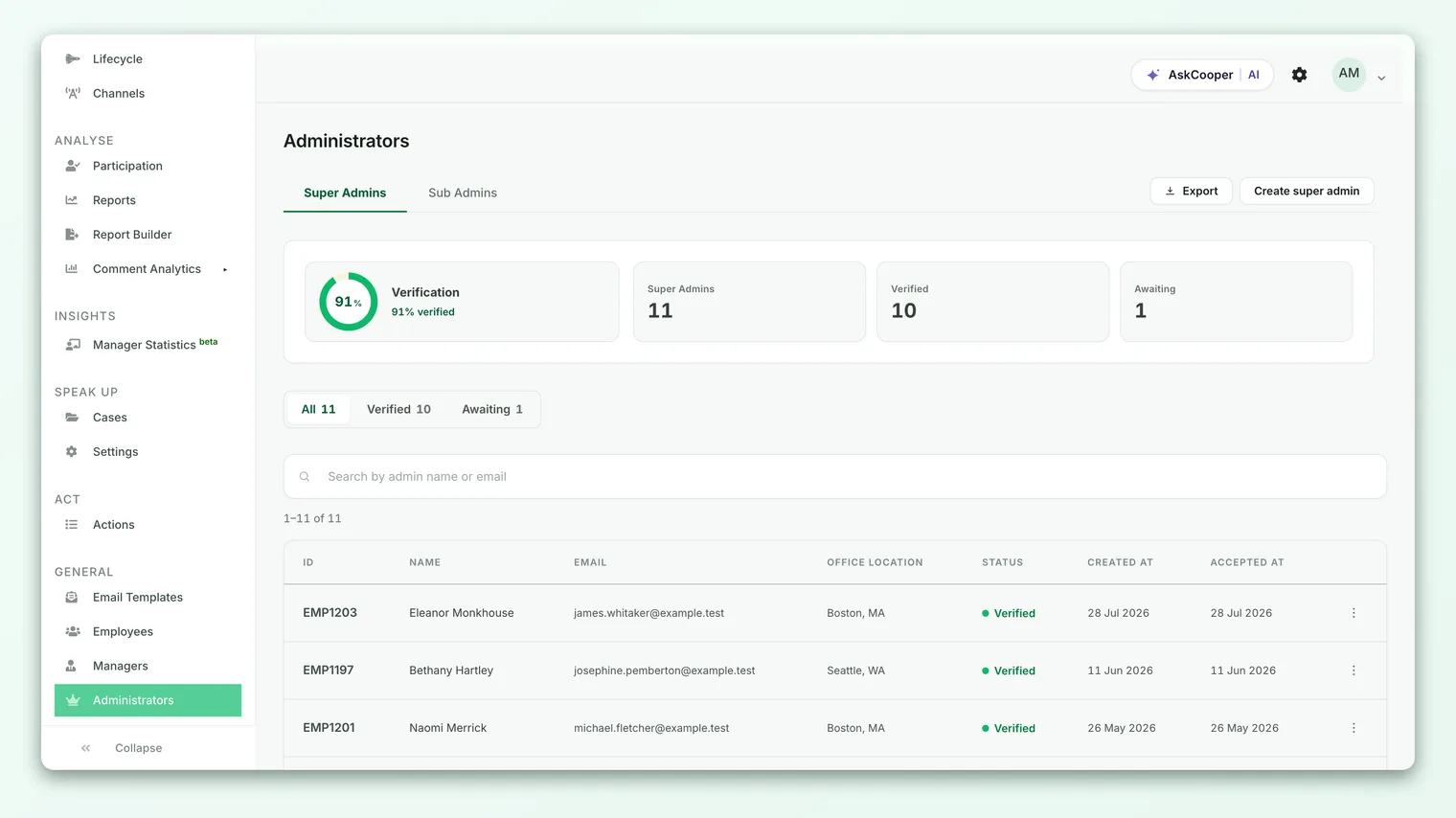
- 1Open the Administrators page - go to General → Administrators at
app.culturemonkey.io/admins. - 2Pick the person - on the Sub Admins tab you'll see a View as Sub Admin link next to eligible admins (when the feature is enabled for your account).
- 3Enter their view - CultureMonkey re-scopes to that sub-admin's access. To preview a manager instead, use the manager's View as option from the Managers area.
- 4Revert when done - use the revert control to return to your own Super Admin view.
A few things worth knowing:
- View as Sub Admin is available to Super Admins. View as Manager can also be extended to sub-admins when View as Manager for sub-admins is enabled, letting a Sub Admin preview a manager within their scope.
- Switching views is temporary and non-destructive - it never changes the other person's data or permissions; it only changes your view.
- For a step-by-step walkthrough, see Switching between views.
How to assign a role
Roles are granted from a person's profile, because a role is access layered on top of an employee record. You'll need to be a Super Admin to assign roles.
- 1Open the person's profile - find them under General → Employees and open their record (or use the Administrators page for existing admins).
- 2Choose the access level - under the access-permission section, tick the level you want: Super-admin, Manager, or Sub-admin. (Manager requires at least 3 reportees to be enabled.)
- 3Set the scope (Sub Admin) - for a Sub Admin, select the business groups, teams, locations, business units and any custom attributes they should access. Leaving these empty grants access to all employees.
- 4Set Survey Access (optional) - if enabled, choose whether the person can access All Surveys, Lifecycle Surveys Only, or Custom Surveys Only.
- 5Save and invite - save the profile. CultureMonkey sends the person an invitation email; access activates once they accept it and set a password.
You can review and manage everyone with login access from the Administrators page, which separates admins into Super Admins and Sub Admins tabs and shows each admin's role in the list.
To invite a brand-new admin who isn't yet in your data, see Invite admins.
Choosing the right role
When you're deciding what to give someone, work from the smallest access that lets them do their job. A quick way to reason about it:
- They own the whole program and configure the account → Super Admin. Keep this list short.
- They own engagement for a region, division or business unit → Sub Admin, scoped to those segments.
- They lead a team and should act on their own people's results → Manager (needs 3+ reportees; scope is automatic).
- They only need to see results, never to change anything → Report Viewer, scoped to what's relevant.
- They just need to answer surveys → leave them as an Employee (no role needed).
It's easier to add access than to explain why someone saw results they shouldn't have. When in doubt, assign the more limited role - you can always broaden it.
Roles vs capabilities
The table below summarizes the practical differences between the login roles. "Scope" columns describe the default behavior; account settings can adjust some capabilities.
| Capability | Super Admin | Sub Admin | Manager | Report Viewer | Employee |
|---|---|---|---|---|---|
| Logs in to the admin app | Yes | Yes | Yes | Yes | No |
| Answers surveys | Yes | Yes | Yes | Yes | Yes |
| Scope of data | Whole org | Assigned segments | Own reporting line | Assigned segments | - |
| Create surveys | Yes | Yes* | Optional* | No | No |
| View reports | All | Their scope | Their team | Their scope | No |
| View feedback | All | No | Their team | No | No |
| Manage actions | All | Own/assigned | Their team | No | No |
| Manage employees & admins | Yes | No | No | No | No |
| Settings & integrations | Yes | No | No | No | No |
| Org-level shareable URL / snapshots | Yes | No | No | No | No |
\* Survey creation for Sub Admins and Managers can be disabled per account.
Frequently asked questions
What's the difference between a Sub Admin and a Manager?
A Manager's access is derived automatically from your reporting structure - they see the people who report to them. A Sub Admin's access is defined manually by the segments you assign (teams, locations, business units, attributes), regardless of reporting lines. Use a Manager for people-leaders acting on their own team; use a Sub Admin for someone who owns a region or division.
Do I need to give someone a role so they can answer surveys?
No. Every person is an Employee and can answer surveys without any login. Roles only govern access to the CultureMonkey admin app - dashboards, reports, actions and settings.
Why can't I enable Manager access for someone?
Manager access requires a minimum of 3 employees reporting to that person. If fewer than three people report to them in your data, the manager option stays disabled until the reporting structure meets the threshold.
If I don't assign any teams to a Sub Admin, what happens?
They get access to all employees. An empty scope is treated as "everything," so always select at least one business group, team, location, business unit or attribute when you intend to limit a Sub Admin.
Can I see the product the way a manager or sub-admin sees it?
Yes. As a Super Admin, use View as Manager or View as Sub Admin to temporarily re-scope the whole app to that person's view, then revert back to your own. It's non-destructive - see Switching between views.
Does changing someone's role affect their survey responses?
No. In CultureMonkey, a role is access layered on top of the employee record. Granting, changing or removing a role never alters the person's past responses or their ability to answer future surveys.
Where to go next
- Bring a new admin on board: Invite admins
- See through someone else's eyes: Switching between views
- Understand the manager experience: Manager dashboard overview
Your feedback helps us improve the Help Center.