

Connect Microsoft Teams to CultureMonkey
How an account admin connects the CultureMonkey app for Microsoft Teams - the install and consent flow, the different app versions, the permissions Microsoft asks for, enabling delivery and reminders, and how to disconnect.
On this page
Connecting Microsoft Teams is the one-time setup that lets CultureMonkey deliver surveys and reminders to your people inside Teams, as a private message from a friendly bot rather than another email in a crowded inbox. It's an admin job, done once per account, and it hands off to Microsoft so your organization can review and approve exactly what CultureMonkey is allowed to do.
This guide is about making the connection. It covers where to start, the consent flow with Microsoft, the different versions of the Teams app you might see, the permissions involved, how to confirm the channel is live, how delivery and reminders draw on the connection, and how to disconnect. Once Teams is connected, the day-to-day of choosing it on a survey lives in a separate guide: Send surveys via Microsoft Teams.
An account admin opens Integrations and then Channels, finds the Microsoft Teams card, and starts the connection. Microsoft asks an administrator to sign in and grant consent for the permissions CultureMonkey needs (reading your directory to match users, and installing the app so it can message people). When you return, the Teams card shows as connected and is ready to enable on surveys. Connecting once covers your whole tenant; you don't repeat it per survey.
Before you start
Connecting Teams touches your Microsoft 365 tenant, so a little preparation avoids a stalled setup:
- You need Microsoft admin consent rights. Because connecting reads your user directory and installs an app for people across the tenant, Microsoft requires an administrator to approve it. If you're a CultureMonkey admin but not a Microsoft 365 administrator, line up whoever can grant tenant-wide consent (often IT or your Microsoft 365 admin) before you begin.
- Teams has to be available on your account. Microsoft Teams is a plan-gated channel. If the Teams card is missing or greyed out on the Channels page, the channel isn't switched on for your account yet. Reach out to your CultureMonkey contact or support to have it enabled.
- Employee emails should match Microsoft 365. CultureMonkey matches each employee to their Teams account by email address. The connection itself doesn't depend on this, but delivery does, so it's worth confirming your CultureMonkey employee emails line up with their Microsoft 365 addresses before you send.
A regular CultureMonkey Survey Admin can enable Teams on a survey once it's connected, but the initial tenant connection has to be done or approved by someone with Microsoft 365 admin consent rights. If you start the flow without those rights, Microsoft will stop you at the consent screen.
Where to start: the Channels page
Everything begins in the same place. In the left navigation, open Integrations, then go to the Channels page. Each channel CultureMonkey can deliver through appears as a card: email, SMS, WhatsApp, Slack, and Microsoft Teams.
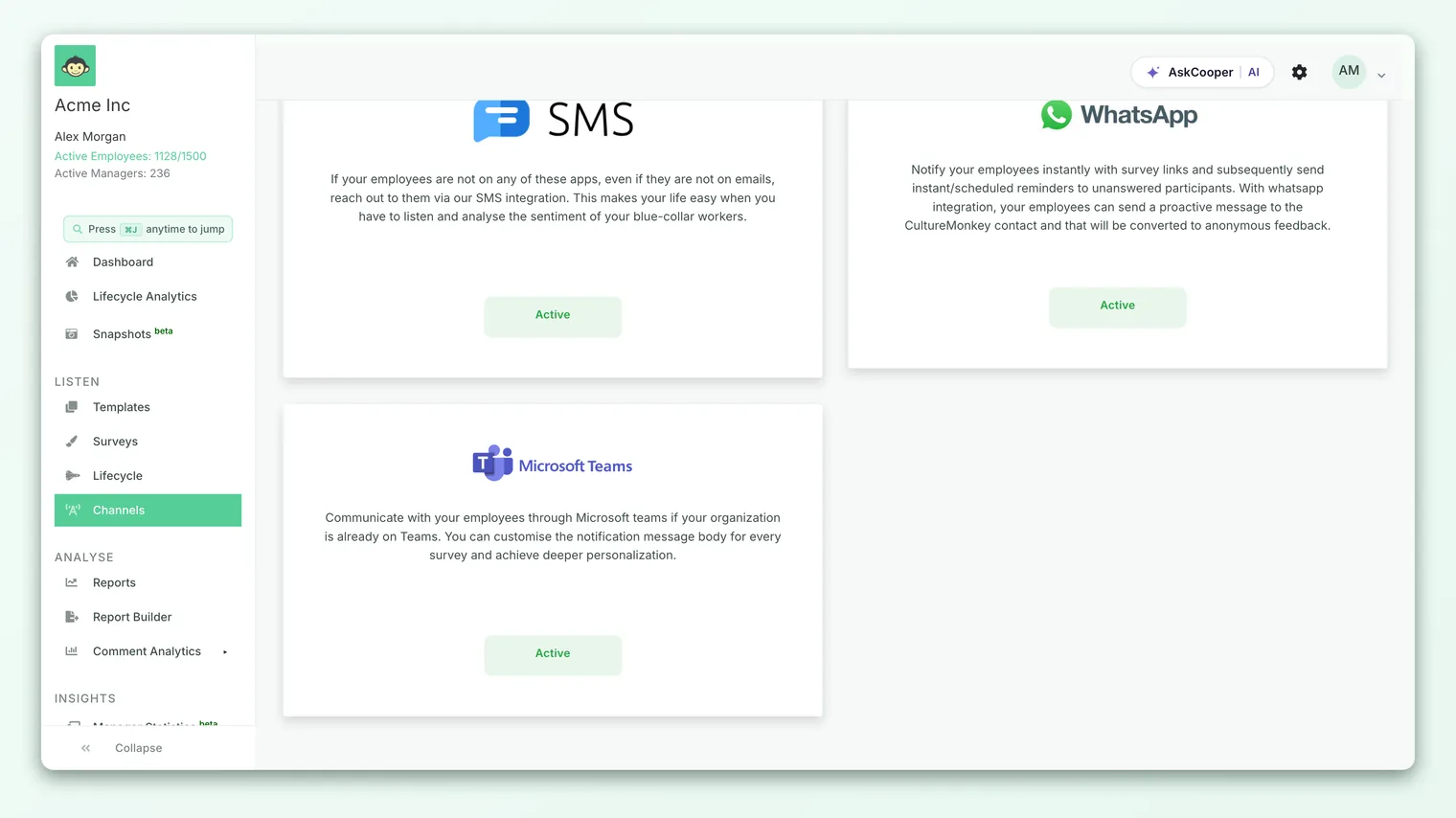
The Microsoft Teams card carries a short description ("Communicate with your employees through Microsoft Teams if your organization is already on Teams") and an action button that starts the connection. Clicking it is what hands you off to Microsoft. If you don't see the card at all, revisit the availability point above.
For a wider view of how Teams sits among CultureMonkey's other connections, see Integrations overview.
The connect and consent flow
Connecting follows the same shape whichever version of the app your account uses. You start from CultureMonkey, authorize in Microsoft, and get sent back with the channel live.
- 1Open the Teams card - go to Integrations, then Channels, and find the Microsoft Teams card.
- 2Start the connection - click the action button on the card. CultureMonkey redirects you to Microsoft to sign in and authorize the app for your tenant.
- 3Sign in as an administrator - use an account that can grant admin consent for your Microsoft 365 organization.
- 4Grant consent - review and approve the permissions CultureMonkey requests. This is where an administrator approves reading your directory (to match users) and installing the app (so it can message people).
- 5Return to CultureMonkey - Microsoft sends you back, and you'll see a confirmation that the Teams channel was configured successfully. The card now reflects a connected state.
Behind the scenes, granting consent gives CultureMonkey a secure token to act on your behalf and makes the CultureMonkey app available in your organization, so the bot can later message each employee. The connection is stored against your whole account (your tenant), which is why you do it once rather than per survey.
If the flow doesn't complete, the page surfaces an error and prompts you to try again. A connection that half completes (for example, consent was granted but the initial sync didn't finish) is worth retrying from the card rather than leaving in place. If it keeps failing at the Microsoft consent screen, that's almost always a rights issue: the signed-in account can't grant tenant-wide consent, and you'll need an administrator who can.
The app versions you might see
Depending on when your account was set up, the Teams app is either published into your own organization's app catalog or uses CultureMonkey's shared app. The connect steps are identical either way; your CultureMonkey contact can confirm which applies to you.
A few practical takeaways from this:
- v1 relies on an app package being published into your app catalog at connect time, so the app shows up under your organization's managed apps in Teams.
- v2 and v3 use CultureMonkey's shared ("public") app, so there's less for you to publish. The main difference between them is when the bot gets installed for each person: v2 installs the bot broadly after connecting, while v3 installs it for each employee at the moment a survey is sent.
- In all versions, email remains the matching key between a CultureMonkey employee and their Teams account.
Which variant runs is controlled by account settings, not a choice you make in the connect screen. If you're unsure which one you're on, or you want to move to the newer flow, ask your CultureMonkey contact rather than trying to switch it yourself.
Permissions Microsoft asks for
The consent screen is where an administrator sees exactly what they're approving. CultureMonkey asks for the minimum it needs to do two things: figure out which Teams account belongs to which employee, and message those people.
Reading your organization's users and their app catalog (to look people up and match them by email), and installing the CultureMonkey app for users (so the bot can send each person a private message). Consent is granted by a Microsoft 365 administrator on behalf of the organization.
In plain terms, the permissions fall into two buckets:
- Read your directory. CultureMonkey needs to look up users by email so it can pair each Microsoft 365 account with the right CultureMonkey employee. Without this, there's no way to know who to message.
- Install the app for users. So the CultureMonkey bot can open a private, one-to-one chat with each matched person and deliver their survey link.
CultureMonkey does not use this access to read the contents of your employees' chats or files. The bot only sends the survey invitations and reminders you configure. Exactly which Microsoft Graph scopes appear depends on the app version your account uses.
Confirming the channel is live
After you return from Microsoft, two signals tell you the connection worked:
- A success confirmation. CultureMonkey shows a message that the Microsoft Teams channel was configured successfully.
- The card's connected state. Back on the Channels page, the Microsoft Teams card reflects that it's connected and ready to use.
If you want to be thorough, you can confirm end to end by enabling Teams on a small test survey and checking that a matched employee receives the bot message. Delivery is reported per channel, so a survey's notification metrics will show Teams success and failure counts once it goes out, which is the surest confirmation that messages are actually reaching people.
Enabling delivery and reminders
Connecting the tenant makes Teams available. It does not automatically route every survey through it, and that's deliberate: you stay in control of which surveys go where.
Once Teams is connected, it appears as a delivery channel while you build or launch a survey, and you turn it on per survey. Reminders ride on the same connection. When a survey is still pending, CultureMonkey can send a nudging reminder through Teams to anyone who hasn't responded, using the same bot and the same private chat as the original invite. First invitations and reminders even use slightly different default wording (the reminder greets the employee by first name and notes that a survey is still pending), and both are customizable per survey so the ask feels relevant.
Because reminders reuse the connection, there's nothing extra to authorize for them. Connect once, and both the initial send and the follow-up reminders are available on every survey where you choose Teams.
The step-by-step of turning Teams on for a specific survey, personalizing the message, and reading delivery metrics is covered in detail in Send surveys via Microsoft Teams. This article stops at the connection; that one takes it from there. For how Teams reminders sit alongside email, Slack, and other nudges, see Distribution channels overview.
Even with Teams connected and healthy, a survey only goes out through Teams if you select it as a channel on that survey. If people aren't getting messages, first confirm Teams is enabled on the survey itself, then check the email-match and delivery points below.
Disconnecting Teams
There isn't a self-serve "disconnect" button on the Teams card the way there is for some channels, so removing the connection is handled with a bit more care. There are two sides to fully disconnecting:
- On the Microsoft side, an administrator can revoke CultureMonkey's consent and remove the app from your organization in the Microsoft 365 or Entra admin center. This is what actually cuts off CultureMonkey's access to your directory and its ability to message people.
- On the CultureMonkey side, contact support to have the Teams channel deactivated for your account so stored tokens are cleared and Teams no longer appears as a delivery option.
If your goal is simply to stop sending through Teams for now, you don't need to disconnect at all. Just don't select Teams as a channel on your surveys. Leaving the connection in place means you can turn Teams back on later without repeating the admin consent flow.
Because the connection is account-wide, removing it turns Teams off for all surveys, not just one. If you only want to skip Teams for a particular survey, change that survey's channels instead of disconnecting the tenant.
Limitations and things to watch
Connecting Teams is straightforward, but a few realities are worth planning around:
- Admin consent is required once. The initial connection needs a Microsoft 365 administrator. Line this up early so it doesn't hold up a launch.
- Availability is plan-gated. If the Teams card isn't there, the channel isn't enabled for your account yet.
- Email must match for delivery. The connection can succeed while individual sends still fail if an employee's CultureMonkey email doesn't match their Microsoft 365 email. This is the single most common cause of a "connected but not receiving" situation.
- Guests and external accounts. People who aren't full members of your Microsoft 365 tenant may not appear in the directory and so may not be reachable.
- The version can differ. Depending on account settings, your connect flow uses one of the app variants above. The experience is the same, but support may reference the version when helping you.
None of these are reasons to avoid Teams. They're reasons to connect it early, keep employee emails clean, and treat Teams as one strong channel in a mix rather than your only route to people.
Frequently asked questions
Do I need to connect Teams for every survey?
No. Connecting is a one-time, account-wide setup. Once it's done, you simply choose Teams as a channel on whichever surveys you want, without reconnecting each time.
Who can connect Teams?
A CultureMonkey account admin starts the flow, but the Microsoft consent step must be completed or approved by someone with Microsoft 365 admin consent rights for your tenant. Those can be two different people working together.
What permissions is CultureMonkey asking for?
Enough to match employees to their Teams accounts (reading your directory) and to message them (installing the app for users). CultureMonkey doesn't read your employees' chats or files; it only sends the survey invites and reminders you configure. See the permissions section above.
Which version of the Teams app will I get?
That's determined by your account settings, not something you pick in the connect screen. Most newer accounts use CultureMonkey's shared public app; some legacy accounts use the classic per-tenant app. If it matters for your setup, ask your CultureMonkey contact.
I connected Teams but people aren't getting messages. Why?
Connection and delivery are separate. First confirm Teams is actually selected as a channel on the survey. Then check for an email mismatch between CultureMonkey and Microsoft 365, which is the most common reason a matched send fails. A survey's per-channel notification metrics will flag Teams failures against specific employees.
How do I disconnect Teams?
An administrator revokes CultureMonkey's consent and removes the app on the Microsoft side, and you can contact support to deactivate the channel on the CultureMonkey side. If you only want to pause sending, just leave Teams unselected on your surveys instead of disconnecting.
Where to go next
- Send through the channel you just connected: Send surveys via Microsoft Teams
- See all your connections in one place: Integrations overview
- Compare Teams against your other delivery options: Distribution channels overview
Your feedback helps us improve the Help Center.