

Send CultureMonkey surveys via Microsoft Teams
How to connect the CultureMonkey app for Microsoft Teams, how employees are matched by email, how the survey arrives as a private bot message, how to enable Teams for a survey, and how anonymity is protected.
On this page
If your organization already lives in Microsoft Teams, it's one of the best places to reach employees for a survey. People are already there through the day, notifications are hard to miss, and the invite lands as a friendly direct message from a bot rather than yet another email in a crowded inbox. Teams is one of several channels CultureMonkey can use to deliver a survey, alongside email, Slack, SMS, and WhatsApp.
This guide walks through the whole picture: connecting the CultureMonkey app for Teams, how we match your employees to their Teams accounts, what the survey looks like when it arrives, how to turn Teams on for a specific survey, and how anonymity is preserved throughout.
An admin connects CultureMonkey to your Microsoft 365 tenant once, from Channels. We match each employee to their Teams account by email address and install a small bot for them. When you enable Teams for a survey, each participant gets a private message from the CultureMonkey bot with a personal link to their survey. The link is anonymous in exactly the same way as every other channel.
Why deliver surveys through Teams
Every channel you add is another chance for someone to actually see and answer the survey. That's the whole idea behind CultureMonkey's omni-channel approach: meet people where they already are. For a workforce that spends its day in Microsoft Teams, delivering there tends to lift participation, because the invite arrives in a tool employees already trust and check constantly.
Teams delivery has a few specific strengths:
- High visibility. A direct message with a badge is much harder to ignore than an email that competes with dozens of others.
- A personal touch. The invite comes as a one to one chat from the CultureMonkey bot, addressed to the individual, not a broadcast to a channel.
- A customizable message. You can tailor the notification text for each survey, so the ask feels human and relevant rather than generic.
- Reach beyond email. Frontline or deskless employees who rarely open email may still be reachable in Teams.
For a fuller comparison of when to use each channel, see Distribution channels overview. If you also use Slack, the flow there is very similar, described in Send surveys via Slack.
Connecting the CultureMonkey app for Teams
Connecting Teams is a one time setup done by an admin. It requires someone who can grant admin consent for apps in your Microsoft 365 tenant, so you may need to loop in your IT or Microsoft 365 administrator for this step.
You'll find channels under Integrations, on the Channels page. Each available channel appears as a card with an action button.
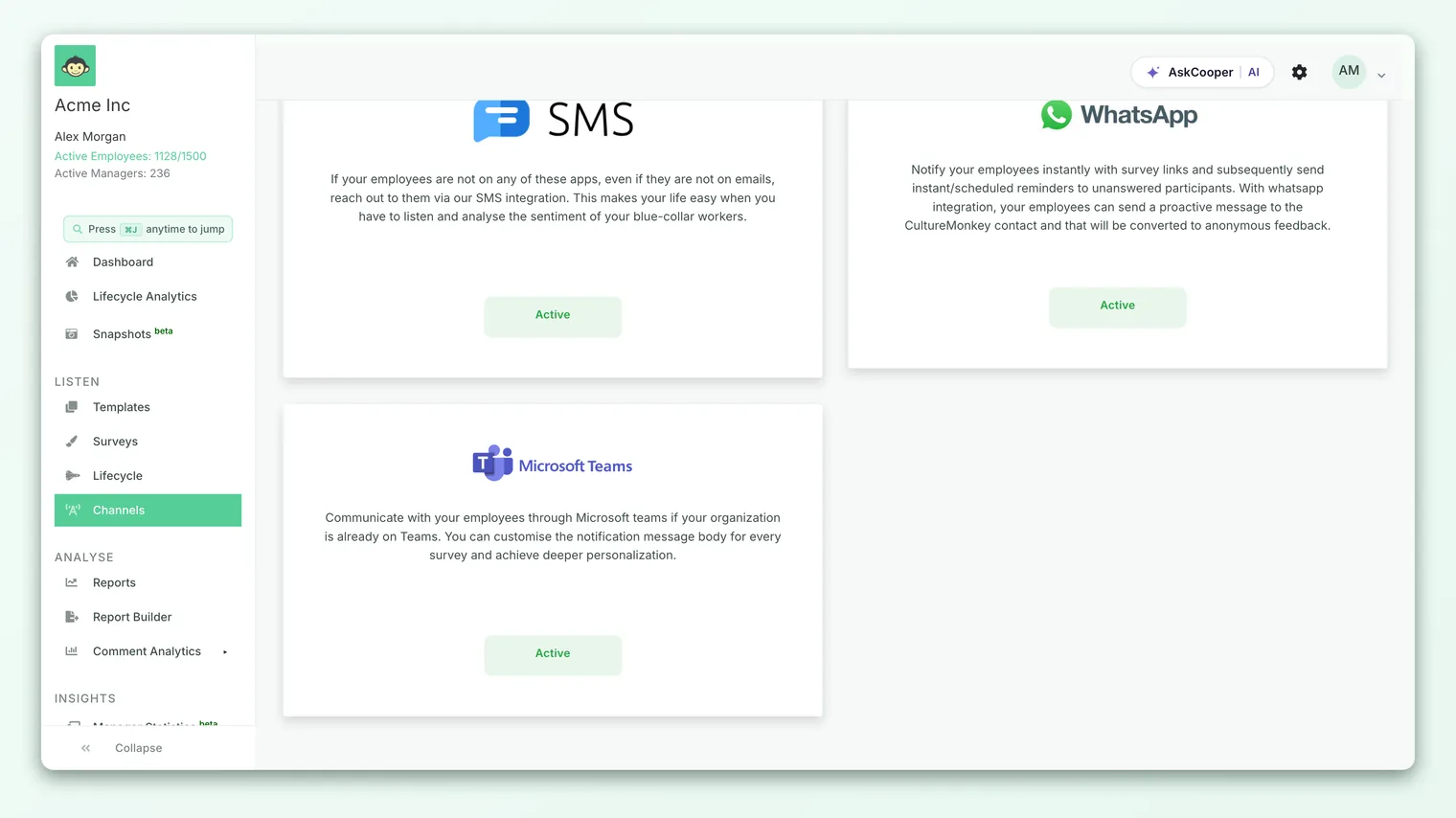
The Microsoft Teams card carries a short description and an Activate button. Clicking it starts the connection:
- 1Open Channels - go to Integrations, then Channels, and find the Microsoft Teams card.
- 2Click Activate - this hands you off to Microsoft to sign in and authorize the CultureMonkey app for your tenant.
- 3Grant consent - sign in as an administrator and approve the permissions CultureMonkey requests (reading your directory so we can match users, and installing the app for people so we can message them).
- 4Return to CultureMonkey - Microsoft sends you back and you'll see a confirmation that the Teams channel was configured successfully. The card now shows as Active.
Behind the scenes, granting consent publishes the CultureMonkey app into your organization's app catalog and gives us a secure token to act on your behalf. If the connection doesn't complete, the page will surface an error and prompt you to try again or contact support. A connection that half completes (for example, consent was granted but the sync didn't finish) is worth retrying from the card rather than leaving in place.
Because connecting installs an app across your tenant and reads your user directory, Microsoft requires an administrator to approve it. A regular CultureMonkey Survey Admin can enable Teams on a survey, but the initial tenant connection has to be done (or approved) by someone with Microsoft 365 admin consent rights.
How employees are matched to Teams
For a survey to reach the right person, CultureMonkey has to know which Teams account belongs to which employee. We do that with the one identifier both systems share: the email address.
After you connect, CultureMonkey reads the users in your Microsoft 365 directory and, for each one, looks up the matching CultureMonkey employee by email. When an employee's email matches a Teams user, we store that link (the Teams user ID paired with the employee) and install the CultureMonkey bot for that person so we're able to message them later. This mapping is what makes personalized, one to one delivery possible.
A few things follow from this:
- Email is the key. An employee's email address in CultureMonkey must match the email on their Microsoft 365 account. If the two differ, we can't match them and they won't receive the Teams message.
- New joiners sync in. When you add employees later, CultureMonkey looks them up in Teams at send time and installs the bot for them on the fly, so you don't have to reconnect the whole tenant every time your headcount changes.
- No match, no delivery. If someone has no Teams account, or their email doesn't line up, the Teams send for that person is logged as a failure. That's expected, and it's exactly why Teams usually rides alongside email rather than replacing it.
The single most common reason a Teams message doesn't arrive is an email mismatch between CultureMonkey and Microsoft 365 (a nickname alias in one place, the primary address in the other). If you sync employees from an HRIS, the same source of truth that feeds CultureMonkey should ideally feed Microsoft 365 too. See Distribution channels overview for how channels fall back to one another.
What the survey looks like in Teams
When a survey goes out on the Teams channel, each participant receives a direct message from the CultureMonkey bot - a private one to one chat, not a post in a shared team or channel. Nobody else sees that an individual was messaged or how they responded.
The message is a short, friendly invitation with a link to that person's survey. For the first invite it reads along the lines of an invitation to take a few minutes to help make your workplace better, followed by the survey link. Reminders use a slightly different, nudging tone, greeting the employee by first name and noting that a survey is still pending. Because the notification text is customizable per survey, you can adjust the wording to fit the occasion, whether that's an annual engagement survey, a lifecycle check-in, or a light pulse.
When the employee taps the link, their survey opens in the browser just as it would from any other channel, with your branding, languages, and questions intact. From the respondent's point of view, Teams is simply the doorbell; the survey itself is the same experience everywhere.
The Teams invite is always a one-to-one bot conversation. This matters for trust: employees can see the invite is personal and private, which reassures them that answering won't be visible to their manager or teammates.
Enabling Teams for a survey
Connecting the tenant makes Teams available; it doesn't automatically send every survey through it. You choose Teams as a delivery channel on each survey, so you stay in control of which surveys go where.
Two conditions have to be true for Teams to appear as an option on a survey:
- The Teams channel is connected for your account (the step above).
- Teams is enabled as a channel for your organization.
When both hold, Teams shows up among the delivery channels while you're building or launching a survey, and you can turn it on for that survey. You can also combine channels: many teams send by both email and Teams so that anyone who misses one still gets the other.
- 1Confirm Teams is connected - check the Channels page shows Microsoft Teams as Active.
- 2Open your survey - create or edit the survey you want to send.
- 3Select Teams as a channel - enable Teams in the survey's delivery settings so it's included when the survey launches.
- 4Personalize the message (optional) - adjust the Teams notification text for this survey to make the ask feel relevant.
- 5Launch - when the survey goes out, participants with a matched Teams account receive the bot message with their link.
After launch, you can see how delivery went. CultureMonkey records notification metrics per channel, including a success and failure count for Teams, so you can confirm messages actually reached people and spot anyone who couldn't be matched.
Anonymity on the Teams channel
A fair question employees ask is: "if the survey came to me personally in Teams, can my answers be traced back to me?" The reassuring answer is no - Teams delivery does not weaken anonymity.
Here's why. The bot message is simply a delivery mechanism. The link it carries points to the same anonymous survey response flow used by every channel. How responses are attributed (or deliberately not attributed) is governed by the survey's own anonymity settings, not by the fact that it arrived through Teams. Sending a link privately in Teams is no different, for anonymity purposes, than emailing that same link to a person's inbox.
On top of that, results are protected by anonymity thresholds: CultureMonkey won't show a breakdown for a group that's too small to be safe, so no individual's response can be inferred from a filter. That protection is identical no matter which channel delivered the survey. To understand exactly how attribution works, see Survey anonymity explained.
When you launch a Teams survey, it's worth reminding employees in your communications that the private message is only the invite, and that their individual answers remain anonymous. People trust the channel more when you name the concern before they do.
Limitations and things to watch
Teams is a strong channel, but keep these realities in mind as you plan:
- Email must match. As covered above, an employee whose CultureMonkey email doesn't match their Microsoft 365 email can't be reached in Teams. Pair Teams with email so nobody falls through.
- Admin setup is required once. The initial connection needs Microsoft admin consent. Line this up early so it doesn't hold up a launch.
- Guests and external accounts. People who aren't full members of your Microsoft 365 tenant may not be reachable through the tenant's directory.
- It's a delivery channel, not a survey surface. Employees answer in the browser via the link; the survey itself doesn't run inside the Teams window.
- Delivery is best-effort per person. If Microsoft rate-limits a large send, CultureMonkey automatically retries; a small number of messages may arrive slightly later than the rest.
None of these are reasons to avoid Teams. They're reasons to treat it as one strong channel in a mix rather than your only route to employees.
Frequently asked questions
Do employees need to install anything?
No. When you connect the tenant and run a survey, CultureMonkey installs its bot for each matched employee automatically. The person just receives a message; there's nothing for them to set up.
Will the survey appear in a team channel where everyone can see it?
No. The invite is always a private, one to one chat between the individual and the CultureMonkey bot. It is never posted to a shared channel, and no one can see who was messaged or how they replied.
Someone didn't get their Teams message. Why?
The most common cause is an email mismatch between CultureMonkey and Microsoft 365, or the person not having a Teams account in your tenant. Check the survey's notification metrics for a Teams failure against that employee, then confirm their email lines up in both systems.
Can I send by email and Teams at the same time?
Yes. Channels aren't mutually exclusive. Many organizations enable both so that anyone who misses one channel still gets the invite through the other, which lifts overall participation.
Does sending through Teams make responses less anonymous?
No. Teams only delivers the link. Anonymity is controlled by the survey's own settings and by anonymity thresholds on results, and those apply identically across every channel. See Survey anonymity explained.
Can I customize the message employees see?
Yes. The Teams notification text can be tailored per survey, so you can match the tone and context of each survey rather than sending the same generic wording every time.
Where to go next
- Compare your delivery options: Distribution channels overview
- Set up the other chat channel: Send surveys via Slack
- Reassure employees about privacy: Survey anonymity explained
- Connect other tools: the Integrations hub
- Teams at a glance: Microsoft Teams integration for CultureMonkey
- Browse every integration: CultureMonkey integrations
Your feedback helps us improve the Help Center.