

CultureMonkey integrations overview
A tour of how CultureMonkey connects to the rest of your stack - the HR integrations you can sync, the channels you deliver surveys through, single sign-on, and API access - plus where each one lives and how to enable, connect, and check its status.
On this page
- The four families of integration
- HR integrations: keeping your people list in sync
- Channels: how surveys reach your employees
- Single sign-on: logging in through your identity provider
- API and data exports
- Enabling, connecting, and checking status
- Who can manage integrations
- Frequently asked questions
- Where to go next
CultureMonkey works best when it plugs into the tools your organization already runs on. Instead of manually uploading spreadsheets, chasing people over email, and copying results into another dashboard, you can wire CultureMonkey to your HR system, your chat and messaging channels, your identity provider, and your data warehouse so that employees, survey invites, logins, and results all flow automatically.
This overview is the map. It explains the four families of integration CultureMonkey supports, where each one lives in the product, and the common pattern for turning one on, connecting it, and confirming it's working. Once you know the shape of things here, the individual setup guides (linked throughout) will make a lot more sense.
CultureMonkey integrations fall into four groups: HR integrations (sync employees from your HRIS), channels (deliver surveys over email, Slack, Teams, SMS, and WhatsApp), single sign-on (SAML and social login), and API and data exports (push results to your warehouse or pull them programmatically). HR integrations and data exports live on the Integrations page; channels live on the Channels page; SSO and API access are configured with help from your account team.
The four families of integration
It helps to think of integrations by the job they do rather than by the vendor name. Every connector CultureMonkey offers falls into one of these four buckets.
| Family | What it does | Where it lives |
|---|---|---|
| HR integrations (HRIS) | Sync employees and their profile attributes into CultureMonkey automatically | Integrations page, "HR Integrations" tab |
| Channels | Deliver surveys and reminders and collect responses over the tools employees already use | Channels page |
| Single sign-on (SSO) | Let people log in with your identity provider instead of a separate password | Configured with your account team |
| API and data exports | Send results to your data warehouse, or drive CultureMonkey programmatically | Integrations page, "Data Exports" tab; plus the CultureMonkey API |
The rest of this article walks through each family, then covers the mechanics that are common to all of them: enabling, connecting, and checking status.
HR integrations: keeping your people list in sync
Your employee list is the foundation of everything in CultureMonkey. If it's stale, surveys go to the wrong people, demographics are wrong, and reports mislead. An HR integration (also called an HRIS connector) solves this by syncing employees and their attributes (department, location, manager, join date, and more) directly from your system of record on a schedule, so you never have to re-upload a spreadsheet.
You'll find HR integrations on the Integrations page, which sits in the left sidebar under the General group with a plug icon. The page opens on the HR Integrations tab, where each available connector appears as a card with its logo, name, and a short description of what it syncs.
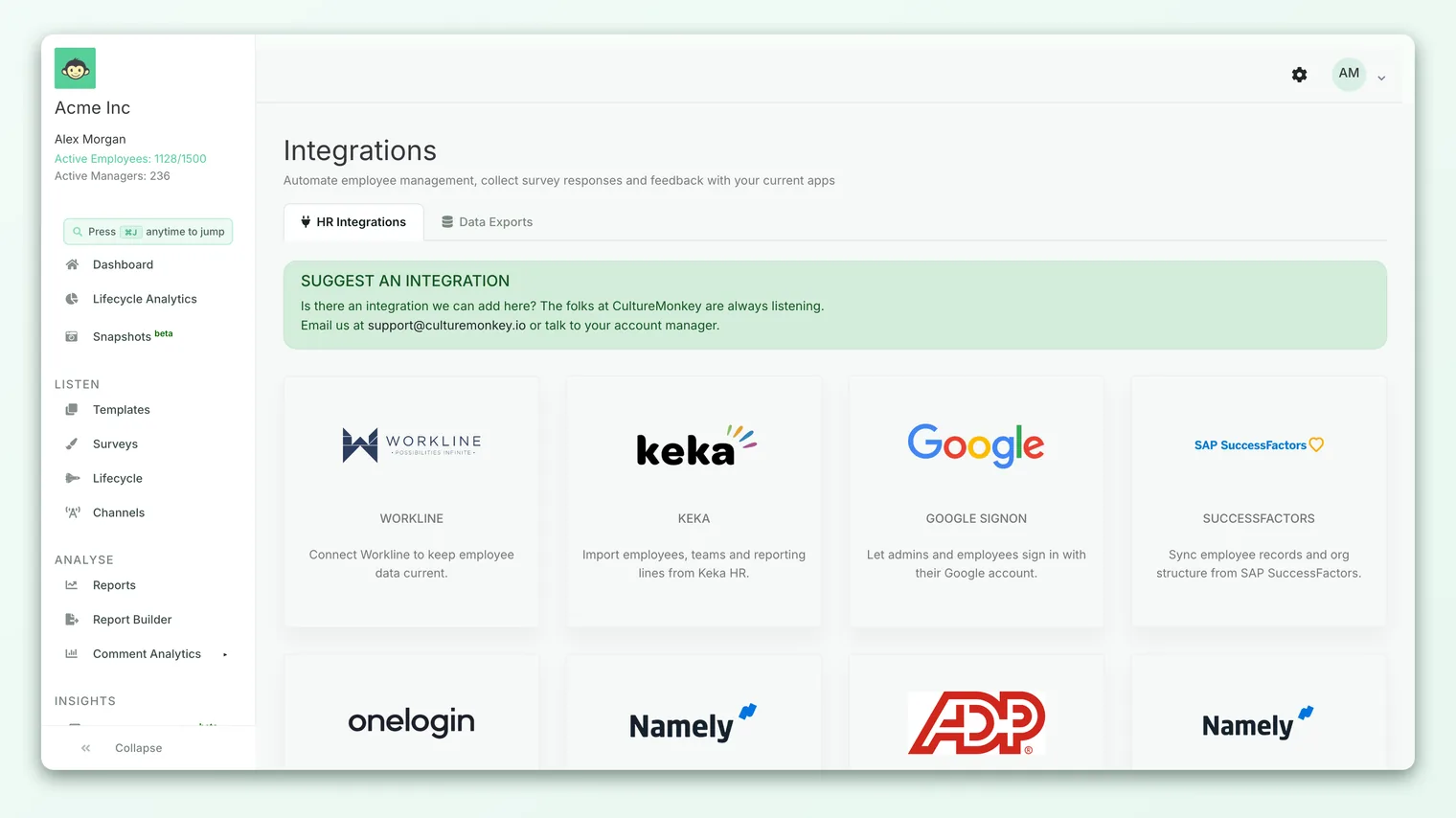
CultureMonkey supports a range of HR systems, including BambooHR, Darwinbox, Zoho People, Workday, Keka, SuccessFactors, and Workline, among others. Some connectors sync on a fixed cadence once connected; others let you trigger a first sync manually. Because the exact list and connection method vary by provider (OAuth redirect, a subdomain and key, or a scheduled pull), the step-by-step details live in a dedicated guide: see Connect an HRIS to sync employees and the provider-specific pages it links to.
If your HR system is on the supported list, an integration is almost always the better choice because it keeps itself current. A one-time CSV import is best for a quick start, a pilot, or a system that CultureMonkey doesn't yet connect to directly.
If you don't see your HR system on the page, each card for an unsupported provider shows a Contact Us button. Using it sends a request to your account team so they can tell you about roadmap plans or help with an alternative.
Channels: how surveys reach your employees
A channel is a delivery route - the medium employees receive a survey invite or reminder through, and often the medium they respond through too. Meeting people where they already are is one of the most reliable ways to lift participation, so CultureMonkey takes an omni-channel approach.
Channels live on their own Channels page, in the sidebar under the Listen group with a broadcast-tower icon. Each channel appears as a card describing what it does and whether it's active for your account.
The channels available are:
| Channel | Best for | Notes |
|---|---|---|
| The default for most workforces | Always on; CultureMonkey manages email delivery for your domain end to end | |
| Slack | Teams that live in Slack | A dedicated CultureMonkey bot DMs invites and reminders and collects anonymous responses |
| Microsoft Teams | Organizations standardized on Teams | The CultureMonkey bot delivers surveys inside Teams |
| SMS | Deskless and blue-collar staff without regular email | Text-message invites and reminders |
| Reaching people on their phones, including proactive feedback | Employees can also message the CultureMonkey contact to raise anonymous feedback |
Email is available to every account and is always connected, so there's nothing to switch on. The chat channels (Slack and Microsoft Teams) require a one-time connection because they install a bot into your workspace and grant CultureMonkey permission to message your people. SMS and WhatsApp are enabled at the account level by your account team and then appear as active once switched on.
For the day-to-day of sending through each channel, see Send surveys over Slack, Send surveys over Microsoft Teams, Send surveys over SMS, and Send surveys over WhatsApp. To connect Slack specifically, start with Connect Slack.
Some accounts have the Channels menu turned off (for example, when delivery is managed centrally). If you can't see Channels in the sidebar, that's a deliberate account setting rather than a missing feature. Your account team can confirm.
Single sign-on: logging in through your identity provider
Single sign-on (SSO) lets employees and admins sign in to CultureMonkey using your organization's existing identity provider instead of a separate CultureMonkey password. That means fewer passwords to manage, centralized access control, and automatic offboarding when someone leaves.
CultureMonkey supports SAML-based SSO, which works with identity providers such as Okta, Azure AD / Microsoft Entra, OneLogin, and Google Workspace. It also supports social sign-in options so people can log in with a familiar account.
Because SSO involves exchanging certificates and metadata between CultureMonkey and your identity provider, it's set up in partnership with your account team rather than from a self-serve card. You provide your IdP metadata, CultureMonkey provides its service-provider details, and the connection is tested before it goes live. For the full walkthrough, see Set up SAML single sign-on.
SSO handles authentication (who can log in). Keeping the actual list of people current is a job for your HR integration or SCIM provisioning. Many organizations run both: SSO for login, an HRIS connector for the employee list.
API and data exports
The fourth family is about moving data in and out of CultureMonkey programmatically.
Data exports (warehouse sync) push your survey and participation data into your own data warehouse so your analytics team can blend engagement metrics with other business data. You'll find these on the Integrations page under the Data Exports tab, right next to HR integrations. From there you can create a warehouse connection, trigger a sync, and review connection logs. The tab also shows how many export integrations are currently active.
The CultureMonkey API lets you drive the platform from your own systems: for example, fetching survey templates, sending a survey, or checking a survey's status and participation programmatically. API calls authenticate with an API key tied to your account. For how to generate, reveal, and revoke keys, see Manage API keys.
An API key grants access to your account's data. Store it securely, never commit it to a public repository, and revoke and regenerate it immediately if you suspect it has leaked.
Enabling, connecting, and checking status
Across all four families, the lifecycle of an integration follows the same three stages. Knowing them makes every connector easier to reason about.
- 1Enable (make it available) - Some integrations are visible to everyone; others are switched on for your account first. Channels like SMS and WhatsApp, the visibility of the Integrations page itself, and SSO are enabled at the account level, sometimes with help from your account team. Once enabled, the integration appears as an actionable card rather than a "Contact Us" prompt.
- 2Connect (authorize it) - This is the one-time handshake. For OAuth-based connectors (Slack, Teams, several HR systems) you click Connect or Activate and approve access in the provider's own window. For key-based connectors you enter a subdomain and credentials. For SSO you exchange metadata. After a successful connection you're returned to CultureMonkey with a confirmation message.
- 3Check status (confirm it's working) - The card's button reflects the current state, so a glance tells you whether an integration is live.
The status labels are worth memorizing because they mean the same thing everywhere:
| What you see | Family | Meaning |
|---|---|---|
| Connect | HR integrations | Available for your account, not yet connected |
| Connected | HR integrations | Authorized and syncing (the card is highlighted) |
| Activate | Channels | Available, not yet linked |
| Active | Channels | Linked and delivering |
| Contact Us | Both | Not available on your plan yet; opens a request to your account team |
For channels that support it (Slack, for example), a connected card can also show a Deactivate option so you can revoke access cleanly. Deactivating Slack revokes the bot's permissions and stops it from delivering notifications, so only do it when you intend to stop using that channel.
"Connected" or "Active" means the authorization worked. For HR integrations, the first employee sync then runs on a short delay and can take a little while for large organizations. If a connector shows as connected but you don't see synced employees yet, give the first sync time to finish before troubleshooting.
Who can manage integrations
Setting up integrations is an Account Admin responsibility. The Integrations and Channels pages are gated by the "view integrations" permission, so admins with that access see them in the sidebar and other roles do not. This keeps sensitive connections (which can grant access to your HR data and messaging tools) in the hands of the people accountable for them. For a full breakdown of what each role can do, see Understand roles and permissions.
Frequently asked questions
What's the difference between the Integrations page and the Channels page?
The Integrations page (plug icon, under General) is for syncing data: HR systems on the "HR Integrations" tab and warehouse exports on the "Data Exports" tab. The Channels page (broadcast-tower icon, under Listen) is for delivery: the routes surveys travel to reach employees, such as email, Slack, Teams, SMS, and WhatsApp.
My integration says "Contact Us" instead of "Connect." Why?
That connector isn't available on your account yet. The button sends a request to your CultureMonkey account team, who can enable it, discuss plan availability, or suggest an alternative. Once it's enabled for you, the card switches to a Connect or Activate button.
I don't see the Channels (or Integrations) menu at all. What happened?
Both pages can be hidden by account-level settings, and they require the "view integrations" permission. If you're an admin and still can't see them, the page has likely been intentionally hidden for your account. Your account team can turn it back on.
Do I need an HR integration if I already use SSO?
Usually yes. SSO controls who can log in, but it doesn't necessarily keep your full employee list and their attributes current. An HR integration (or SCIM provisioning) handles the roster. Many organizations run both together.
How do I disconnect an integration?
It depends on the connector. Some channels expose a Deactivate button on the connected card (Slack is one), which revokes access immediately. For others, and for HR integrations, contact your account team to disconnect safely so that in-flight syncs and deliveries are handled cleanly.
Where to go next
- Sync your people automatically: Connect an HRIS to sync employees
- Deliver over chat: Connect Slack
- Centralize login: Set up SAML single sign-on
- Automate with the API: Manage API keys
- Just getting started with people data? Import employees from a CSV
Connectors, sign-on and the API sit in different sections of this Help Center. All of them:
- Which systems are supported: Connect an HRIS to CultureMonkey: supported systems
- Workday: Connect Workday to CultureMonkey
- BambooHR: Connect BambooHR to CultureMonkey
- Darwinbox: Connect Darwinbox to CultureMonkey
- Keka: Connect Keka to CultureMonkey
- Match their fields to ours: Configure HRIS field mapping in CultureMonkey
- How the import works: HRIS import overview - keep employees in sync with CultureMonkey
- A sync that stopped: HRIS sync isn't updating in CultureMonkey: how to diagnose it
- Slack: Connect Slack to CultureMonkey
- Microsoft Teams: Connect Microsoft Teams to CultureMonkey
- Single sign-on: Set up SAML single sign-on for CultureMonkey
- The API: Generate CultureMonkey API keys and use the API
- SMS providers: Set up an SMS provider for CultureMonkey (Twilio and Infobip)
- WhatsApp: Set up WhatsApp for CultureMonkey surveys
Your feedback helps us improve the Help Center.