

See driver-wise action stats
How to read your action plans grouped by engagement driver in CultureMonkey - which drivers have the most and fewest actions, how completion looks per driver, and how to confirm you're acting on your weakest drivers, not just the easy ones.
On this page
Creating action plans is only half the job. The other half is making sure your effort is landing where it's actually needed. It's surprisingly easy to pile actions onto the topics that feel urgent or easy to fix, while the drivers that are quietly dragging your engagement down get little attention.
Driver-wise action stats give you that check. They group your action plans by the engagement driver each one is tied to, so you can see at a glance which drivers you're working on hardest, which you've barely touched, and how much of that work you've actually finished. This guide covers where to find these stats in CultureMonkey, how to read them, and how to use them to make sure you're acting on your weakest drivers rather than your favorite ones.
Every action plan in CultureMonkey is attached to a driver. The Action summary groups your actions by driver so you can see a Top drivers ranking (which drivers have the most actions) and status counts (To do, In progress, Completed). Use it to confirm your weakest-scoring drivers are also the ones you're acting on most, and that those actions are getting completed, not just created.
What "driver-wise" means here
A driver is one of the themes CultureMonkey measures engagement across (things like Recognition, Manager Relationship, Growth, or Work-Life Balance). Every survey question rolls up into a driver, and every driver gets a score. If you're new to this, read Understand drivers and factors first, because the whole point of driver-wise action stats is to connect your action on a driver back to its score.
When you create an action plan in CultureMonkey, it's tagged with the driver it addresses. Driver-wise stats simply take all of your actions and group them by that tag. Instead of one long, flat list of action plans, you get a picture organized around the themes that matter to your people:
- How many actions exist for each driver.
- What status those actions are in (To do, In progress, Completed).
- How that compares across drivers, so you can spot the ones with lots of activity and the ones with almost none.
That grouping is what turns a to-do list into a diagnostic.
Why act on your weakest drivers first
The reason this view matters is simple: the drivers with the lowest scores are the ones hurting engagement the most, so they're where action pays off fastest. But those aren't always the drivers that get the most attention.
In practice, teams tend to over-index on:
- Easy wins - low-effort actions that feel productive but touch a driver that was already healthy.
- Loud topics - whatever came up most in the last meeting, which may or may not be your weakest area.
- Familiar ground - the drivers a manager is personally comfortable with.
Driver-wise action stats let you sanity-check this. If your Recognition score is your lowest and yet you have twelve actions on Communication and only one on Recognition, that's a mismatch worth fixing. The goal is alignment: your action volume should broadly track your score gaps, with the weakest drivers getting real, completed work.
Driver-wise action stats tell you where you're acting. Your report tells you where you should be acting. Read them side by side. The drivers that are low-scoring but low-action are your blind spots.
Where to find driver-wise action stats
Driver-wise stats live inside the Actions area, which you reach from Act in the main navigation. Open the Action summary view, which sits above your list of action plans and rolls everything up into cards.
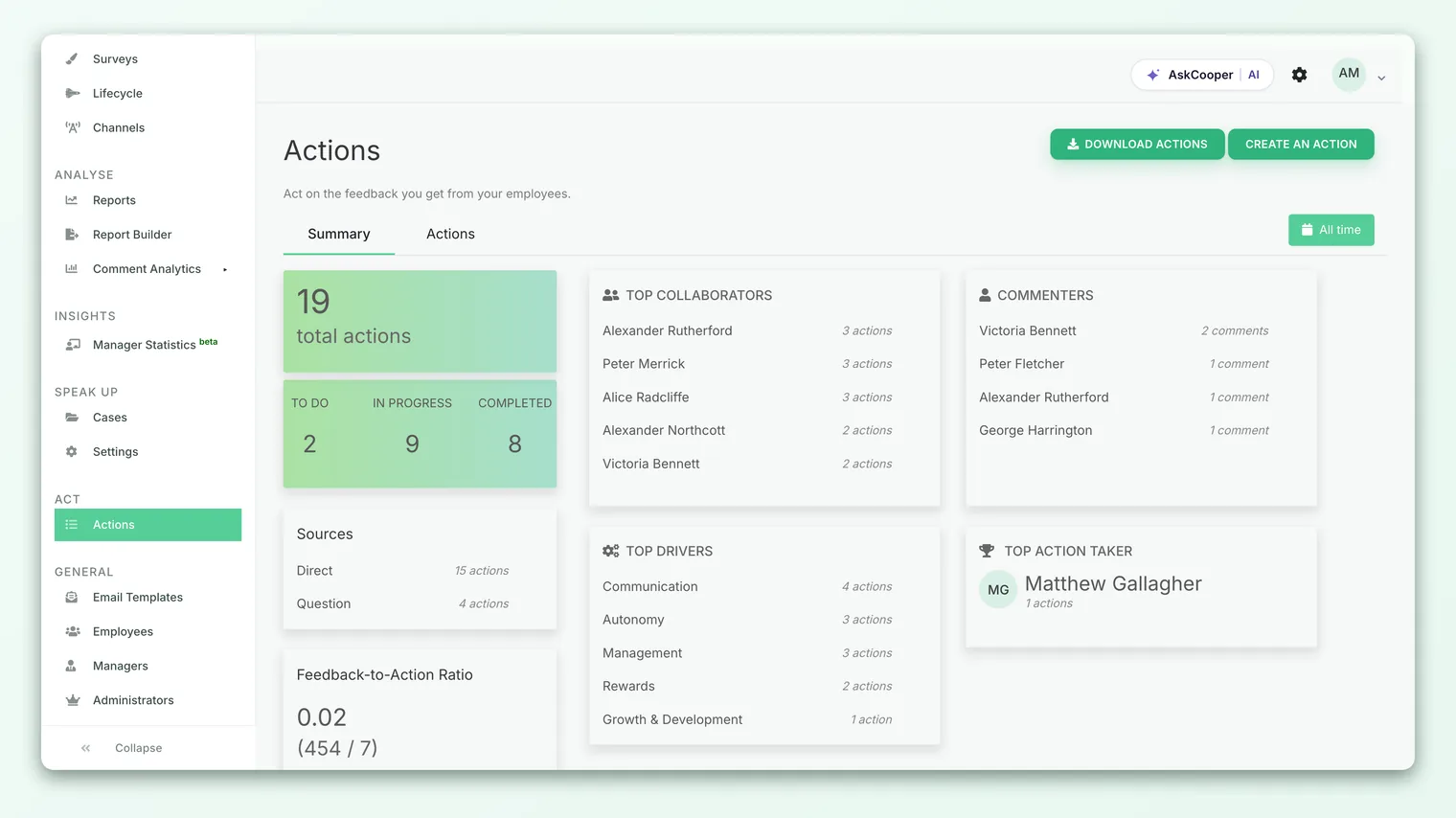
Two parts of this summary are driver-wise:
- Top drivers - a ranked list of the drivers with the most action plans attached, showing the count for each. This is your "where is the effort going" view.
- Status counts - the To do, In progress, and Completed totals across all your actions, which you read alongside the driver ranking to judge completion.
- 1Open Act - click Act in the left navigation to reach your action plans.
- 2View the Action summary - the summary cards sit at the top of the Actions page, above the list itself.
- 3Read the Top drivers card - see which drivers have the most actions and how they rank.
- 4Check the status counts - use the To do / In progress / Completed totals to see how much of that work is actually finished.
Reading the Top drivers ranking
The Top drivers card lists your most-actioned drivers in order, highest count first, with the number of action plans for each. Reading it well is about what you compare it against.
A worked example. Say the card shows this:
| Driver | Actions |
|---|---|
| Communication | 9 |
| Growth & Development | 6 |
| Manager Relationship | 4 |
| Work-Life Balance | 3 |
| Recognition | 1 |
On its own, this just says you're busiest on Communication. The insight comes when you lay it next to your driver scores from your latest report. If Communication is already one of your stronger drivers and Recognition is your lowest, the ranking is a warning sign: your single most neglected driver in the action list is the one your people are least happy with.
The healthy pattern is roughly the inverse of your scores: your lowest-scoring drivers should appear near the top of the action ranking, because that's where the need is greatest. When a high-scoring driver dominates your actions and a low-scoring one barely registers, rebalance.
The ranking only lists drivers that have at least one action plan. A weak driver with no actions won't show up here at all, which is exactly the gap you want to catch. Always cross-reference against the full list of drivers in your report, not just the ones on this card.
Reading completion by driver
Volume isn't the whole story. Ten actions on a driver mean little if all ten are sitting untouched in To do. Completion is what actually moves a score.
Action plans in CultureMonkey move through three states:
| Status | What it means |
|---|---|
| To do | Created but not started. Intent, not yet impact. |
| In progress | Actively being worked on. |
| Completed | Finished. This is the work that can move the next survey. |
The Action summary shows these counts across all your actions. To judge completion for a specific driver, filter or open the action list for that driver and look at how its actions are distributed across the three states. A driver where most actions are Completed is one you're genuinely closing out. A driver where actions keep piling up in To do is one where you're planning to act but not acting, which is a different problem from not planning at all, and needs a different fix (usually owners and deadlines, not more actions).
A driver at the top of the ranking with almost nothing Completed can look like progress but isn't. It often means actions are being created to acknowledge feedback and then stalling. Watch completion, not just volume.
The Owner status report export
For a fuller, spreadsheet-level view, CultureMonkey can export a driver-wise action report. On the Actions page, open the Export menu and choose Owner status report (described in-product as "Track actions by owner and driver"). It downloads an Excel file with one row per owner and driver, including columns for Total Actions, Todo, In progress, Completed, and total comments, plus the relevant driver score for the period.
That last column is what makes the export powerful: it puts the driver's score right next to the action counts, so the "am I acting on my weakest drivers" question answers itself in a single sheet. Sort by driver score, ascending, and read across to the action columns. Your lowest scores should have healthy Total Actions and rising Completed counts.
The Owner status report is available to Account Admins (super admins), and only when the driver-wise report is enabled for your account. If you don't see the Owner status report option in the Export menu, it isn't turned on for your account yet.
Pending actions by driver
If you or your managers use the manager dashboard, you'll also see a Pending actions by driver card. This is a focused slice of the same idea: it lists drivers that have actions still open (in To do or In progress), so the work that hasn't landed yet stays visible. It's a useful nudge, but remember it deliberately excludes Completed actions, so it's not a measure of total effort on a driver, only of what's still outstanding.
Best practices
- Read stats against scores, always. The ranking is only meaningful next to your driver scores. Low score plus low action equals blind spot.
- Prioritize your bottom two or three drivers. You can't fix everything at once. Make sure your weakest few drivers each have at least one owned, deadlined action.
- Watch completion, not just creation. A driver full of To do actions isn't being acted on. Move things to Completed.
- Rebalance when a strong driver dominates. If most of your actions sit on already-healthy drivers, redirect effort.
- Re-check each cycle. After a new survey, revisit which drivers moved and whether your action mix still matches your score gaps. See Track driver trends over time.
Frequently asked questions
How does an action get linked to a driver?
When an action plan is created, CultureMonkey tags it with the driver it addresses. Actions created from feedback or from a report usually inherit the driver from their source. That tag is what the driver-wise stats group on.
Why doesn't my weakest driver show in the Top drivers list?
Because the ranking only includes drivers that have at least one action. A weak driver with zero actions is invisible here, which is precisely the gap to catch. Cross-reference against the full driver list in your report.
Is this the same as the action summary report?
They're closely related. The action summary report covers your totals and completion by owner and driver together. Driver-wise action stats are the driver-focused cut of that same data. Use the summary for the overview and this view when you specifically want to reason about drivers.
Do these counts include everyone's actions or just mine?
It depends on your role. Account Admins see actions across the CultureMonkey account; sub-admins and managers see the actions within their access scope. So the same summary can show different totals depending on who's viewing it.
Should action volume exactly match my score gaps?
Not exactly, but broadly. Some low-scoring drivers need one big, high-impact action rather than many small ones. The goal isn't matching counts precisely, it's making sure your weakest drivers get real, completed attention rather than being skipped.
Where to go next
- The whole process in one page: How action planning works in CultureMonkey
- See the full totals-and-completion picture: View the action summary report
- Understand what a driver is: Understand drivers and factors
- See whether your actions are moving scores: Track driver trends over time
Your feedback helps us improve the Help Center.