

Configure HRIS field mapping in CultureMonkey
A complete guide to mapping your HRIS provider fields to CultureMonkey employee attributes for a live sync - which fields are mandatory, how to map standard and custom attributes, how to split combined fields, and how to fix mismatches.
On this page
When you connect an HRIS to CultureMonkey, the two systems have to agree on what each piece of employee data means. Your provider might call it firstName; CultureMonkey stores it as First Name. Your HRIS might pack a whole department hierarchy into one field; CultureMonkey wants just the sub-team out of it. Field mapping is where you draw those connections, telling the sync exactly which provider field fills each CultureMonkey attribute.
This is the setup that makes a live sync trustworthy. Get it right and every scheduled refresh lands people in the correct team, wires up the reporting hierarchy, and fills your custom attributes without anyone lifting a finger. Get it wrong and you'll see blank fields, broken manager lines, or people who never sync at all. This guide walks through where mapping lives, which fields you must map, how to map standard and custom attributes, how to split combined provider fields, and how to handle the mismatches that come up with real HR data.
HRIS field mapping matches each provider field to a CultureMonkey employee attribute, one mapping row per attribute. You must map the seven mandatory fields: First Name, Last Name, Email Address, Employee ID, External ID, Team Name, and Location Name. External ID is the stable identifier the sync keys on. Standard and custom attributes both map the same way, and a mapping can either copy a field directly or split a combined field to extract one segment.
HRIS mapping vs CSV mapping
If you've done a CSV import, the idea here will feel familiar, but the two are not the same screen and it's worth being clear about the difference.
A CSV import reads the header row of a file you upload and offers those headers as choices in a guided, per-import flow. You confirm the mapping each time you upload, and CultureMonkey previews the first rows before anything is written. That flow is covered in Map your import fields to CultureMonkey attributes.
HRIS mapping is different because the source is a live system, not a file. There's no header row to read, so you type the provider's field name yourself, and the mapping is saved once as a persistent rule set that every future sync reuses automatically. You configure it a single time when you connect, and the scheduled sync applies it silently from then on. Because the data arrives straight from the provider on a schedule, there's no per-import preview step, which makes getting the mapping right the first time more important.
The set of CultureMonkey attributes you map to is the same in both cases. Only the source and the moment of configuration differ.
Where mapping lives
HRIS mappings are managed on the Employee Attribute Mappings page, reached from Integrations. It's a standalone list of rules rather than a step inside a wizard, so you can review or adjust your mapping any time, independent of when the next sync runs.
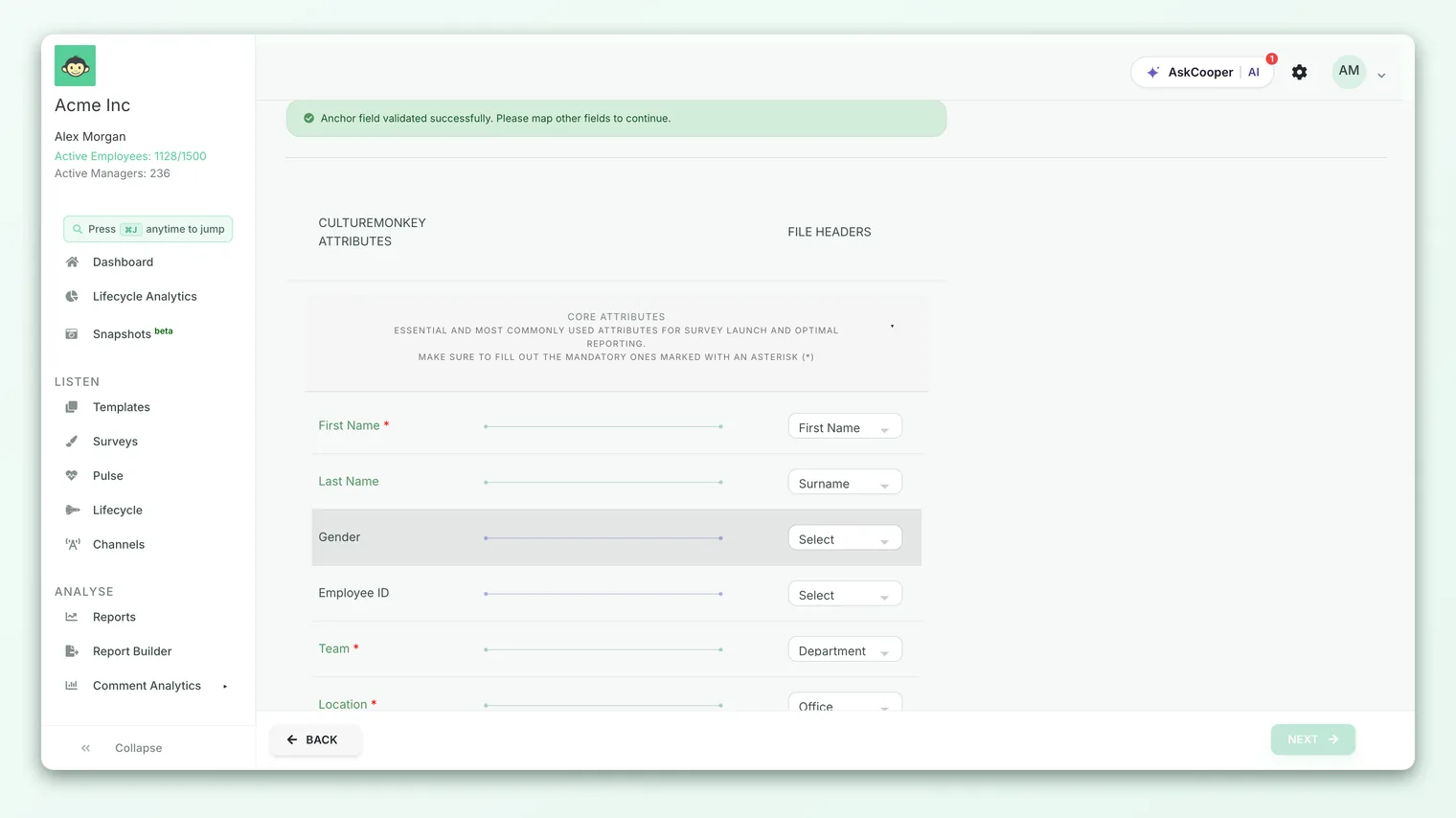
At the top of the page sits an IMPORTANT RULES panel worth reading before you start - it spells out the mandatory-field requirement, the accepted values for certain fields, and a couple of provider-specific quirks (covered below). Below it, the Mapped Fields list shows every mapping you've created, each row displaying the CultureMonkey field, its internal key, the provider key it's matched to, and whether it's a standard or custom attribute. An ADD MAPPING button starts a new rule.
Each CultureMonkey attribute can be mapped only once - the field is unique across your mappings. When you add a new rule, fields you've already mapped drop out of the dropdown, so you can't accidentally map the same target twice.
The fields you can map to
CultureMonkey exposes a fixed set of standard employee attributes as mapping targets, plus any custom attributes your organization has defined. The dropdown labels each option as Mandatory, Optional, or Custom so you know at a glance what has to be filled.
| CultureMonkey field | Provider key example | Required? | What it holds |
|---|---|---|---|
| First Name | firstName | Yes | The employee's given name |
| Email Address | workEmail | Yes | Work email; the address surveys are sent to |
| Team Name | department | Yes | The team the person belongs to |
| Location Name | location | Yes | The person's site or location |
| External ID | employeeNumber | Yes | The stable, non-changing identifier the sync keys on |
| Last Name | lastName | Yes | Family name |
| Employee ID | empId | Yes | Your internal employee ID |
| Manager Email | reportsToEmail | No | The manager's work email, used to build reporting lines |
| Sub Team Name | subDepartment | No | A finer division beneath Team |
| Business Unit Name | businessUnit | No | A higher grouping above Team |
| Designation | jobTitle | No | Job title |
| Date of Joining | hireDate | No | Date the person joined |
| Date of Birth | dob | No | Date of birth |
| Date of Separation | terminationDate | No | Date the person left, if applicable |
| Phone Number | mobile | No | Contact number |
| Gender | gender | No | Used for demographic breakdowns |
| Employee Type | employmentType | No | Accepts Regular, Part-time, ShiftWorker, Probation, Outworker |
| Base | baseType | No | Accepts Local, Non-local, Expat |
| Job Status | status | No | Accepts Employed, On-Notice, Relieved |
| Is Active | activeFlag | No | Whether the person is currently active |
Seven fields are mandatory: First Name, Last Name, Email Address, Employee ID, External ID, Team Name, and Location Name. Mapping for mandatory fields cannot be skipped. During a sync, any record missing a First Name, Email Address, Team Name, or Location Name value is skipped. Everything else is optional: map the fields you have and leave the rest.
The provider keys in the table above are examples. Your HRIS names its fields its own way, and you type the exact provider key when you create each mapping. Check your provider's API field reference (or ask your CultureMonkey contact) for the precise names, because the sync matches them exactly - a typo means that field silently won't come across.
Map External ID to a provider field that never changes for a person, such as their employee number. The sync uses External ID as the base identifier to decide whether an incoming record updates an existing employee or creates a new one. If it's missing, the sync falls back to matching on email, which breaks the moment someone's email changes. A stable External ID keeps the same person's record intact across every sync.
Adding a standard mapping
To map a single provider field to a standard CultureMonkey attribute:
- 1Open the mapping page - from Integrations, go to Employee Attribute Mappings, then click ADD MAPPING.
- 2Pick the CultureMonkey field - choose the target attribute from the dropdown (for example, First Name). Already-mapped fields won't appear.
- 3Enter the provider key - type the exact field name your HRIS uses for that value (for example,
firstName). This is case- and spelling-sensitive. - 4Choose the data type - select Date for date fields (Date of Joining, Date of Birth, Date of Separation) and String for everything else.
- 5Save - create the mapping. It appears in the Mapped Fields list and takes effect on the next sync.
Repeat this for each field you want to sync. Any CultureMonkey field you never map is simply excluded from the integration, so map every attribute you want kept up to date, and be deliberate about the ones you leave out.
Mapping custom attributes
Beyond the standard fields, any custom employee attributes your organization has defined - things like Cost Center, Department Code, Employment Band, or Shift - appear in the same CultureMonkey Field dropdown, labelled Custom. You map them exactly like standard fields: pick the custom attribute, type the provider key that feeds it, choose the data type, and save.
A custom attribute has to exist in CultureMonkey before it can show up as a mapping target. If the one you need isn't in the list, create it first - see Add custom employee attributes - then come back and map it.
Custom attributes carry their own value rules depending on how you set them up (for instance, a dropdown-style attribute only accepts values that match its configured options). When you map a provider field into a custom attribute, make sure the values coming from your HRIS line up with what the attribute expects, or those values will be rejected during sync.
Splitting a combined field
HRIS systems often pack several levels of structure into one field. Darwinbox, for example, might store a department path as Engineering|Backend|Platform in a single field, when what you actually want in Sub Team Name is just Platform. A plain copy would import the whole string, so CultureMonkey mappings support a Dynamic option that splits the value and takes one segment.
When you tick Dynamic on a mapping, two extra inputs appear:
- Separator - the character the provider uses to join the segments (for the example above, the pipe
|). - Index - which segment to take, counted from the right. In
US|Engineering|Manager, index 1 isManager, index 2 isEngineering, and index 3 isUS.
So to pull Platform out of Engineering|Backend|Platform, you'd set the separator to | and the index to 1. A mapping without Dynamic ticked copies the provider value straight across, which is what you want for the great majority of fields.
Most fields map one-to-one and don't need splitting. Reach for Dynamic only when your provider genuinely combines several values into one field and you want a specific piece of it. If a field already arrives clean, leave Dynamic off and let the value copy directly.
Provider-specific rules for status fields
Two CultureMonkey fields - Is Active and Job Status - control whether a person is treated as a current employee, and providers express this differently. The IMPORTANT RULES panel on the mapping page calls out how to handle them, and it's easy to miss:
- For Zoho People, Darwinbox, Workday, and BambooHR: map the provider's date of separation field to both Is Active and Job Status (in addition to mapping it to Date of Separation itself). CultureMonkey reads the presence of a separation date to derive the person's active status.
- For Workline: map Workline's employee status field directly to both Is Active and Job Status.
If you skip this, employees who have left may keep showing as active, which quietly inflates your headcount and can affect who receives surveys. When someone is marked inactive by a sync, CultureMonkey deactivates them (and removes any linked admin access) rather than deleting the record, so their historical data stays intact.
Handling mismatches
Real HR data rarely lines up perfectly on the first pass. Here's how the common snags behave and how to resolve them.
- A field that doesn't come across. The most frequent cause is a provider key that doesn't exactly match the field name in your HRIS. The sync matches keys literally, so a stray capital letter or a plural is enough to miss. Re-check the provider's field reference and correct the key on the mapping.
- Unmapped fields are excluded. Anything you don't map is simply left out of the integration. That's by design, but it means a field you meant to sync will be silently missing if you forget to map it. Review your Mapped Fields list against the attributes you care about.
- Values a field won't accept. Fields like Employee Type, Base, and Job Status accept only a fixed set of values (listed in the rules panel). If your provider sends something outside that set, the value is rejected. Where the wording differs, you may need a light transformation or a provider-side adjustment so the incoming value matches.
- Manager lines that don't connect. Reporting hierarchy is built from Manager Email, so map the manager's email field, not their name or an ID. The sync resolves each manager by matching that email to another synced employee; a name won't link anyone.
- A person who won't create or update. If External ID is unmapped or unstable, the sync can create duplicates or fail to find the existing record. Confirm External ID points at a permanent identifier.
After you finish mapping, trigger or wait for the first sync and then spot-check a handful of real employees in CultureMonkey - open a couple of records and confirm team, location, manager, and any custom attributes came through correctly. It's far easier to catch a mis-mapped field on a dozen sampled people than after a full sync has run against your whole org. Records that fail validation are skipped and logged rather than halting the sync, so a quiet problem can hide behind an otherwise successful run.
Frequently asked questions
Which fields must I map for a live HRIS sync?
The seven mandatory attributes: First Name, Last Name, Email Address, Employee ID, External ID, Team Name, and Location Name, with External ID as the stable identifier the sync keys on. Everything else is optional. Map the additional standard and custom fields you want kept in sync, and leave the rest unmapped.
How is this different from CSV field mapping?
CSV mapping reads the headers of a file you upload and is confirmed per import, with a preview step. HRIS mapping pulls from live provider fields you name yourself, is saved once as a persistent rule set, and is reused automatically by every scheduled sync. See Map your import fields to CultureMonkey attributes for the CSV flow.
What happens to a CultureMonkey field I don't map?
It's excluded from the integration - nothing is synced into it, and no error is raised. If a field matters, make sure it's mapped; don't assume it will carry over on its own.
How do I map a custom attribute like Cost Center?
Create the custom attribute first (see Add custom employee attributes), then it appears in the CultureMonkey Field dropdown labelled Custom. Map it the same way as a standard field: choose it, type the provider key, pick the data type, and save.
My provider stores department and sub-department in one field. Can I still map it?
Yes. Tick Dynamic on the mapping, set the Separator to the character your provider uses, and set the Index to the segment you want, counted from the right. That extracts a single piece of the combined value into the target attribute.
Why isn't a mapped field showing up on employees after a sync?
Usually the provider key doesn't exactly match your HRIS field name, or the incoming value failed a field's accepted-value rule (for Employee Type, Base, or Job Status). Re-check the provider key spelling and confirm the values match what the field accepts.
Where to go next
- Set up the connection first: Connect an HRIS: overview and supported systems
- Doing a file-based import instead? Map your import fields to CultureMonkey attributes
- Create fields to map into: Add custom employee attributes
- Moving off Workday Peakon? Leaving Peakon while staying on Workday
Your feedback helps us improve the Help Center.