

Connect an HRIS to CultureMonkey: supported systems
The full picture of CultureMonkey's HRIS integrations - which systems connect live today, how a sync actually works, what data flows, and how to choose between a live connector and a CSV import.
On this page
A live HRIS connector links CultureMonkey directly to your HR system so your employee list stays current on its own. Once it's set up, new joiners appear, team and manager changes flow through, and people who leave are deactivated - all without anyone building a spreadsheet. This is the fastest way to keep the data that everything in CultureMonkey depends on both accurate and effortless.
This article is the map of the HRIS landscape: which systems CultureMonkey connects to live today, what a sync actually does under the hood, what data it carries, and how to decide between a live connector and a one-time CSV import. It's the starting point before you open a specific provider's setup guide. If you want the deeper conceptual walkthrough of continuous sync itself - matching logic, the "read-only" guarantee, what to prepare - read the HRIS import overview, which this article deliberately doesn't repeat.
CultureMonkey connects live to several HR systems (Darwinbox, Zoho People, Keka, Workline, and more). You authorize the connection once, map your fields, and CultureMonkey refreshes your employee list automatically - twice a week by default, or daily if that's enabled for your account. The sync only ever reads from your HRIS. If your system isn't supported, a CSV import gets everyone in just as well.
Live connector vs CSV import
There are two ways to get employees into CultureMonkey, and they solve slightly different problems. A live connector talks to your HR system directly and keeps the two in step over time. A CSV import is a file you build and upload yourself whenever the data changes.
| Live HRIS connector | CSV import | |
|---|---|---|
| Setup | Connect and map fields once | None, but you rebuild the file each time |
| Staying current | Automatic, on a schedule | Only as fresh as your last upload |
| New hires and exits | Flow through on the next sync | You remember to re-upload |
| Effort over time | Near-zero once connected | Recurring, every change |
| Best for | Organizations on a supported HRIS | One-time loads, or unsupported systems |
The rule of thumb is simple. If your HR system is one of the supported providers below, a live connector is almost always worth the short setup - your data stops drifting and you stop thinking about it. If your system isn't supported yet, or you just need to load a group of people once, a CSV import does the job cleanly. Many teams even start with a CSV to get moving and switch to a live connector once they're settled.
Starting with a CSV doesn't lock you out of a live connector later, and connecting a provider doesn't erase the people you added by hand. The sync reconciles against your existing list rather than replacing it, so the two approaches coexist.
Supported HRIS systems
CultureMonkey connects to a growing set of HR systems. The list below reflects what's actually built into the product, grouped by how ready each one is to use.
Live and self-serve today. These providers are generally available - you can find them in the Integrations hub and connect them yourself:
| Provider | How it authenticates | Notes |
|---|---|---|
| Darwinbox | API credentials | Can sync both active and inactive employees |
| Zoho People | API credentials | Pulls employee profile and reporting data |
| Keka | API credentials | Also brings in teams, sub-teams, locations, and business units |
| Workline | API credentials | Periodic employee sync |
Built, but rolled out with help. These connectors exist in the product but may not appear as self-serve options in every account yet. If you use one of these, your CultureMonkey contact can confirm availability and switch it on:
| Provider | How it authenticates | Notes |
|---|---|---|
| Workday | API credentials | Imports employees and profile information |
| BambooHR | API key | Continuous employee sync |
| Freshservice | API key + subdomain | Also syncs departments and locations |
On the roadmap. Systems like ADP and Namely are planned but not yet live. If yours is here, use a CSV import for now and let your contact know - provider demand shapes what gets built next.
The precise set of self-serve providers can differ between accounts and can change as connectors graduate from rollout to general availability. If you don't see your HR system in your Integrations hub, that doesn't always mean it's unsupported - it may just need to be enabled for you. Your CultureMonkey contact can confirm.
If your HR system isn't listed, you can still get everyone in with a CSV import - and it's worth telling your CultureMonkey contact which system you use.
How a sync works
You don't need to understand the internals to use a connector, but a clear mental model helps you trust the results. A sync has three moving parts: authorization, a schedule, and the data that flows. The HRIS import overview covers the concept in full; here's the shape of it as it applies across providers.
Authorization. When you connect a provider, you give CultureMonkey permission to read from your HR system. For most supported connectors, that means pasting in a set of API credentials - typically an API key, and sometimes a username, password, or a subdomain - that you generate in your HR system's admin settings. These credentials are stored securely and used only to fetch employee data. The exact fields differ by provider, which is why each has its own setup guide.
Schedule. Once connected, CultureMonkey pulls fresh data on a recurring schedule rather than in real time. The first pull is the initial sync that loads your full employee list right after you connect. After that, the standard cadence is a scheduled refresh twice a week. Accounts that have daily sync enabled get a refresh every day instead. Either way it's a scheduled pull, not a live feed, so a change in your HRIS shows up in CultureMonkey on the next run.
What flows. Each run reads the current state of your workforce from the HRIS and updates CultureMonkey to match:
- New joiners are added.
- Changes - team, sub-team, location, business unit, manager, designation, job status - are updated on existing people.
- Exits are reflected: when your HRIS marks someone inactive, CultureMonkey deactivates them and removes any admin access they held.
- Manager relationships are resolved after employees load, so reporting lines stay intact.
CultureMonkey never writes back to your HR system. Data flows in one direction, from your HRIS into CultureMonkey. Nothing you do in CultureMonkey changes a record in your HRIS.
To avoid duplicating people, each run matches an incoming record to an existing employee first by a stable external ID from your HRIS, then falls back to email address if there's no ID match. If neither matches, the person is created as new. That's why a consistent, unique identifier in your source data matters so much - the HRIS import overview goes into this in more depth.
What data comes across
A live connector brings over the employee attributes CultureMonkey uses to send surveys, roll up results, and build reporting lines. Across the supported providers, a sync typically carries:
- Identity - first name, last name, work email, and a stable employee or external ID.
- Role - designation (job title), employee type, and job status (active or inactive).
- Reporting line - a manager reference, used to build who-reports-to-whom.
- Organization - team, sub-team, location, and business unit, which become the segments you filter and slice reports by.
- Dates - date of joining and date of separation.
- Optional demographics - date of birth, gender, and phone number, where your HRIS provides them.
Not every provider exposes every field, and your HRIS names its fields differently from CultureMonkey. That's what field mapping is for: you tell CultureMonkey which field in your HR system corresponds to which CultureMonkey attribute, including any custom fields you've defined. Get email and a unique ID right first - those are the two the sync uses to recognize people run after run. The full mechanics live in Configure HRIS field mapping.
Organizational hierarchy
Beyond individual people, some connectors bring across the structure your people sit in. Where a provider exposes them, CultureMonkey pulls in teams, sub-teams, locations, and business units and attaches each employee to the right ones. Keka, for example, syncs teams, sub-teams, locations, and business units alongside employees, and Freshservice brings in departments and locations. This matters because those groupings are exactly what you filter and roll up your results by - a clean hierarchy from your HRIS means clean segments in your reports, without anyone maintaining them by hand.
Manager relationships are resolved as a distinct step. Because an employee's manager is another employee, CultureMonkey loads everyone first and then wires up the reporting lines, using the manager reference (usually an ID or email) from your HRIS. If a manager reference points to someone who isn't in the sync, that line simply won't resolve - one more reason to keep your source data complete and consistent.
Connecting a provider
The exact screens differ by provider, and the detailed steps live in each provider's own article. Here's the general shape so you know what to expect.
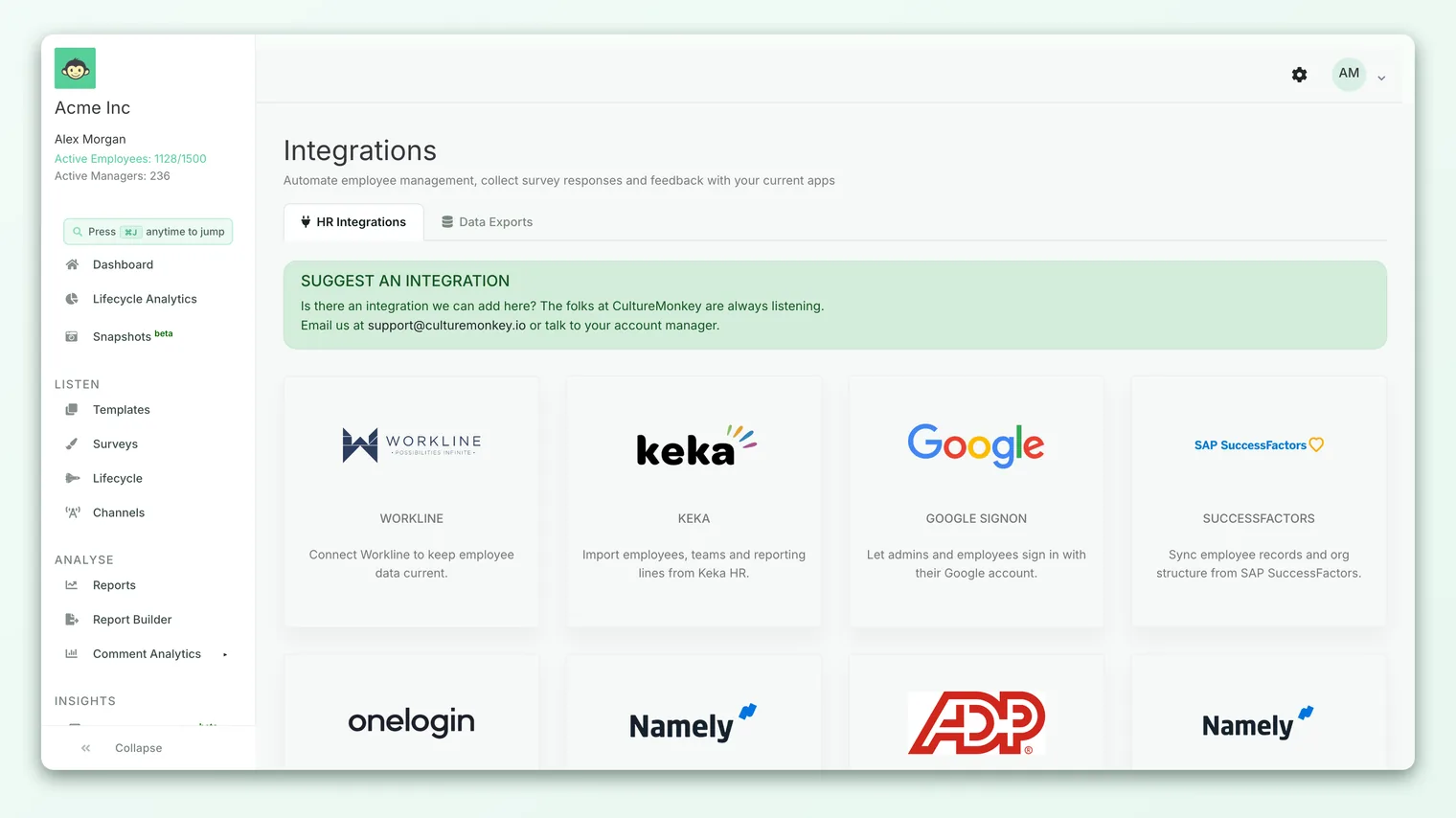
- 1Open Integrations. From the main navigation, go to Integrations and find your HR system in the list.
- 2Start the connection. Click to connect your provider, then enter the API credentials (and subdomain, if your provider needs one) that you prepared from your HR system's admin settings.
- 3Map your fields. Match each CultureMonkey attribute to the corresponding field in your HRIS, including any custom fields. See Configure HRIS field mapping.
- 4Run the initial sync. Confirm to kick off the first pull. CultureMonkey loads your full employee list from the HRIS.
- 5Review the result. Open your employee list and spot-check a handful of records - names, emails, teams, and manager lines - to confirm the mapping did what you expected.
- 6Let it run. From here the sync refreshes automatically on its schedule. You don't need to do anything unless your mapping or credentials change.
Once you're connected, the specific provider guide is your reference for anything unique to that system:
For the full catalog of everything you can connect, including channels and single sign-on, see Integrations overview.
Choosing your approach
Pulling it together, here's a quick way to decide:
- Your HR system is live and self-serve (Darwinbox, Zoho People, Keka, Workline). Connect it. The setup is short and your data stays current on its own.
- Your HR system is supported but not yet self-serve in your account (Workday, BambooHR, Freshservice). Ask your CultureMonkey contact to enable it, then connect.
- Your HR system isn't supported yet (for example ADP or Namely). Use a CSV import now, and register your interest so it's considered for a future connector.
- You only need a one-time load. A CSV import is the simplest path - there's nothing to connect or maintain.
A live connector is a scheduled refresh, not a real-time feed. If someone joins or moves in your HRIS today, they'll reflect in CultureMonkey after the next scheduled sync - twice a week by default, or daily if that's enabled. If you need a change reflected immediately, a CSV import is the faster route for that one update.
Frequently asked questions
Which HRIS systems can I connect right now?
Darwinbox, Zoho People, Keka, and Workline are generally available and self-serve. Workday, BambooHR, and Freshservice are built but may need to be enabled for your account. ADP and Namely are on the roadmap. Because the live list can vary by account, check your Integrations hub or ask your CultureMonkey contact to confirm.
How often does a live connector sync?
After the initial pull when you connect, the standard cadence is a scheduled refresh twice a week. Accounts with daily sync enabled get a refresh once a day instead. It's a scheduled pull, so changes in your HRIS appear on the next run rather than instantly.
Does connecting an HRIS change anything in my HR system?
No. The sync is one-directional and read-only. It pulls data from your HRIS into CultureMonkey and never writes anything back.
What if my HR system isn't on the list?
Use a CSV import to load and keep your employees current, and let your CultureMonkey contact know which system you use so it can be considered for a future connector.
Can I use a CSV import and a live connector together?
Yes. The sync reconciles against your existing employee list rather than replacing it, matching people by a stable ID and by email. People you added by hand aren't wiped out when you connect a provider.
Will a connector bring in my org structure, not just people?
For providers that expose it, yes. Keka brings across teams, sub-teams, locations, and business units, and Freshservice brings across departments and locations. Those groupings become the segments you filter and roll up reports by.
Where to go next
- Understand continuous sync in depth: HRIS import overview
- Map your fields correctly: Configure HRIS field mapping
- See everything you can connect: Integrations overview
- No supported HRIS yet? Import employees from a CSV
Your feedback helps us improve the Help Center.