

Logging in to CultureMonkey
How to sign in to CultureMonkey - email and password, your company SSO, and the passcode links survey participants use - plus first-time access, password resets, staying signed in, finding your subdomain, and fixing common login problems.
On this page
- Who signs in, and how
- Finding the right subdomain
- Signing in with email and password
- Signing in with SSO (single sign-on)
- Signing in as a survey participant
- First-time access and activating your account
- Resetting a forgotten password
- Staying signed in and sessions
- Troubleshooting sign-in
- Frequently asked questions
- Where to go next
Getting into CultureMonkey should take seconds - but how you sign in depends on who you are and how your organization is set up. An HR admin logs in with an email and password (or your company's single sign-on). An employee answering a survey usually doesn't sign in at all - they open a personal link and, if asked, confirm a short passcode. This guide walks through every path, so you always know which door is yours.
Admins and managers sign in at your company's subdomain - for example yourcompany.culturemonkey.io/signin - with their work email and password, or by clicking Sign-in with SSO if your organization uses single sign-on. Survey participants don't need a password: they open the link in their survey invitation and verify a one-time passcode if prompted. Forgot your password or your subdomain? CultureMonkey has a self-service link for each.
Who signs in, and how
CultureMonkey has two very different kinds of access, and mixing them up is the single most common source of "I can't log in" confusion.
- Administrators and managers - the people who build surveys, read reports, and manage the account - sign in with credentials (email + password) or through your company's SSO. This is the classic login screen at
/signin. - Survey participants - employees who answer surveys - generally don't log in with a password at all. They receive a personal survey link by email, Slack, or Microsoft Teams and open it directly. Where extra assurance is needed, they confirm a one-time passcode (OTP) instead of managing a password.
If you're not sure which you are, a simple rule works: if your job is to look at results, you have a login; if your job is to give feedback, you have a link.
Finding the right subdomain
CultureMonkey gives every organization its own web address - a subdomain - such as yourcompany.culturemonkey.io. Your account, your people, and your data all live behind that specific address, so signing in on the right one matters.
You can reach your login screen two ways:
- Go straight to
yourcompany.culturemonkey.io/signinif you know your subdomain. - Or start at the shared sign-in page, type your organization's subdomain, and CultureMonkey will forward you to the right address before asking for your password.
Save yourcompany.culturemonkey.io/signin as a browser bookmark. It skips the subdomain step and lands you straight on your organization's login screen every time.
I don't know my subdomain
It happens - especially if it's been a while. On the sign-in page, use the Forgot subdomain? option, enter your work email, and CultureMonkey emails you a direct link to your organization's sign-in page.
If the email never arrives, your address may not be registered as an admin or manager on any account. In that case you're most likely a survey participant (see Signing in as a survey participant) or you need an invitation from your CultureMonkey account admin.
Signing in with email and password
For most admins and managers, this is the everyday path.
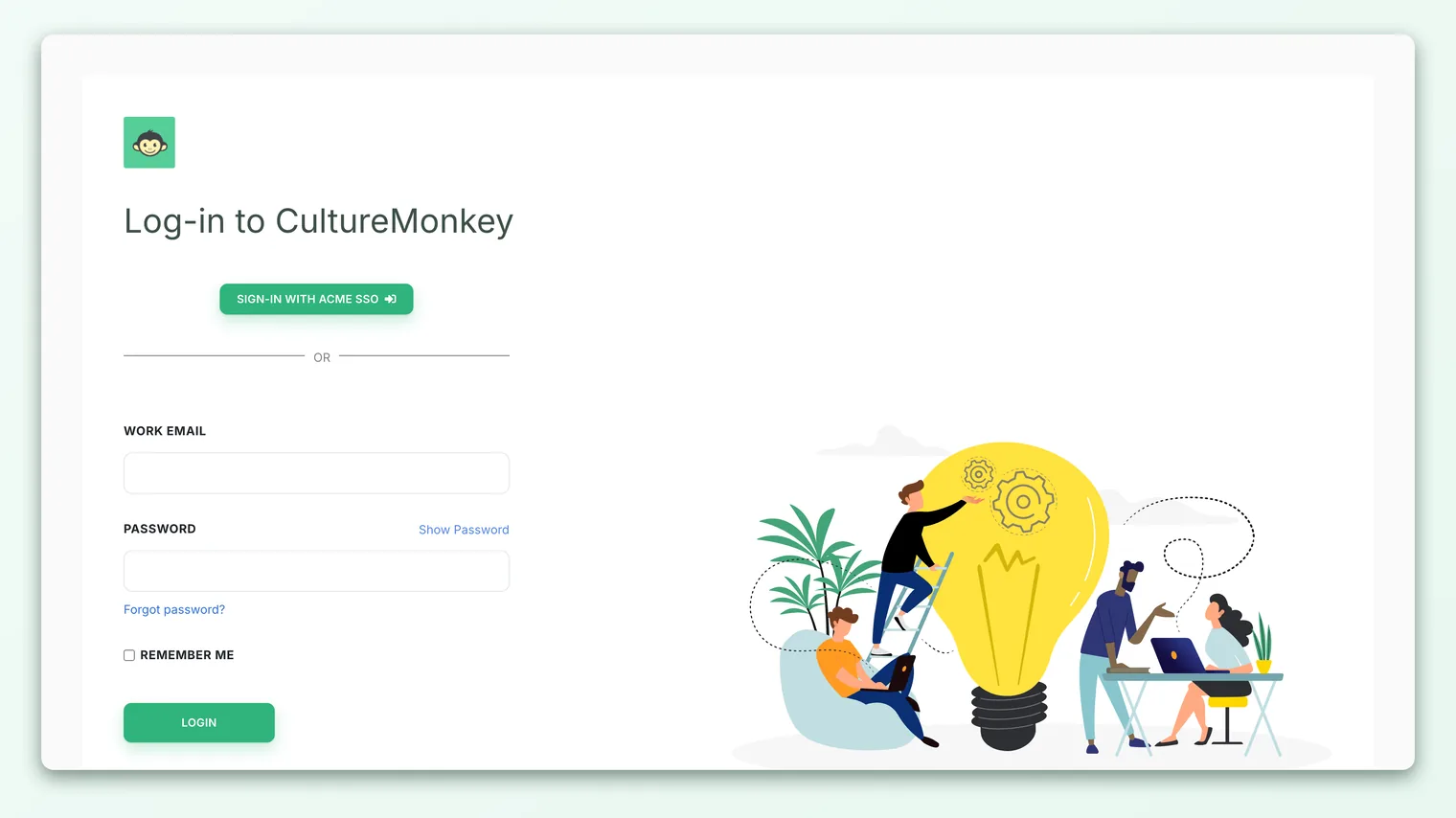
- 1Open your sign-in page - go to
yourcompany.culturemonkey.io/signin. If you land on the shared page instead, enter your subdomain first and continue. - 2Enter your work email - use the Work Email address your account was set up with. It's not case-sensitive.
- 3Enter your password - type it in the Password field. Use the Show password link if you want to check what you've typed.
- 4Select Sign in - you'll land on your reports or dashboard, depending on your role and plan.
If your email and password are correct but you're bounced back to the login screen, jump to Troubleshooting sign-in below.
Signing in with SSO (single sign-on)
If your organization has connected CultureMonkey to your identity provider - Okta, Azure AD / Microsoft Entra, Google Workspace, OneLogin, or any provider that speaks SAML - you sign in through them, not with a CultureMonkey password.
On the sign-in page you'll see a button along the lines of Sign-in with {your company} SSO. Select it, and you'll be handed off to your company's login. Once your identity provider confirms who you are, you're returned to CultureMonkey and signed straight in - no separate password to remember.
Depending on how your account is configured, the SSO handoff can even be automatic: instead of showing a button, the sign-in page redirects you to your identity provider after a moment.
When SSO is enabled and required, admins and managers authenticate through the identity provider rather than the email/password form. If you normally use SSO but suddenly see a password prompt, don't guess a password - check with your IT team, as the SSO connection may need attention. Setting this up is an admin task covered in Set up SAML single sign-on.
Signing in as a survey participant
If you received a survey invitation, you almost certainly don't need an account or a password. Your invitation - by email, Slack, or Microsoft Teams - contains a personal link tied to you. Open it and you're taken straight into the survey.
Some organizations add a lightweight verification step for extra confidence that the right person is responding. When that's switched on, opening the link asks you to confirm your work email and enter a one-time passcode (OTP) - a short code sent to your email - before the survey loads. If the code doesn't arrive, there's a resend option on that screen.
A survey link is personal to you - don't forward it to a colleague, or their response will be recorded under your invitation. If a teammate needs the survey, they'll have their own link in their own invite.
Because participant links are self-contained, survey takers never see the admin sign-in screen, never set a password, and never have to remember a subdomain. Everything they need is in the invitation.
First-time access and activating your account
New admins and managers don't create their own accounts - an existing CultureMonkey account admin invites you. Here's what activation looks like:
- 1Watch for your invitation email - CultureMonkey sends an invite to your work email once you're added as an admin or manager.
- 2Open the invitation link - this verifies your email address and takes you to a page to set up your account.
- 3Set your password - choose a password you'll remember. This confirms your account and signs you in for the first time.
- 4Land in the app - you'll arrive on your dashboard, ready to go.
If you're using SSO, there's usually no password to set - activating simply links your CultureMonkey access to your identity provider, and from then on you sign in through SSO.
You can't sign in until you've been invited. If you never received the email, ask your CultureMonkey account admin to resend the invite (there's a one-click resend on their side), and check your spam and quarantine folders. If you try to log in before verifying, CultureMonkey will tell you your email isn't verified yet and offer a link to resend the invite.
Resetting a forgotten password
If you sign in with a password (rather than SSO) and can't remember it, you can reset it yourself:
- 1Select "Forgot password?" - you'll find it beneath the password field on the sign-in screen.
- 2Enter your work email - the same address tied to your CultureMonkey login.
- 3Check your inbox - CultureMonkey emails you a secure, time-limited reset link.
- 4Choose a new password - open the link, set a new password, and you'll be signed in.
The reset link is single-use and expires after 24 hours, so if it's been sitting in your inbox for a while, just request a fresh one. If no email arrives at all, confirm you're using your registered work email - and remember that SSO users don't have a CultureMonkey password to reset and should sign in through their identity provider instead.
Staying signed in and sessions
Once you sign in, CultureMonkey keeps you signed in for the rest of your browser session, so you can move between reports and pages without logging in again each time.
A few sensible habits:
- Sign out when you're done on a shared machine. Use the sign-out option in the app to end your session immediately, rather than just closing the tab.
- Expect to sign in again from time to time. For security, sessions don't last forever - closing your browser or being away for a while will land you back on the sign-in screen. That's expected; just sign back in.
- Use your own device for convenience. Signing in on a personal, trusted device keeps things quick without the security trade-offs of a shared computer.
If you use SSO, your session is also influenced by your identity provider's own sign-in policies, which may sign you out (or keep you in) according to your company's rules.
Troubleshooting sign-in
Most login problems come down to a handful of causes. Match the message you're seeing to the table below.
| What you see or experience | Likely cause | What to do |
|---|---|---|
| "Invalid email/password combination" | Wrong password (or a typo in either field) | Retry carefully, use Show password to check, then reset via Forgot password? if needed |
| "Email address is not verified yet…" with a resend link | You were invited but never activated your account | Open your original invite, or use the resend invite link in the message to get a fresh one |
| "This email address doesn't have login access." | Your address isn't set up as an admin/manager, or access was removed | Ask your account admin to invite or re-enable you - you may be a survey participant, not an admin |
| "Invalid domain" after entering a subdomain | Subdomain typo, or the account isn't on that address | Recheck the spelling, or use Forgot subdomain? to have your address emailed to you |
| Password screen appears when you normally use SSO | SSO redirect isn't kicking in, or the connection needs attention | Contact your IT/admin team - don't guess a password; see Set up SAML single sign-on |
| Bounced back to login after a correct SSO sign-in | Identity-provider config mismatch (mapping, metadata, or certificate) | Your admin should review the SAML setup with your identity provider |
| Signed out unexpectedly | Session expired, or your browser was closed | Simply sign in again - this is normal and no data is lost |
If none of these fit, our team is happy to help - see Getting help & contacting support.
Before anything else: confirm you're on the right subdomain, that Caps Lock is off, and that you're not using an old bookmark that points to a different account. These three account for most "mystery" login failures.
Frequently asked questions
What's the difference between logging in and opening a survey link?
Logging in is for admins and managers who manage surveys and read results - it needs an email and password (or SSO). A survey link is for participants answering a survey; it's personal, requires no password, and may only ask for a one-time passcode. If you were asked to give feedback, look for your link, not a login.
I use SSO - why am I being asked for a password?
You shouldn't be. If the SSO button or automatic redirect isn't appearing, the connection may need attention or you may be on the wrong page. Don't try to guess a password; contact your IT or CultureMonkey account admin.
Do survey participants need to remember a password?
No. Participants open their invitation link and, at most, confirm a one-time passcode sent to their email. There's no password and no account to manage.
Why can't I find my company's login page?
You may not have the right subdomain. Use Forgot subdomain? on the shared sign-in page and enter your work email - CultureMonkey will email you a direct link to your organization's sign-in screen.
I was never sent an invite. How do I get access?
Admin and manager access is granted by invitation. Ask an existing CultureMonkey account admin at your organization to add you (or resend your invite). Until you're invited and have activated your account, you won't be able to sign in.
How long do I stay signed in?
Your session lasts for as long as you keep your browser open and are active. Closing the browser or a long stretch of inactivity will return you to the sign-in screen - that's expected. Always sign out explicitly when you finish on a machine that isn't yours.
Where to go next
- Set up single sign-on for your organization: Set up SAML single sign-on
- Move between admin, manager, and other views once you're in: Switching between views
- Still stuck at the door? Getting help & contacting support
Your feedback helps us improve the Help Center.