

Switching views - see CultureMonkey as a manager or sub admin
What view-switching is, why it's useful for support and QA, how to switch to Manager View and Sub Admin View from the profile menu, how "Revert to Admin" works, what actually changes when you switch, and who's allowed to do it.
On this page
CultureMonkey looks different depending on who's signed in. A Super Admin sees the whole platform; a manager sees only their team's results; a sub admin sees a scoped slice in between. Most of the time that's exactly what you want - everyone sees what's relevant to them and nothing more. But every so often you need to step into someone else's shoes: to answer a support question, to check a rollout before it goes live, or simply to understand what a manager will actually experience when they log in.
View-switching lets you do that without asking anyone for their password or logging out of your own account. This guide explains what view-switching is, the two different ways it works in CultureMonkey, how to switch and switch back safely, exactly what changes on screen when you do, and who's allowed to use it.
View-switching temporarily changes what you see in CultureMonkey so you can preview another person's experience. There are two flavours: a Super Admin can view as a specific manager or sub admin (a true impersonation, ended with Revert to Admin), and a sub admin who also manages a team can flip their own view between Sub Admin View and Manager View from the profile menu. What you can do depends on your role and on account settings.
What view-switching is
View-switching is a way to temporarily render CultureMonkey as a different role would see it, from inside your own logged-in session. Nothing about the underlying account changes - you're not editing permissions, reassigning roles, or resetting passwords. You're changing the lens, not the data.
It helps to separate two ideas that people often blur together:
- Your role is fixed. It's the permission level assigned to your account - Super Admin, sub admin, or manager. See Understanding roles for the full breakdown.
- Your active view is what you're looking at right now. View-switching changes the active view without touching the role.
Because the role stays put, switching is safe and reversible. When you're done, one click puts you back exactly where you started.
Why it's useful
There are three everyday reasons Account Admins reach for view-switching.
- Preview the experience. Before you invite managers to their manager dashboard or roll out a new survey, switch into a manager's view to see precisely what they'll see - which menu items appear, which reports are visible, how their team's results are framed. It's the fastest way to catch "wait, that doesn't look right" before your users do.
- Support your users. When a manager writes in saying "I can't find my eNPS" or "my dashboard looks empty," you can reproduce their exact view in seconds instead of trading screenshots back and forth. What you see is what they see.
- QA a rollout. After changing scopes, demographics, or visibility settings, switching lets you confirm the change lands correctly for the roles it affects - a quick, reliable sanity check.
Treat view-switching as a look, don't touch tool. It's built so you can understand and verify another role's experience - not to perform work on their behalf. When you need to make a change, revert to your own view first and do it as yourself, so the audit trail stays clean.
The two ways to switch
CultureMonkey has two distinct switching mechanisms. They look similar in the profile menu but work differently under the hood, so it's worth knowing which one you're using.
| View as (impersonation) | Switch view (acting state) | |
|---|---|---|
| Who uses it | Super Admin | Sub admin who also manages a team |
| What it does | Signs you in as another manager or sub admin | Flips your own session between two views |
| Target | A specific person you pick | Just yourself |
| Started from | The Managers or Administrators list | The profile menu, top-right |
| Ended with | Revert to Admin | Switch to Sub Admin View / Switch to Manager View |
| Gated by | Account settings + Super Admin role | Having a linked manager record |
The rest of this guide focuses on the profile-menu switches - Manager View, Sub Admin View, and Revert to Admin - because those are the controls you'll use most. The profile menu lives in the top-right corner of every screen.
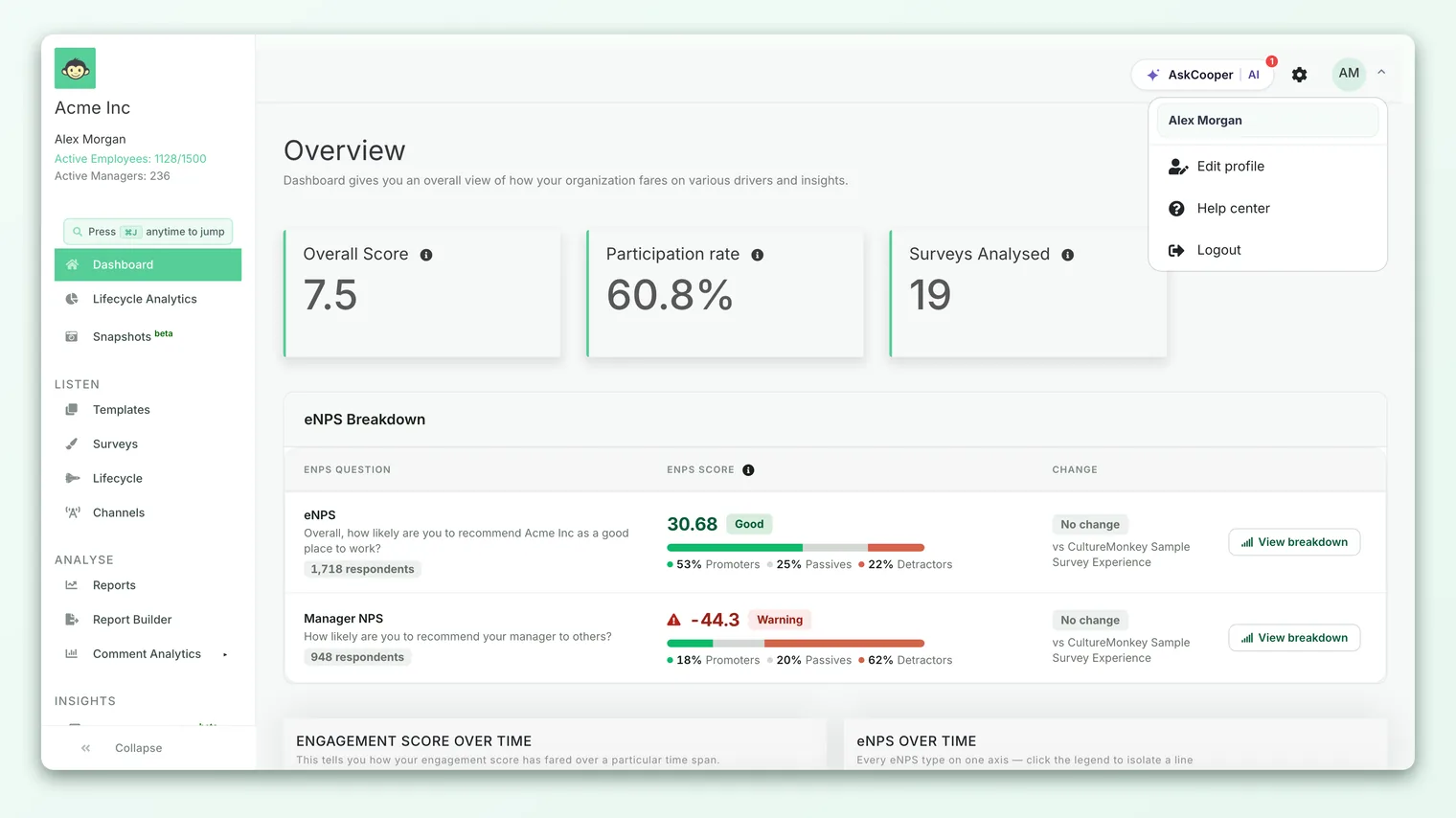
Switch to Manager View and Sub Admin View
This pair applies when a sub admin also has a team reporting to them - a common setup where someone is both an administrator and a people manager. For that person, CultureMonkey offers a single toggle in the profile menu that flips between their two hats.
- 1Open the profile menu. Click your name and avatar in the top-right corner of any page.
- 2Find the switch link. At the top of the menu, above the divider, you'll see either Switch to Manager View or Switch to Sub Admin View, depending on which view you're currently in.
- 3Choose Switch to Manager View. CultureMonkey re-scopes the whole app to your own team and lands you on your reports. The role badge under your name now reads Manager.
- 4Switch back the same way. The menu link flips to Switch to Sub Admin View. Click it to return to your broader sub-admin scope; the badge changes back to Sub-Admin.
You can bounce between the two as often as you like. The little role badge beside your name in the profile area is your at-a-glance indicator of which view is active, so you always know whether you're looking at the whole org or just your team.
The Manager / Sub Admin View toggle only appears if your sub-admin account is also linked to a team as a manager. If you're a sub admin with no direct reports, there's no manager view to switch into, so the link won't show. That's expected, not a bug.
Revert to Admin
Revert to Admin is the exit door for the other kind of switch - when a Super Admin has used View as to step into a specific manager's or sub admin's session. While impersonating, the profile menu shows a Revert to Admin link at the very top.
Clicking it ends the impersonation and returns you to your own Super Admin session, right where you'd expect to land. It's the equivalent of taking off the costume: your original view, scope, and permissions come straight back. If you ever find yourself viewing as someone else and want out, Revert to Admin is always the answer - it's deliberately placed first in the menu so it's easy to reach.
Because impersonation puts you inside someone else's view, it's important to Revert to Admin before you move on to other work - especially on a shared machine. If a page ever looks unexpectedly limited, glance at your name and role badge in the top-right; if they aren't yours, you're still in a switched view, and reverting will put things right.
What actually changes when you switch
Switching views changes two things: what's in the menu, and what data you can see. Nothing else about the account moves.
- Menu items. Each view shows only the navigation a person of that role would have. Switch into Manager View and admin-only areas - the org-wide Administrators, Managers, and account-level settings - drop away, leaving the manager-focused navigation and the manager dashboard at
/manager-dashboard. Switch back and the full administrative navigation returns. - Data scope. This is the important one. In Manager View, results are scoped to your team - your reportees, your team's eNPS, your team's feedback - exactly as a manager sees them. In Sub Admin View, the scope widens back to whatever your sub-admin permissions allow. The numbers change because the audience changes, not because the underlying data changed.
- Landing page. Switching typically drops you onto the view that makes sense for the new lens - your reports or the manager dashboard - rather than leaving you on an admin-only page you can no longer access.
What doesn't change: your login, your actual role, your permissions, and anyone's data. Reverting restores the previous view precisely.
| You switch to… | Menu shows | Data scoped to |
|---|---|---|
| Manager View | Manager navigation + manager dashboard | Your own team / direct reports |
| Sub Admin View | Your sub-admin navigation | Your sub-admin permission scope |
| View as (a manager) | That manager's navigation | That manager's team |
Who can switch
View-switching is permission-gated - the controls simply don't appear unless you're eligible.
- Super Admins can view as a specific manager or sub admin, and end it with Revert to Admin. Impersonation is additionally gated by account settings, so it may be off for your account until enabled. - Sub admins who also manage a team see the Manager View / Sub Admin View toggle in their profile menu. A linked manager record is required. - Sub admins without a team and plain managers don't see switching controls - there's nothing to switch to.
If you expect a switch option and can't see it, the usual causes are: your account isn't a sub admin with a team, you aren't a Super Admin, or the relevant view-as account setting is turned off. An Account Admin or your CultureMonkey contact can confirm which settings are enabled.
Limitations and gotchas
View-switching is intentionally lightweight, and a few things trip people up:
- It's a preview, not a role change. Switching never grants or removes permissions permanently. To actually change what someone can do, edit their role - see Understanding roles.
- The toggle needs a manager record. No linked team means no Manager View. If a sub admin who should manage a team can't switch, check that they're mapped as a manager.
- Impersonation may be gated. The Super Admin View as feature can be enabled or disabled per account. If the option is missing, the setting is likely off.
- Don't forget to revert. The single most common gotcha is finishing a support task and walking away still inside a switched view. Check the name and role badge in the top-right whenever a screen looks unexpectedly narrow.
- Scope is the whole point. Lower numbers or missing menu items after switching aren't errors - they're the switched role's genuine, scoped experience. That's exactly what you switched to see.
Frequently asked questions
Does switching views change my role or permissions?
No. Switching only changes what you're looking at for the current session. Your assigned role, your permissions, and all account data stay exactly as they were. Reverting or switching back restores your previous view completely.
Why can't I see any switch option in my profile menu?
Because the controls are permission-gated. The Manager View / Sub Admin View toggle needs a sub-admin account that's also linked to a team; the View as impersonation needs a Super Admin plus the relevant account setting enabled. If none of those apply to you, no switch link appears.
What's the difference between "View as" and "Switch to Manager View"?
View as is a Super Admin stepping into another specific person's session - you're seeing CultureMonkey as them, and you exit with Revert to Admin. Switch to Manager View is a sub admin flipping their own session between two of their own hats. Different mechanism, similar result.
How do I get back to my normal view?
If you used the profile toggle, click Switch to Sub Admin View (it replaces the Manager View link once you've switched). If a Super Admin used View as, click Revert to Admin at the top of the profile menu. Either way, you return to your own view.
Will switching views affect what employees or managers see?
No. Switching is entirely local to your own CultureMonkey session and is invisible to everyone else. It doesn't send notifications, change anyone's dashboard, or alter results. It's purely a way for you to preview and support.
Can I make changes while in a switched view?
You can, but you shouldn't rely on it - treat switching as look, don't touch. When you need to make a real change, revert to your own view and act as yourself so the audit trail stays accurate.
Where to go next
- Understand who sees what: Understanding roles
- See the view you're previewing: Manager dashboard overview
- Trouble getting in at all? Logging in
Your feedback helps us improve the Help Center.