

Login and SSO problems in CultureMonkey
A troubleshooting guide for admins and managers who can't sign in - wrong passwords and resets, the exact error messages CultureMonkey shows, SSO redirect and assertion failures, emails that don't match an admin, SSO-enforced accounts, subdomain mix-ups, and browser fixes.
On this page
- First, rule out the simple stuff
- Wrong password, and how to reset it
- "This email address doesn't have login access"
- "Email address is not verified yet"
- Wrong subdomain, or "Invalid domain"
- SSO problems: the password prompt appears when you expected SSO
- SSO problems: bounced back to the sign-in screen
- SSO problems: messages you might see
- Browser and cookie issues
- Frequently asked questions
- Where to go next
Being locked out of CultureMonkey is frustrating, and the fix is usually quick once you know which door you're standing at. Most sign-in problems come down to a mistyped password, an email that isn't set up as an admin, an SSO handoff that quietly bounced you back, or simply the wrong subdomain. This guide matches the exact on-screen message to its cause and tells you the fastest way back in.
It's written for admins and managers who sign in to build surveys and read reports. If you're a survey participant trying to open a survey link, you don't need a login at all - see Logging in to CultureMonkey for that path instead.
CultureMonkey sign-in trouble almost always traces to one of four things: the wrong password (reset it with Forgot password?), an email that isn't an admin or manager on this account (you need an invite), an SSO handoff that didn't complete (usually an email-mapping or identity-provider issue), or the wrong subdomain. Match the message you're seeing to the tables below, and you'll find the fix. If you use SSO, never guess a password - the fix is on the identity-provider side.
First, rule out the simple stuff
Before diving into error messages, three quick checks resolve a surprising share of "mystery" login failures:
- Confirm you're on the right subdomain. CultureMonkey gives every organization its own address, like
yourcompany.culturemonkey.io/signin. An old bookmark pointing at a different account, or a subdomain typo, will never let you in no matter how correct your password is. See Finding the right subdomain if you're unsure. - Check Caps Lock and your keyboard layout. Passwords are case-sensitive. The Show password link on the sign-in screen lets you see what you've actually typed.
- Make sure you belong here. Only people who were invited as an admin or manager can sign in. If your job is to answer a survey rather than read results, you have a personal link, not a login.
CultureMonkey lowercases your email address when it looks up your account, so Jane.Doe@company.com and jane.doe@company.com are treated as the same person. Your password, though, must be typed exactly as you set it.
Wrong password, and how to reset it
If your email is a valid admin account but the password is wrong, CultureMonkey shows:
> "Invalid email/password combination"
The account exists, but the password didn't match. Retry with Show password on and Caps Lock off. If it still fails, reset it.
- 1Select "Forgot password?" - it sits beneath the password field on the sign-in screen.
- 2Enter your work email - the same address tied to your CultureMonkey login.
- 3Watch for the confirmation - you'll see a "Check your mail" screen saying, in effect, "If your account exists, a reset link is on its way." This same message appears whether or not the address has an account, which is deliberate: it stops anyone from probing which emails are admins.
- 4Open the reset link in time - it's valid for 24 hours and can be used only once. Set a new password that meets the password requirements, and you'll be signed in.
If the link sat in your inbox too long, you'll see "Reset Password Link Expired" - just request a fresh one. A broken or already-used link shows "Invalid link!" instead, and a successful reset ends with "Password reset successfully!"
If repeated sign-in attempts aren't working, a password reset is the reliable path rather than trying the same password again. Use Forgot password on the sign-in page. If you ever suspect someone is trying to get into your account, contact support straight away.
If no reset email arrives, confirm you typed your registered work email and check spam and quarantine folders. And remember: SSO users have no CultureMonkey password to reset and should sign in through their identity provider instead.
"This email address doesn't have login access"
This is one of the most common messages, and it's easy to misread as a password problem when it isn't. You'll see one of two closely related lines:
> "Invalid email address. This email address doesn't have login access."
> "This email address doesn't have login access."
Both mean the same thing: the email you entered isn't set up as an admin or manager on this account. That happens for a few reasons:
- You were never invited. Admin and manager access is granted by invitation from an existing account admin. Until someone adds you and you activate the invite, you can't sign in. Ask an account admin to invite you (see Invite and manage administrators).
- Your access was removed. If you were an admin or manager and later deactivated, the same message appears. Ask an admin to re-enable you.
- You're actually a survey participant. If your role is to give feedback rather than read results, you don't have a login at all - look for your survey link instead.
- You're on the wrong account. Because each subdomain is a separate world, an email that's a valid admin on one company's subdomain will show this exact error on another. Confirm you're on your organization's address.
CultureMonkey checks whether your email is an admin on the specific subdomain you loaded. There's no global account that follows you between organizations. If you help manage more than one CultureMonkey account, each one has its own login and its own invitation.
"Email address is not verified yet"
If you were invited but never finished setting up your account, trying to sign in (or to reset your password) shows a message that your email isn't verified yet, along with a link to resend the invite:
> "Email address is not verified yet. Please verify your email address through the invite mail or Click here to resend invite."
This isn't a password problem - your account exists but hasn't been activated. Open your original invitation email and follow the link to set your password, or use the Click here to resend invite link in the message. If the invite never arrives, ask your account admin to resend it (there's a one-click resend on their side) and check your spam and quarantine folders. Invites are covered in Logging in to CultureMonkey.
Wrong subdomain, or "Invalid domain"
If your organization uses the shared sign-in page (where you type your subdomain first), entering an address CultureMonkey doesn't recognize returns:
> "Invalid domain"
Recheck the spelling of your subdomain - it's the yourcompany part of yourcompany.culturemonkey.io. If you can't remember it, use Forgot subdomain? and enter your work email; if that email is registered, CultureMonkey emails you a direct link to your sign-in page. If the address isn't tied to any account, you'll instead see "Email Address not registered", which usually means you're using a personal email rather than your work address, or you were never set up as an admin anywhere.
Once you know it, save yourcompany.culturemonkey.io/signin as a bookmark. It skips the subdomain-entry step entirely and lands you on your organization's real login screen every time, which sidesteps most "Invalid domain" mix-ups.
SSO problems: the password prompt appears when you expected SSO
If your organization uses single sign-on and you suddenly find yourself looking at a password form, don't guess a password. Depending on how your account is configured, one of two things is happening:
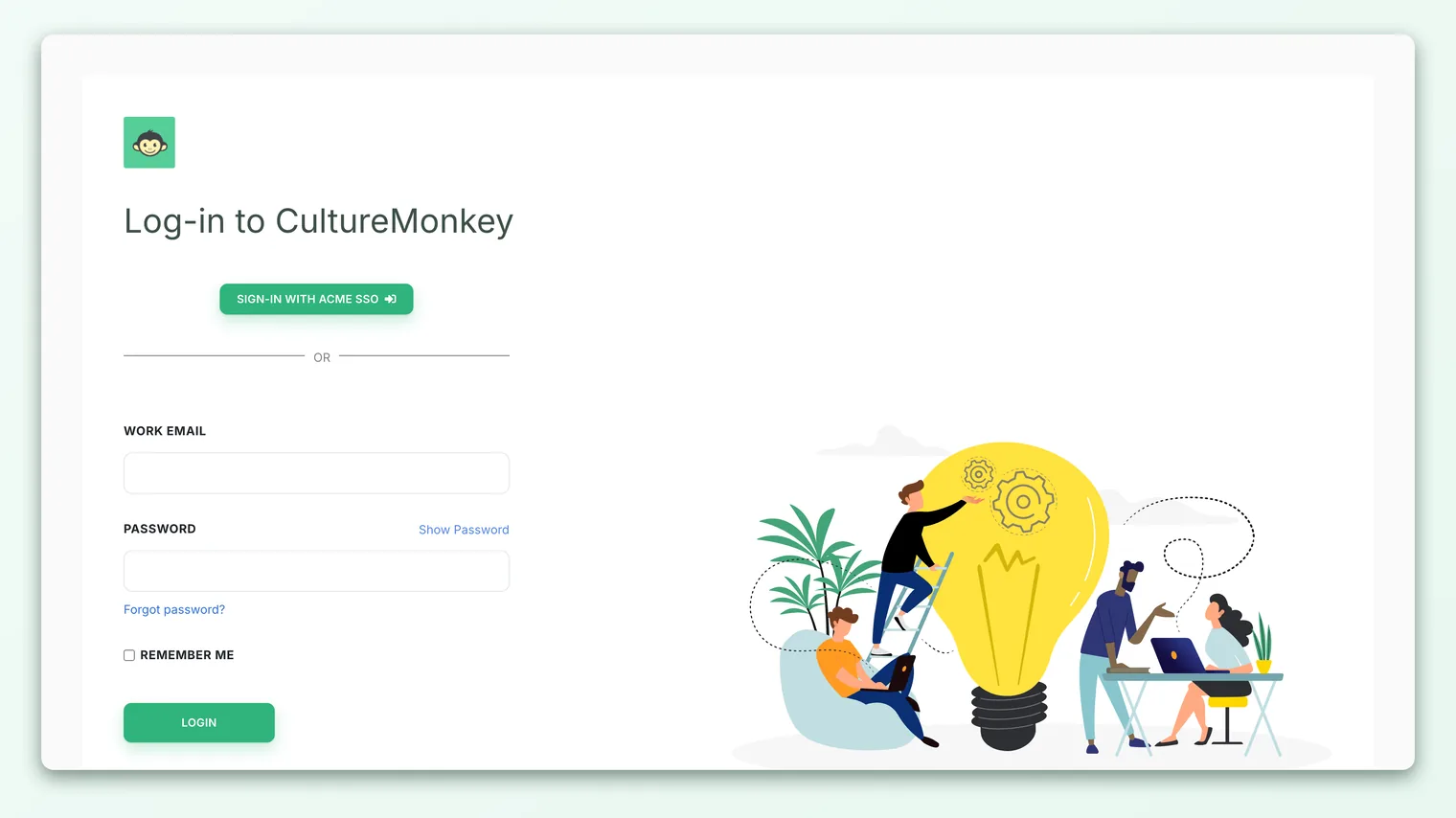
- SSO shows a button alongside the password form. When SSO is enabled but auto-redirect is off, the sign-in page offers a Sign-in with {your company} SSO button and the email/password form, separated by an "OR". That's normal - just select the SSO button.
- The auto-redirect didn't fire. When your account sends admins straight to your identity provider, the sign-in page shows a short countdown (by default around 5 seconds) and then hands you off automatically. If that countdown never appears and you're staring at a password form, the SSO configuration may need attention.
Either way, the right move is the SSO button or your IT team, not a password. If you've genuinely never had a CultureMonkey password, that's expected - SSO admins usually never set one. See Set up SAML single sign-on for how the connection is meant to behave.
If you normally sign in through SSO and you request a password reset, you may not receive anything useful - SSO users often have no CultureMonkey password at all. Resetting won't fix a broken SSO handoff. Contact your IT or CultureMonkey account admin so the identity-provider side can be checked.
SSO problems: bounced back to the sign-in screen
This is the single most confusing SSO failure, because it often comes with no error message at all. You click the SSO button, authenticate successfully at your identity provider (Okta, Microsoft Entra, Google Workspace, OneLogin, and so on), and then land right back on the CultureMonkey sign-in screen as though nothing happened.
The handoff itself worked, but CultureMonkey couldn't turn the identity your provider sent into a valid CultureMonkey login. The usual causes are:
- The email doesn't match an admin or manager. CultureMonkey reads the email from the SAML assertion (the NameID), lowercases it, and looks for an admin or manager with that exact address. If no one matches, you're quietly returned to the sign-in page. This happens most often when someone is assigned the CultureMonkey app in the identity provider but was never invited in CultureMonkey, or when the provider sends a different address (say
j.doe@company.com) than the one on file (jane.doe@company.com). - The assertion couldn't be validated. If the signature or certificate doesn't check out - typically because your identity provider's metadata URL isn't serving the current signing certificate - CultureMonkey can't trust the login and sends you back.
Because these bounces are silent, the fix is diagnostic. An account admin should confirm two things: that the affected person is invited in CultureMonkey with the same email the provider sends as NameID, and that the metadata URL is reachable and current. The full mapping rules live in Set up SAML single sign-on.
SSO authenticates people; it doesn't create them. Assigning someone the CultureMonkey app in Okta or Entra lets them reach CultureMonkey, but they still won't get in until an account admin has invited them as an admin or manager. If one person is bounced while everyone else signs in fine, this is almost always why.
SSO problems: messages you might see
Not every SSO failure is silent. If the SSO endpoints are reached when the account isn't fully set up, CultureMonkey shows a specific message:
| What you see | What it means | What to do |
|---|---|---|
| "Single sign-on isn't available for your account." | SSO is switched on but no identity-provider metadata URL is stored yet | An account admin should provide the IdP metadata URL to CultureMonkey to finish enabling SSO. See Set up SAML single sign-on |
| "You are not authorized to do this action" after hitting an SSO link | SSO isn't enabled on this account at all | Confirm with CultureMonkey whether SSO has been turned on for your account |
| No SSO button and no redirect on the sign-in page | SSO isn't enabled, or the metadata URL isn't stored | Sign in with email and password if you have one, or ask your admin to confirm SSO is fully configured |
When an account is set to auto-redirect to the identity provider, the password form is hidden and SSO becomes the only door. If the identity provider then has an outage, or the mapping is wrong, admins can be shut out. This is why we recommend testing SSO with a recoverable account before enforcing it, and keeping a break-glass admin. If SSO is the only route and it's down, contact support rather than guessing passwords.
Browser and cookie issues
Once in a while a sign-in that should work fails because of the browser rather than your credentials. CultureMonkey uses a session cookie to keep you signed in, so anything that blocks or clears cookies can interrupt a login.
- Cookies must be enabled. If your browser or an extension blocks cookies for
culturemonkey.io, you can submit the form but never actually stay signed in. Allow cookies for the site and retry. - Clear a stale session. If you're stuck in a loop, sign out, clear cookies for the CultureMonkey site, close the tab, and start fresh at your subdomain's sign-in page.
- Try a private/incognito window with a current version of Chrome, Edge, Firefox, or Safari. If sign-in works there, an extension or a stale cookie in your normal window was the culprit.
CultureMonkey runs entirely over HTTPS, so if you ever reach a plain http:// version of the address you'll be redirected to the secure one automatically. That's expected, not a problem.
Sessions don't last forever. Closing your browser or being away for a while can land you back on the sign-in screen. No data is lost - just sign back in. Always sign out explicitly on a shared or public machine rather than only closing the tab.
Frequently asked questions
I keep seeing "Invalid email/password combination." Is my account locked?
No. CultureMonkey doesn't lock accounts after failed attempts, so there's nothing to wait out. The message simply means the password didn't match. Use Show password, confirm Caps Lock is off, and if it still fails, reset via Forgot password?
I use SSO but I'm being asked for a password. What do I do?
Don't guess a password. Use the Sign-in with {your company} SSO button, or wait for the automatic redirect if your account is set up for it. If neither appears, the connection may need attention - contact your IT team or CultureMonkey account admin. See Set up SAML single sign-on.
My SSO login sends me back to the login page with no error. Why?
The handoff worked, but the identity your provider sent didn't match a CultureMonkey admin - or the assertion couldn't be validated. Most often you were assigned the app in your identity provider but never invited in CultureMonkey, or the email addresses don't line up on both sides. An account admin should confirm your invite and the email mapping.
I never got a reset email. What's wrong?
Either the address isn't a registered admin on this account (the "If your account exists…" message still shows, but no email is sent), or you're an SSO user with no CultureMonkey password to reset. Confirm you used your registered work email, check spam and quarantine, and if you use SSO, sign in through your identity provider instead.
Why does my colleague get in but I don't, on the same account?
Usually because you haven't been invited (or your access was removed), or, for SSO, you're assigned the app in the identity provider but not present as an admin in CultureMonkey. Ask an account admin to confirm your invitation and, for SSO, that your email matches on both sides.
Where to go next
- The full sign-in walkthrough for every kind of user: Logging in to CultureMonkey
- How SSO is meant to be configured and tested: Set up SAML single sign-on
- The password rules a reset must satisfy: Configure password requirements
- Still stuck at the door? Getting help & contacting support
Your feedback helps us improve the Help Center.