

Send CultureMonkey surveys via SMS
How to deliver survey links over SMS in CultureMonkey - what you need to set up first, how to enable SMS for a survey, custom message content, character and link considerations, and how anonymity is preserved.
On this page
Email is the default way most teams distribute surveys, but it isn't the right fit for everyone. Frontline staff, deskless workers, retail and hospitality teams, and manufacturing crews often don't check a work inbox during the day, if they have one at all. For those audiences, a survey link that lands directly in a text message tends to get far higher participation. CultureMonkey can send any survey by SMS, so those teams get it on the device they already carry.
This guide covers everything you need to run a survey over SMS in CultureMonkey: what has to be in place before you can use it, how to enable SMS for a specific survey, what the message looks like (and how to customize it), the character and link limits that shape a good SMS, and how anonymity is protected even though you're texting a personal phone.
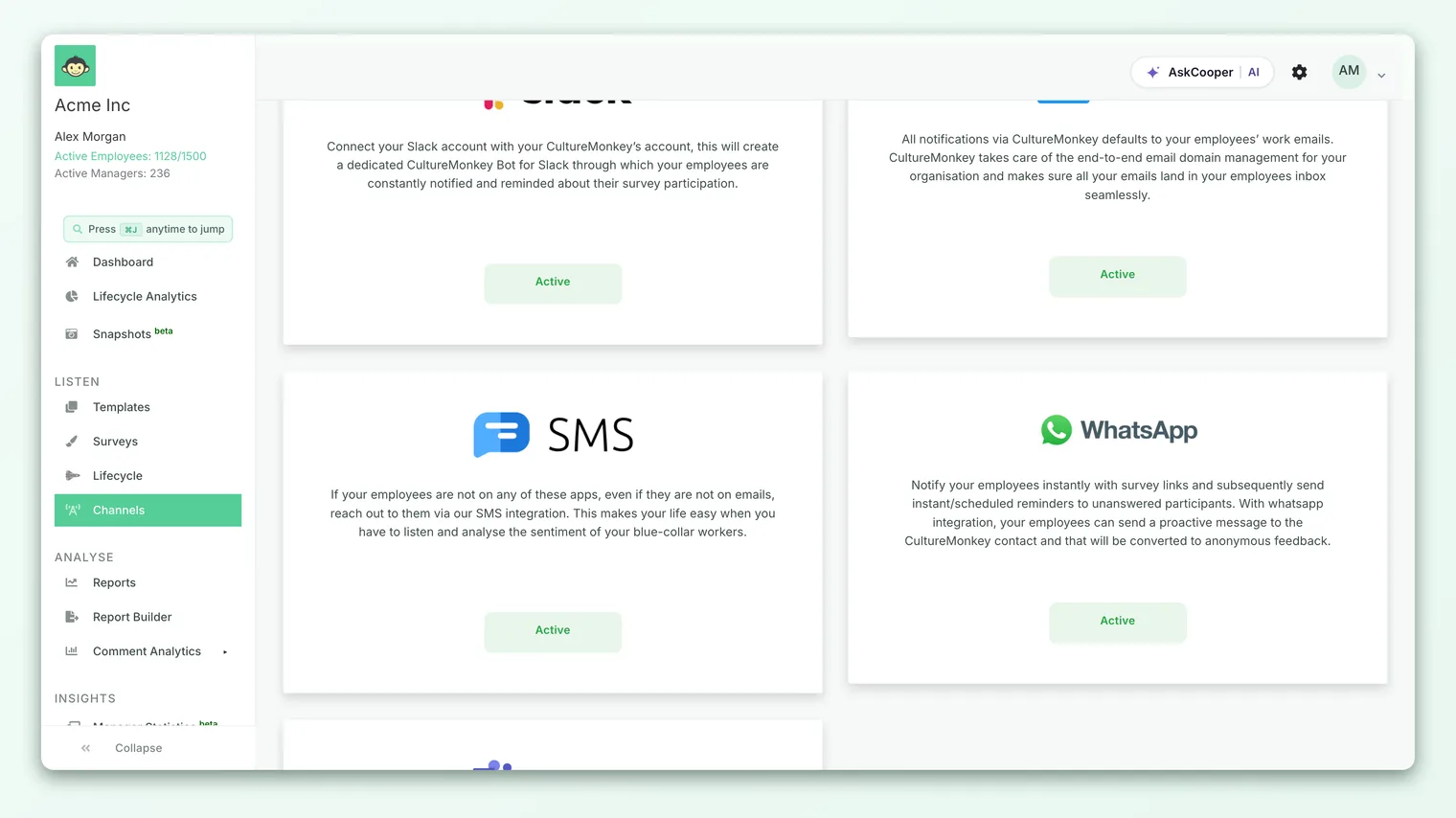
SMS delivery sends each participant a short text with a shortened survey link. To use it, SMS has to be enabled on your account, and every employee you want to reach needs a valid phone number with a country code. You then pick SMS as the launch channel for the survey. CultureMonkey routes each message through the right regional provider automatically, and responses stay anonymous exactly as they do over email.
Why send surveys over SMS
SMS is worth considering whenever a meaningful share of your workforce is hard to reach by email: deskless and frontline teams (store associates, drivers, nurses, warehouse and factory staff), contractors or seasonal staff without a company email, and distributed teams where a text is the most reliable path to a phone.
The trade-off is that SMS is a lightweight channel. There's no rich formatting, no logo, and no long explanatory copy, just a line or two of text and a link. That's a strength for open rates and a constraint on how much context you can include, which is why the message content matters so much (more on that below).
For a side-by-side comparison of SMS against email, Slack, Microsoft Teams, WhatsApp, and QR codes, see Distribution channels overview.
What you need before you can send SMS
Three things have to be true before an SMS survey will go out. It's worth checking each one up front, because a survey with SMS selected will silently skip any participant who's missing a phone number.
1. SMS has to be enabled on your account
SMS is an account-level capability that CultureMonkey turns on for you. When it's active, an SMS option appears in the survey's launch-channel picker. If you don't see SMS as a channel, it isn't enabled yet.
Text messages are delivered through third-party telecom providers, so SMS is typically set up as part of onboarding or as an add-on rather than toggled on by an admin. If you'd like it enabled, reach out to your CultureMonkey contact or support.
2. Employees need valid phone numbers
Each employee you want to reach must have a phone number on their profile, stored with the correct country code (for example, +1 for the US, +44 for the UK, +91 for India). CultureMonkey uses the country code to route the message to the right provider, so a number without one, or with the wrong one, may not deliver.
You can add phone numbers when you import your employee list or edit them individually on the employee record. A number must be at least a few digits long to pass validation, and the safest format is the full international form, digits only, with a leading + and country code.
Because SMS quietly skips anyone without a number, do a quick check of your employee list first. If half your frontline team has no phone number on file, half of them won't get the survey - and your participation rate will look worse than it should. Filling the gaps beforehand is the single biggest lever on SMS reach.
3. A provider is configured for your recipients' regions
You don't configure telecom providers yourself. CultureMonkey maintains the provider settings and picks the right one for each recipient automatically based on their phone number. This matters because SMS rules differ by country: some regions require an alphanumeric sender ID, some don't allow ordinary long-code numbers, and each has its own compliance rules. CultureMonkey handles that routing so you don't have to.
How to enable SMS for a survey
Once SMS is enabled on your account and your people have phone numbers, choosing it for a survey is a single selection in the survey settings.
- 1Open the survey settings. Create a new survey or edit an existing draft, and go to the settings step where the launch channel is chosen. See Launch a survey for the full flow.
- 2Choose SMS as the launch channel. Under the launch-channel options, select SMS. The channel picker appears when SMS is enabled for your account.
- 3Confirm phone coverage. CultureMonkey shows a reminder to make sure participants have valid phone numbers with the correct country code. Take it seriously - anyone without a number is skipped.
- 4Schedule and launch. Set your start date and time as usual and launch. At send time, each participant with a phone number receives a text with their survey link.
The launch channel is a single choice per survey: a survey goes out over SMS or over email (or another enabled channel), not several at once. If you want to reach some employees by email and others by text, that's typically handled by how your audience and channels are set up rather than by selecting two channels on one survey.
If a survey is set up as QR-only (people scan a code to respond), no SMS, email, or other notifications are sent for it - the channel picker doesn't apply. That's expected behavior for kiosk and poster-style surveys.
What the SMS looks like
The default survey text is deliberately short. It names your organization, explains that a quick survey is waiting, and includes the link. In practice it reads close to this:
> You have been invited for a quick survey to help make [Your Company] a better place to work. Survey link: [short link]
The company name is filled in automatically from your account, and the link is a shortened URL unique to each participant, which keeps the message compact.
Custom SMS content
You can replace the default text with your own message for both the first notification and the reminder. Custom SMS content supports placeholders that are filled in per recipient at send time:
| Placeholder | Becomes |
|---|---|
{{account_name}} | Your organization's name |
{{employee_name}} | The recipient's full name |
{{employee_first_name}} | The recipient's first name |
{{survey_response_url}} | The participant's unique, shortened survey link |
{{survey_title}} | The participant-facing survey name |
A short, friendly custom message often lifts response rates, because a text that reads like it came from a real team feels more trustworthy than a generic one. For example:
> Hi {{employee_first_name}}, we'd love your quick take to make {{account_name}} better. It takes 2 minutes and it's anonymous: {{survey_response_url}}
Custom SMS wording is set up with help from your CultureMonkey contact rather than edited directly in the survey builder today. If you always include the link placeholder in any custom copy, the survey link is preserved; leaving it out means recipients get a message with no way to respond.
Character and link considerations
SMS has hard length limits, and they behave differently depending on the characters you use. A message that looks fine can quietly split into several billed segments, or arrive garbled, if you're not careful.
- Plain (GSM) text: a single SMS holds up to 160 characters. Go over that and it splits into linked parts of 153 characters each.
- Unicode text: the moment you include a character outside the standard set (most emoji, and many accented or non-Latin letters), the whole message switches to Unicode. A single Unicode SMS holds only 70 characters, and multi-part segments are 67 each.
The practical takeaways: keep custom copy to one or two sentences plus the link so it fits a single segment; use emoji and accents sparingly, since one emoji can more than halve your character budget by flipping the message to Unicode; and never strip the link, which is already shortened to save space. If you customize the text, send yourself a test first to confirm it reads well and arrives as expected.
SMS reminders
Reminders to non-responders can also go out over SMS, using either the default reminder text or your own custom reminder wording. This matters for SMS in particular: a first text is easy to miss in a busy day, and a well-timed reminder is often where a big share of SMS responses come from. Reminder cadence is managed the same way as for other channels.
Anonymity over SMS
A common and fair worry: if you're texting someone's personal phone, can their answers be traced back to them? The short answer is no, not any more than over email.
Sending the survey to a phone number is just delivery: it gets the link to the right person. What happens after they tap the link is governed by the survey's anonymity setting, exactly as it is for email. In an anonymous survey, individual responses are never tied back to a named person, and results are only shown in aggregate once enough people answer to meet the anonymity threshold.
Because a text feels personal, spelling out that the survey is anonymous in the SMS copy (or letting the default wording do it) reassures people and tends to lift honest participation.
For surveys that verify identity with a one-time passcode, that passcode is also delivered by SMS, and it's used only to confirm the right person is responding, not to attach a name to their answers. See OTP survey form fields for how passcode verification works.
Best practices for SMS surveys
- Fix phone coverage first. Reach on SMS is capped by how many employees have a valid number on file. Audit and fill gaps before launch.
- Always include the country code, or numbers may route to the wrong provider or fail to deliver.
- Keep messages to a single segment (one or two sentences plus the link), and avoid emoji and special characters unless you've checked the length impact.
- Send a test to a real phone before launching, and lean on reminders to recover non-responders.
Frequently asked questions
Do employees pay to receive or reply to the survey SMS?
Standard carrier message rates may apply to receiving a text depending on the recipient's mobile plan, but responding happens in a web page opened from the link, not by texting back, so there's no reply cost.
What happens to employees who don't have a phone number?
They're skipped for that SMS send. The survey doesn't error out, it simply doesn't reach anyone without a valid number. That's why auditing phone coverage before launch matters so much.
Can I send the same survey by both SMS and email?
The launch channel is a single choice per survey. Reaching different groups on different channels is generally handled through how your audience and channels are configured rather than by ticking two channels on one survey. If you have a mixed workforce, talk to your CultureMonkey contact about the best setup.
Which countries are supported for SMS?
CultureMonkey routes messages through regional providers based on each recipient's country code, and coverage spans many countries. If you have recipients in a specific region and want to confirm deliverability, check with support before launching.
Will SMS responses show up differently in reporting?
No. Responses collected over SMS flow into the same reports as any other channel. The channel affects delivery, not how results are analyzed.
Where to go next
- Compare all delivery options: Distribution channels overview
- Walk through launching a survey: Launch a survey
- Understand passcode verification: OTP survey form fields
Your feedback helps us improve the Help Center.