

Launch or schedule a survey
How to take a built survey live in CultureMonkey - publishing right away or scheduling a start date and time, setting an end date, running your pre-launch checklist, and understanding the draft → published → running → ended lifecycle.
On this page
- Launch now or schedule for later
- Set the start date and time
- Set the end date and time
- Choose the audience and channel
- The pre-launch checklist
- Launch the survey
- The survey lifecycle: draft → published → running → ended
- After you launch: monitoring and reminders
- Best practices for launching
- Frequently asked questions
- Where to go next
You've built your survey - the questions are written, the audience is chosen, the branding looks right. The last step is the one that actually gets it in front of people: launching. This is where you decide whether the survey goes out now or on a date you choose, when it should close, and then hand it over to CultureMonkey to deliver.
This guide covers everything about that final step: the difference between launching immediately and scheduling, how start and end times work, the checklist to run before you commit, exactly what the Publish this survey button does behind the scenes, and the four states a survey moves through from draft to ended. Building the survey itself - questions, audience, channels - is covered in Create a survey from scratch; this article picks up at go-live.
On the builder's final Settings step, choose Send immediately or Send on a specific date and time, and set an end date. Then click Publish this survey. CultureMonkey moves the survey from Draft to Published; when the scheduled moment arrives it flips to Running and invitations go out; at your end date it automatically becomes Ended. Times use your organization's timezone, and content locks the moment you publish - so run the checklist first.
Launch now or schedule for later
CultureMonkey gives you two ways to go live, chosen with a single radio button on the Settings step under "When do you want to launch this survey?":
- Send immediately. The survey is queued the moment you publish, and notifications start rolling out within about five minutes. Use this when the survey is ready and you want it in inboxes today.
- Send on. Pick a future date and time, and CultureMonkey holds the survey until that exact moment, then sends. Use this to align a launch with a Monday morning, the start of a review cycle, or a company announcement.
Both paths run through the same Publish this survey action - scheduling doesn't require a different button. The difference is purely when delivery happens. A scheduled survey is fully committed the instant you publish; you're not coming back later to press "send" again. CultureMonkey does that for you at the time you set.
Scheduling means you can finish and publish a survey today - while it's fresh and reviewed - but have it land when your people are most likely to respond. There's no risk of forgetting to launch, and no scramble on the morning of. Set it and trust it to go.
Set the start date and time
When you choose Send on, two fields appear: a start date (with a calendar picker) and a start time. Together they define the exact moment invitations begin going out.
A few things worth knowing:
- Everything runs in your organization's timezone. The Settings step shows a line reading "This survey will be launched based on the timezone configured in the Organisation Settings," followed by your account's timezone. If your workforce spans regions, the launch fires once, at that single organizational time - not per-person local time.
- Send immediately overrides the start fields. If you pick Send immediately, the start date and time are set to the current moment for you automatically; you don't need to fill them in.
- The start moment is what flips the survey live. Behind the scenes, CultureMonkey converts your chosen date and time into UTC and queues delivery for that instant. Until then, the survey sits in a Published but not-yet-sent state (more on states below).
Set the end date and time
Every survey (other than always-on lifecycle automations) needs an end date and end time, set under "When do you want to end this survey?" This is when the survey stops accepting responses and closes itself out - you don't have to come back and end it by hand.
A defined window matters more than it looks:
- It creates healthy urgency. An open-ended survey drifts; a clear "closes Friday" nudges people to respond.
- It keeps your data tidy. A fixed close date makes each survey cycle a clean, comparable period.
- It triggers what happens next. When the end moment passes, CultureMonkey automatically moves the survey to Ended and records the completion time. On accounts configured for it, this is also when post-survey automations - like auto-generated action suggestions - can kick in.
Long enough that people who are out for a day or two still get a chance; short enough to keep momentum and let you move to results. Pair the window with well-timed reminders rather than simply leaving the survey open longer.
Choose the audience and channel
By the time you reach launch, your audience and channel are already chosen on earlier builder steps - launching doesn't re-ask them, it acts on them. It's still worth a final glance, because both lock at publish.
- Audience. The participant list you built on the Audience step is exactly who gets invited at launch. It's fixed once you publish, so confirm the right cohort is in place. See Create a survey from scratch for how the list is assembled.
- Channel. Invitations go out on the channel set for the survey - Email is always available, with SMS, WhatsApp, Slack and Microsoft Teams appearing when they're enabled for your account. If multiple channels are selected, notifications are sent simultaneously across them. Some accounts can also run a QR-only survey, which sends no notifications at all - participants reach it through a direct link or code instead. For a full comparison of when to use each, see Distribution channels overview.
If a survey is QR-only, launching it won't send any invitations, and reminders don't apply - people access it by scanning or following a link. The lifecycle is otherwise the same: it still moves through published, running and ended.
The pre-launch checklist
Publishing is a commitment: the moment you do it, the survey's content and audience lock (see the lifecycle section below). A couple of minutes of checking now saves a lot of awkwardness later. Before you click Publish this survey, confirm:
- 1Preview it as a participant. Walk the whole survey yourself - wording, flow, any branching logic, branding and the completion message. Never launch something you haven't taken.
- 2Confirm the audience. Is the participant list the exact group you intend? It can't be changed once live.
- 3Confirm identity and anonymity. Anonymous or identified, and the response threshold that comes with it, are binding after launch. Get this right first.
- 4Confirm the channel. Is it going out where your people actually look? Send a test email from the Settings step if you're using an email template.
- 5Check the schedule. Right launch date and time, right end date, right timezone. Remember the org timezone applies to everyone.
- 6Set reminders. Non-responders are the difference between an okay response rate and a great one - schedule reminders before you publish.
Once you publish, you can no longer add, remove or reorder questions, change the audience, or relax anonymity. This is deliberate - it keeps every respondent answering the same survey so results stay comparable. The preview-and-test step exists precisely because launch is the point of no return for content.
Launch the survey
When the checklist is clear, click Publish this survey. You'll find the button on the final review of the builder, and CultureMonkey asks you to confirm before it commits.
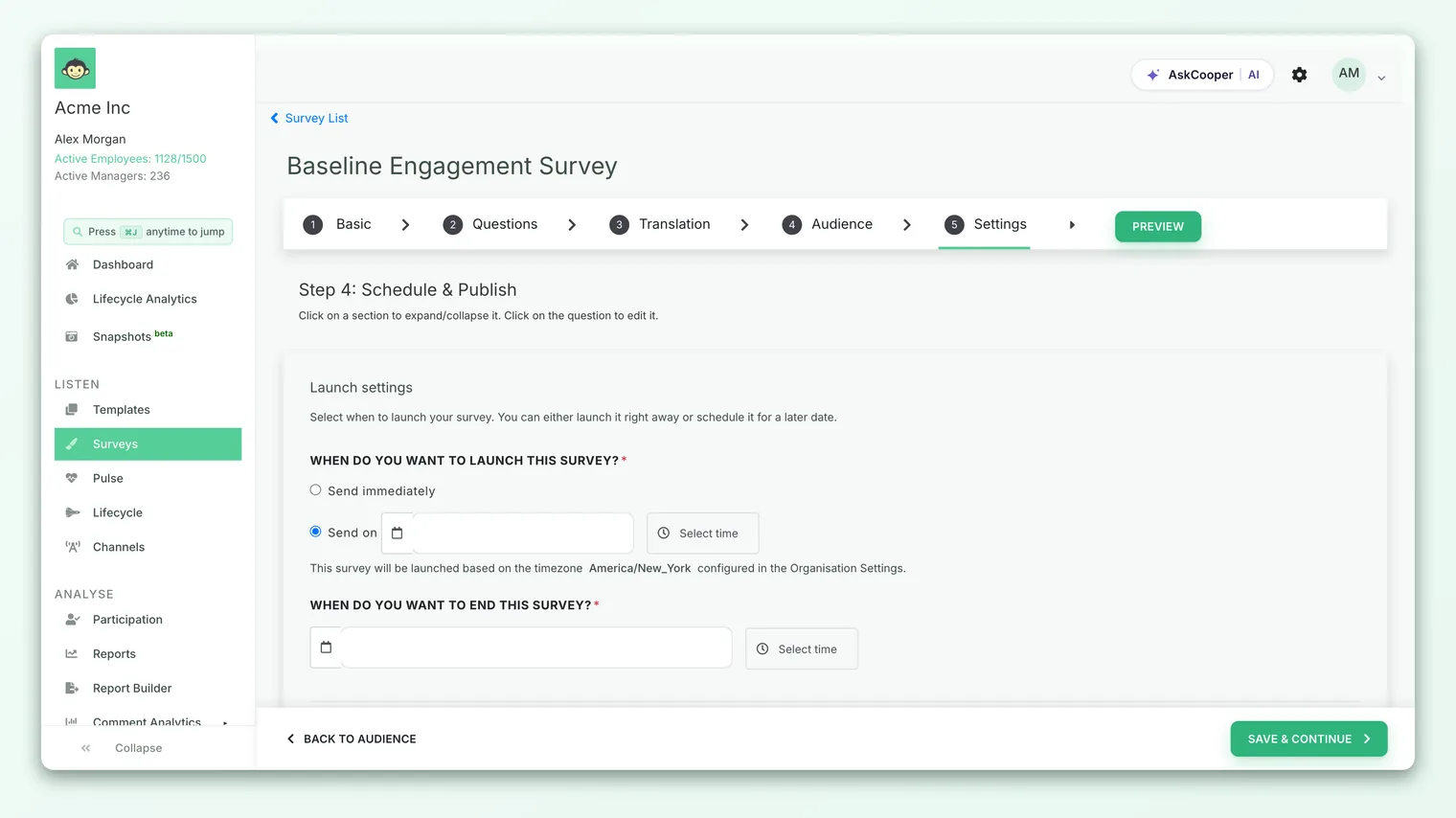
Here's exactly what happens when you publish:
- 1The survey is published. Its status changes from Draft to Published, and a published timestamp is recorded.
- 2Delivery is queued. If you chose Send immediately, invitations begin rolling out within about five minutes. If you scheduled it, CultureMonkey queues delivery for your exact start date and time (converted to UTC internally) and waits.
- 3Reminders are scheduled. Any reminders you set are queued for their dates too - unless it's a QR-only survey, which skips them.
- 4You get confirmation. A success message appears - "Survey published successfully!" - along with a splash confirming the survey is scheduled to launch on your chosen date and how many participants it will reach.
After that, you're done. There's no separate "send now" to press for a scheduled survey - publishing is the commitment, and CultureMonkey handles delivery at the scheduled moment.
The survey lifecycle: draft → published → running → ended
Every survey moves through four states. Knowing them helps you read your survey list at a glance and understand what you can still change.
| State | What it means | What you can do |
|---|---|---|
| Draft | Still being built. Not published, no invitations sent. | Edit everything - questions, audience, settings. Delete freely. |
| Published | You've clicked publish. Committed, but delivery hasn't fired yet (for a scheduled survey, it's waiting for the start time). | Content and audience are locked. Waiting to launch. |
| Running | The start moment has arrived; invitations have gone out and responses are coming in. | Send reminders, monitor participation, end early if needed. |
| Ended | The end date passed (or you closed it). No new responses accepted. | Explore results, extend in limited cases, build action plans. |
The transitions are worth spelling out:
- Draft → Published happens the instant you click Publish this survey.
- Published → Running happens automatically when your start date and time arrive and delivery fires. For a Send immediately survey these two steps happen within minutes of each other; for a scheduled survey, the gap is however long you set.
- Running → Ended happens automatically when your end date and time pass. CultureMonkey moves the survey to Ended and stamps the completion time - you don't have to do anything. You can also end a running survey early yourself when you're ready.
A scheduled survey sits in Published - committed but not yet sent - until its start time. That's normal, not a stuck state. It flips to Running the moment invitations go out.
After you launch: monitoring and reminders
Once a survey is Running, open it from your survey list to watch participation build in real time - how many invitations went out on each channel, and how many people have responded. This is your cue for reminders: a well-timed nudge to non-responders is the single biggest lever on your final response rate, and you can send a manual reminder at any point while the survey runs, on top of any you scheduled.
When enough responses arrive to clear the anonymity threshold, head to Analyse › Reports to explore results by driver, segment and eNPS - and turn what you find into action plans.
Best practices for launching
- Publish early, launch later. Finish and publish while the survey is reviewed and fresh, but schedule the start for when people are most likely to engage - often a mid-week morning.
- Mind the timezone. The launch fires once, at your organization's configured time. For a global workforce, pick a time that's reasonable for most, and lean on reminders to catch the rest.
- Always set an end date. A clear window plus timely reminders beats an open-ended survey every time.
- Test before you trust it. Preview as a participant, and send a test email, before you commit. Launch locks content.
- Use a test survey to rehearse. If you want to trial the full end-to-end experience including notifications, mark it as a test survey while building - those can be deleted afterward, unlike a real launched survey.
Frequently asked questions
What's the difference between "published" and "running"?
Published means you've committed the survey but delivery hasn't fired yet - a scheduled survey stays here until its start time. Running means invitations have gone out and responses are being collected. A Send immediately survey passes through published to running within a few minutes.
Can I change the launch date after I've published?
Publishing commits the survey, and its content and audience lock at that point. Scheduling details behave differently across accounts, so if you need to change a scheduled start after publishing, check with an administrator rather than assuming it can be edited.
How long does "Send immediately" actually take?
The survey is queued the moment you publish, and notifications begin rolling out in about five minutes. This brief buffer lets the system prepare delivery; it isn't an error if invitations don't appear the same second you click publish.
What timezone do the launch and end times use?
Your organization's timezone, configured in Organisation Settings and shown right on the Settings step. The launch and close fire once at that single organizational time, not per-participant local time.
Do I have to end the survey manually?
No. CultureMonkey automatically moves the survey to Ended when your end date and time pass, and records the completion moment. You can also close a running survey early if you'd rather wrap up sooner.
Can I delete a survey after launching it?
Not a normal one - deleting it would destroy real responses. Only surveys marked as test surveys can be removed after launch, so use test mode while you're experimenting.
Where to go next
- Building the survey first: Create a survey from scratch
- Pick the best way to send: Distribution channels overview
- Lift your response rate: Send reminders to non-responders
- Turn results into change: Create an action plan
Your feedback helps us improve the Help Center.