

Send CultureMonkey survey emails from your own domain (custom SMTP)
How to configure a custom SMTP sender in CultureMonkey so survey invitations and reminders go out from your own email domain - the fields to set, how to set them up, deliverability considerations like SPF and DKIM, and when the default sender is the better choice.
On this page
By default, CultureMonkey sends your survey invitations and reminders from its own trusted mail servers. That works well for most teams - but some organizations want those emails to come from their own domain instead: surveys@yourcompany.com rather than a CultureMonkey address. Configuring a custom SMTP sender lets you do exactly that.
This guide is for the account admin who wants email to go out under your own domain. It covers what a custom SMTP sender is and why you might use one, every field you'll configure, how to set it up step by step, the deliverability groundwork (SPF and DKIM) that makes it actually work, and - importantly - when you're better off leaving the default sender in place.
A custom SMTP sender routes CultureMonkey's outgoing emails through your mail server, so they arrive from your own domain. You supply your provider's connection details - host, port, username, password, a sender address and the authentication method - and CultureMonkey uses them for every survey email. It's a deliverability and trust decision, not a required step; the default sender is well configured and works out of the box.
What a custom SMTP sender is
SMTP (Simple Mail Transfer Protocol) is the standard way one mail server hands an email to another to be delivered. Every email your employees receive from CultureMonkey - a survey invitation, a reminder, a notification - travels over SMTP.
Out of the box, CultureMonkey sends those messages through its own mail infrastructure, using an address that belongs to CultureMonkey. A custom SMTP sender replaces that step: instead of CultureMonkey's servers, your emails are relayed through your organization's mail provider (Google Workspace, Microsoft 365, Amazon SES, SendGrid, Postmark, or your own mail server), and they arrive from a sender address on your own domain.
Nothing else about the survey experience changes. The same invitations, the same reminders, the same email templates - only the mail server that delivers them, and the "from" address your people see, are different.
Why send from your own domain
There are three good reasons an organization chooses to configure custom SMTP:
- Trust and recognition. An email from
people@yourcompany.comlooks unmistakably internal. Employees are more likely to open and trust it than a message from an address they don't recognize - which lifts your survey response rates. - Deliverability control. When mail comes from your domain, it's governed by your sender reputation and your authentication records (SPF, DKIM, DMARC). If your IT team has already tuned those for internal mail, your survey emails inherit that good standing.
- IT and compliance policy. Some security teams require that all mail claiming to be from the company domain actually originate from approved company servers. Custom SMTP satisfies that requirement.
If none of these apply to you, that's completely fine - the default sender is designed to deliver reliably without any of this setup. See When the default sender is the right choice below.
Configuring SMTP means entering credentials and settings that usually live with your IT or email team. It's worth pulling them in before you start - they'll have the host, port, and an authorized sender address ready, and they're the ones who'll add the DNS records that make deliverability solid.
Where to find the setting
Mail settings live in your account's Settings area, under the mail configuration page. From there you choose how CultureMonkey should send email - the default sender, or a custom SMTP sender - and, when you choose SMTP, a form appears for the connection details.
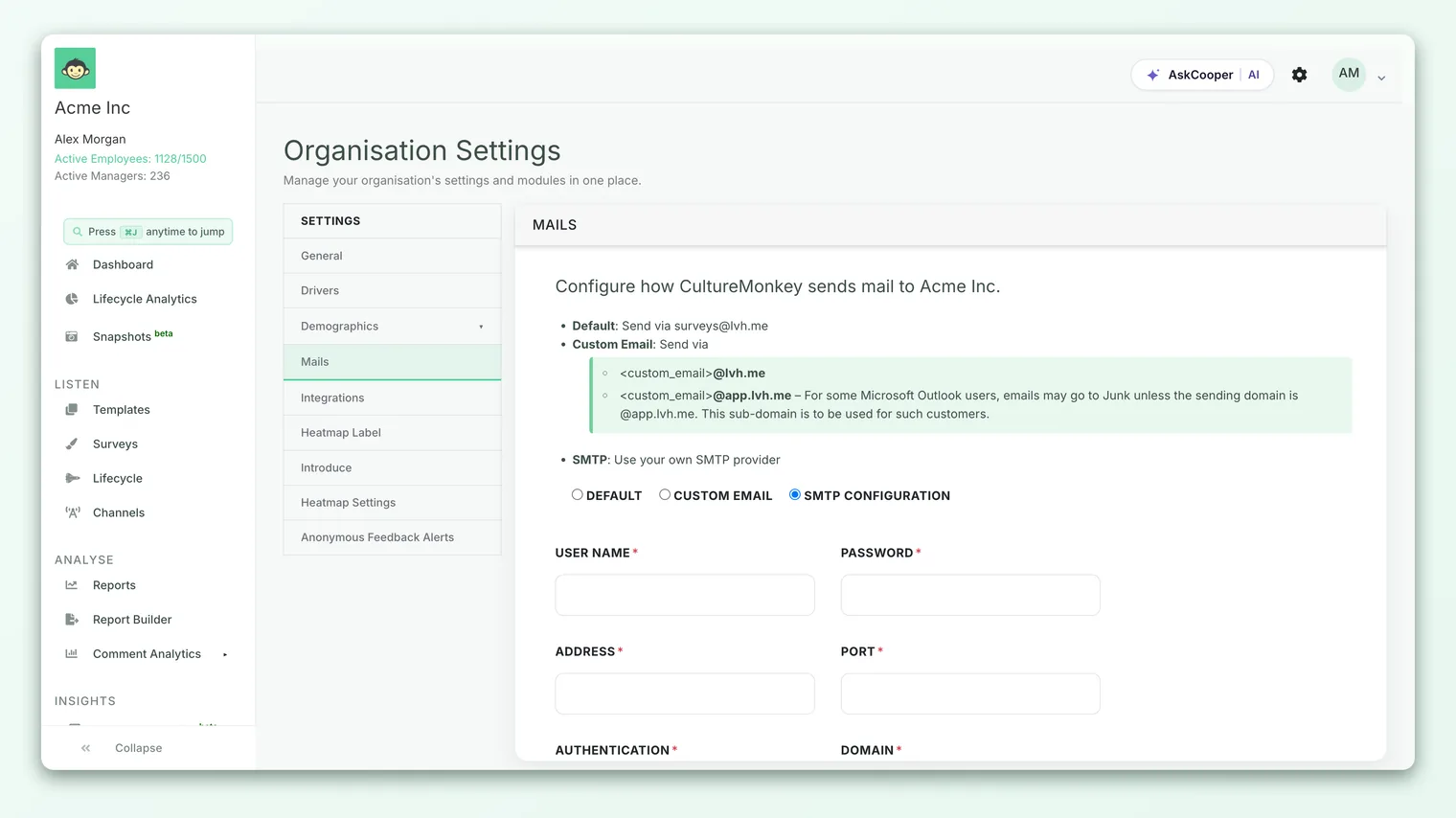
The settings you'll configure
When you choose the SMTP option, CultureMonkey shows a form with the following fields. Every field is required - your email provider's documentation (or your IT team) will have the correct values for each.
| Field | What it is | Example |
|---|---|---|
| Username | The login your mail provider expects, often the full mailbox address or an API-style user. | surveys@yourcompany.com |
| Password | The password or API key/app password for that user. Stored securely and never shown back to you in full. | •••••••••••• |
| Address | The SMTP server hostname to connect to. | smtp.yourprovider.com |
| Port | The network port for the SMTP connection. Common values are 587 (STARTTLS) or 465 (SSL). | 587 |
| Authentication | The authentication scheme your server uses, typically login or plain. | login |
| Domain | The mail domain used during the SMTP handshake (HELO/EHLO), usually your sending domain. | yourcompany.com |
| Sender email | The "from" address employees will see on survey emails. It must be an address your SMTP provider is authorized to send as. | people@yourcompany.com |
| Enable TLS | A checkbox that turns on STARTTLS so the connection is encrypted. Recommended - leave it on unless your provider says otherwise. | ☑ |
The Sender email has to be an address your SMTP provider will actually let you send from - the in-app hint says as much: "Enter a valid sender email address authorized by your SMTP provider." If you try to send as an address your provider doesn't recognize, it will reject or bounce the mail. When in doubt, use a real mailbox on your domain.
How to set it up
Have your provider's SMTP details in hand, then work through the form:
- 1Open mail settings. Go to your account Settings and open the mail configuration page. You'll see the choice between the default sender and a custom SMTP sender.
- 2Choose the SMTP option. Selecting it reveals the connection form with the fields listed above.
- 3Enter the connection details. Fill in Username, Password, Address and Port exactly as your provider specifies. A mismatched host or port is the most common reason a connection fails.
- 4Set authentication and domain. Enter the Authentication method (commonly
login) and your Domain (usually your sending domain, e.g.yourcompany.com). - 5Set the sender address. In Sender email, enter the address employees should see - and make sure your SMTP provider is authorized to send as it.
- 6Enable TLS. Leave Enable TLS checked so the connection to your mail server is encrypted. Only uncheck it if your provider explicitly requires an unencrypted connection.
- 7Save changes. Save the form. From here on, CultureMonkey routes survey emails through your SMTP server and sends them from your sender address.
Before you rely on custom SMTP for a real launch, send a small test - for example, invite yourself or a couple of colleagues to a draft survey - and confirm the email arrives, lands in the inbox (not spam), and shows the right "from" address. It's the quickest way to catch a wrong port, an unauthorized sender, or a missing DNS record.
Deliverability: SPF, DKIM and DMARC
Getting the SMTP form right makes CultureMonkey hand off your email correctly. Getting it into inboxes reliably takes one more step, and it happens in your DNS, not in CultureMonkey: email authentication.
Modern mail providers (Gmail, Outlook, and the rest) treat mail that claims to be from your domain with suspicion unless your domain vouches for the sender. Three records do that:
- SPF (Sender Policy Framework) - a DNS record listing which servers are allowed to send mail for your domain. Your sending server needs to be included, or receivers may mark the mail as spoofed.
- DKIM (DomainKeys Identified Mail) - a cryptographic signature added to each message that proves it genuinely came from your domain and wasn't altered in transit.
- DMARC - a policy that tells receivers what to do when SPF or DKIM checks fail, and gives you reporting on who's sending as your domain.
You don't configure these in CultureMonkey. Your IT or email team adds them to your domain's DNS. If you're using a provider like Google Workspace, Microsoft 365, or Amazon SES, that provider publishes exactly which SPF include and DKIM keys you need.
This is the single biggest cause of custom-SMTP problems. If you switch to sending from your own domain without valid SPF and DKIM records in place, your survey emails are far more likely to land in spam - or be rejected outright. That can quietly tank your response rate. Coordinate the DNS records with your IT team before you make custom SMTP live, and verify with a real test send afterward.
When the default sender is the right choice
Custom SMTP is a power-user option, not a best practice everyone should adopt. The default sender is already well configured for deliverability, and for many teams it's the better call. Stick with the default when:
- You don't have IT support to set up DNS. Without SPF and DKIM, custom SMTP will likely hurt deliverability rather than help it. If you can't get those records added, the default sender is safer.
- You just want surveys to go out reliably. If email deliverability hasn't been a problem, there's no need to add moving parts. The default sender "just works."
- You're launching quickly. Custom SMTP adds setup and testing time. For a first survey on a tight timeline, launch on the default and revisit SMTP later if you decide you need it.
- Your mail provider makes relaying difficult. Some corporate mail environments make it awkward to authorize a third-party relay. If that's your situation, weigh the effort against the benefit.
There's no penalty for using the default - CultureMonkey's own domain is warmed and authenticated, so your emails are in good hands either way.
Frequently asked questions
Do I have to set up custom SMTP?
No. It's entirely optional. CultureMonkey sends survey emails from its own trusted servers by default, and that works well for most organizations. Configure custom SMTP only if you specifically want emails to come from your own domain.
Will custom SMTP change how my emails look?
Only the "from" address and the server that delivers them. The content - your invitation and reminder templates, branding, and copy - stays exactly the same. Employees simply see the email arrive from your domain instead of a CultureMonkey address.
What port should I use?
It depends on your provider, but the two most common are 587 (with STARTTLS, and Enable TLS checked) and 465 (SSL). Use whichever your provider's SMTP documentation specifies - mismatched ports are the most frequent cause of a failed connection.
My test email went to spam - what went wrong?
Almost always a missing or incorrect SPF/DKIM record, or a Sender email your provider isn't authorized to send as. Confirm your DNS authentication records are published and correct, and that the sender address is a real, authorized mailbox on your domain. Your IT team can verify both.
Is my SMTP password stored securely?
Yes. Your credentials are stored securely and the password field is never displayed back to you in full. Still, treat the credentials as sensitive - prefer a dedicated mailbox or an app-specific password/API key over a personal account password where your provider supports it.
Can I switch back to the default sender later?
Yes. Mail settings let you choose between the default sender and custom SMTP, so you can revert at any time if you run into trouble or no longer need custom sending.
Where to go next
- Shape the emails themselves: Customize survey invitation & reminder emails
- Get the rest of your account ready: Set up your account
- See all the ways surveys reach people: Distribution channels overview
Your feedback helps us improve the Help Center.