

Set up your CultureMonkey account
A first-run guide for account admins - where your account settings live, how to set your organization name, branding, timezone and language, which settings to review before you launch, and who's allowed to change them.
On this page
Before you run your first survey, it's worth spending ten minutes getting your account details right. These are the settings that shape how CultureMonkey shows up to your people - the name on your emails, the logo they see, the timezone your reminders fire in, and the language your app speaks. Get them right once and everything downstream just works.
This guide is for the account admin setting things up for the first time. It covers where account settings live, how to set your organization's name and basics, branding and logo, timezone and language, the handful of settings a new admin should review first, and who's allowed to change them.
Your account settings live behind the Settings gear, which opens the account edit page at /accounts/edit/…. The General tab holds your organization name, employee segment, timezone, industry, country and logo. Separate tabs - Demographics, Languages, Mails, Integrations and more - handle the rest. Only logged-in admins can change these settings, and a few advanced options are managed by CultureMonkey for you.
Where account settings live
Account settings sit behind the Settings gear in the CultureMonkey app. Clicking it opens the account edit page, whose address is /accounts/edit/… (the trailing part is your account's ID). This is the home base for configuring how your whole account behaves.
Because a single account can have a lot to configure, settings are organized into tabs running down the settings area. You'll land on General first - the core details of your organization - and can move between the other tabs as needed. The tabs you'll see include:
- General - organization name, employee segment, timezone, industry, country and logo.
- Drivers - the engagement drivers your surveys measure.
- Languages - your translation and multilingual options (shown when multilingual is enabled).
- Demographics - Teams, Sub Teams, Locations, Custom Attributes and Business Units - the structure CultureMonkey uses to slice your results.
- Mails - how outgoing survey and reminder emails are configured.
- Integrations - API and channel connections such as Slack and Microsoft Teams.
- Introduce - the introductory message employees receive when you announce CultureMonkey.
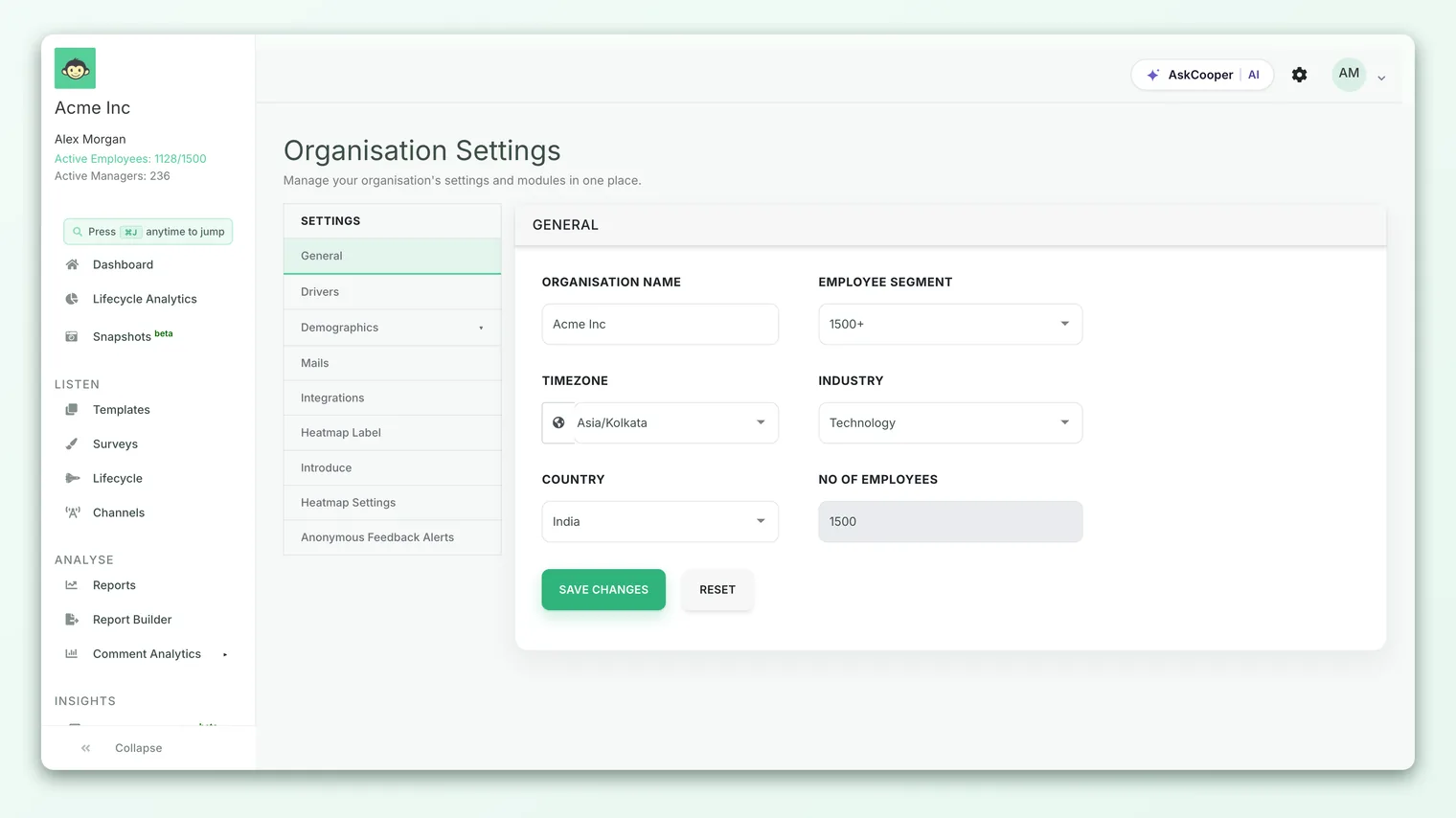
The two tabs a new admin cares about most are General and Demographics. General is your organization's identity and defaults; Demographics is the structure - teams, locations, attributes - that determines how you'll later filter and compare results. This article focuses on General and the account-wide basics; setting up your teams and attributes is covered in Import employees from a CSV and the demographics guides.
Setting your organization name and basics
The General tab is a short form. Fill it in top to bottom and click Save Changes - CultureMonkey saves it all in one go. Here's what each field does:
- 1Open Settings - click the Settings gear to open the account edit page.
- 2Set your Organization Name - this is the name of your company as it appears across the app and in employee-facing emails. Choose the name your people will recognize.
- 3Pick your Employee Segment - a rough size band for your organization (for example, 1-500, 501-1500 or 1500+). It helps CultureMonkey tailor the experience to your scale.
- 4Choose your Timezone and Country - so scheduled surveys and reminders go out at sensible local times and reporting reflects the right region (more on timezone below).
- 5Select your Industry - used for context and benchmarking.
- 6Save Changes - click Save Changes to apply everything at once. Reset discards edits you haven't saved yet.
Your organization name isn't just a label in the admin app - it appears in the survey invitations and reminders your employees receive. It's worth getting it exactly right (correct capitalization, no test values) before you send your first survey.
You may also see a read-only No. of Employees figure on this tab if your plan specifies a contracted employee count. This reflects your agreement and isn't something you edit directly - reach out to CultureMonkey if it needs to change.
Branding and your logo
A little branding goes a long way toward making CultureMonkey feel like your engagement program rather than a third-party tool. When branding is enabled for your account, the General tab shows an Organisation Logo upload field where you can add your company logo.
To add or replace it, use the logo field on the General tab to choose an image file, then Save Changes. Your logo then appears in the places employees and admins see your brand.
The logo field only appears when custom branding is enabled for your account. If you don't see it and you'd like to add your logo, contact CultureMonkey to have branding turned on.
Timezone and language
Two settings quietly affect everyone's experience: timezone and language.
Timezone
Your account timezone determines when time-based things happen - when a scheduled survey opens, when reminders go out, and how dates are presented. CultureMonkey uses standard IANA timezone names (like America/New_York, Europe/London or Asia/Kolkata), so you can pick the exact region that matches where your program is run from.
If your workforce spans many timezones, set this to the timezone of the team running the program (usually HR/People Ops), and lean on scheduling to hit good local send times for different groups.
Because timezone drives send times, set it before you schedule your first survey. Changing it later won't retroactively reschedule anything you've already set up.
Language
CultureMonkey supports multiple languages for the app and for surveys. New accounts default to English (en), and the platform ships with a range of additional languages you can use.
There are two distinct ideas worth separating:
- Interface / default language - the base language your account operates in.
- Survey languages (multilingual) - the ability to present a single survey to different employees in their language. When multilingual is enabled, a dedicated Languages tab appears in settings where you manage translations for surveys and email content.
If you have a multilingual workforce, turning on multilingual support (and reviewing the Languages tab) is one of the highest-impact things you can do for participation - people engage more honestly in their own language.
Settings a new admin should review first
You don't need to touch every tab before launch, but a short review pays off. Here are the key settings a new account admin should look at first, and what each one controls:
| Setting / tab | Where | What it controls | Why review it first |
|---|---|---|---|
| Organization Name | General | The company name shown in-app and in employee emails | It's the most visible detail - errors here reach every employee |
| Timezone | General | When scheduled surveys and reminders fire | Wrong timezone means badly-timed sends |
| Country & Industry | General | Regional context and benchmarking | Sets the right frame for your results |
| Logo / branding | General | Your logo across the experience | Makes the program feel like yours |
| Language / multilingual | General / Languages | Default language and per-employee survey languages | Drives comfort and participation |
| Demographics | Demographics | Teams, Sub Teams, Locations, Custom Attributes, Business Units | Determines how you can filter and compare every future report |
| Mails | Mails | How survey and reminder emails are sent | Ensures invitations actually reach inboxes |
| Integrations | Integrations | Slack, Microsoft Teams, API and SSO connections | Lets you meet employees where they already are |
Of these, Demographics deserves special attention. The teams, locations and attributes you set up here are what let you later ask "how does Engineering compare to Sales?" or "how is our Bangalore office trending?". Results can only be sliced along the dimensions you've defined - so a little structure now saves a lot of frustration later. The easiest way to populate all of this is to include the right columns in your employee upload; see Import employees from a CSV.
CultureMonkey can only break results down by attributes that existed when responses were collected. If you launch without teams or locations set up, you can't retroactively slice that survey's results by them. Get your demographic structure in place first.
Who can change settings
Account settings are protected - you have to be a logged-in admin to open the account edit page and change anything. Employees, who receive and answer surveys but don't have an admin login, never see these screens.
Within the admin roles, the Super Admin is the one who owns account-wide configuration. As the guide to roles explains, a Super Admin has full control of the account, including settings, integrations, email templates and administrators. Scoped roles like Sub Admin, Manager and Report Viewer are limited to the slice of the organization they've been assigned and are not the roles for changing account-wide settings.
Reserve account-level settings for your Super Admins - the people who genuinely need account-wide control (typically HR/People leaders and the account owner). Keeping that group small protects both your configuration and your employees' anonymity.
A final note: a handful of advanced, behind-the-scenes options are managed by CultureMonkey rather than exposed as everyday toggles - things like certain anonymity thresholds, advanced heatmap behavior and specialized modules. If you want one of these changed, your CultureMonkey contact can help. See Getting help if you're not sure who that is.
Frequently asked questions
Where exactly is the Settings gear?
It's the gear icon in the CultureMonkey admin app. Clicking it opens the account edit page at /accounts/edit/…, which is where the General, Demographics and other settings tabs live.
Will changing my organization name affect surveys already sent?
Your organization name is used when emails are generated. Changing it updates how your name appears going forward; it won't rewrite messages that have already been sent. Set it correctly before your first send.
Can I have surveys in more than one language?
Yes, when multilingual support is enabled for your account. A Languages tab appears in settings where you manage translations, and employees can then answer in their preferred language.
Why don't I see the logo upload field?
The Organisation Logo field only appears when custom branding is enabled for your account. If you'd like to add your logo and don't see the field, contact CultureMonkey to enable branding.
I'm an admin but can't change a particular setting - why?
Some settings are scoped to Super Admins, and a few advanced options are managed by CultureMonkey rather than exposed in the UI. If you need one of these changed, ask a Super Admin or reach out to your CultureMonkey contact.
Do I have to fill in every field before launching?
No - but review the General tab and set up your Demographics before your first survey. Those two have the biggest impact on how your results look and how usable they'll be.
Where to go next
- The whole picture: How CultureMonkey handles multiple languages
- Understand who can do what: Understanding roles
- Bring your people (and their teams) in: Import employees from a CSV
- Plan your rollout: Your first 30 days
Your feedback helps us improve the Help Center.