

A survey link isn't working
How to diagnose and fix a broken CultureMonkey survey link - what each respondent error message (survey ended, already submitted, invalid passcode, wrong link) actually means and how to get the employee answering again.
On this page
- How CultureMonkey survey links work
- "This survey has expired!"
- "This survey isn't live yet"
- "You have already submitted a response for this survey!"
- Passcode problems on shared links and QR codes
- A personal link opened by the wrong person
- When the link itself is broken or "not found"
- A quick diagnostic checklist
- Frequently asked questions
- Where to go next
When an employee tells you "the survey link isn't working," the fix is almost always quick once you know which thing broke. CultureMonkey shows a different message for each situation, and each message points at a specific cause: the survey has closed, the person already answered, a verification passcode expired, or the link they clicked isn't the one meant for them.
This guide walks through every error a respondent can hit, tells you what CultureMonkey is actually saying behind the scenes, and gives you the exact fix. Share it with employees who get stuck, or use it yourself when a colleague forwards you a screenshot.
Most "broken link" reports are one of five things: the survey ended, the person already submitted, a passcode expired or was mistyped, a personal link was opened by the wrong person, or the link got mangled when it was copied or forwarded. Read the message CultureMonkey shows on screen first - it tells you which one you're dealing with.
How CultureMonkey survey links work
A little background makes every error below obvious.
When you send a survey by email or SMS, each employee gets a personal link. That link carries a unique access key (a long random string) that identifies exactly one person for exactly one survey. It is tied to that individual, and it works only while the survey is live. See Take a survey via email or SMS for how those links are delivered.
Shared links and QR codes work differently. A QR code or a shared survey URL is the same for everyone, so CultureMonkey adds a verification step: the respondent enters their email address, phone number, or employee ID, receives a one-time passcode, and confirms it. Only then does the platform know who they are. See Survey links and QR codes for how those are set up.
So a link can "not work" for two broad reasons: something about the survey (it's closed, not started, or deleted), or something about identity (the wrong person, an expired passcode, an unrecognized email). The message on screen tells you which.
"This survey has expired!"
This is the single most common report, and it usually isn't a bug at all.
Every survey has an end date and end time set on its schedule. Once that moment passes (in your account's time zone), the survey closes and any link to it shows a page that reads "This survey has expired!" The same thing happens to pulse-survey links after their end date.
What it means: the survey window has closed. The link was valid; the employee simply opened it after the deadline.
How to fix it:
- 1Confirm the schedule. Open the survey under Listen and check its end date and time. If it has genuinely ended, the link will not reopen on its own.
- 2Extend the window if the survey is still open for others. If you want to keep collecting responses, edit the survey's end date to a later date and time. Links become live again immediately for anyone who hasn't submitted.
- 3Send a fresh reminder. If you extend, trigger a reminder so people know they have more time. The original personal links still work once the window is open.
Pushing out the end date on a survey that is about to close is straightforward. Reopening one that closed a while ago (especially after you've started reading reports) can muddy your data and your response timeline. If a survey has been closed for a while, it's usually cleaner to run a short follow-up survey than to reopen the old one.
"This survey isn't live yet"
The mirror image of an expired survey. If someone opens a shared link or QR code before the survey's start date, they see a message that the survey isn't live yet and to check back soon. A scheduled-but-not-yet-launched survey shows the start date and a short "make your voice count" prompt.
What it means: the link is correct, but the survey hasn't opened.
How to fix it: confirm the start date on the survey schedule. If it should already be open, check that the survey was actually launched (a saved draft is not the same as a live survey). If the timing is right, ask the employee to come back on or after the start date.
"You have already submitted a response for this survey!"
If a personal link is opened again after the employee has finished, CultureMonkey redirects them to the completion screen with the message "You have already submitted a response for this survey!" For pulse surveys the wording is "You have already submitted a response!"
What it means: this is working as designed. Each person can submit once per survey, which keeps your results honest. The employee has already been counted.
How to fix it: usually nothing. Reassure the employee that their response was recorded. A couple of edge cases are worth knowing:
- They think they didn't finish. CultureMonkey autosaves progress. If someone answered on one device and reopened the link on another, they may see the "already submitted" or a resumed-form state rather than a blank survey. Their answers are safe.
- They genuinely need to change an answer. Submitted responses are final and (for anonymity reasons) can't be edited by an admin on the respondent's behalf. If revisions are essential, the practical route is a new survey.
"Already submitted" is the message people most often mistake for a broken link. Before you troubleshoot anything, check whether the person simply completed the survey earlier.
Passcode problems on shared links and QR codes
When a survey uses a shared link or QR code, respondents verify themselves before answering. Several distinct messages can appear here, and each has its own fix.
"Passcode has expired. Click Resend to get new passcode."
A one-time passcode is valid for 30 minutes after it's sent. If the employee waits too long before entering it, they see "Passcode has expired. Click Resend to get new passcode."
Fix: click Resend. A fresh passcode is sent to the same email or phone number, and the 30-minute clock restarts. Ask them to enter the new one promptly.
"Invalid Passcode/ email address combination."
This appears when the passcode typed doesn't match the one that was sent.
Fix: the usual culprits are a typo, an extra space, or using an old passcode after a newer one was requested (only the most recent passcode is valid). Ask the employee to click Resend, wait for the newest code, and enter that one carefully. Copy-pasting from the email or SMS avoids transcription slips.
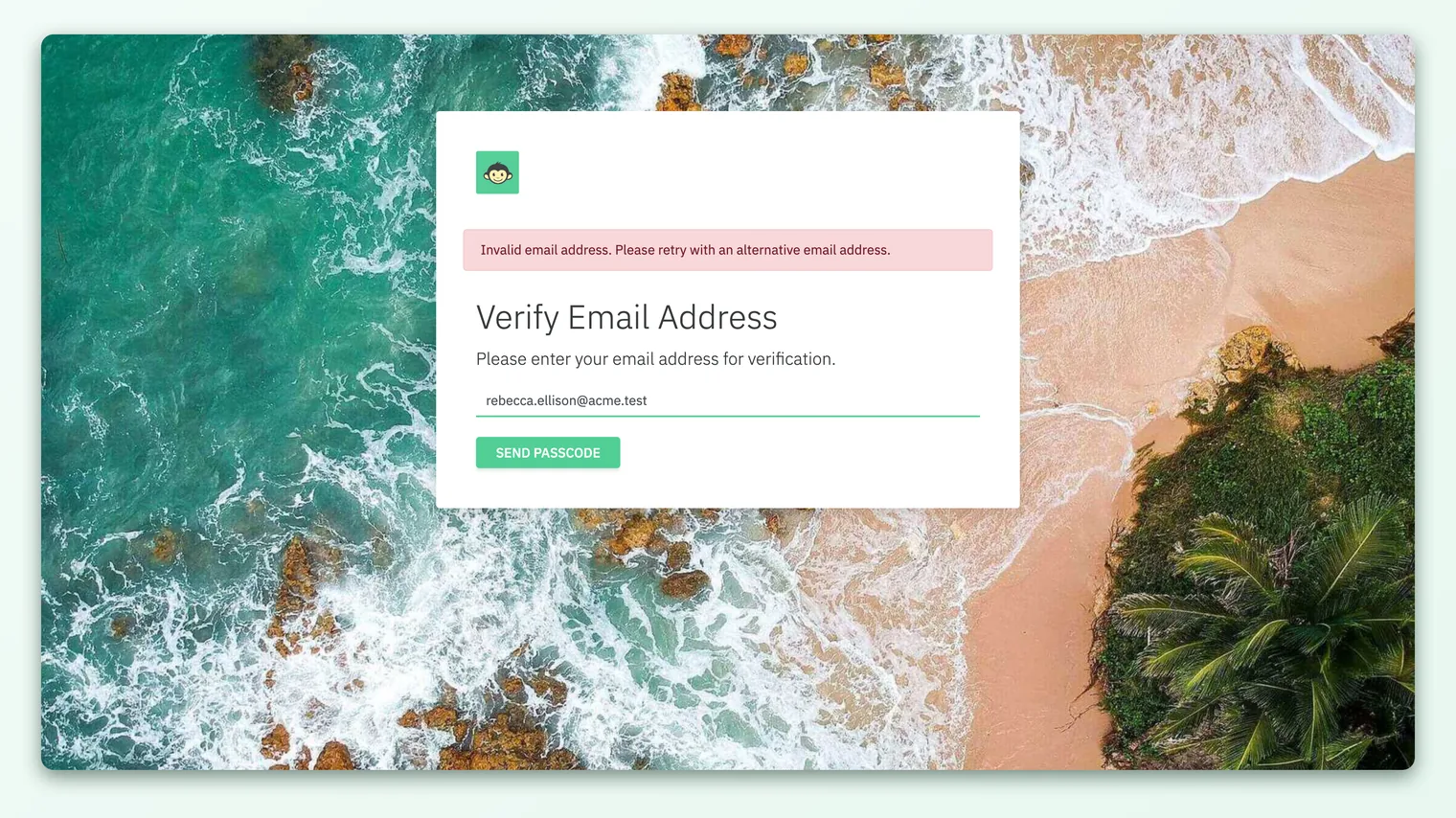
"Invalid email address. Please retry with an alternative email address."
Shown when the email the respondent enters doesn't match an active employee record for this survey.
Fix: confirm they're using the exact address you have on file. Common causes are a personal Gmail instead of the work address, a typo, or an account created under a different email. If the address is right but still rejected, the employee may not be in the survey's audience or may be inactive - check their record under General → Employees.
"Invalid Employee ID. Please retry with an alternative Employee ID."
For accounts that verify by employee ID instead of email, the equivalent message appears when the ID isn't recognized.
Fix: confirm the ID format (leading zeros, letter prefixes, and case can matter). If it still fails, verify the person exists in Employees and is marked active.
"This survey is not applicable."
Occasionally a verified employee isn't part of this survey's audience. The verification succeeds, but there's no participant record linking them to the survey, so they see that the survey isn't applicable to them.
Fix: this is expected when someone outside the target audience tries a shared link. If they should be included, add them to the survey's audience and re-run the send so a participant record is created for them.
A personal link opened by the wrong person
Personal email and SMS links are tied to one individual. When they get forwarded, shared in a group chat, or opened on a shared kiosk, problems follow.
- The link still identifies the original recipient. If Priya forwards her link to Sam and Sam submits, the response is recorded against Priya, not Sam. Priya then sees "already submitted," and Sam never gets counted.
- Nothing visibly "breaks," which is the danger. There's no error message here, just misattributed data.
Fix: never forward personal links. If a colleague didn't receive theirs, resend the survey to that person specifically, or point them at the shared link or QR code if your survey offers one, where they'll verify as themselves. If you suspect a link was shared, a shared/QR entry point is the safer channel for that group.
Treat a personal survey link like a password. It represents one employee's identity in the results. Forwarding it doesn't just fail to help the other person, it can quietly attach their answers to the wrong name.
When the link itself is broken or "not found"
Sometimes the link genuinely won't resolve. If the access key is missing, altered, or points at a survey that no longer exists, the respondent lands on a "Survey not found!" page explaining that the survey can't be found or has been deleted, and to contact their administrator.
The usual causes are mechanical:
| What went wrong | Why it happens | The fix |
|---|---|---|
| Link split across two lines | Email clients wrap long URLs, so only half gets clicked | Copy the entire link, or use the survey button rather than the raw URL |
| Trailing characters | A stray ), ., > or space gets pasted onto the end | Remove anything after the access key |
| Truncated when forwarded | Chat and SMS apps sometimes cut long links | Resend from CultureMonkey rather than forwarding |
| Survey was deleted | The link is fine but the survey no longer exists | Nothing to recover; run a new survey if needed |
| Wrong environment or old link | An outdated link from a previous cycle | Send the current survey's link |
Fix in most cases: resend the survey from CultureMonkey so the employee gets a clean, unbroken link, and ask them to click the button in the message rather than copying text. If the whole link is correct and it still says "not found," the survey may have been deleted.
A quick diagnostic checklist
When someone reports a broken link, this order gets you to the answer fastest:
- 1Ask for the exact on-screen message or a screenshot. The wording tells you the category immediately.
- 2Check the survey's status and schedule. Is it live right now, not yet started, or ended? This resolves the "expired" and "not live yet" cases.
- 3Check whether they already submitted. Look at their participation status before assuming anything is broken.
- 4For shared or QR links, walk through verification. Confirm the email or employee ID on file and have them Resend the passcode if it expired.
- 5Confirm they used their own link. Rule out a forwarded personal link, which misattributes responses.
- 6Resend a fresh link as a last step. A clean resend fixes formatting, truncation, and most one-off glitches.
Frequently asked questions
The employee swears they never got the link, but their status says "sent."
"Sent" means CultureMonkey handed the message to the email or SMS provider, not that it reached the inbox. Have them check spam and other folders, then resend. If email delivery fails repeatedly, it's a deliverability issue (sender domain, filtering) rather than a broken link, and the shared link or QR code is a reliable fallback.
Can I edit or reopen a link after someone submitted?
No. Submissions are final, and for anonymity reasons no one can reopen or alter a completed response on the respondent's behalf. If a correction is truly necessary, run a new survey.
Why does the passcode keep expiring before people use it?
CultureMonkey passcodes are valid for 30 minutes by design, which keeps the verification step secure. If employees routinely time out, the fix is behavioral: ask them to enter the code as soon as it arrives, and to Resend if they've been away.
An employee's email is correct but still gets "invalid email."
The address has to match an active employee record in the survey's audience. Check under General → Employees that the person exists, is active, and is included in this survey. A verified address that isn't in the audience will be rejected.
Is "already submitted" ever a real error?
Rarely. It almost always means the person genuinely completed the survey. The one thing to rule out is a forwarded personal link: if someone else submitted using their link, the original recipient sees "already submitted" even though they never answered.
Where to go next
- How links are delivered: Take a survey via email or SMS
- Shared links and QR codes: Survey links and QR codes
- Results not appearing? Why can't I see results yet?
Your feedback helps us improve the Help Center.