

Create and share CultureMonkey survey links and QR codes
How to generate a shareable survey link and QR code in CultureMonkey, run a QR-only survey for deskless and frontline teams, understand how identity and anonymity work with open links, and know when reminders do and don't apply.
On this page
Most surveys reach people through a channel you already have on file: email, SMS, WhatsApp, Slack, or Microsoft Teams. But not everyone sits at a desk with an inbox open. Frontline crews, retail and warehouse staff, drivers, nurses, and shop-floor teams often don't have a work email at all. For them, the fastest way to collect honest feedback is to put the survey somewhere physical or shared: a link they can tap, or a QR code they can scan from a poster or a phone screen. CultureMonkey generates both from any survey, which is how you reach people who have no work email at all.
This guide covers the manual side of distribution: how to generate a shareable survey link, how to produce and print a QR code, how to run a QR-only survey built specifically for deskless staff, and the two questions that always come up next - is a response through an open link still anonymous, and why can't I send reminders on these surveys?
Turn on link and QR sharing for your CultureMonkey account, then open a survey's Share tab to copy its unique link (a /c/... URL) or download its QR code. Anyone who taps the link or scans the code still verifies their email or employee ID and a one-time passcode, so only real participants can respond and no one answers twice. That identity check is separate from anonymity: if the survey is Anonymous, individual answers stay masked in your reports either way. A QR-only survey sends no notifications at all, so reminders don't apply to it.
When to use a link or QR code
Channel-based sending is the default because it's traceable and easy to remind on. Reach for a manual link or QR code when the channel model doesn't fit:
- Deskless and frontline staff who have no work email, or share a single device.
- A physical location where a poster by the time clock, the break room, or the shop entrance will get more scans than any message.
- Ad-hoc or event feedback you want to broadcast in a town hall, on a screen, or in a company chat announcement without building a full send.
- A backup path alongside your normal channels, so anyone who missed the email can still find their way in.
Because a link and a QR code point to the same place, most teams use both: the link in digital spaces (portals, intranet, messenger) and the QR code on print or screens.
Turn on link and QR sharing
Sharing by link and QR code runs on OTP-based surveys (one-time passcode verification). This is an account-level capability, so if you don't see a Share tab on your surveys yet, it isn't enabled for your account.
Enabling OTP-based sharing is an account-level setting. If the Share tab is missing, ask your Account Admin or your CultureMonkey contact to switch it on. Once enabled, the Share tab appears on every survey for Survey Admins.
Once it's on, every survey gains a Share tab in its summary view, sitting alongside Questions, Participants, and Notifications.
Generate a shareable survey link
Each survey has its own unique link. Sharing one survey's link never exposes another.
- 1Open the survey - Go to Listen › Surveys and click the survey you want to share.
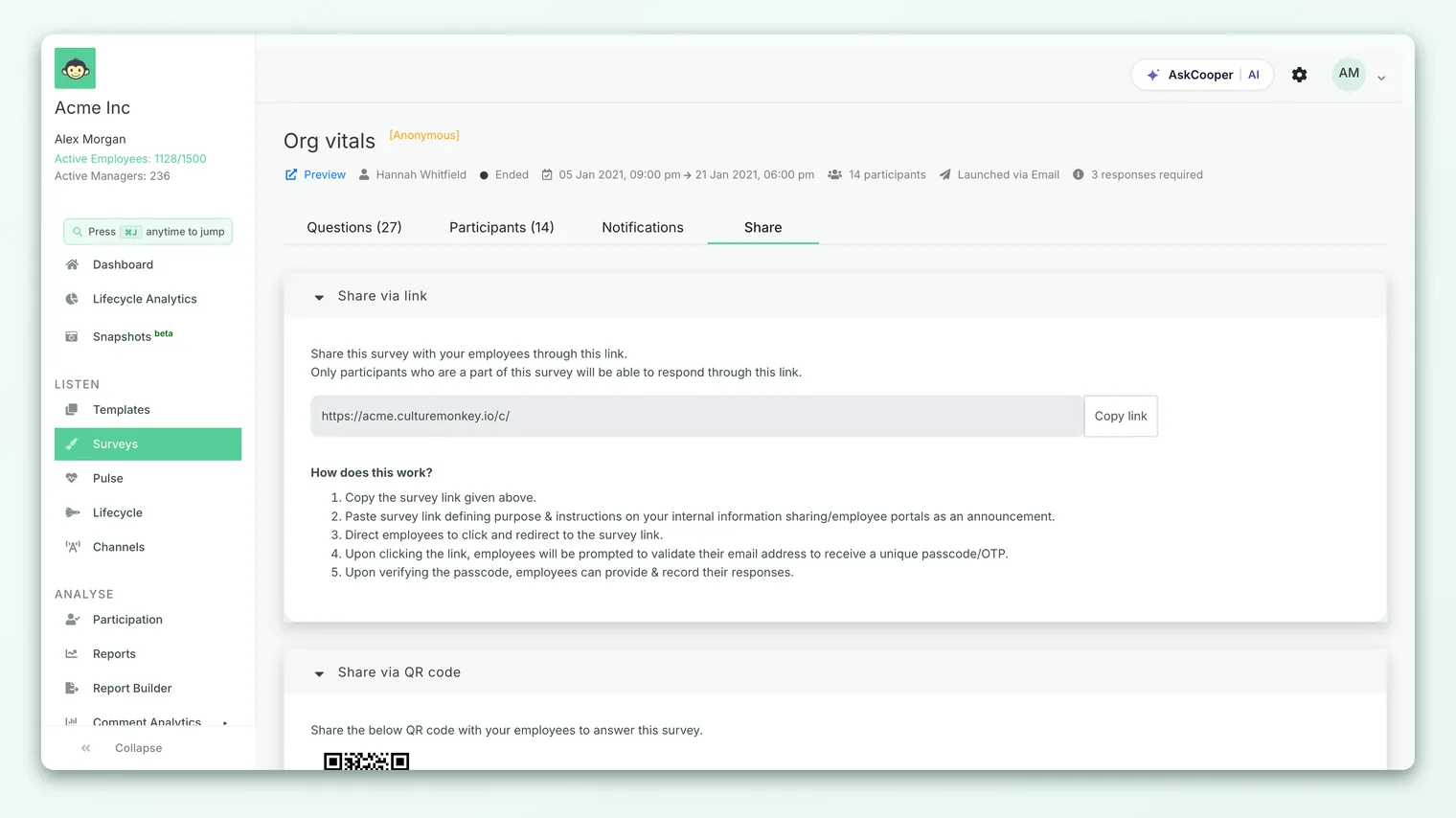
- 2Go to the Share tab - In the survey summary, open Share. The first section is Share via link.
- 3Copy the link - Click Copy link. The link looks like
yourcompany.culturemonkey.io/c/…, where the final part is that survey's private access key. - 4Post it where your people are - Paste it into your intranet, an internal portal, a company messenger announcement, or a printed handout, along with a short note on the survey's purpose and deadline.
You can also grab a link without opening the survey: on the Surveys list, use the row's actions menu and choose Get survey link.
When someone opens the link, they don't drop straight into the questions. They first land on a short verification screen. The flow is:
- The employee taps the link.
- They're asked to confirm their email address (or, on accounts configured that way, their employee ID) to receive a unique passcode.
- CultureMonkey sends the one-time passcode and they enter it.
- Once verified, they answer and submit.
That verification does two useful things. It confirms the person is actually a participant in this survey (the note on the screen reads "Only participants who are a part of this survey will be able to respond through this link"), and it stops the same person from answering twice.
Generate and share a QR code
Directly below the link section on the Share tab is Share via QR code. CultureMonkey generates the QR code automatically from that survey's link, so the code and the link always point to the same survey.
- 1Open the printable version - In the Share via QR code section, click Click here to open the QR code in a clean, printable page that shows the survey title and its URL.
- 2Print or save it - Use your browser's File › Print to print the page, or save it as a PDF to send on.
- 3Add context - Alongside the code, write a line or two on what the survey is for and when it closes. A bare QR code gets fewer scans than one with a clear "Tell us how work is going - 2 minutes, closes Friday."
- 4Display it where footfall is high - Break rooms, notice boards, the time clock, entrances, or a slide in an all-hands. Working remotely? Pin the image in your company messenger.
Scanning the QR code opens the same verification screen as the link: confirm email or employee ID, enter the passcode, then answer. So even a scan from an anonymous-looking poster still runs through the same eligibility and no-double-voting checks.
Because the QR code is just an image of the survey's link, you can reuse it freely - print it, drop it into a slide, share it in chat. It keeps working for the life of the survey. There's no per-scan limit and no separate code to manage per location.
QR-only surveys for deskless teams
A regular survey can offer a link and QR code in addition to its email or SMS sends. But some audiences have no reliable channel at all. For them, CultureMonkey has a dedicated mode: the QR-only survey.
You set it when you build the survey. On Step 1 (Basic) of the builder, tick QR-only survey (no notifications). The helper text is explicit: "No notifications or reminders will be sent. Participants can access via direct link or QR code."
What changes when a survey is QR-only:
- Nothing is dispatched. No launch email, SMS, WhatsApp, Slack, or Teams message goes out. The only way in is the link or the QR code you share.
- The Notifications tab disappears. Since there's nothing to notify, that tab is hidden from the survey summary.
- It's counted as its own channel. In your participation reports, responses that come through a QR-only survey (or any submission with no send channel) are grouped under a QR column, so you can see how the physical or shared route performed.
The QR-only checkbox is available for regular surveys only. It's automatically turned off for lifecycle and autopilot surveys, which are event-triggered and rely on their own notification flow.
This mode is the cleanest fit for a purely deskless rollout: you print the poster, put it up, and let people scan. There's no send to configure and no inbox to depend on.
Identity and anonymity on open links
This is the question that worries people most, and the answer has two parts that are easy to conflate. Verifying identity and showing identity are different things.
Verification is about eligibility, not exposure. Everyone who uses a link or QR code confirms their email or employee ID and a passcode. That step exists to make sure only invited participants respond, and that nobody answers twice. It is not the same as attaching a name to their answers.
Anonymity is a separate survey setting, chosen on the Basic step under Identity Settings, and it governs what you can see in reports. It applies no matter how the response arrived:
- On an Anonymous survey, individual answers are masked and results are held back until enough people in a group have responded, whether they came in by email, SMS, or a scanned QR code. The passcode step confirms the person belongs, then their answers join the anonymized pool.
- On a Non-anonymous (identified) survey, admins can see who said what, again regardless of channel.
So a QR code on a break-room wall does not make a survey anonymous, and it does not break anonymity either. The link and the code are just doors into the same survey; the anonymity of what's behind the door is set by the survey itself. For the full picture of how masking and thresholds work, see Set survey anonymity.
A survey link (and the QR code built from it) is tied to that specific survey. Verification limits who can submit to real participants, but the link itself is still best shared through your own trusted channels. Post it where your people are, not anywhere public.
Why reminders don't apply to QR-only surveys
Reminders in CultureMonkey work by messaging people who haven't responded yet, over a channel you hold for them. A QR-only survey has no channel by definition, so there's nothing to remind on. CultureMonkey enforces this rather than letting it fail quietly:
- Manual and automated reminders are blocked. If you try to set one up on a QR-only survey, you'll see "Reminders are not available for QR-only surveys."
- Scheduled reminder jobs skip these surveys. Any recurring reminder rule simply passes over a QR-only survey.
- Existing reminders are cleared. If a survey is switched to QR-only, its saved reminders are removed, since they can never send.
The practical takeaway: for a QR-only rollout, plan your nudges the old-fashioned way. Refresh the poster, mention the survey in a team huddle or shift briefing, or repost the link in your company chat. For surveys that do use a channel, reminders work normally - see Manual reminders.
Leave the QR-only box unchecked. A standard survey can send on a channel (so reminders work) and also expose its link and QR code on the Share tab. You get both: automated nudges for people you can reach, plus a scannable route for everyone else.
Best practices
- Pair the link with the QR code. Use the link in digital spaces and the QR code on print or screens. Same survey, two front doors.
- Always add purpose and a deadline. A poster that says why the survey matters and when it closes gets far more scans than a naked code.
- Place codes where people already pause. Time clocks, break rooms, and entrances beat a notice board no one reads.
- Choose QR-only deliberately. Pick it when the audience genuinely has no channel, and remember you're giving up reminders in exchange.
- Decide anonymity first. Set Anonymous or Non-anonymous on the Basic step before you publish - it can't be changed once the survey is live, and it applies to link and QR responses just the same.
Frequently asked questions
Do I need a separate link for each survey?
Yes. Every survey has its own unique link and its own QR code generated from that link. Sharing one survey's link or code only ever exposes that survey.
Can anyone with the link respond?
Only invited participants can actually submit. Opening the link brings up a verification step (email or employee ID plus a one-time passcode), and only people who are participants in that survey can get through it. That also prevents the same person from responding twice.
Does using a QR code make the survey anonymous?
No. Anonymity is a separate setting on the survey itself. A QR code or link doesn't change it: an Anonymous survey stays anonymous whether people answer by email or by scanning a code, and a Non-anonymous one stays identified. See Set survey anonymity.
Why can't I send reminders on my QR-only survey?
Because a QR-only survey has no messaging channel, there's nobody to send a reminder to. CultureMonkey blocks reminder setup on these surveys and skips them in scheduled reminder jobs. Nudge people in person or repost the link instead.
Can I use both a channel and a QR code on the same survey?
Yes, and it's a common setup. As long as you don't check QR-only, a survey can send on a channel (email, SMS, and so on) and still show its link and QR code on the Share tab. You keep reminders for the people you can reach and add a scannable route for those you can't.
I don't see a Share tab. Where is it?
Link and QR sharing runs on OTP-based surveys, which is an account-level capability. If the Share tab is missing, it isn't enabled for your account yet - ask your Account Admin or CultureMonkey contact to turn it on.
Where to go next
- Compare all the ways to reach people: Distribution channels overview
- Understand what stays hidden in reports: Set survey anonymity
- Nudge non-responders on channel-based surveys: Manual reminders
Your feedback helps us improve the Help Center.