

Overtime Analysis Compare a survey with earlier runs and see what moved
Choose the survey you care about and the earlier runs to set it against, and Overtime Analysis shows what moved across drivers, questions and segments, separates a genuine shift from normal noise, and tells you up front when a comparison would mean nothing.
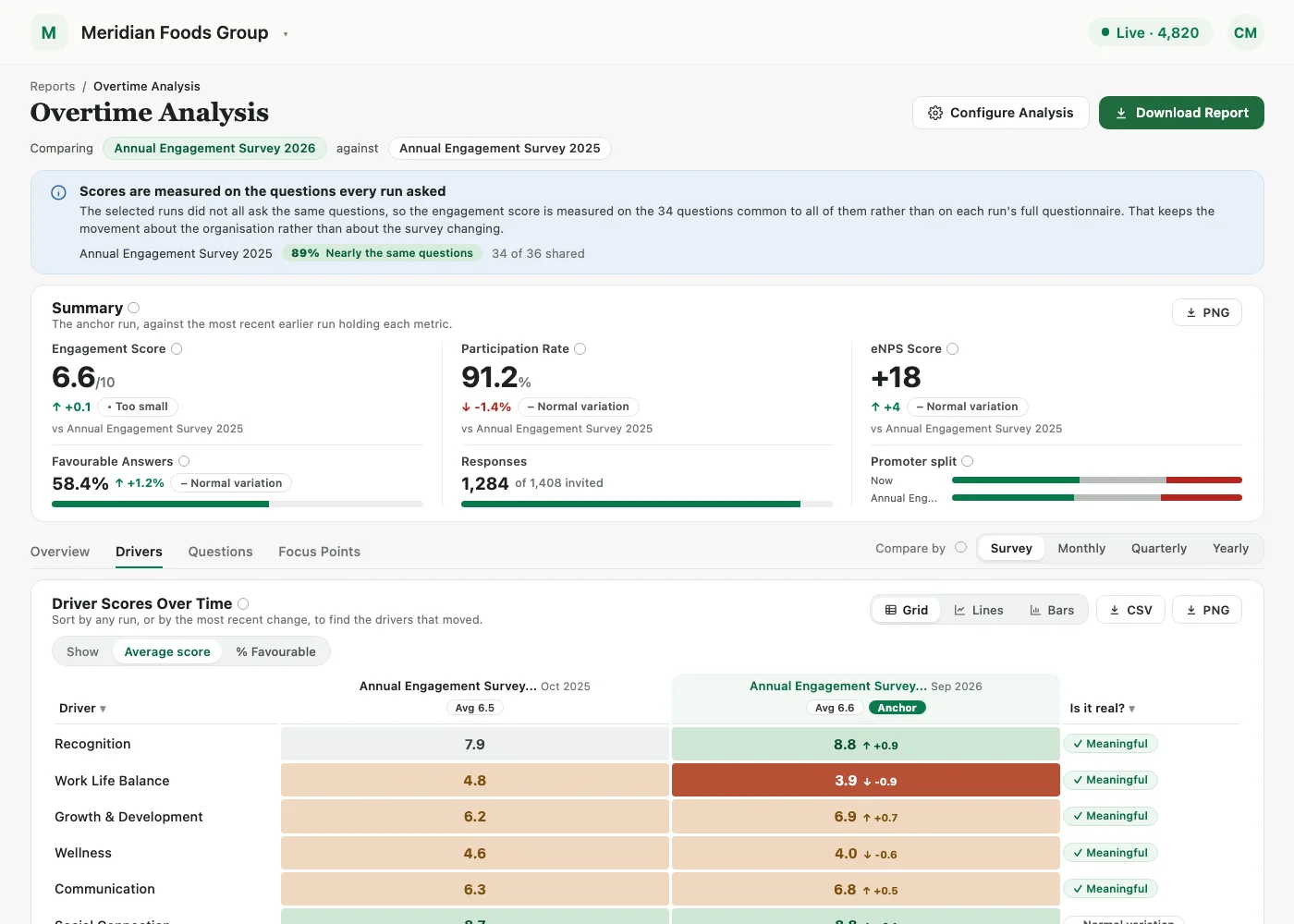
Choose what a survey is compared against. In Overtime Analysis, you pick one survey as your anchor and the earlier runs to compare it against. It then shows what moved across drivers, questions and segments, and says up front when two runs have too little in common for the numbers to mean anything.
Overtime Analysis is available to Super Admins, on request through your Success Manager.
Setting up a comparison
Every comparison starts with two choices:
- An anchor survey: the run you care about.
- The earlier runs to compare it against.
- 1Open Reports.
Reports, with Analyse overtime at the top right. - 2Select Analyse Overtime. The Configure Analysis dialog opens.
Pick the anchor survey, then the earlier runs. Each run shows how much of the anchor's questionnaire it shares. - 3Choose your anchor survey, then the earlier runs to compare it with.
It tells you when a comparison means nothing
Two surveys that ask different questions can still produce clean-looking numbers that mean nothing. So each run in the picker shows how much of the anchor's questionnaire it shares, for example:
| Overlap | Label |
|---|---|
| 100% | Same questions |
| 16% | Barely overlapping |
| 0% | No questions in common |
The report flags this up front.
Four tabs instead of one long page
| Tab | What it shows |
|---|---|
| Overview | Favourable answers, response counts, eNPS and the promoter split, each against the previous run |
| Drivers | Every driver across the selected runs, with an Is it real? column that separates a genuine shift from normal noise |
| Questions | The same view at question level |
| Focus Points | Where a driver moved most, broken down by team, location, manager and custom attributes, with the top 3 improvements and bottom 3 declines called out |
Drill into any segment: click a row to see that segment's history, run by run.
Anonymity
Segments below your account's anonymity threshold are excluded everywhere in Overtime Analysis, exports included. The report uses your account's anonymity threshold, so it agrees with the dashboard beside it.
When something is withheld, the report marks it as hidden because fewer than the required number of people responded, instead of showing an empty cell. That way you can tell "we are not showing this" apart from "there is nothing here".
Good to know
- Export charts: download any chart as CSV or PNG.
- Export the full report: download a complete report for engagement, eNPS or driver scores.
- Completed surveys only: only completed surveys with a report can be compared.
- eNPS follows the anchor: eNPS sections appear only if the anchor survey asked the eNPS question. If it did not, eNPS is hidden everywhere rather than shown as a partial number.
- Faster first view: the Drivers, Questions and Focus Points tabs load when you open them.
Who can use it
Overtime Analysis is for Super Admins. Sub Admins and Managers do not have access to it.
See what a warmer engagement platform looks like
Book a walkthrough and we will show you the features on this page, live in your workspace.