

Lifecycle Analytics Look at any period, not just all time
Lifecycle Analytics used to show everything since the beginning. Pick a period once and engagement, eNPS, participation and the Drivers heatmap narrow to it on every tab, and change arrows compare it with the period before.
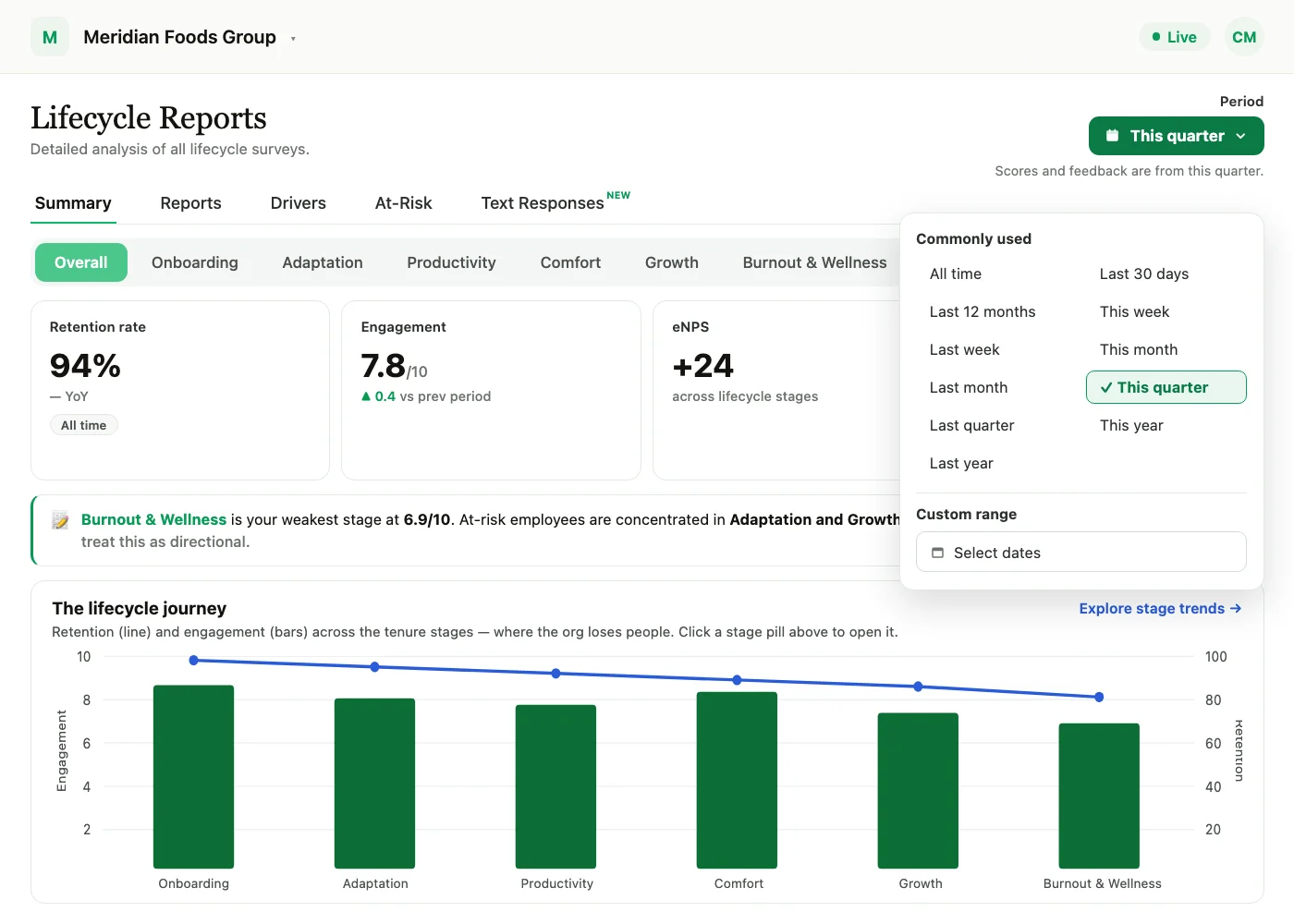
Look at Lifecycle Analytics for a specific stretch of time. Pick a period, like this quarter or the last 30 days, instead of seeing everything since the beginning. Pick it once and every tab follows.
Lifecycle Analytics with the Period control is available on request through your Success Manager.
Where to find it
The Period control sits at the top right of Lifecycle Analytics. It starts on All time.
- 1Open Lifecycle Analytics.
- 2Click Period at the top right.
- 3Pick a period under Commonly used, or under Custom range choose Select dates, set a start and end date, and click Apply.
Under Period there are eleven ready-made periods, or your own dates:
- All time, the default
- Last 30 days and Last 12 months
- This week and Last week
- This month and Last month
- This quarter and Last quarter
- This year and Last year
- A custom start and end date
What the period changes
- Every tab follows it: your choice stays with you as you move between Summary, Reports, Drivers, At-Risk and Text Responses.
- Scores narrow to the period: engagement scores, eNPS, participation and the Drivers heatmap all show only the period you picked.
- Change arrows compare like with like: the arrows on stage cards measure your period against the one before it of the same length, so This quarter is compared with last quarter. Each card says what it is comparing against.
- The link carries the period: the period is part of the page address, so a colleague who opens a link you share sees the same view.
The participation change figure on stage cards reports real change, so you may see arrows on stages that looked flat before.
What the period leaves alone
Some numbers are not about a window of time, so the period does not touch them. When a period is applied, each one says so on screen.
- Retention rate and At-Risk counts are a live picture of where people stand today, so they stay all time. Narrowing the dates would only make them look smaller without anyone actually being better off.
- Lifecycle Time Series keeps its own Yearly, Quarterly and Monthly dropdown. The chart is there to show a trend, so it keeps its full history.
- Text Responses shows the last 30 days when Period is set to All time. Pick any other period to see older responses.
Who can use it
Lifecycle Analytics is available to Super Admins whose Survey Access covers all surveys or lifecycle surveys.
See what a warmer engagement platform looks like
Book a walkthrough and we will show you the features on this page, live in your workspace.