

Your account's time zone
What your organization's timezone controls in CultureMonkey, where it's set, why it's read-only, and how to get it changed.
On this page
Your account has one organization timezone. It's the clock CultureMonkey uses for anything that runs at one moment for everyone.
What it controls
- Surveys sent at Organization time: launch, reminders and close.
- Recurring reminders and reminders you send now, including on local-time surveys.
- Employees with no timezone in a local-time survey: they're sent at this time.
- Times shown in reports and exports, such as when a response or action was recorded.
Where it's set
You choose it when the account is created. Afterwards it's shown, read-only, in Settings → Organization Profile under Time Zones, with the note "Surveys and reminders are scheduled in this time zone. To change it, contact support." The same section shows whether launching by employee time zone is available on your account, and how many employees have a usable timezone.
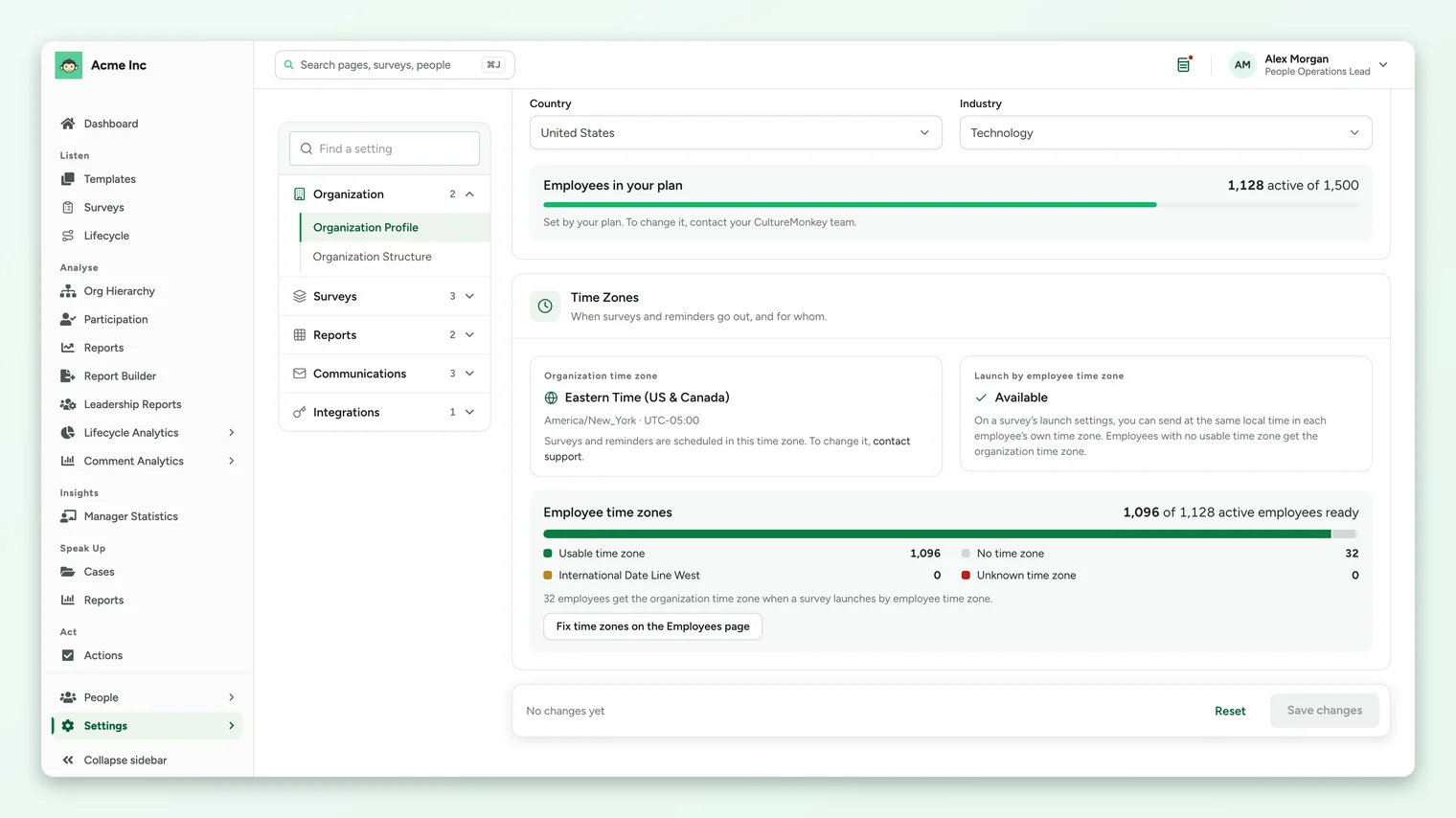
Changing it
Only CultureMonkey support can change it, because a change moves every scheduled survey and reminder on the account. Use the contact support link next to the setting, or email support, and say which timezone you need and why. Support records the reason with the change.
Reminders due within the next 30 minutes are locked from edits.
Related
- Reach people on their own clock: Send a survey at each employee's local time
- First-time setup: Set up your account
Your feedback helps us improve the Help Center.