

Send a survey at each employee's local time
How to schedule a survey so every employee gets it at the same time on their own clock: turning it on, reading the timezone groups, the checks before you can publish, and cancelling or resuming a launch.
On this page
When your people work across countries, one send time lands at very different moments of their day. A survey sent at 09:00 in London reaches New York at 04:00 and Sydney at 20:00. Each employee's local time fixes that: you pick one time, and every employee gets the survey at that time on their own clock.
On the launch step, choose Schedule, pick a date and time, and under Send at this time in choose Each employee's local time. CultureMonkey splits the audience into timezone groups and sends each group when the chosen time arrives where they are. Review the groups, confirm anyone without a timezone, and publish.
Before you start
- Who can choose it. Super Admins and Sub Admins choose it on the launch step. If an admin set it, a manager who edits the draft keeps the choice and sees "This survey goes out at each employee's local time. Only an admin can change this."
- Each employee needs a timezone. It comes from your employee data. Anyone without a usable one gets the survey at your organization's time. See Set each employee's time zone.
- It needs a scheduled time. It isn't available with Send now.
- It's for employee surveys. It isn't available for candidate, lifecycle, segment, automated, event based or QR-only surveys, or on Lite accounts.
- It's on for every account. If you don't see Send at this time in on the launch step, ask CultureMonkey support; it can be switched off for an account.
Turn it on
- 1Open the launch step. In the survey builder, go to Schedule and publish.
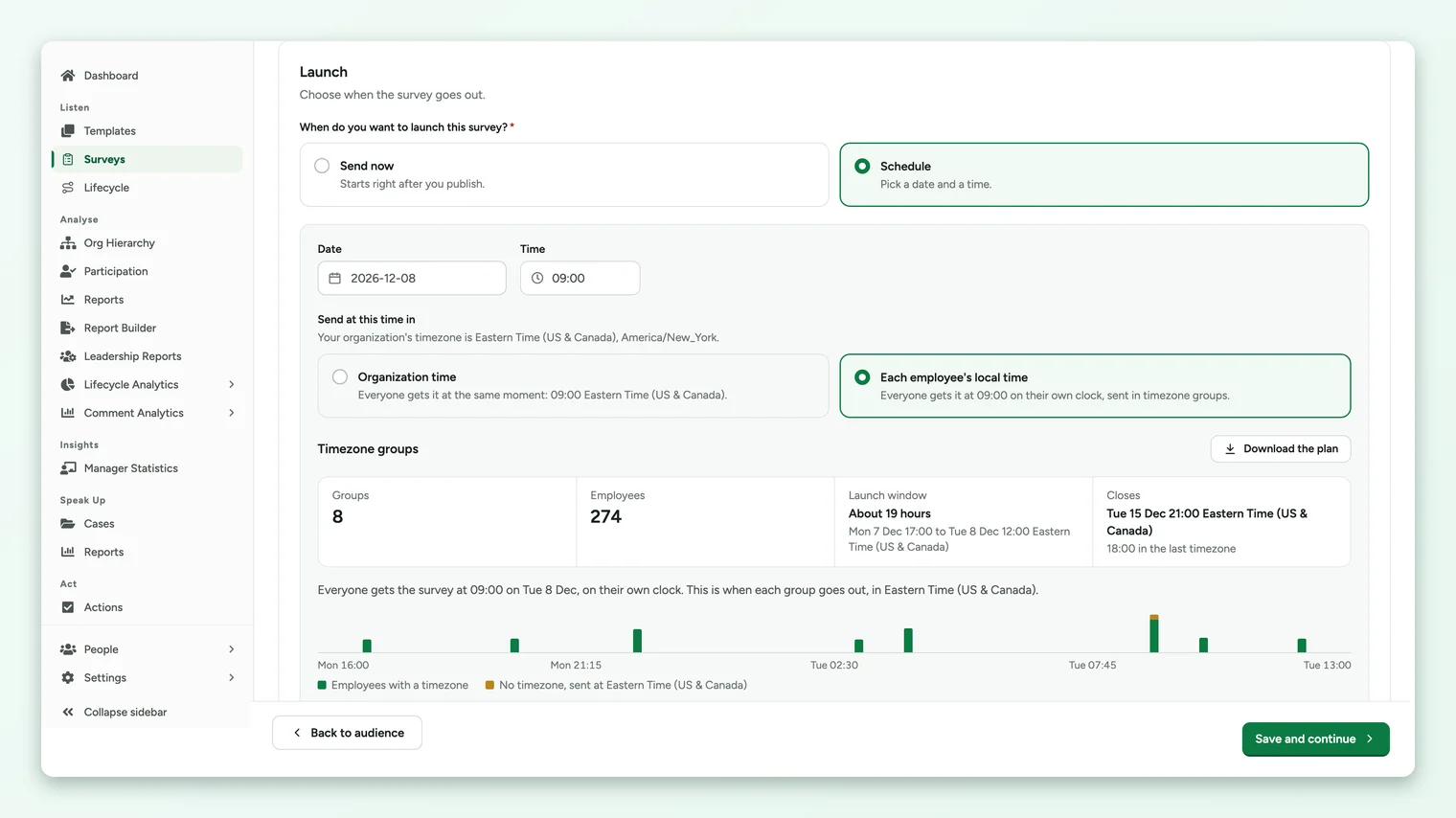
- 2Choose Schedule. Under When do you want to launch this survey?, choose Schedule and pick a Date and Time.
- 3Choose the clock. Under Send at this time in, choose Each employee's local time. The note changes to "Everyone gets it at [time] on their own clock, sent in timezone groups."
- 4Choose the close. Under Close at this time in, keep Each employee's local time (the survey stays open until the close time has passed in the last timezone) or choose Organization time to close at one moment for everyone. See Reminders and the close in local-time surveys.
- 5Review the timezone groups that appear below, then save and publish.
Read the timezone groups
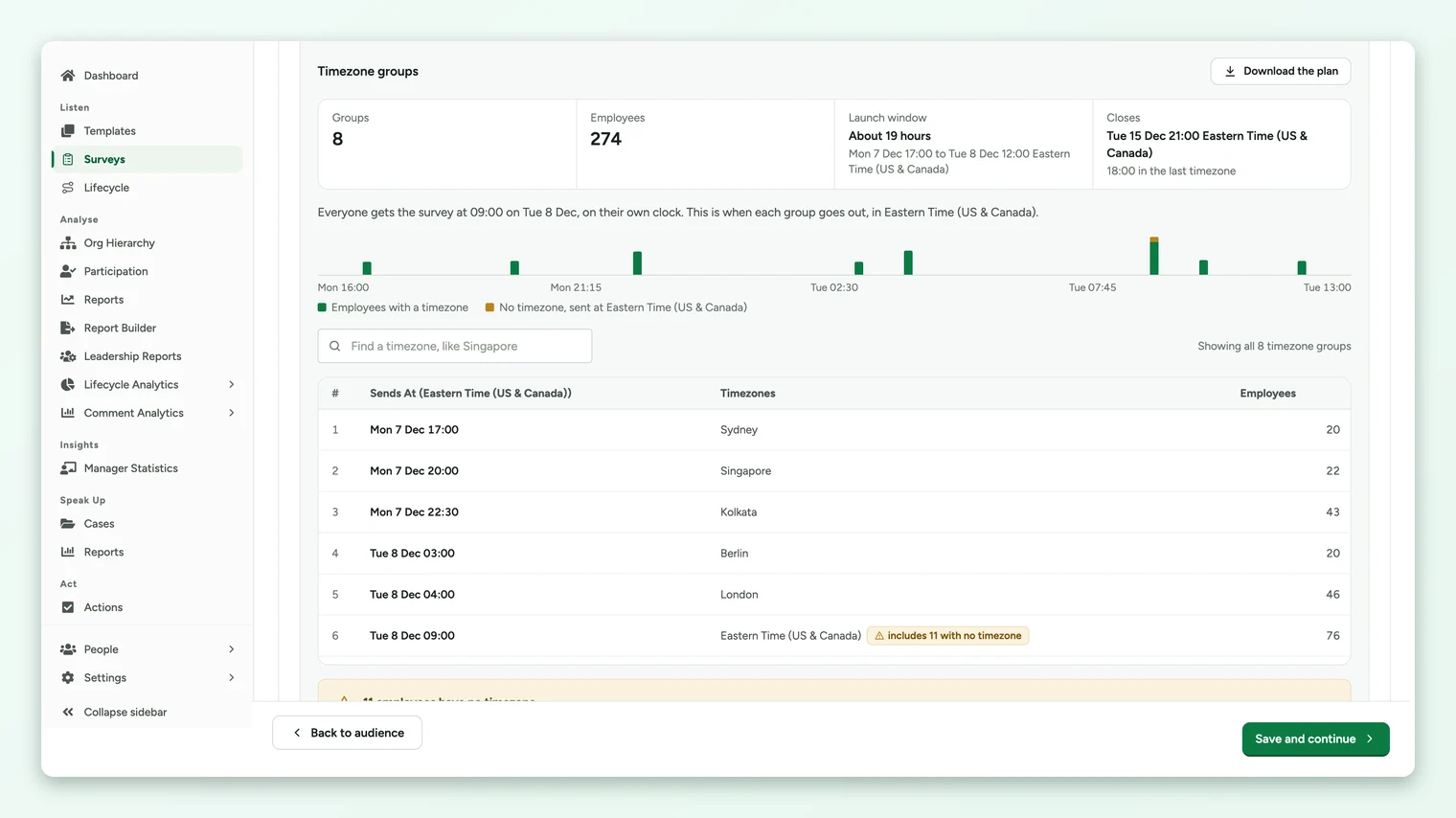
Once the audience and time are set, the launch step shows Timezone groups: how many groups there are, how many employees, the launch window from the first group to the last, and when the survey closes. Below that is one row per group in send order, with the timezones in it, how many employees it holds, and when it goes out in your organization's time (the Sends At column). You can search the groups, for example Singapore, and use Download the plan to get it as a file.
A summary line reads "Everyone gets the survey at [time] on [date], on their own clock." A timeline shows the first and last group so you can see how long the launch runs.
Employees without a timezone
People with no usable timezone are sent at your organization's time. If a group already goes out at that time, they join it and the row says, for example, "includes 11 with no timezone". Otherwise they get their own No usable timezone row. A warning below the table says how many there are, which can mean the middle of the night for some of them, and lets you show, search and download the list.
To publish, either add their timezones (on the employee record or in an employee import) or tick the box that confirms it, for example "I understand that 38 employees have no timezone and will be sent at 09:00 London time." If the list changes after you tick, you'll need to confirm again.
Checks before you can publish
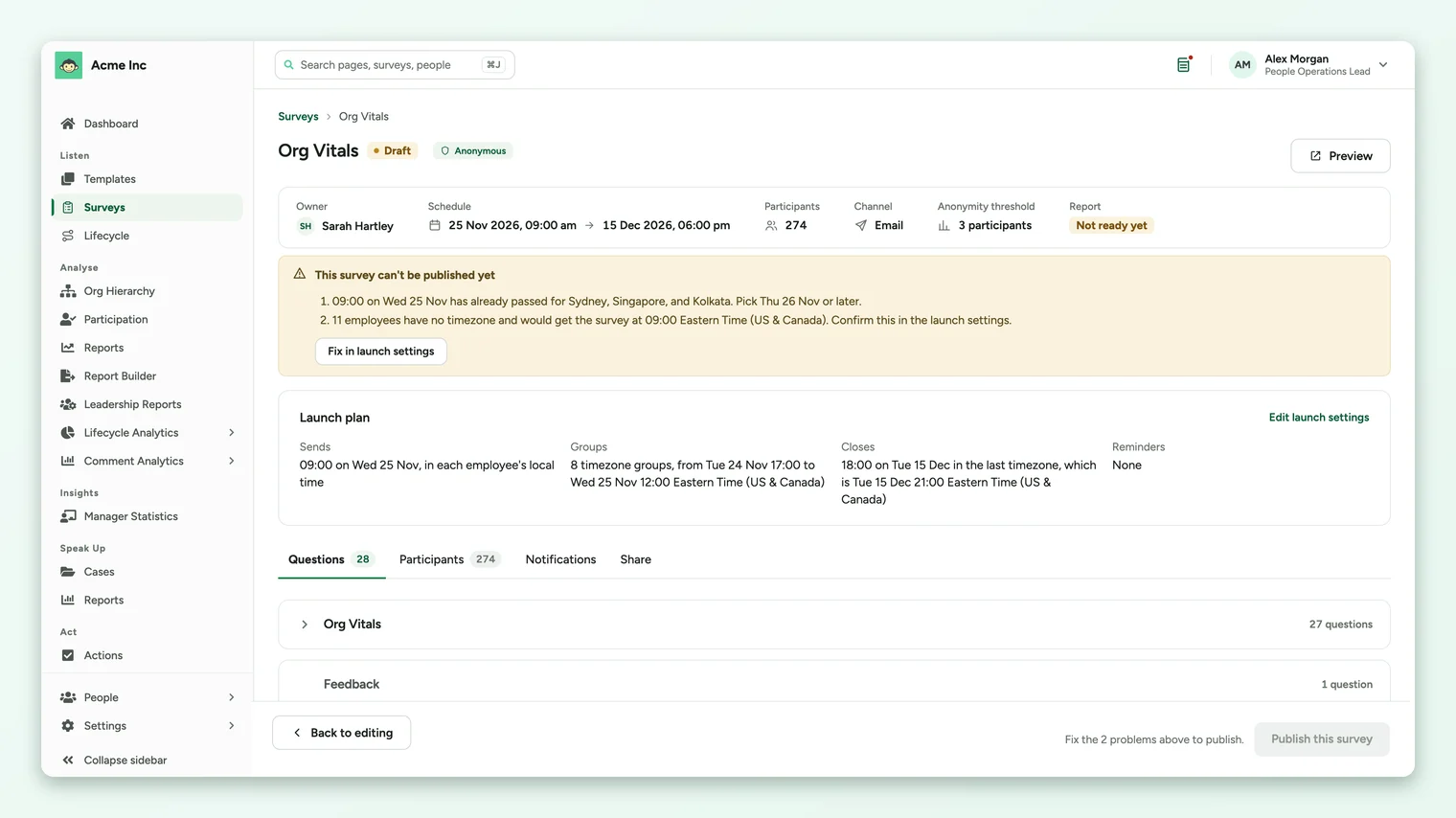
CultureMonkey won't publish a local-time survey that would reach someone at the wrong moment. The survey page lists what needs fixing under This survey can't be published yet, with a Fix in launch settings button, and Publish this survey stays disabled until it's fixed.
| Check | What you see | What to do |
|---|---|---|
| The time has already passed somewhere | "09:00 on Wed 25 Nov has already passed for Sydney, Singapore and Kolkata. Pick Thu 26 Nov or later." | Pick the date it suggests or later. Late groups are never sent straight away, because that would reach people at night. |
| Employees without a timezone | A count of employees with no timezone and when they'd be sent | Add their timezones, or tick the confirmation. |
| The close is too soon | The survey would close less than two hours after the last group is sent | Move the close later. |
| A reminder doesn't fit | "A reminder does not fit a launch by employee timezone" | Fix the reminder. See the reminder rules. |
| Too many groups | The audience needs more timezone groups than one survey can have | Split the audience across surveys. |
A survey set to each employee's local time must be published from the CultureMonkey web app. The AI connector won't publish it.
Daylight saving
Groups follow each place's own clock, including daylight saving. If the chosen time doesn't exist that day because the clocks go forward, that group is sent an hour later. If the time happens twice because the clocks go back, it's sent at the first one.
While the launch runs
- Progress. The survey page shows how far the launch has got, for example "Sent to 4 of 8 timezone groups. Answered so far: 812 of 1,040 employees. Last group at 12:00 on 8 December."
- Nobody opens early. Until a person's group has gone out, the survey shows as not open yet, whether they come through the employee portal, a kiosk, a shared QR link or an API link.
- People added later. Someone added to the survey after you publish gets their own send time and joins their timezone group. If that time has already passed, they're sent straight away.
- If a group fails. You'll see "One group could not be sent. Our team has been told." and the survey owner gets an email.
- Reading participation. "Answered in the first hour" counts from each person's own send time, so a group sent overnight in your time is not counted against the first hour.
Cancel or resume a launch
A Super Admin can cancel the launch from the survey page at any time until the last group is sent, including before the first one goes out.
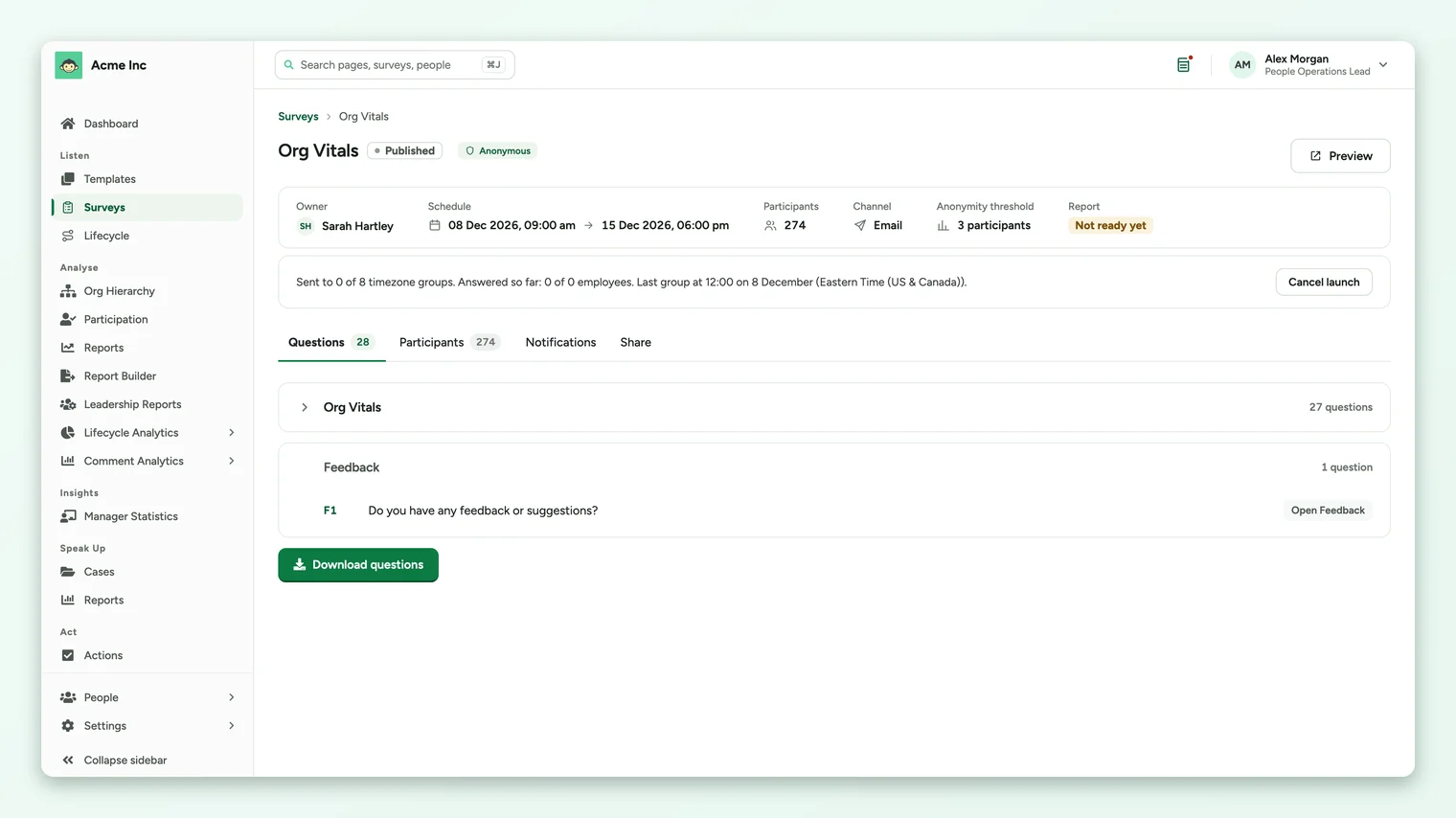
- 1Select Cancel launch. The confirmation tells you how many groups and employees haven't been sent yet. Scheduled reminders are cancelled with the launch. People already sent can still answer.
- 2Send the rest when you're ready. Select Send to everyone remaining now to send the survey straight away to everyone who hasn't received it.
A cloned survey starts fresh, with none of the original launch's groups or progress.
Related
- Learn more: time zone surveys on the CultureMonkey website
- Fix missing timezones: Set each employee's time zone
- Plan reminders and the close: Reminders and the close in local-time surveys
- Plan the whole launch: How to launch a global employee survey across time zones
Your feedback helps us improve the Help Center.