

Set each employee's time zone
Where CultureMonkey gets each employee's timezone, the formats an import accepts, what happens when someone has none, and how to fill the gaps before a local-time launch.
On this page
A survey sent at each employee's local time needs to know where each person is. That comes from the Timezone on their employee record. This guide covers the three ways to set it and what happens when it's missing.
Add a Timezone column to your employee import, set it on the employee form, or send it through the API. Use a name like America/New_York or Pacific Time (US & Canada). Anyone without a usable timezone gets local-time surveys at your organization's time.
Add it in an employee import
- 1Add a Timezone column to your file, with a timezone name for each employee, like America/New_York or Europe/London. Other names count as no timezone.
- 2Start the import with Import Employees on the Employees page, upload the file and match your employees, as in Import employees from a CSV.
- 3To change only timezones, choose Update a few details, then on Choose Updates pick Timezone as the detail and your Timezone column. Everything else about each employee stays as it is.
- 4Validate and import.
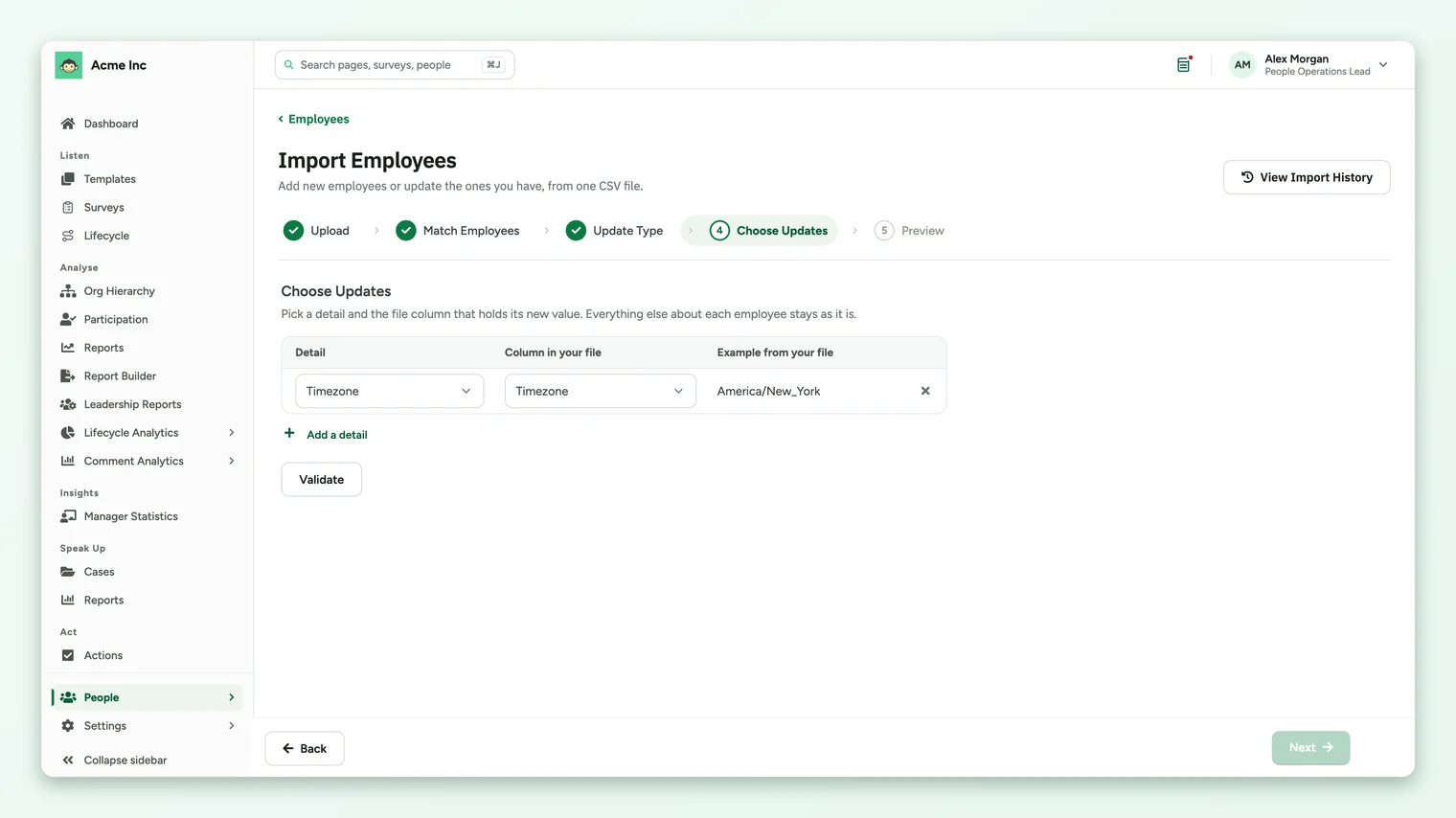
Region names such as Europe/London, Asia/Kolkata or America/New_York are the safest choice: they're unambiguous and follow daylight saving. A name the system doesn't recognise counts as no timezone.
Set it on the employee form
Open an employee and choose their Timezone from the list. To leave it empty on purpose, choose No timezone (use the organization's).
Send it through the API
If you sync employees through the CultureMonkey API, send the timezone name in the employee's timezone field. The same names work as in an import.
Employees without a timezone
An employee with no timezone, or one the system doesn't recognise, is still surveyed. In a local-time survey they're sent at your organization's time, in a separate No usable timezone row on the launch step. You'll see who they are, can download the list, and must confirm it before you publish. See Send a survey at each employee's local time.
To see how many are missing, open Settings → Organization Profile. The Time Zones section counts active employees with a usable timezone, with none, and with one the system doesn't recognise, and links to Fix time zones on the Employees page.
Employee timezones only change when people get a survey set to Each employee's local time. Surveys sent at organization time go out at one moment for everyone, as before.
Related
- Launch at local time: Send a survey at each employee's local time
- Your organization's timezone: Your account's time zone
Your feedback helps us improve the Help Center.