

View the action Kanban board in CultureMonkey
A complete guide to the Actions Kanban board in CultureMonkey - the five status columns, what each card shows, how to filter and search, and how the board closes the Listen, Analyse, Act loop.
On this page
The action Kanban board is where the last stage of the engagement loop actually happens. You have listened to your people, you have analyzed what they told you, and now you need to do something with it. The board is the single place where every action item lives, moves, and eventually gets closed out.
This guide walks through the board end to end: the five status columns and what they mean, exactly what each card shows you, how to search and filter down to the actions you care about, the board and table views, and how the whole thing fits into CultureMonkey's Listen, Analyse, Act model.
The CultureMonkey Actions board is a Kanban with five columns - To Do, On Hold, In Progress, Cancelled, and Completed. Every action item appears as a card showing its name, driver, owner, deadline, and ticket ID. You move work forward by dragging cards from one column to the next, and you can search or filter the board to focus on a specific owner, driver, or team.
Where the board lives
The board is the home screen of the Act area of CultureMonkey. Open Actions from the main navigation and you land directly on the Kanban view, with the header "Actions" and a short reminder underneath: "Act on the feedback you get from your employees."
Two things sit at the top of the page. On the right, a Create an action button lets you add a new item at any time. Just below the header, a small tab row gives you Summary (a roll-up of action stats over a date range) and Actions (the board itself). Most of your day-to-day work happens on the Actions tab.
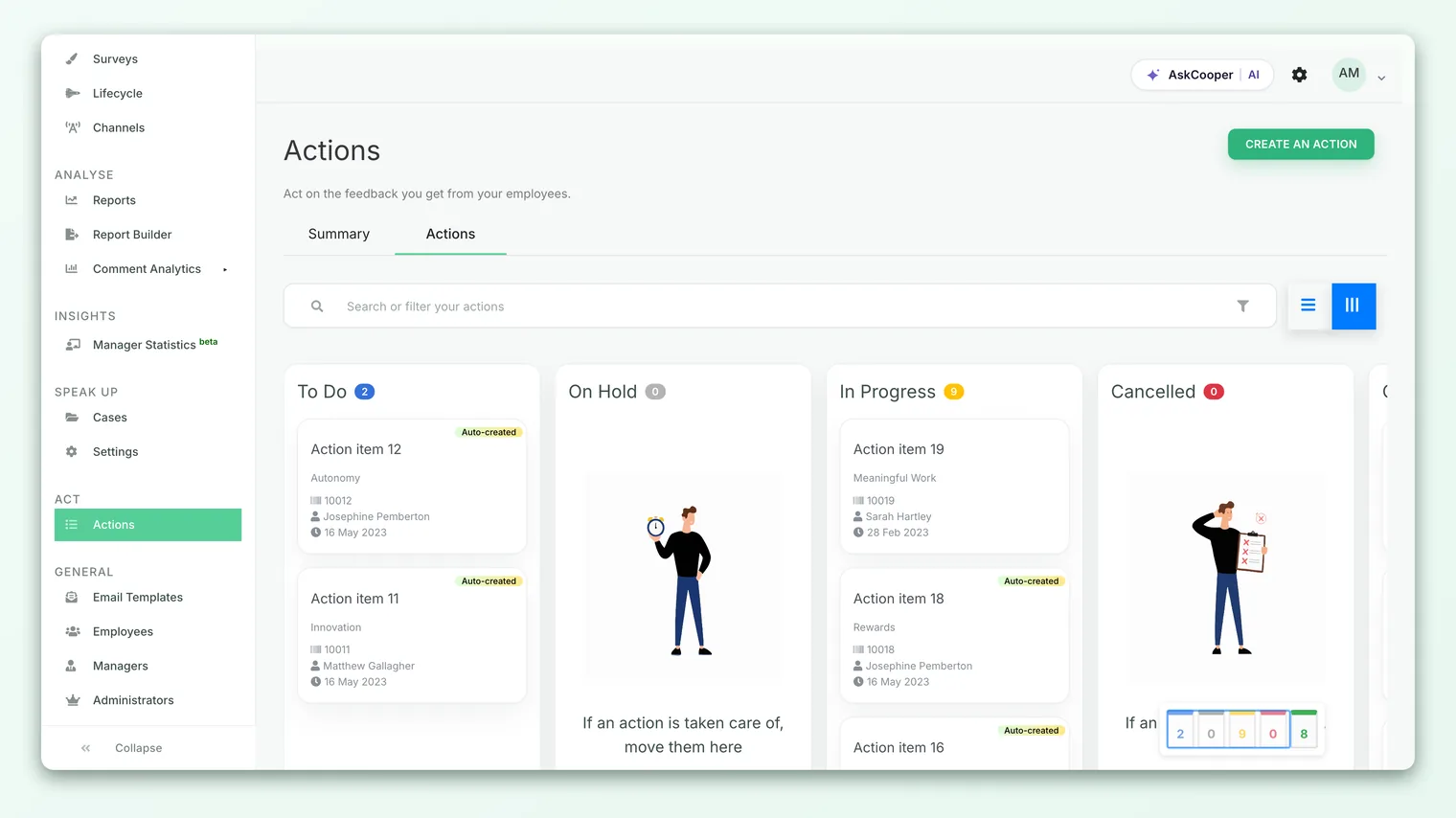
If you have never created an action, the board shows an empty state inviting you to create your first one. Once actions exist, the full board appears.
The five status columns
The board has exactly five columns, and they map one-to-one to the statuses an action can hold in CultureMonkey. From left to right, the board reads:
| Column | What it means |
|---|---|
| To Do | The action has been created and assigned but work has not started yet. This is where new actions land by default. |
| On Hold | Work has been paused, usually because it is blocked, deprioritized, or waiting on something or someone else. |
| In Progress | Someone is actively working on the action right now. |
| Cancelled | The action will not be done, and that decision has been made deliberately. |
| Completed | The action is finished. This is the column you want your work to end up in. |
These are the only five statuses that exist in the product, so the board is a faithful picture of every possible state an action can be in. A brand-new action always starts life in To Do unless you set a different status when you create it.
On the board, the column order is To Do, then On Hold, then In Progress, then Cancelled, then Completed. It is not a strict left-to-right "flow" - On Hold sits between To Do and In Progress by design, so you can park blocked work close to the front of the pipeline rather than hiding it at the far end.
Column counts
Each column header carries a count badge showing how many actions currently sit in it. As you move cards around, these counts update live, so the header is always an accurate tally. If you are an admin who can see all actions, the count reflects every action in that status. If your access is scoped (for example, you can only see actions you own or created), the count reflects just your subset. This keeps the board honest for the exact slice of work you are allowed to see.
There is also a small minimap preview on the board, a compact Jira-style strip that mirrors the five columns and their counts, giving you a quick sense of the overall distribution without scrolling.
What each card shows
Every action is represented by a card. The card is designed to tell you the essentials at a glance, without opening the action. Reading a card top to bottom, you will see:
- Action name - the title of the action, shown prominently. This is the "what needs to happen" line.
- Driver - the engagement driver the action is tied to (for example, Recognition, Growth, or Leadership), shown as a subtitle. This is what connects the action back to the insight that prompted it.
- Ticket ID - a numeric identifier next to a barcode icon. Every action gets a sequential ticket number when it is created, which makes it easy to reference a specific action in conversations, emails, or exports.
- Owner - the person accountable for the action, shown next to a person icon. The owner is the single name on the hook for getting it done.
- Deadline - the target date, shown next to a clock icon (formatted like "05 Aug 2026"). If no deadline was set, this line is blank.
A card can also carry a couple of extra markers when they apply:
- Collaborators - if other people have been invited to help, a small "people" icon with a count appears, and hovering over it lists their names.
- Feedback count - if the action was created from employee feedback, a quote icon with a number shows how many feedback items are attached. These are the comments the action is meant to respond to.
- Auto-created - if the action was generated automatically (for example, suggested from a survey), a small "Auto-created" tag appears in the corner, with a tooltip naming the survey it came from.
Almost every card decision comes down to three fields: which driver the action serves, who owns it, and when it is due. Those three are visible on every card without a click, which is what makes the board scannable even when it holds dozens of items.
To see the full detail of an action - its description, comments, activity history, and collaborators - click the card. That opens the action view where you can read and update everything. Making changes to an action's status specifically is covered in Update an action's status.
Moving cards: drag and drop
The board is not just a display. It is how you drive work forward.
To change an action's status, drag its card from one column and drop it into another. When you drop a card into a new column, CultureMonkey immediately saves the new status behind the scenes, updates the column counts, and keeps the table view in sync. There is no separate "save" step - the move is the update.
- 1Pick up the card - click and hold the action card you want to move.
- 2Drag it to the target column - for example, from To Do into In Progress when someone starts work.
- 3Drop it - release the card in the new column. The status is saved automatically and the counts refresh.
One behavior worth knowing: if an action was created from employee feedback and you drag it into a column that closes the loop with that employee, CultureMonkey may prompt you to add a short private reply that gets sent back to the person who left the feedback. This is how "you spoke, we acted" reaches the employee. If the action is not tied to feedback, no prompt appears and the move is silent.
Because moving a card and updating a status are the same action, the two live side by side. If you prefer to change status from inside the action rather than by dragging, see Update an action's status.
Board view vs table view
The Kanban is the default, but it is not the only way to look at your actions. A pair of view icons near the search bar let you switch between:
- Board view - the five-column Kanban described above. Best for seeing the shape of your pipeline and moving work forward.
- Table view - a flat, sortable list of the same actions. Each row shows the ticket ID, action name, driver, status, deadline, created date, and owner, and you can click any column header to sort. Best for scanning many actions quickly, sorting by deadline, or finding a specific item.
Both views show the same underlying actions and respect the same search and filters. Switching between them is instant and does not lose your place - it is purely a matter of which layout suits the task in front of you.
Searching and filtering the board
A busy board can hold a lot of cards. Two tools help you narrow it down.
Search - the search box at the top of the board filters actions by name as you type. Use it when you know roughly what the action is called or want to find one specific item.
Filters - click Add Filters to build more precise conditions. Filters let you narrow the board by fields such as:
- Status - show only actions in a particular column.
- Owner - focus on the actions one person is accountable for.
- Driver - see every action tied to a specific engagement driver, for example all Recognition actions.
- Deadline and Created date - narrow by timing.
Depending on how your account is configured, you can also filter by owner demographics - the owner's team, location, business unit, sub-team, tenure, gender, country, or employee type, plus any custom attributes your account has enabled. Each filter row lets you match a value with "is" or "is not", and you can stack several conditions together to zero in on exactly the slice you want.
A powerful habit is to filter the board by a low-scoring driver from your latest report. That instantly shows every action you have committed to for that driver and where each one sits, which is the clearest way to check that your lowest scores are getting real follow-through.
How the board fits the Listen, Analyse, Act model
CultureMonkey is organized around a simple loop: Listen (run surveys and pulses to gather feedback), Analyse (read the reports, scores, and comments to understand what is going on), and Act (do something about it). The action board is the working surface of that final stage.
The connection is deliberate and visible on the cards themselves. Each action carries a driver, which ties it back to the engagement dimension it is meant to improve - the same drivers you see in your reports. Actions created from feedback carry a feedback count, linking them straight to the employee comments that prompted them. So the board is not a generic task list bolted on to the side of the product. It is the place where insight becomes commitment: a survey result becomes a driver-tagged card, that card gets an owner and a deadline, and moving it across the board is the literal record of your organization following through.
That is why the board matters beyond project management. A healthy board - actions steadily flowing from To Do into In Progress and Completed - is the evidence that you close the loop. Employees who see their feedback lead to real change are far more likely to keep engaging, so the movement of these cards is, quietly, one of the strongest engagement levers you have.
Best practices
- Keep To Do honest. If actions pile up in To Do for weeks, that is a signal the pipeline is stalling. Review it regularly and either move items into In Progress or park genuinely blocked ones in On Hold with a clear reason.
- Use On Hold instead of leaving things vague. Parking a blocked action in On Hold is far better than letting it sit in To Do pretending to be active. It keeps your In Progress column meaningful.
- Set a deadline on every action. A card with a blank deadline is easy to forget. The deadline is one of the three anchor fields for a reason.
- Assign a single owner. Collaborators can help, but one named owner keeps accountability clear.
- Close the loop when you complete feedback-linked actions. When you move a feedback-driven action to Completed, take the moment to send the private reply. That is what turns a finished task into a visible "we heard you" for the employee.
Frequently asked questions
How many columns does the board have, and can I add my own?
The board has five fixed columns - To Do, On Hold, In Progress, Cancelled, and Completed - matching the five statuses an action can hold. These are built into CultureMonkey, so you cannot add, rename, or remove columns.
What happens when I drag a card to a new column?
The action's status is updated and saved immediately, the column counts refresh, and the table view stays in sync. For feedback-linked actions moved to a closing status, you may be prompted to add a private reply to the employee.
Why do my column counts look different from a colleague's?
Counts reflect the actions each person is allowed to see. An admin with full access sees counts across all actions; someone with scoped access sees counts only for the actions they own or created. Both are correct for the viewer.
Can I see the same actions as a list instead of a board?
Yes. Use the view toggle near the search bar to switch to the table view, which shows the same actions as a sortable list with ticket ID, name, driver, status, deadline, created date, and owner.
How do I find every action for one driver or owner?
Use Add Filters and add a condition on Driver or Owner. You can stack multiple conditions and combine them with search to narrow the board precisely.
Where do the actions on the board come from?
You can create them manually with Create an action, generate them from employee feedback, or have CultureMonkey auto-create them from survey insights. See Create an action and Create an action from feedback.
Where to go next
- The whole process in one page: How action planning works in CultureMonkey
- Add work to the board: Create an action
- Move an action along: Update an action's status
- Turn feedback into a card: Create an action from feedback
Your feedback helps us improve the Help Center.