

Create a new action
Build a tracked action from scratch on the Actions board - the five fields that matter, which are required, who gets notified, and exactly where the new action lands.
On this page
Insight only matters if it turns into follow-through. In CultureMonkey, the unit of follow-through is an action: a named piece of work with an owner, a driver, and a deadline, tracked on a board until it is done. Most actions are born from a specific comment, but you do not need a comment to start one. You can create an action from scratch, straight from the Actions board, whenever you already know what needs to happen.
This guide covers that from-scratch path: where the Create an action button lives, each field on the form (and which ones you cannot skip), what happens the moment you save, and exactly where the new action lands. If you instead want to spin an action out of a single piece of employee feedback, see Create an action from a feedback item - that path pre-links the comment for you.
Open Act, click Create an action, and fill in the form. Four fields are required: action name, owner, driver, and deadline. Description and collaborators are optional. When you save, CultureMonkey gives the action an auto-numbered ticket ID, places it in the To do column of the board, and (if you assigned it to someone else) emails that owner to let them know it is theirs.
When to build an action from scratch
Creating from feedback is the right move when a specific comment prompts the work. Creating from scratch is the right move when the work comes from somewhere else:
- A driver score you want to lift. Your Recognition or Growth driver is trending down, and you already know the initiative you want to run. There is no single comment to attach - the whole theme is the trigger.
- A leadership commitment. A decision from an all-hands or a people-team roadmap needs a tracked owner and deadline so it does not quietly disappear.
- A recurring program. Quarterly manager check-ins, an onboarding refresh, a wellbeing campaign - standing work that you want visible on the same board as everything else.
- A follow-up to another action. One action surfaces the next, and you want it captured while it is fresh.
In each case the point is the same: you get a task with clear accountability, sitting alongside every other action so nothing is tracked in a separate spreadsheet.
Where the Create an action button lives
Everything to do with actions lives under Act in the main navigation, which opens the Actions module (the board and table of all your actions).
There are two ways to reach the new-action form:
- The header button. When you already have actions, the Actions page shows a Create an action button in the top-right of the header. This is the everyday entry point.
- The empty state. If your account has no actions yet, the board is replaced by an empty state with a large Create New Action button in the middle. Same destination, friendlier for a first-timer.
Both open the same form at /acts/new. From the empty state you will also see a link to the Action Plan Repository, a library of pre-written plans you can start from instead of a blank form - see Start from an action template.
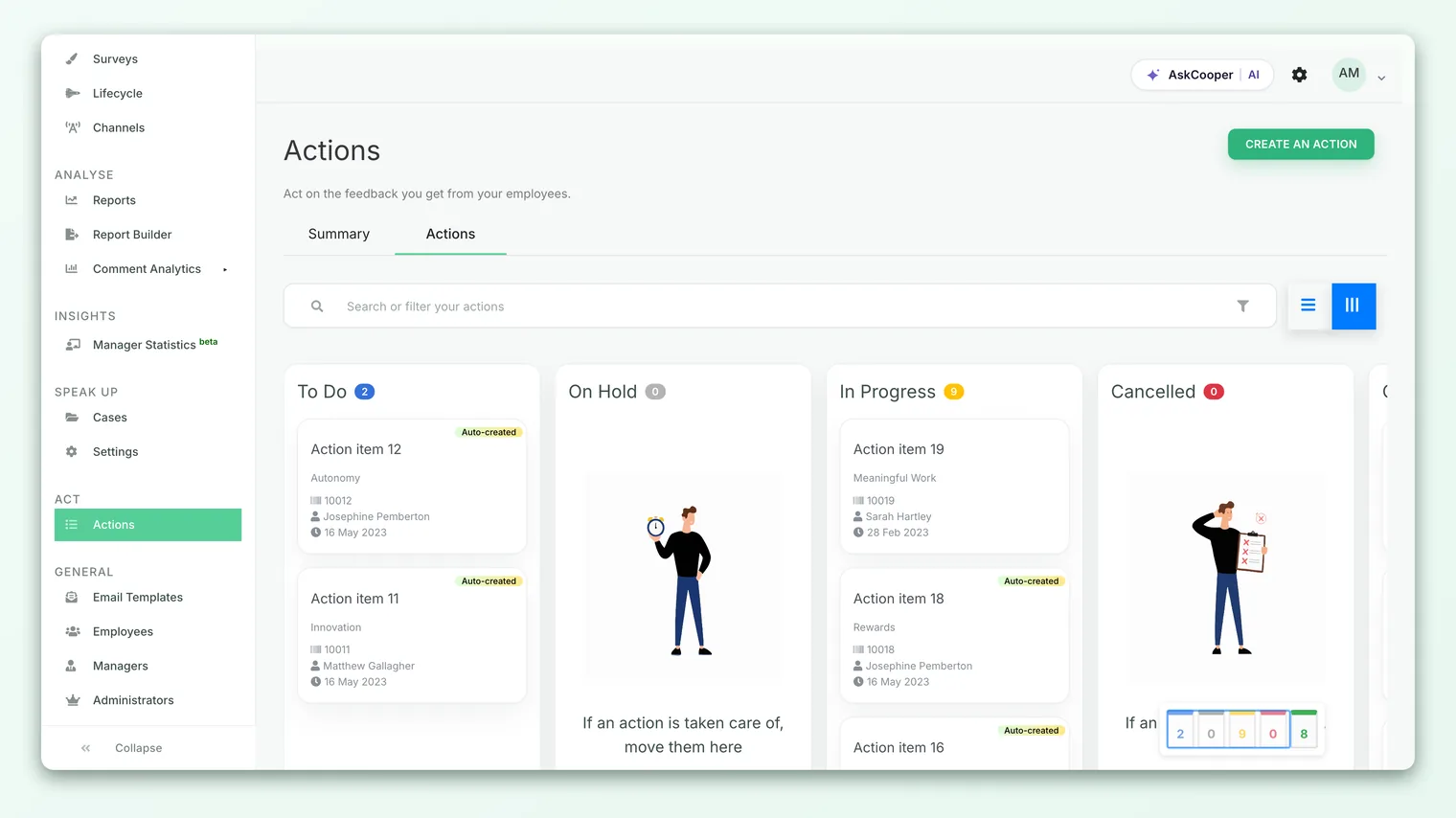
The Actions module is permission-gated. If your role cannot reach Act, the module (and the button) is not shown, and CultureMonkey redirects you away rather than presenting a dead end. Account Admins always have access. Some organizations deliberately keep action creation with a smaller group, so if you expect the button and cannot find it, your role may be restricted for this account.
The form, field by field
The new-action form is short by design. It asks for five things, in this order. Four are required (marked below); one is optional.
| Field | Required | What it is |
|---|---|---|
| Action name | Yes | The title of the action, up to 200 characters. |
| Description | No | A rich-text space for context, the plan, and success criteria. |
| Owner | Yes | The single admin accountable for the action. Defaults to you. |
| Driver | Yes | The engagement driver this action supports. |
| Deadline | Yes | The date the action is due. |
There is also an optional Add collaborators field at the bottom, covered separately below.
Action name
The action name is what everyone scans on the board, so write it as an outcome, not a note to self. "Launch peer-recognition shout-outs in the weekly stand-up" reads far better in a column of cards than "recognition thing." It is the one field that has to be short and legible at a glance, and it is capped at 200 characters, so keep it tight and save the detail for the description.
This is the only text field that is validated for content on save - an action with a blank name will not save.
Description
The description is a full rich-text editor (bold, lists, links, and so on). It is optional, but it is where an action earns its keep. Use it for the why and the how: the signal that prompted the work, the concrete plan, who is involved beyond the owner, and what "done" looks like. A good description means the owner (who may not be you) can pick the action up months later without having to reconstruct the context.
Owner
The owner is the single admin who is accountable for the action. This is a required, searchable dropdown, and it is pre-filled with you - the person creating the action - because that is the most common case.
The most important habit here is to change it deliberately. If the action really belongs to a team lead or another admin, reassign the owner before you save, because the owner is who gets notified and who the board holds responsible. The dropdown lists valid admins for your account (active admins and eligible admin managers), so you can hand the work to the right person directly.
An action has exactly one owner. If several people need to be involved, that is what collaborators are for - see below, and Assign owners and collaborators for the full picture of the two roles.
Driver
The driver is the engagement theme the action supports - Recognition, Growth, Wellbeing, and so on. It is a required dropdown populated from your account's active drivers.
Do not treat this as a formality. The driver is how actions roll up into your engagement picture: it lets you (and your reports) see how much follow-through is happening against each theme, and it connects the work back to the scores that prompted it. An action with a carelessly chosen driver is harder to learn from later, so pick the one the work genuinely moves.
Deadline
The deadline is a required date, chosen from a date picker. Actions are meant to be time-bound - a task with no due date tends to become a task no one does - so CultureMonkey makes the deadline mandatory rather than optional.
Pick a date that is realistic but real. The deadline is shown on the action's card and is one of the columns you can sort and filter by in the table view, so it is not decorative: it is how you and the owner keep the board honest.
The name is the headline everyone reads; the description is the briefing only the owner needs. Splitting them this way keeps your board scannable and still gives the owner everything they need to act. It is the same discipline whether you start from scratch or from a feedback item.
Adding collaborators (optional)
Below the required fields is an optional Add collaborators selector. Collaborators are people you want to loop into the action alongside the owner - a subject-matter expert, a stakeholder, someone whose input you need.
When you add a collaborator, a collaborator comments row appears so you can leave each of them a short starting note (a kick-off message, a specific ask). Collaborators who are employees (not admins) are added as collaborators on the action and can be reached through the platform; admins you add are invited as collaborators by email. The owner remains the single accountable person; collaborators are support.
Collaborators are entirely optional - plenty of straightforward actions have just an owner. For a fuller explanation of how the owner and collaborator roles differ and how notifications flow to each, see Assign owners and collaborators.
Saving the action
Fill in at least the four required fields (name, owner, driver, deadline), then click Create action. In sequence, CultureMonkey:
- 1Validates the form - if the name is blank or a required field is missing, the save is rejected with an error and you stay on the form with your entries intact. Nothing is created until it passes.
- 2Creates the action - the action is saved with a status of To do and stamped with the creator (you) and the last-updated-by admin, so there is a clear record of who raised it.
- 3Assigns a ticket ID - every action gets an auto-incrementing ticket ID, numbered above 10000, so it has a stable reference you can quote in conversations and reports.
- 4Notifies the owner - if you assigned the action to someone other than yourself, that owner receives an email letting them know an action has been assigned to them. If you kept yourself as owner, no email goes out (you already know).
- 5Adds any collaborators - each collaborator you selected is attached to the action, and admin collaborators are invited by email.
After saving, you are taken back to the Actions list, where a success message confirms the action was created and your new card is now on the board.
Where the new action lands
Every new action starts life in the To do column of the Actions board. The board is a set of status columns you move cards across as work progresses:
| Column | What it means |
|---|---|
| To do | Newly created, not yet started. Every action begins here. |
| In progress | Actively being worked on. |
| On hold | Paused - blocked or deprioritized for now. |
| Completed | The work is done. |
| Cancelled | Dropped and will not be pursued. |
Your card shows its name, owner, driver, and deadline at a glance. You (or the owner) move it through the columns as the work advances - dragging or updating the status - and the board's per-column counts update so you can see the shape of your follow-through at a glance. The same actions are also available in a table view, which is better for sorting and filtering across many actions at once. For a full tour of both views and how to work the columns, see Move actions across the board.
Actions you create from scratch sit on the same board as actions created from feedback and actions started from a template. There is no separate list. The only difference is that a feedback-sourced action carries its original comment attached under a Feedback section; a from-scratch action simply has no comment attached. Owner, driver, deadline, and status all behave identically.
Best practices
- Reassign the owner on purpose. The owner defaults to you. Before saving, ask "who will actually do this?" and set that person, so accountability is real and the right inbox gets the assignment email.
- Always choose the truest driver. The driver is how the action connects back to your engagement themes. A precise driver makes your action data worth reviewing later.
- Make the deadline mean something. A date you would be willing to be asked about beats a placeholder three months out. The deadline is what keeps the board from becoming a graveyard.
- Name for the board, brief in the description. A crisp, outcome-focused title plus a substantive description is the combination that keeps actions both scannable and workable.
- Group a theme into one action, not ten. If the same issue keeps coming up, raise one action for it rather than many. When comments are involved, you can attach several to a single action - see Create an action from a feedback item.
Frequently asked questions
Which fields are actually required?
Four: the action name, the owner, the driver, and the deadline. The description and collaborators are optional. If you leave a required field blank, the form will not save and you will see an error, with your other entries preserved.
Who is the owner set to by default?
You - the person creating the action. It is a convenience, not a suggestion. If the action belongs to someone else, change the owner before saving so that person is notified and shown as accountable.
Does the owner get notified when I create the action?
Only if the owner is someone other than you. In that case CultureMonkey emails the assigned owner to tell them an action is theirs. If you keep yourself as owner, no notification email is sent.
What status does a new action start in, and can I change it?
Every new action starts in To do. You (or the owner) then move it through In progress, On hold, Completed, or Cancelled as the work progresses, either on the board or from the action itself.
Can I create an action without linking any feedback?
Yes - that is exactly what this from-scratch path is for. The action simply has no comment attached. If you do want a specific comment linked, start from the feedback item instead, which pre-links it for you. See Create an action from a feedback item.
Is there a faster way than filling in a blank form?
Yes. The Action Plan Repository gives you pre-written plans (title, description, and driver already filled in) that you can adapt instead of starting empty. See Start from an action template.
Where to go next
- The whole process in one page: How action planning works in CultureMonkey
- Start from a specific comment instead: Create an action from a feedback item
- Understand the owner and collaborator roles: Assign owners and collaborators
- Skip the blank form: Start from an action template
- Work the board once your action exists: Move actions across the board
Your feedback helps us improve the Help Center.