

Create an action from a feedback item
Turn a single comment into a tracked, owned action - what the Create action button does, which details carry over, and how the action then appears in the Actions module.
On this page
Feedback is only worth collecting if something happens because of it. CultureMonkey makes that link direct: from any comment on the Feedback page, you can spin up a tracked action in one click, so the sentence an employee wrote becomes a task with an owner, a driver, and a deadline.
This guide covers the Create action button on a feedback item - where it lives, what carries over into the new action, what happens the moment you save, and how the action (with the original comment attached) then shows up in the Actions module under Act.
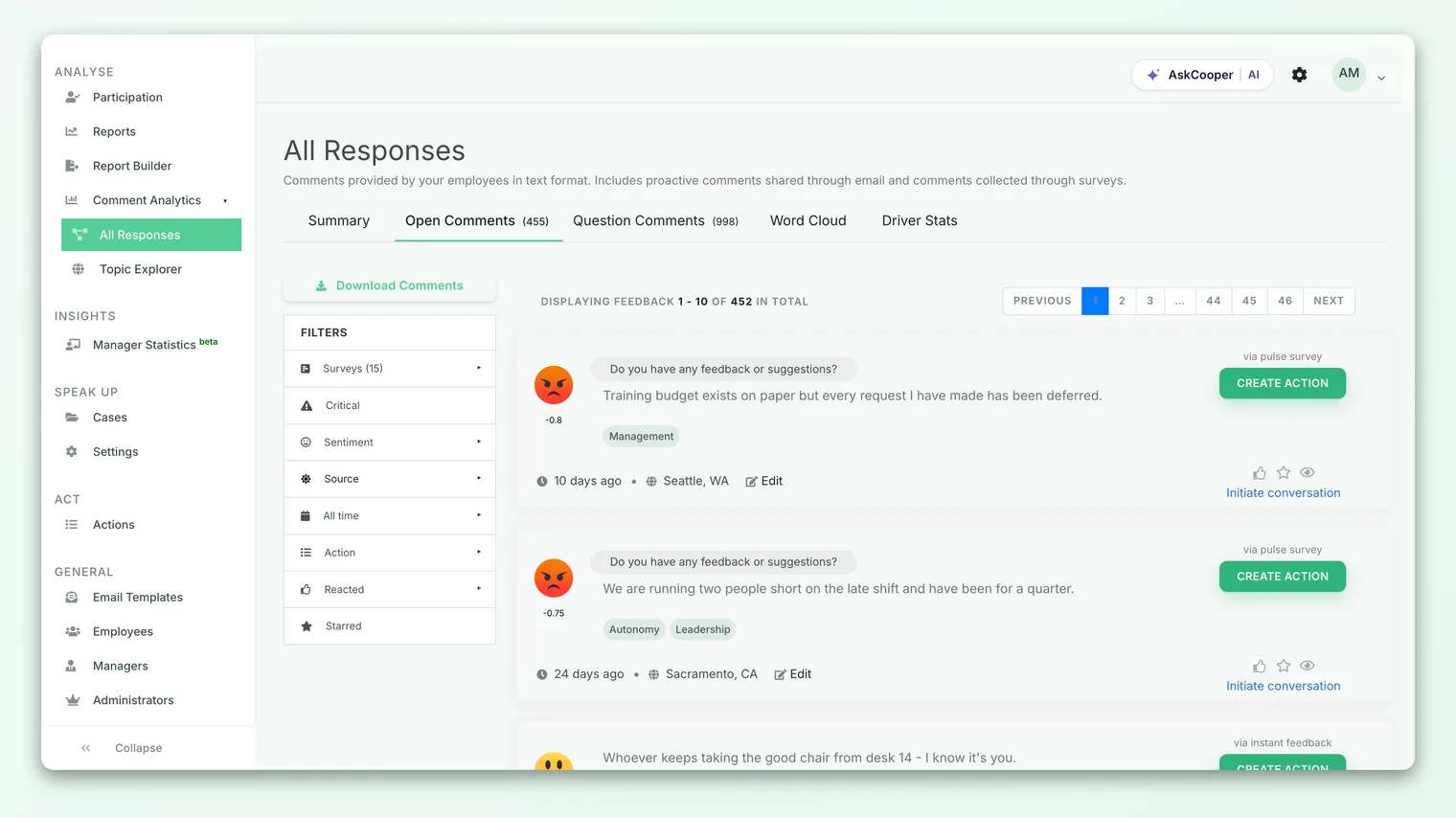
Open a feedback comment, click Create action, and CultureMonkey pre-fills a new action form and quietly stores a link back to that exact comment. Once you save, the feedback card flips to show Action created, and the action appears in the Actions module with the source comment attached under a Feedback section. One comment, one traceable action.
Where the button lives
Every feedback comment in CultureMonkey renders as a card: the sentiment icon on the left, the comment text and its driver tags in the middle, and an action panel on the right. That right-hand panel is where the Create action button sits.
You will find these cards in a few places, and the button behaves the same in all of them:
- Analyse › Feedback - the main feedback stream, where you read and filter every open-text comment.
- Inside a survey report - the feedback section of an individual survey's report.
- Topic Explorer - when you drill into the comments behind a topic or theme.
The button only appears if you have permission to reach the Actions module. Under the hood it is gated by the same access to Actions rule that controls the Act section itself, so if your role cannot open Actions, the button is hidden rather than shown as a dead end.
Account Admins (super admins) always see Create action on a feedback card. For sub admins and admin managers, an account-level setting can hide it, so some organizations deliberately keep action creation with a smaller group. If you expect the button and do not see it, your role may be restricted for this account.
What "Create action" actually does
Clicking Create action does not just open a blank form. It opens the standard new-action screen with a hidden reference to the specific comment you clicked, so the two stay connected once you save.
Mechanically, the button carries one of two pieces of information:
- For a normal survey or pulse comment, it passes the feedback ID of that comment.
- For a response opened through Topic Explorer (an individual answer to a question), it passes the answer as the item being acted on.
Either way, you land on the same Create an action form you would reach from Act › Create action, with the source comment held in the background. Nothing is created yet at this point. The action only exists once you fill in the required fields and save.
What carries over into the new action
The new-action form is the same one used for standalone actions, so it asks for the full set of action details. When you arrive from a feedback comment, here is what is pre-filled versus what you still choose:
| Field | Coming from feedback | Notes |
|---|---|---|
| Source comment | Yes, linked automatically | Held as a hidden reference; you do not have to copy or paste anything. |
| Action name | No, you type it | Give the action a clear, outcome-focused title. |
| Description | No, you type it | Rich-text; a good place to paraphrase the comment and the intended fix. |
| Owner | Defaults to you | Pre-selected as the current user; reassign to whoever will do the work. |
| Driver | You choose | The engagement driver this action supports (for example, Recognition). |
| Deadline | No, you pick a date | Required - actions are meant to be time-bound. |
| Collaborators | Optional | Add people to loop in, each with an optional starting comment. |
Two things are worth calling out. First, the comment text itself is not dropped into the name or description fields for you - it stays attached as a linked record, and you write a fresh, clean title. This keeps action names readable in the Actions board instead of cluttered with raw quotes. Second, the owner defaults to you, which is convenient but easy to overlook: if the action really belongs to a team lead or another admin, change the owner before saving so the right person is notified.
The action name is what everyone scans in the Actions module. "Improve onboarding buddy program for new hires" is far more useful there than "Re: employee said onboarding felt lonely." Save the detail and the original wording for the description.
Saving the action
Fill in at least the required fields (name, owner, driver, and deadline), then submit. Behind the scenes, three things happen in sequence:
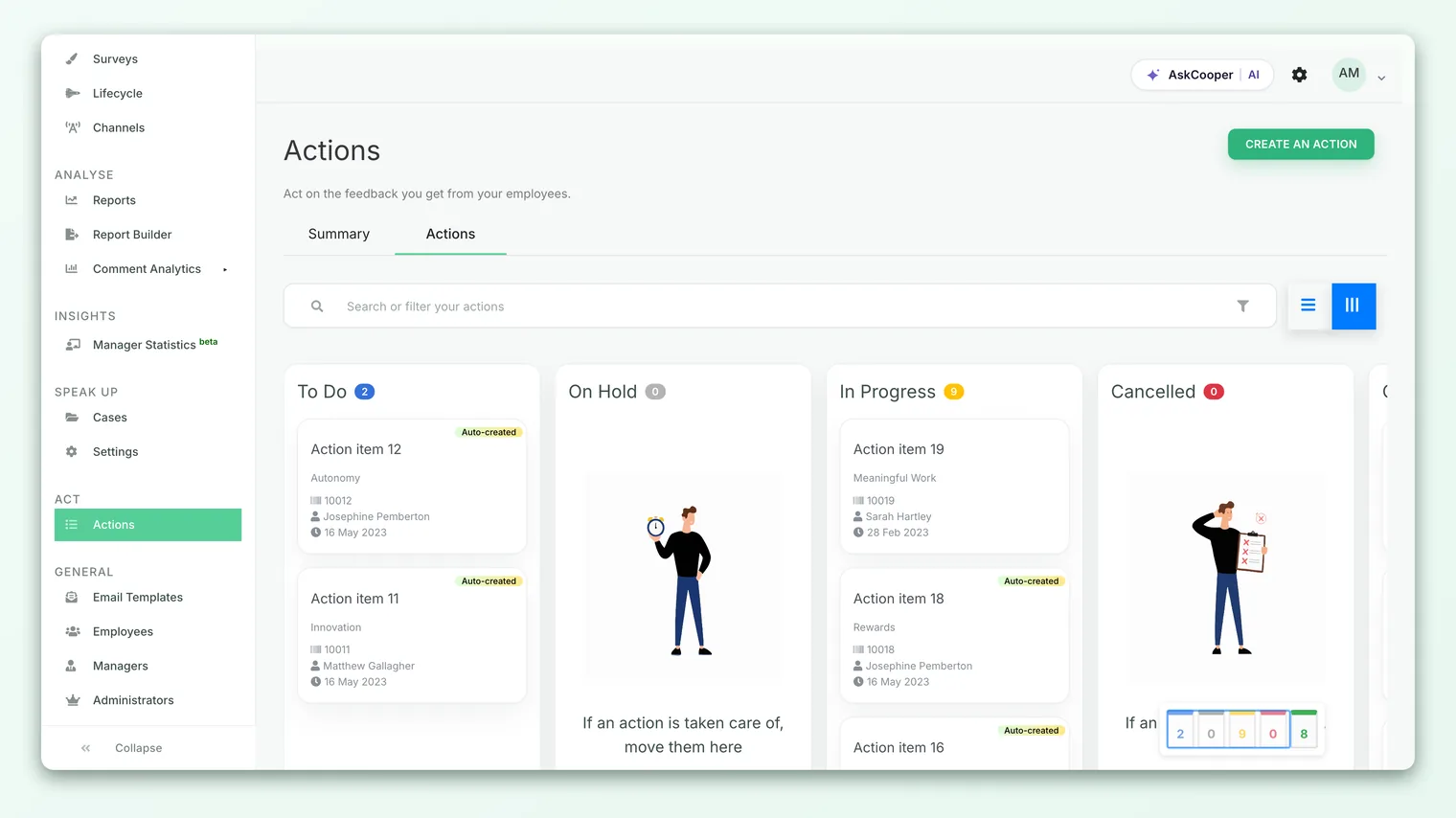
- 1The action is created - CultureMonkey saves the action with a status of To do and assigns it an auto-incrementing ticket ID (action numbering starts above 10000), so every action has a stable reference.
- 2The comment is linked back - the source feedback record is updated to point at the new action. This is the join that makes the connection two-way: the comment now knows its action, and the action now knows its comment.
- 3People are notified - if the owner is not you, the owner receives an email that an action has been assigned to them. When the action is tied to feedback and the employee's account is active, a status notification can also be sent so the loop back to the workforce is not silent.
After saving, you are returned to the Actions list, where the new action is now visible on the board.
How the feedback card changes
Once an action exists for a comment, the feedback card updates to reflect it. The Create action button is replaced by an Action created label, shown as a link. Clicking it jumps straight to that action in the Actions module (it opens the action's entry in the Act list, anchored to the exact item).
This is a deliberate one-action-per-comment guardrail. A single comment shows either Create action or Action created, never both, so you cannot accidentally raise two separate actions from the same sentence and split the follow-up.
Above the button, each card shows where the comment came from - via pulse survey, via instant feedback, or via the survey's name. That source label remains after the action is created, so even at a glance you can see which channel a tracked comment originated from.
How the action appears in the Actions module
Open Act (the Actions module) and you will find your new action alongside all the others, on the board and in the table view. What makes a feedback-sourced action special is that it carries the original comment with it.
Open the action to view its details, and you will see a collapsible Feedback section (labelled with a count, for example Feedback (1)). Expand it to read the source comment in place, complete with its metadata: how long ago it was submitted, the reporting manager, the team, the location, and the channel it came through. From there you can even initiate a conversation with the employee who left it, all without leaving the action.
Because the comment is attached (not copied), anonymity is preserved the way it is everywhere else in CultureMonkey: you see the demographic context and can reach out through the platform, but the action does not expose who said what beyond what the feedback view itself would show.
Attaching more comments to one action
Creating an action from a single card is the common path, but you are not limited to one comment per action. On the Analyse › Feedback page you can select multiple comments with their checkboxes and then choose Add ... to existing action, which links all of the selected comments to an action you have already created.
This is the right tool when several people are saying the same thing: raise one action for the theme, then attach every related comment to it. The action's Feedback section then lists all of them, so the evidence for the action lives in one place. For building an action from scratch (rather than from a comment), see Create an action.
Resist the urge to create a separate action for every comment about the same issue. Group them: one action, many attached comments. It keeps your Actions board focused on outcomes and gives each owner the full weight of evidence behind the task.
Best practices
- Act while you read. The strongest moment to create an action is while a comment is fresh in front of you. Waiting until later means re-finding the context.
- Reassign the owner deliberately. The default owner is you. Change it to the person who can actually make the change, so accountability is real.
- Always set a driver. The driver tag is how actions roll up into your engagement themes and reports. An action with no driver is harder to learn from later.
- Close the loop. Once the work is done, update the action's status and, where appropriate, tell the employee. Visibly acting on feedback is one of the most reliable ways to lift sentiment over time.
Frequently asked questions
Does the comment text get copied into the action?
No. CultureMonkey stores a link to the original feedback record on the action, not a copy of the text. You write your own action name and description, and the source comment stays viewable under the action's Feedback section.
Can I create two actions from the same comment?
Not from the card. Once an action exists for a comment, the button becomes Action created, so a single comment maps to a single action. If several comments need one action, use Add to existing action to attach them all to the same one.
Who gets notified when I create the action?
If you assign the action to someone other than yourself, that owner receives an assignment email. When the action is tied to feedback and the employee is still active, a status notification can also go out so the loop is not silent.
Why can't I see the Create action button?
The button requires access to the Actions module. Account Admins always have it. For sub admins and admin managers, an account setting can hide it, so your role may be restricted for this account.
What status does the new action start in?
CultureMonkey starts every new action as To do. You (or the owner) move it through In progress, On hold, Completed, or Cancelled as the work progresses.
Where to go next
- The whole process in one page: How action planning works in CultureMonkey
- Build an action from scratch: Create an action
- Find the comments worth acting on: Read feedback with Topic Explorer
- Set up the conversation you have with employees: Feedback email templates
Your feedback helps us improve the Help Center.