

Update an action's status
How to move actions through the workflow in CultureMonkey - the five statuses, dragging cards between columns on the board, what changes on each move, and who gets notified.
On this page
An action in CultureMonkey isn't much use if it just sits in one place. The whole point of the action board is to move work forward: an idea becomes a plan, the plan gets picked up, the work gets done, and the employee who raised the concern hears back. Updating an action's status is how you record that progress, and in a few cases it's also what triggers a notification to the person who gave the feedback.
This guide walks through the five statuses an action can hold, the two ways to move an action between them, exactly what changes on each move, and who gets told about it.
Every action in CultureMonkey carries one of five statuses: To do, On hold, In progress, Cancelled, or Completed. On the board, you change status by dragging a card from one column to another. New actions start in To do. When an action is linked to a piece of feedback, moving it to In progress or Completed sends the employee an email letting them know their feedback is being worked on or has been resolved.
The five statuses
CultureMonkey models each action as a card on a Kanban-style board, and the board has one column per status. The statuses are fixed - you can't rename them or add your own - and every action always sits in exactly one of them.
| Status | What it means | When to use it |
|---|---|---|
| To do | Logged, but nobody has started work yet | The default for every new action; your backlog |
| On hold | Paused for now, deliberately | Blocked by something, or waiting on a decision or budget |
| In progress | Actively being worked on | Someone has picked it up and is doing the work |
| Cancelled | Won't be done | Decided against, duplicated, or no longer relevant |
| Completed | Done | The work is finished and the outcome is in place |
A brand-new action always begins life as To do. That's the system default, so you never have to set it yourself when you create an action.
On the board, the columns run in this order: To do, On hold, In progress, Cancelled, Completed. That layout puts the two "not being worked on" states (On hold and Cancelled) next to the active states rather than in a strict start-to-finish line. You can move a card to any column in any order - there's no rule that forces you through the states in sequence.
Two ways to change a status
There are two places you'll see an action's status, and the board is where you change it.
- On the board (the default view), each action is a card that lives in its status column. You move an action by dragging its card into a different column. This is the primary way to update a status.
- In the table view (the list toggle at the top of the Actions page), each action is a row with a colored status dot and label. The table is a read-only reflection of status here: it's great for scanning and sorting, but you switch back to the board to actually make the move.
You'll find both views on the same page under Act > Actions. Use the two small view icons near the search box to flip between the board (the rotated-bars icon) and the table (the bars icon).
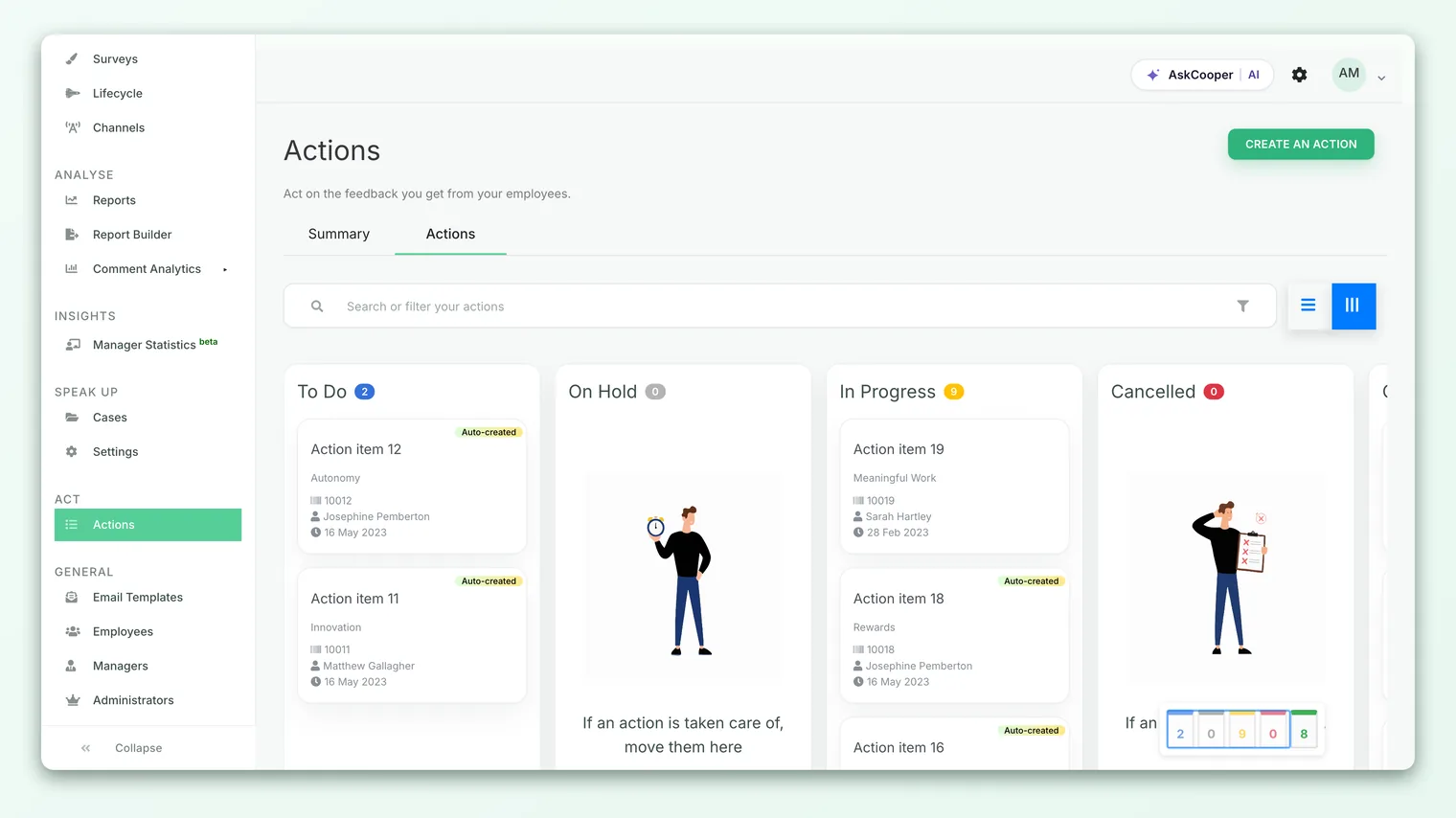
Dragging a card to a new column
Moving an action is a click-and-drag on the board.
- 1Open the board. Go to Act > Actions. If you're in the table view, click the board icon near the search box to switch back.
- 2Find the card. Locate the action in whichever column it currently sits. Each card shows the action name, owner, and driver so you can identify it quickly.
- 3Pick it up. Click and hold the card, then drag it toward the target column. The column you're hovering over highlights to show where the card will land.
- 4Drop it. Release the card inside the new column. The move saves immediately - there's no separate Save button.
As soon as you drop the card, three things happen in the background. First, the action's status is updated and saved. Second, the count badge at the top of each column recalculates, so the column you left shows one fewer and the column you moved to shows one more. Third, if that action is linked to feedback, a notification may go out (more on that below). If a column becomes empty, its placeholder illustration reappears so the board still looks tidy.
Dropping a card commits the change right away. If you move an action by mistake, just drag it back to the column it came from. Because the board saves silently, you won't see a confirmation dialog - the updated column counts are your confirmation that it worked.
What changes when you move an action
Changing a status is more than cosmetic. Here's what actually updates on each move:
- The stored status. The action record is updated to the new status value, so it will show correctly everywhere it appears, including the table view, exports, and the action summary counts.
- The column counts. Each column header carries a live count of the actions inside it. These refresh on every move so the totals always match what's on the board.
- The last-updated trail. The action tracks who last touched it. Moving a card counts as an update, so the change is attributed to you.
- Feedback notifications. For actions that came from employee feedback, certain moves email the employee. This is the most important side effect, so it gets its own section next.
Moving a card does not change the action's owner, its driver, its deadline, or its collaborators. Those are set on the action itself and stay put no matter which column the card sits in. Status is only about where the work is in its lifecycle.
Notifications: who hears about a status change
This is the part that catches people out, so it's worth being precise.
A status change only sends a notification when the action is linked to employee feedback. Many actions are - especially ones you create straight from a comment - because the whole idea is to close the loop with the person who spoke up. Actions you create from scratch, with no feedback attached, don't notify anyone when you move them.
When an action is linked to feedback, the employee who gave that feedback gets an email on these moves:
| Move to | Email the employee receives |
|---|---|
| To do | "Your feedback was taken up" - we've logged it as something to act on |
| In progress | "Your feedback is being worked on" - someone has picked it up |
| Completed | "Your feedback has been resolved" - the work is done |
Moves to On hold or Cancelled don't send the employee an email. The notification always respects anonymity: the employee only ever learns that their feedback moved, and admins never see who's behind an anonymous comment. If an employee has since been deactivated, no email is sent to them.
A single action can be linked to more than one piece of feedback (for example, if you grouped several similar comments into one action). In that case, each linked employee is notified separately when the action moves to a status that emails them.
Sending a private reply when you resolve
When you move a feedback-linked action, CultureMonkey gives you a chance to include a short private reply to the employee along with the notification. This is your opportunity to say, in your own words, what you did about their feedback. If you enter a reply, it's saved as a private response tied to that feedback and included with the resolution email, so the employee reads a personal note rather than just a system message.
You don't have to write anything - the notification still goes out without a reply. But a sentence or two ("Thanks for raising this. We've updated the onboarding checklist so new joiners get their equipment on day one.") turns a status update into a genuine close-the-loop moment, which is exactly what makes people trust that feedback leads somewhere.
A worked example
Say an employee left a comment asking for clearer career paths, and you turned it into an action called "Publish role-progression framework."
- The action lands on the board in To do. Because it's linked to that employee's feedback, they get a "your feedback was taken up" email straight away.
- A week later, your People team starts drafting the framework. You drag the card into In progress. The employee gets a "your feedback is being worked on" email. The To do count drops by one and In progress rises by one.
- Legal review stalls the publish date, so you drag the card to On hold while you wait. No email goes out - On hold is a quiet, internal state.
- The framework goes live. You drag the card to Completed and add a private reply describing what changed. The employee gets a "your feedback has been resolved" email with your note attached.
From the employee's side, this feels like a conversation: they raised something, and they heard back at each meaningful stage without ever losing their anonymity.
Best practices
- Keep the board honest. A card's column should reflect reality. If work has actually started, move it to In progress so the notification fires and the employee knows they were heard.
- Use On hold instead of leaving things in To do. If something is genuinely blocked, On hold tells the story better than a stale To do card and keeps your backlog meaningful.
- Write a private reply when you complete a feedback action. The resolution email is the single highest-value message in the whole loop. A specific, human reply is what earns trust.
- Don't skip states just to trigger an email. Move a card when the underlying work actually changes. Statuses are a record, not a lever for messaging.
- Cancel deliberately. Cancelling is a valid, useful outcome - "we considered this and decided not to" is a real answer. It keeps your Completed column meaning "done" rather than "closed for any reason."
Frequently asked questions
Do I have to move actions through the statuses in order?
No. You can drag a card to any column at any time. CultureMonkey enforces no sequence, so an action can go straight from To do to Completed, or back from In progress to On hold, whenever that reflects what's really happening.
Does moving a card ever notify the action's owner or collaborators?
Status changes send email to the feedback employee, not to owners or collaborators. Owners are notified when an action is assigned to them, and collaborators are looped in through comments, but neither is emailed simply because a card moved columns.
Why didn't an employee get an email when I moved an action?
The most likely reason is that the action isn't linked to any feedback - actions created from scratch don't notify anyone. It could also be that you moved it to On hold or Cancelled (which don't email), or that the employee has been deactivated.
Can I change status from the table view?
The table view shows each action's status as a colored label for scanning and sorting, but you make the actual change on the board by dragging the card. Switch to the board view using the view icons near the search box.
Is there an undo after I drop a card?
There's no undo prompt - CultureMonkey saves the move the instant you drop the card. To reverse it, just drag the card back to its original column, which is treated as a normal status change.
Where to go next
- The whole process in one page: How action planning works in CultureMonkey
- See the board in full: The action board
- Turn a comment into an action: Create an action from feedback
- Put the right person in charge: Assign an action owner
Your feedback helps us improve the Help Center.