

Add deadlines and comments to actions
How to set and change an action's deadline, what the deadline reminder does, and how to use the comment thread to log updates and collaborate on an action inside the Actions module.
On this page
- Two kinds of "comment" on an action
- The deadline is required
- Setting a deadline when you create the action
- Where the deadline shows up
- Changing a deadline
- The deadline reminder
- The comment thread: your shared log
- Who gets notified about a comment
- Editing a comment
- Best practices
- Frequently asked questions
- Where to go next
An action is only useful if someone owns it, it has a date attached, and the people involved can talk about progress in one place. CultureMonkey builds all three into every action: a required deadline that keeps the work time-bound, and a running comment thread where owners and collaborators log updates as the work moves along.
This guide covers the two things that turn a static task into a tracked, collaborative one: the deadline (setting it, changing it, and what the reminder does) and the comment thread (adding updates, who gets notified, and how comments differ from the collaborator notes you set at creation). If you have not built an action yet, start with Create an action, then come back here to keep it on track.
Every action must have a deadline; the date picker only lets you choose today or a future day, so you can't back-date one. You change a deadline by editing the action. Separately, each action has a comment thread in its detail view - type in the Add comment box and CultureMonkey emails everyone on the action (owner and collaborators). That thread is your shared log of what's happening.
Two kinds of "comment" on an action
Before anything else, it helps to separate two things that both get called comments, because they behave differently:
- Collaborator notes are the short lines you set when you add collaborators while creating or editing the action. Each collaborator gets one note (a starting instruction, like "own the vendor conversation"). These live in a Collaborators section on the action and are set on the form, not in the thread.
- The comment thread is the live, ongoing discussion in the action's detail view, under the Activity heading. This is where progress updates, questions, and answers accumulate over the life of the action, newest at the top.
This article is mostly about the second one, the thread, since that is where the day-to-day collaboration happens. For how collaborator notes and ownership work, see Owners and collaborators on an action.
The deadline is required
When you create an action, the Deadline field is mandatory, marked the same way as the action name, owner, and driver. CultureMonkey treats actions as time-bound by design: an action without a due date tends to become an action nobody finishes. You cannot save an action without one.
The deadline is a date, not a date and time. You pick it from a calendar picker (the field carries a small calendar icon), and it is stored against the action and shown wherever the action appears.
The deadline picker is configured to start from today, so past dates are not selectable. A deadline is always today or a day in the future. If you need to record that something was due earlier, note it in the comment thread rather than trying to set a past deadline.
Setting a deadline when you create the action
On the Create an action form (reached from Act › Create action, or pre-filled when you create an action from a feedback item), the deadline sits alongside the owner and driver:
- 1Open the deadline field - click the field with the calendar icon, labelled Deadline.
- 2Pick a date - choose today or any future day from the calendar. The placeholder reads Pick a date until you do.
- 3Fill the rest and save - complete the required name, owner, and driver, then submit. The action is created with your deadline attached and a status of To do.
That is all it takes to make the action time-bound. From here on, the date travels with the action everywhere it is shown.
Where the deadline shows up
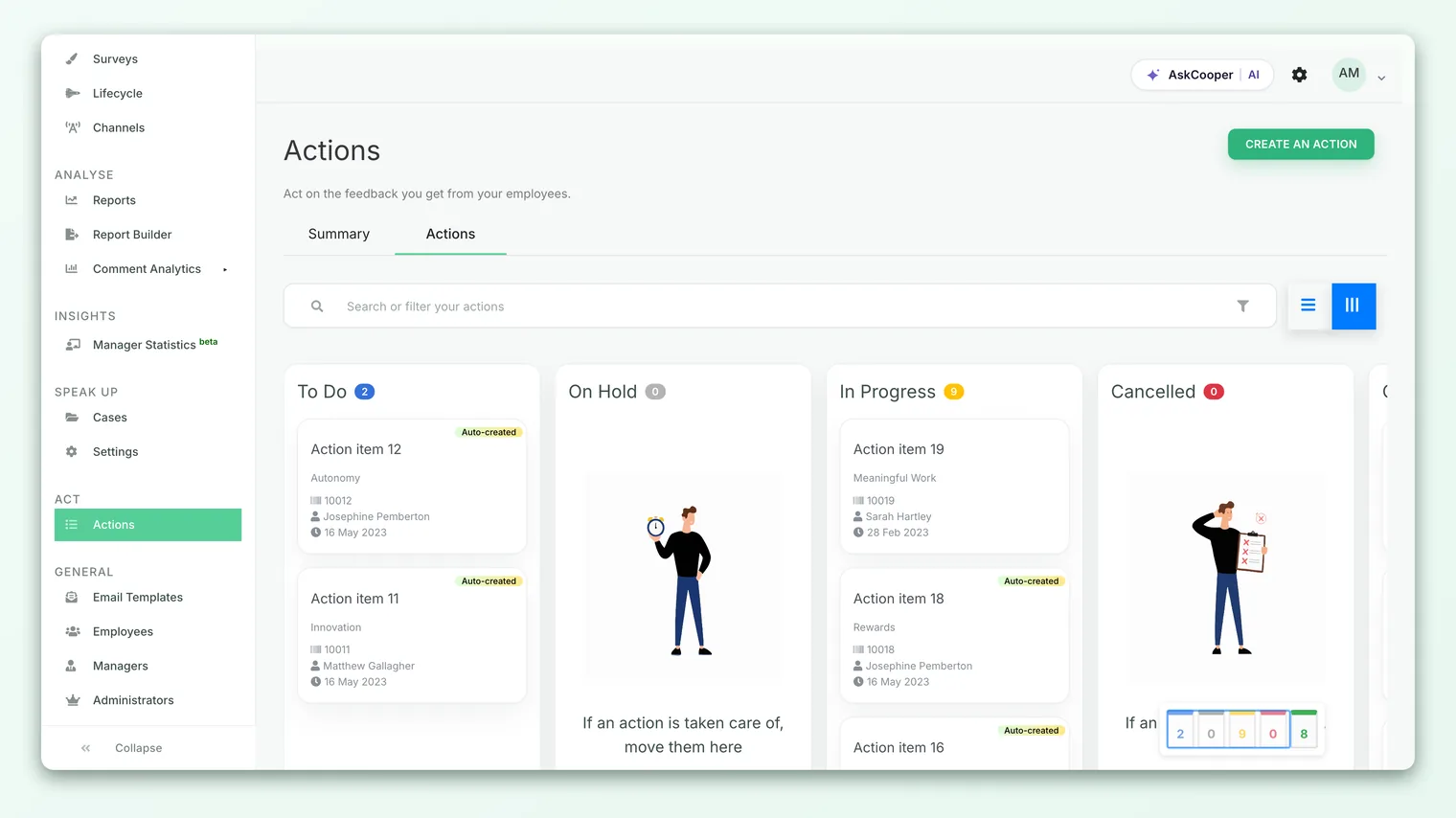
Once set, the deadline is visible in three places, so it is hard to lose track of:
| Where | How it appears |
|---|---|
| Board view (the card) | On each action card next to a clock icon, so you can scan due dates across the board. |
| Table view | As a dedicated Deadline column. The column is sortable, so you can order the whole list by due date and see what's coming up first. |
| Action detail view | In the action's header row, next to a clock icon, alongside the owner and who created it. |
The date is formatted as day, short month, year (for example, 09 Jul 2026). Sorting the table by the deadline column is the quickest way to triage: click the Deadline header to bring the soonest (or latest) actions to the top.
Changing a deadline
Deadlines move. A dependency slips, priorities shift, or the original date was optimistic. You change a deadline by editing the action:
- 1Open the action - click it from the board or table to open its detail view.
- 2Click Edit action - the button sits in the footer of the detail view and opens the same form you used to create it, pre-filled with the current values.
- 3Pick a new date - open the Deadline field and choose the new day. As on the create form, only today or later is selectable.
- 4Update - submit the form. The new deadline is saved and immediately reflected on the card, in the table, and in the detail view.
Changing the deadline on its own does not email anyone. Notifications on an action are tied to specific events (assigning a new owner, or a new comment), not to a date change. If a moved deadline matters to the people involved, drop a line in the comment thread so the change is on the record and everyone is notified.
When you push a deadline, add a one-line comment explaining why ("waiting on legal sign-off, moved to end of month"). The date change is silent, but the comment is not - and six weeks later, the reason is far more useful than the bare fact that the date moved.
The deadline reminder
CultureMonkey can send the action owner a reminder email as the deadline approaches. The reminder fires when an action is two days from its deadline and is not yet completed. The email tells the owner that the action hasn't been finished and links straight to it, with a View action button. The idea is a gentle nudge while there is still time to act, not a nag after the fact.
A few things to understand about the reminder so you set the right expectation:
- It goes to the owner only. Collaborators are not sent the deadline reminder; they stay in the loop through the comment thread instead.
- Completed actions are skipped. If the action is already marked Completed two days out, no reminder is sent. Finishing early spares the email.
- It is a single nudge, not a daily chase. The reminder is built around the two-days-before mark, not a repeating countdown.
CultureMonkey does not visually mark an action as overdue or turn its deadline red once the date passes, and the reminder is a pre-deadline nudge rather than a past-due alert. To find work that has slipped, sort the table by the Deadline column and scan for dates that are behind the actions still in To do or In progress. Keeping statuses current is what makes that scan reliable.
The comment thread: your shared log
Every action has a comment thread in its detail view, on the right-hand side, headed Comments with an Activity timeline beneath. This is the running record of what's happening: status updates, blockers, decisions, and hand-offs. Because it lives on the action itself, the context never gets separated from the task.
To add a comment:
- 1Open the action - click it to open the detail view. The comment panel is on the right.
- 2Type in the Add comment box - write your update. The Add comment button stays disabled until you've typed something, so an empty comment can't be posted.
- 3Post it - click Add comment. Your comment appears at the top of the Activity list straight away, stamped with your name and how long ago it was added.
Comments are shown newest first, each with the author's name, their avatar initials, and a relative timestamp ("2 hours ago"). If there are no comments yet, the panel simply says there are none for this action.
Who gets notified about a comment
This is the part that makes the thread collaborative rather than a private notepad. When a comment is added, CultureMonkey emails the people involved in the action:
- The owner is notified whenever someone other than the owner comments.
- All collaborators (both admin collaborators and non-admin collaborators added to the action) are notified.
- The person who wrote the comment is not emailed their own comment - only the other participants are.
So a comment is effectively a broadcast to everyone attached to the action. That is exactly what you want for progress updates: post once, and the owner and every collaborator learn about it without you having to send a separate message. Non-admin collaborators receive their notification with a link to the action through their collaborate access, so they can read and respond even without a full admin login.
The thread is the natural place to confirm "done" and to answer a collaborator's question. Because every comment notifies the whole group, replying in the thread keeps everyone current in one move, which beats scattered emails that only some people see.
Editing a comment
You can edit a comment you wrote. In the Activity list, your own comments show an Edit link next to the timestamp; click it to edit the text in place and save. Comments left by other people show only the timestamp, not an edit link, so you can only change your own words.
One exception: automatic status replies. When a feedback-linked action is completed with a reply back to the employee, that reply is recorded in the thread as a special, private entry and is not editable in the normal way. Those are system-generated closing notes rather than ordinary comments. For most day-to-day updates you type yourself, editing is available.
Best practices
- Set a realistic deadline, then defend it. A date you actually believe is better than an aspirational one you'll quietly ignore. If it needs to move, move it deliberately and say why in the thread.
- Comment on state changes. Whenever you move an action between To do, In progress, On hold, or Completed, add a short comment. The status shows what it is; the comment explains why it changed.
- Sort by deadline weekly. A quick pass down the table sorted by Deadline, filtered to open statuses, is the simplest way to catch work that is slipping before it becomes a surprise.
- Keep the conversation on the action. Because comments notify everyone attached, the thread is a better home for updates than email. It also means the full history stays with the task for whoever picks it up later.
Frequently asked questions
Can I create an action without a deadline?
No. The deadline is required, the same as the action name, owner, and driver. Every action is time-bound by design.
Can I set a deadline in the past?
No. The date picker starts from today, so only today or a future date can be chosen. If you need to record that something was overdue, note it in the comment thread instead.
Does changing the deadline notify anyone?
No. CultureMonkey saves a deadline change silently. Notifications are tied to owner assignment and to new comments, not to date changes, so if a moved date matters, add a comment to alert the people on the action.
Will I get reminded before a deadline?
CultureMonkey can send the action owner a reminder email two days before the deadline, provided the action isn't already completed. Collaborators are not sent this reminder; they follow progress through the comment thread.
Who sees the comments I add?
The comment thread lives on the action and is visible to admins who can open that action, and it emails the owner and every collaborator when a new comment is posted. It is a shared log for everyone working the action, not a private note.
Can I edit or delete a comment?
You can edit comments you wrote yourself, in place from the Activity list. You cannot edit someone else's comment, and automatic status-reply entries (from completing a feedback-linked action) are not ordinary editable comments.
Where to go next
- The whole process in one page: How action planning works in CultureMonkey
- Build the action first: Create an action
- Set up ownership and collaborators: Owners and collaborators on an action
- Turn a comment into an action: Create an action from a feedback item
Your feedback helps us improve the Help Center.