

Assign owners and collaborators to an action
How to set the single owner responsible for an action, add collaborators who help move it forward, understand exactly what each role can do, and how everyone gets notified.
On this page
An action plan only moves when someone is clearly on the hook for it and the right people are pulled in to help. In CultureMonkey, every action carries one owner who is accountable for the outcome, plus any number of collaborators who contribute along the way. Getting this split right is the difference between an action that quietly stalls and one that actually ships.
This guide covers how to set the owner, how to add collaborators (including people who don't have a CultureMonkey login), exactly what each role can and cannot do, and how the platform notifies everyone so nobody misses the handoff. If you haven't built the action itself yet, start with Create an action and come back here to share the responsibility.
Each action has exactly one owner (an administrator who is accountable) and any number of collaborators (any employee you invite to help). The owner and admin collaborators work inside CultureMonkey; non-admin collaborators get a private link that needs no login. Everyone is notified by email when they're added, and again whenever a new comment lands on the action.
Owner vs collaborator: who does what
These two roles look similar on the surface, but they carry very different weight. The owner is singular and accountable. Collaborators are plural and supportive.
| Owner | Collaborator | |
|---|---|---|
| How many | Exactly one per action | As many as you need |
| Who can hold it | An administrator (super admin, or an admin manager who is a valid owner) | Any employee in your directory, admin or not |
| Accountable for the outcome | Yes | No |
| Can edit the action | Yes (through the board) | No |
| Can change status | Yes | No |
| Can comment | Yes | Yes |
| Notified when assigned | Yes, by email | Yes, by email |
| Notified on new comments | Yes | Yes |
The mental model is simple: the owner drives, collaborators ride along and contribute. If you find yourself wanting two owners, that usually means the action is really two actions, and it's cleaner to split it.
Setting the owner
The owner is a required field on every action, so you'll always set one, even if that owner is you.
You choose the owner from the OWNER dropdown on the action form. When you create a new action, the dropdown defaults to you (the person creating it), which is the most common case. To hand the action to someone else, open the dropdown and pick a different administrator. The list is searchable, so you can type a name rather than scroll.
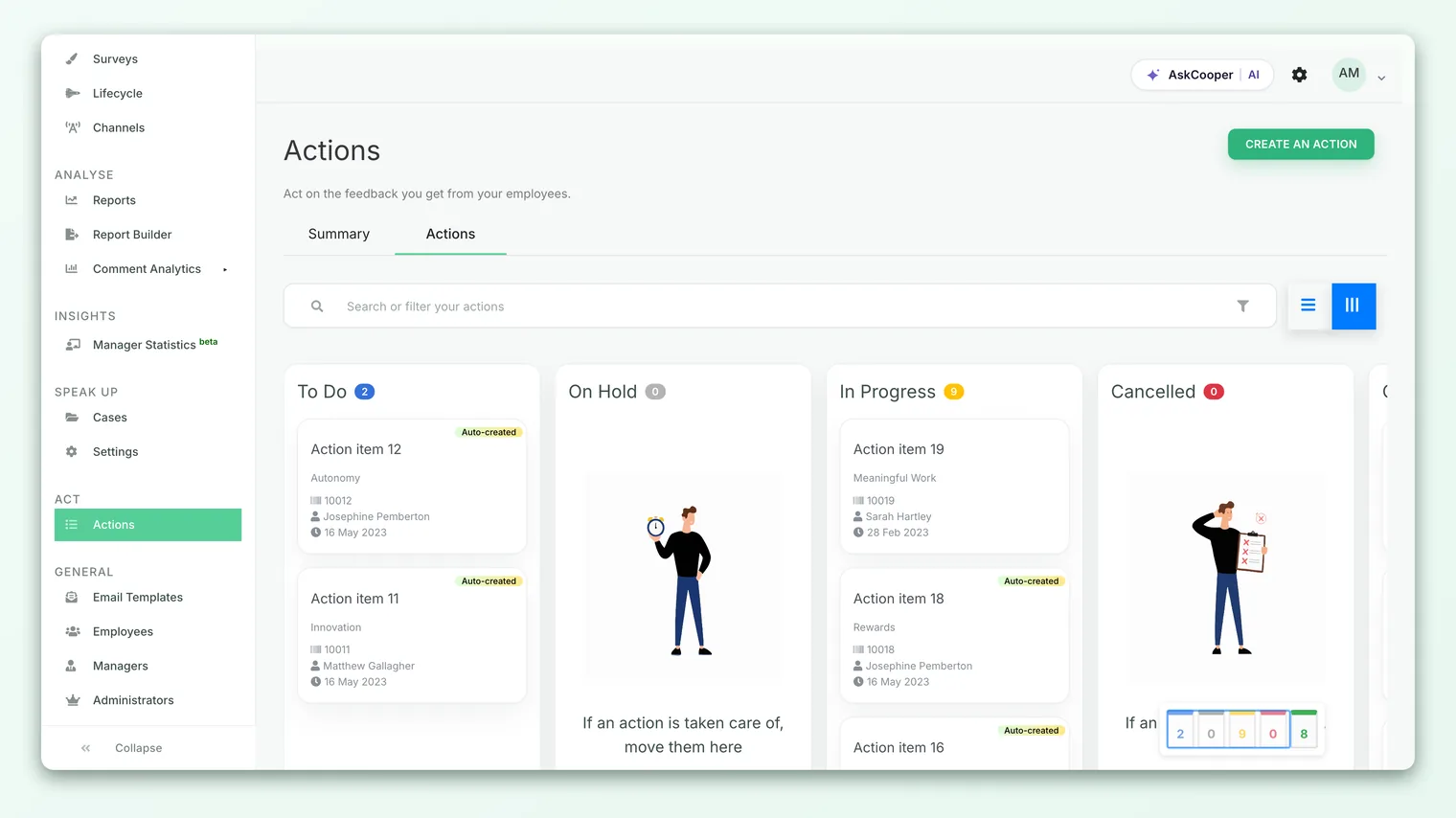
A few things worth knowing about who can be an owner:
- Owners are administrators. The dropdown lists valid administrators (super admins and eligible admin managers), not your entire employee directory. That's deliberate: the owner needs full board access to edit the action, move it through statuses, and see it alongside everything else on the Actions board.
- On new actions, only currently valid admins appear. If someone has been deactivated, they won't show up as a choice for a fresh action.
- On existing actions, the full admin list is available. When you edit an older action, CultureMonkey shows all administrators (including any who were since removed) so historical ownership stays intact and you can reassign cleanly.
To change the owner later, open the action, choose Edit Action, pick a new person in the OWNER dropdown, and save. The change takes effect immediately, and the new owner is notified (more on that below).
If you're the one running the initiative, keep yourself as the owner and add teammates as collaborators. Ownership isn't a burden to pass off by default; it's the signal for who is accountable. Reassign only when someone else genuinely takes the lead.
Adding collaborators
Collaborators are the people who help without being accountable. Unlike the owner, a collaborator can be any employee, not just an administrator, which makes this the right tool for looping in a team lead, an HR partner, or the specific person whose feedback sparked the action.
You add them in the Add collaborators field on the action form. It's a multi-select, so you can add several people at once:
- 1Open the action form - either create a new action or choose Edit Action on an existing one.
- 2Search the collaborator picker - start typing a name in the Add collaborators field. It searches your whole employee directory, not just admins.
- 3Select everyone who should help - pick as many people as you need. Each selected person appears as a chip you can remove.
- 4Add a note for each collaborator (optional) - once you select someone, a Collaborator comments row appears where you can leave that person a short, personal starting note. It travels with their invite.
- 5Save the action - collaborators are attached and their invitations go out automatically.
The per-person Collaborator comments field is more useful than it looks. It's your chance to tell each collaborator why they're being pulled in and what you need from them, and that note is included in the email they receive. A collaborator invited with "Can you own the vendor comparison by Friday?" starts far ahead of one who just sees a bare invitation.
If you add the person who is already the owner as a collaborator, CultureMonkey quietly skips it. The owner already has full access, so there's no second role to hold. The same applies to anyone who has been removed from the directory; they won't be added as a collaborator.
Removing a collaborator
To take someone off an action, open Edit Action, remove their chip from the Add collaborators field (and delete their comment row if one is showing), then save. CultureMonkey reconciles the list on save: anyone still selected stays, and anyone you removed is detached from the action. It's a clean swap, so you can adjust the team as the work evolves.
What a collaborator can actually do
This is the part that trips people up, so it's worth being precise. A collaborator's job is to contribute to the conversation, not to run the action.
A collaborator can:
- View the full action - the title, description, deadline, owner, status, any linked feedback, and every comment.
- See the other collaborators - the action lists everyone involved, each with the starting note they were given.
- Add comments - this is the heart of collaboration. Collaborators post updates, ask questions, and share progress in the comment thread.
A collaborator cannot:
- Edit the action - only the owner (and admins on the board) can change the title, description, driver, deadline, or collaborator list.
- Change the status - moving an action from To Do to In Progress to Completed is the owner's job, since status reflects accountability.
Admin collaborators are a small exception to the "view only" feel: because they already have board access, they can open the action on the Actions board like any administrator. Non-admin collaborators are confined to their private collaboration view, which shows the action and its comments and nothing else in your account.
How collaborators without a login take part
One of the most useful details here is that a collaborator does not need a CultureMonkey account. When you add someone who isn't an administrator, CultureMonkey generates a private link just for them. That link opens a stripped-down collaboration space where they can read the action and post comments, without ever logging in.
This is what makes it practical to involve frontline managers, cross-functional partners, or the exact employee whose comment triggered the action. They click the link in their invitation email, land straight on the task, and start contributing.
The tokenized link is what authenticates a non-admin collaborator, so anyone who has the link can view that person's actions and comments. Ask collaborators not to forward their link, and remove a collaborator from the action if they should no longer have access.
Admin collaborators skip the token entirely. Their invitation points to the normal in-app action view, since they can already sign in and see it on the board.
How everyone gets notified
CultureMonkey handles the handoffs by email so you don't have to chase people manually. There are two moments that matter: being added, and new activity on the action.
When you assign an owner. If you set an owner who is someone other than you, that person gets an email letting them know an action is now theirs, with a link straight to it. If you keep yourself as the owner, no email is sent, because you already know. Reassigning the owner on an existing action triggers the same notification to the new owner.
When you add a collaborator. Every collaborator receives an invitation email when they're added. The email names the action, names you as the person who invited them, and includes the personal note from the Collaborator comments field if you left one. Non-admin collaborators get their tokenized "view task" link; admin collaborators get the in-app link.
When a comment is posted. This is the ongoing heartbeat of an action. Whenever someone comments, CultureMonkey notifies the owner and every other collaborator (the person who wrote the comment isn't emailed about their own comment). That keeps the whole group in the loop as work progresses, whether the update came from the owner, an admin collaborator, or someone contributing through a collaboration link. For more on the comment thread itself, see Deadlines and comments on actions.
Because collaborators are notified on every comment, the fastest way to get momentum is to post your first comment right after inviting people, or to leave each collaborator a clear starting note. A specific ask ("please confirm the budget by Wednesday") gets a reply far more often than a silent invite.
Best practices for sharing responsibility
- One clear owner, always. Resist the urge to make an action feel "shared" by leaving ownership vague. Accountability lives with one person; help lives with the collaborators.
- Add collaborators with intent. Every collaborator you add gets emailed on every comment. Invite the people who genuinely need to act or stay informed, not a wide "just in case" audience, or you'll train people to ignore the notifications.
- Always write a starting note. The per-person comment is the cheapest way to make an invitation land. Say what you need and by when.
- Close the loop with the source. When an action came from a specific piece of feedback, adding that employee as a collaborator (or replying to them) is a powerful "you spoke, we acted" moment. See Create an action from feedback.
- Reassign, don't abandon. If an owner changes teams or leaves, edit the action and hand ownership to the new driver so it doesn't silently stall.
Frequently asked questions
Can an action have more than one owner?
No. Every action has exactly one owner, and that's by design, so accountability is never ambiguous. If the work truly needs two accountable leads, split it into two actions. You can still add as many collaborators as you like.
Do collaborators need a CultureMonkey login?
No. Administrators you add as collaborators use the normal CultureMonkey app, but any other employee gets a private tokenized link that opens their collaboration view directly, with no login required. That's what lets you involve people beyond your admin team.
Can a collaborator change the status or edit the action?
No. Collaborators can view the action and add comments, but editing details and moving the status (for example, To Do to In Progress to Completed) is reserved for the owner and administrators on the board.
Will the owner get an email if they created the action themselves?
No. The owner notification is only sent when the owner is someone other than the person creating or editing the action. If you assign yourself, no email goes out, since you already know about it.
If I'm added as a collaborator, will I be notified on every comment?
Yes. CultureMonkey emails every collaborator (and the owner) when a new comment is posted, except for the person who wrote that particular comment. This keeps the whole group aligned as the action moves forward.
What happens to the note I write for a collaborator?
The note in the Collaborator comments field is attached to that collaborator and included in their invitation email. It's also visible on the action itself under the collaborators list, so the context stays with the work.
Where to go next
- The whole process in one page: How action planning works in CultureMonkey
- Haven't built the action yet? Create an action
- Keep it on track: Deadlines and comments on actions
- Close the feedback loop: Create an action from feedback
Your feedback helps us improve the Help Center.