

Browse and use action templates
A guide to the action template library in CultureMonkey - where the pre-built action plans live, how they are organized by driver, what each template contains, and how to turn one into a real action in a couple of clicks.
On this page
Reading your survey results is the easy part. Deciding what to do about a driver that scored low is where most teams get stuck. Action templates are CultureMonkey's answer to that blank page: a library of ready-made action plans, each tied to an engagement driver, that you can browse for inspiration and turn into a live action in a couple of clicks.
This guide covers where the template library lives, how it's organized by driver, what a single template actually contains, and how to use one to create an action, without retyping anything from scratch.
CultureMonkey ships two template libraries under Act: a built-in Library of pre-written action plans, and a Custom space where your own account admins add plans specific to your organization. Both are grouped by driver and filterable with a single click. Pick a template, hit Take this action, and its title, description, and driver are pre-filled onto a new action for you to assign and schedule.
Why templates exist
A good action plan is specific, owned, and time-bound. Writing one from a cold start is harder than it looks, especially when the driver in question ("Recognition", "Manager relationship", "Growth") is broad and the root cause isn't obvious from the score alone.
Templates shortcut that in three ways:
- They give you a proven starting point. Each template describes a concrete intervention that other organizations have used to move a specific driver, so you're editing rather than inventing.
- They keep actions tied to drivers. Because every template carries a driver, the action you create from it is automatically connected to the part of the employee experience you're trying to improve. That connection is what lets you tell a clean story later: "we saw Recognition dip, so we did this."
- They speed up follow-through. The gap between "we should do something about this" and an actual owned action with a deadline is where good intentions die. A two-click template flow narrows that gap.
Templates are a companion to, not a replacement for, AI-suggested actions. Suggested actions are generated for your results in context; templates are a curated library you browse whenever you want ideas.
Where the template library lives
Templates sit inside the Act area of CultureMonkey, alongside your live actions. You'll reach the library in one of two ways:
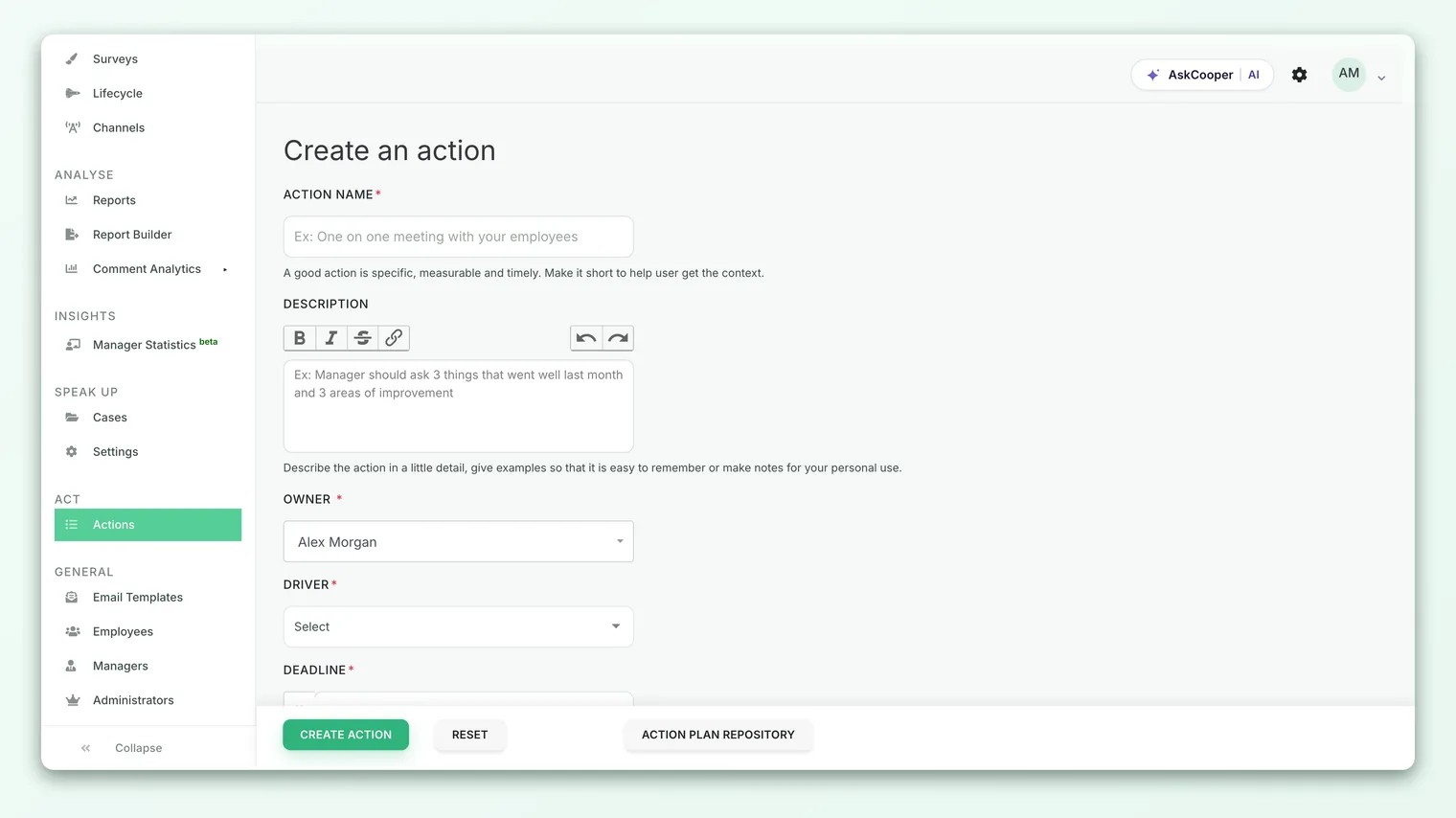
- From the action form. When you're creating an action from scratch, there's an Action Plan Repository button that opens the library.
- From the empty state. If your account has no actions yet, the Actions screen offers a Browse Action Plan Repository link right under the "Create New Action" button, so the library is the natural next step for anyone starting out.
Once you're in the repository, a small sub-navigation lets you switch between the two libraries:
- Library - the built-in, CultureMonkey-curated set of action plans. This is the default view.
- Custom - action plans your own account admins have written for your organization.
Think of Library as CultureMonkey's starter pack and Custom as your own playbook. New accounts lean on the Library; as you learn what actually works for your teams, you build up the Custom side so the best ideas are reusable across the organization.
How templates are organized by driver
Both libraries are organized around the same backbone: your engagement drivers. At the top of the repository you'll see a row of filter pills, one labelled All followed by one pill per driver that has templates attached.
Clicking a driver pill (say, Recognition) narrows the grid to just the templates for that driver. Clicking All brings everything back. This mirrors how you'll actually use the library in practice: you open a survey report, notice a driver is lagging, and come here to filter straight to plans for that driver.
A few things worth knowing about the organization:
- Only drivers with templates appear as pills. The filter row is built from the templates that exist, so you won't see empty categories.
- Templates are ordered by priority. Within a driver, plans are sorted by an internal order value, so the ones the library considers most impactful surface first.
- The two libraries filter independently. Filtering Recognition in the Library doesn't carry over to Custom; each has its own pill row driven by its own set of templates.
Rather than scrolling the whole library, let your data pick the entry point. Filter to your lowest-scoring driver first. That's usually where a single well-chosen action buys you the most improvement per unit of effort.
What a template contains
Each template is a compact, self-contained action plan. On the card you'll see:
| Element | What it is | What it's for |
|---|---|---|
| Title | A short name for the plan, e.g. "Launch a peer recognition ritual" | Becomes the name of the action you create |
| Driver | The engagement driver the plan targets, shown as a badge | Ties the resulting action to the right part of the experience |
| Description | A paragraph explaining the intervention and how to run it | Becomes the action's description, ready for you to tailor |
| Image | An illustrative thumbnail | Visual cue only; helps you scan the grid |
The card shows a truncated version of the description (the first several words) so the grid stays scannable. The full text comes through when you take the action, so don't worry that the card looks brief.
That's the whole anatomy: a title, a driver, and a description. Deliberately lightweight, because a template's job is to seed an action, not to be a rigid form. Everything about who owns it and when it's due is added at the next step, when it becomes a real action.
Using a template to create an action
Turning a template into a live action is the core workflow, and it's fast.
- 1Open the repository. From the action form, click Action Plan Repository, or from the empty Actions screen, click Browse Action Plan Repository.
- 2Choose a library. Stay on Library for CultureMonkey's built-in plans, or switch to Custom for your organization's own.
- 3Filter to a driver. Click the pill for the driver you want to improve (or leave it on All to browse everything).
- 4Pick a template and take it. On the card that fits, click Take this action. CultureMonkey opens a new action form with the template's title, description, and driver already filled in.
- 5Make it yours. Edit the title and description to fit your context, assign an owner, add any collaborators, and set a due date.
- 6Save. Your new action appears in the Actions list and, if the owner isn't you, they're notified automatically.
Because the driver comes across from the template, the connection between the action and the survey signal it addresses is preserved without any extra work on your part. From here the action behaves exactly like one built from scratch, so everything in Create an action applies: statuses, ownership, comments, and closing the loop.
Taking a template just seeds the form. Nothing is fixed. Rewrite the title, expand the description, change the driver, whatever the situation needs. The template is a head start, not a contract.
Building your own Custom templates
The Custom library is where your best homegrown ideas become reusable. If an action worked well for one team, capturing it as a Custom template means the next admin facing the same driver doesn't have to reinvent it.
On the Custom view, admins can:
- 1Create a plan. Click Create an action plan and fill in the title, description, and driver. You can optionally add an image URL and an order value that controls where the plan sits within its driver.
- 2Edit a plan. Hover a Custom card and use Edit Action to update any field.
- 3Delete a plan. From the edit screen, remove a plan you no longer need.
The description field supports rich text, so you can format multi-step plans clearly. Once saved, the plan behaves just like a built-in template: it shows up under its driver's filter, and anyone can Take this action from it.
Creating, editing, and deleting Custom action plans is available to account administrators. If you don't see the Create an action plan button, you likely don't have admin rights on the Act area.
Best practices
- Match the template to a real signal. Don't take an action just because a template looks good. Start from a driver that your results flag, then find the plan that fits.
- Always personalize before saving. A template's generic wording lands better once you name the team, the timeframe, and the specific behavior you want to change.
- Assign a single accountable owner. Templates can seed an action, but only a named owner with a deadline gets it done. Add collaborators for support, not to dilute ownership.
- Promote what works into Custom. When an action from a Library template genuinely moves the needle, write it up as a Custom plan so it becomes part of your organization's playbook.
- Keep the Custom library tidy. Retire plans that are out of date or duplicated. A short, high-quality Custom list is more useful than a long, stale one.
Limits and things to keep in mind
- Templates are starting points, not diagnoses. A template tells you a plausible what to do; it can't tell you why your driver is low. Pair it with your open-text feedback so the action addresses the actual root cause.
- Descriptions are truncated on the card. If a card looks thin, that's just the preview. Take the action (or edit the Custom plan) to see the full text.
- Driver connection depends on the template's driver. The action inherits the template's driver, so if you later change the driver on the action, make sure it still reflects what you're really trying to improve.
- Library content is curated by CultureMonkey. You can't edit the built-in Library plans directly; if you want a variant, take one and adjust the action, or recreate it as a Custom plan.
Frequently asked questions
What's the difference between the Library and Custom tabs?
Library is CultureMonkey's built-in, curated set of action plans, available to every account. Custom is where your own admins add plans written specifically for your organization. Both are grouped by driver and used the same way.
Do I have to use a template to create an action?
No. Templates are optional. You can always create an action from scratch (see Create an action). Templates just save you from starting with a blank form.
How are templates different from AI-suggested actions?
Templates are a static, browsable library you filter by driver. AI-suggested actions are generated dynamically from your actual results, so they're tailored to your data in the moment. Many teams use both: suggestions for in-context ideas, the library for broader browsing.
Can I edit a template's wording before it becomes an action?
Yes. Taking a template only pre-fills the new action form. You can rewrite the title and description, change the driver, and add owners and dates before you save.
Who can add or edit Custom templates?
Managing the Custom library (creating, editing, and deleting plans) is an account administrator task. Everyone who can create actions can use both libraries; only admins curate the Custom side.
Does taking a template change anything for other admins?
No. Taking a template creates a brand-new action for you; it doesn't consume or alter the template. The same template stays in the library for the next person.
Where to go next
- The whole process in one page: How action planning works in CultureMonkey
- Build the action itself: Create an action
- Let CultureMonkey suggest actions for your data: AI-suggested actions
- Understand the driver you're acting on: What is eNPS and how is it calculated?
Your feedback helps us improve the Help Center.