

View AI-suggested actions
How CultureMonkey turns your weakest engagement drivers into a short list of recommended actions, where those suggestions appear, and how to accept one into your action board in a couple of clicks.
On this page
Reading a survey report tells you where your organization stands. The harder question is always the next one: what should we actually do about it? CultureMonkey answers that for you with suggested actions - a short, ranked list of recommended things to work on, generated automatically from the drivers where your scores are weakest.
Related release: Recommended Actions (July 8, 2026). See every dated change on Product Updates.
Instead of staring at a table of driver scores and guessing where to start, you get a handful of concrete, ready-made actions pointed straight at the areas that need attention most. This guide covers how those suggestions are produced, where you'll find them, how to accept one onto your action board, and the plan and permission settings that control whether they appear at all.
When you open a survey report, CultureMonkey compares each of your engagement drivers against its industry benchmark, ranks the biggest gaps, and pulls matching recommendations from its action library for your three weakest drivers. You review the suggestions and click Take this action to drop one onto your action board, pre-filled and ready to assign. Availability depends on your plan and your actions permission.
What "suggested actions" means here
A suggested action is a recommendation CultureMonkey surfaces for you, tied to a specific engagement driver (for example Recognition, Growth, or Manager relationship). Each suggestion is a small, self-contained idea - a title, a short description of what to do, and the driver it addresses.
These are different from two related things you may already know:
- Action templates are the full, browsable library of pre-built actions you can pick from at any time, independent of any survey result. See Browse the action templates library.
- Actions (or action plans) are the items on your own board - the things you've committed to doing, with owners and deadlines. See Create an action.
Suggested actions sit in the middle. They're drawn from the same library of pre-built actions, but instead of asking you to browse the whole catalogue, CultureMonkey filters it down to the handful most relevant to this survey's results. Think of it as the library, pre-sorted by your data.
How suggestions are generated
The suggestions aren't random, and they're not the same for every organization. They're computed from your own survey results each time you open the report. Here's the logic, step by step.
- 1Score every driver. For the survey you're viewing, CultureMonkey calculates a score for each engagement driver from the responses.
- 2Compare against the benchmark. Each driver score is compared to the industry benchmark for your industry and employee-size band. The difference between the two is the driver's score gap.
- 3Rank the gaps. Drivers are sorted so that the ones furthest below benchmark - your weakest areas relative to peers - rise to the top.
- 4Match actions to the weakest drivers. For each of your top three weakest drivers, CultureMonkey selects a matching recommendation from its action library and presents it as a suggested action.
Because the ranking is based on the gap versus benchmark rather than the raw score, the suggestions naturally focus on where you're falling behind comparable organizations, not just where your absolute number happens to be lowest. A driver that scores modestly but still beats its benchmark won't crowd out one that's genuinely lagging.
If your suggested actions change between surveys, that's expected. As your driver scores shift relative to benchmark, the three drivers at the top of the gap list change, and the recommendations follow. Improving a driver is often what pushes it off the suggestion list.
Where suggested actions appear
Suggested actions live inside the survey report, in the area focused on driver performance and improvement. There are two touchpoints.
The prompt on the driver view. When you open the driver breakdown for a report and your data shows one or more drivers below benchmark, CultureMonkey shows a small callout naming your weakest drivers and offering to help. It reads something like "Looks like you have a low score in [driver names]. We have suggested some actions to take in order to fix it." The linked text takes you to the suggestions.
The suggested actions view. Following that link opens a page of suggestion cards, one per recommended action. Each card shows the action's image, its title, a driver badge telling you which driver it addresses, and a short description of what the action involves.
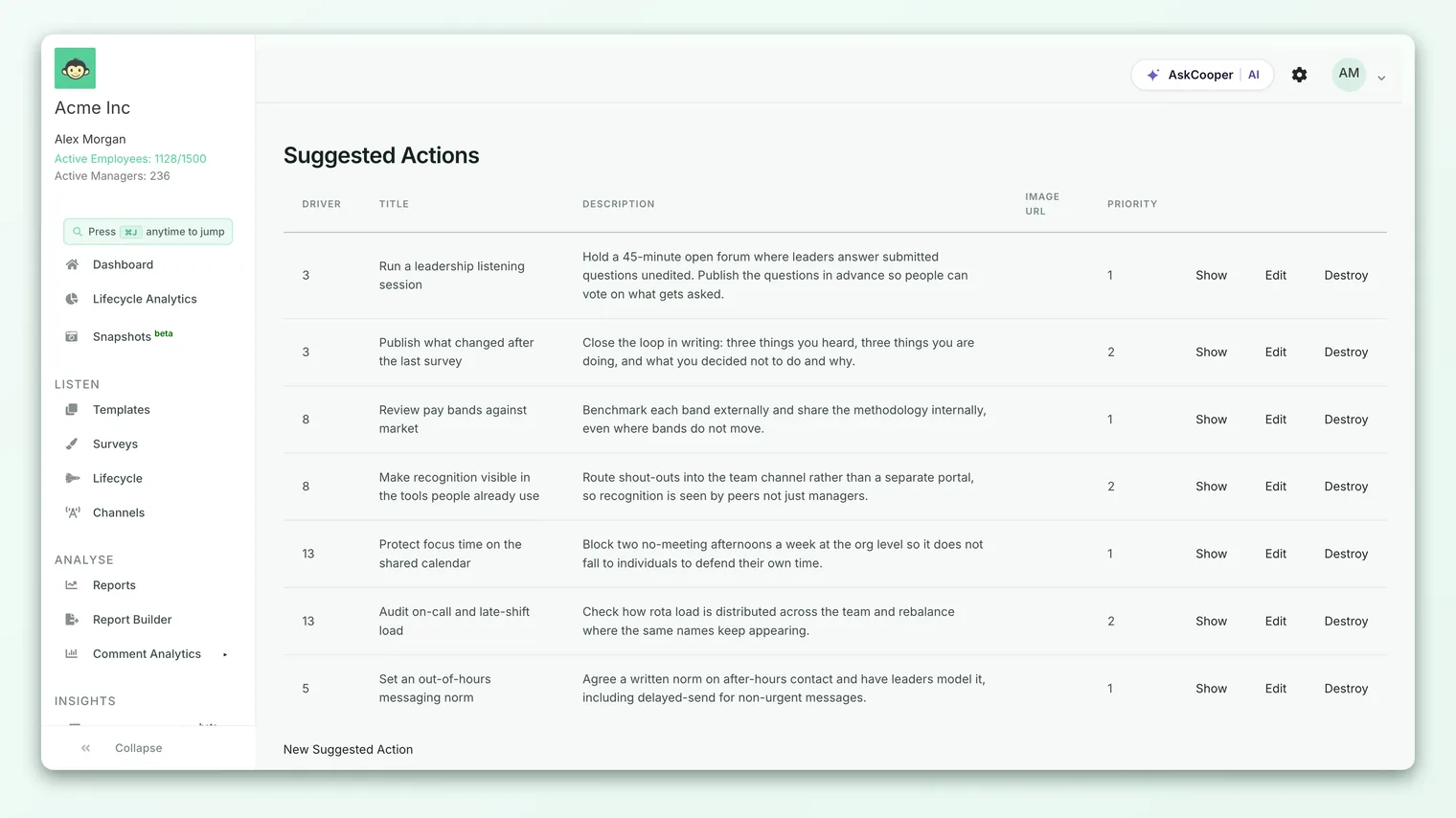
By default the view shows the curated shortlist - one suggestion for each of your three weakest drivers. If you'd rather see everything, there's a View all actions link that expands the page to the full set of available suggestions across all drivers, so you can pick something beyond the automatic shortlist.
Accepting a suggestion into your board
The whole point of a suggestion is that accepting it is nearly frictionless. You don't have to retype anything.
- 1Open the suggestion. From the report's driver view, follow the "actions to take" prompt to the suggested actions page.
- 2Review the cards. Read each suggestion's title, driver badge, and description. Pick the one you want to commit to - or use View all actions to widen the choice.
- 3Click Take this action. The button on the card carries the suggestion's details over to a new action form.
- 4Confirm and assign. The new action opens pre-filled with the suggestion's title, description, and the driver it addresses. Add an owner and a due date, adjust the wording if you like, and save.
Once you save, the suggestion becomes a normal action on your board, tracked alongside everything else you're working on. From that point it behaves like any action you created by hand: you can edit it, reassign it, move it through its stages, and report on it. For the full mechanics of the action form, see Create an action.
Suggestions are just that - suggestions. Nothing is added to your board automatically. An action only appears once you click Take this action and save it, and you're free to change the title, description, owner, or timing before you commit. You can also ignore a suggestion entirely.
Why start from a suggestion
Creating an action from scratch is always an option, so why lean on the suggestions? A few practical reasons:
- They point you at what matters. The suggestions are anchored to your weakest drivers relative to benchmark, so you spend your energy where the data says the return is highest.
- They remove the blank page. A pre-written title and description give you a running start. You can refine the wording, but you're never staring at an empty form wondering how to phrase it.
- They connect the metric to the fix. Each suggestion carries its driver badge, so the link between "this score is low" and "here's something to do about it" stays visible on the action itself.
- They keep the loop tight. The faster you can turn a report into a committed action, the sooner you close the loop with employees - which is itself one of the strongest ways to lift engagement.
Plan and permission requirements
Suggested actions are gated in two ways, so if you can't see them, one of these is usually why.
Actions permission. The suggestion prompt and cards only appear to users who can view Actions. If your role doesn't include the actions permission, you won't see the "actions to take" prompt on the driver view, and the suggested actions page won't be available to you. This is the same permission that governs the rest of the Act area.
Plan and account setting. Whether suggested actions show up at all is controlled by an account-level setting, Hide suggested actions in reports. When that setting is turned on, the suggestion prompt is hidden from the report entirely, even for users who otherwise have the actions permission. On some plans the feature is switched off by default.
Before assuming something's broken, check three things: (1) your role includes the actions permission, (2) suggested actions aren't hidden for your account, and (3) at least one driver in the survey actually scores below its benchmark. If every driver is at or above benchmark, there's nothing to suggest, and the prompt won't appear.
A worked example
Suppose you open the report for your quarterly engagement survey. CultureMonkey scores your drivers and compares each to the benchmark for your industry and size:
| Driver | Your score | Benchmark | Gap (behind benchmark) |
|---|---|---|---|
| Recognition | 6.1 | 7.4 | −1.3 |
| Growth | 6.5 | 7.6 | −1.1 |
| Manager relationship | 7.0 | 7.8 | −0.8 |
| Work-life balance | 7.9 | 7.5 | +0.4 |
| Alignment | 8.2 | 7.7 | +0.5 |
The three biggest negative gaps are Recognition, Growth, and Manager relationship, so those are the drivers CultureMonkey picks. Your suggested actions view shows one recommendation for each: perhaps a peer-recognition initiative tagged Recognition, a career-conversation cadence tagged Growth, and a manager one-on-one habit tagged Manager relationship.
Notice that Work-life balance and Alignment don't generate suggestions here, even though their scores aren't the highest possible - they're above benchmark, so they don't rank among your weakest gaps. The system is deliberately steering you toward the areas where you're behind your peers.
Best practices
- Treat the shortlist as a starting point, not a limit. The three-driver shortlist is a focused default. If a suggestion doesn't fit your context, use View all actions and pick something that does.
- Edit before you commit. The pre-filled wording is generic on purpose. A quick rewrite to name your team, your context, or your specific plan makes the action far more likely to get done.
- Always assign an owner and a date. A suggestion with no owner is just a note. The moment of acceptance is the right time to decide who's accountable and by when.
- Don't tackle all three at once. Picking up every suggestion in one cycle usually means none of them get real attention. Choose one or two, do them well, and let the next survey resurface what still needs work.
- Re-check after your next survey. If a driver drops off your suggestion list, that's a signal your action may be working. If it persists, it's a prompt to try a different approach.
Frequently asked questions
Are suggestions written by AI, or picked from a fixed library?
The recommendations are matched from CultureMonkey's built-in action library, filtered and ranked to your weakest drivers. The selection is automated from your data; the content comes from a curated set of pre-built actions. Some accounts also have AI-assisted features elsewhere in the product.
Why do I only see three suggestions?
The default view shows one recommendation for each of your three weakest drivers, to keep you focused. Use View all actions to see the full set across every driver.
Will accepting a suggestion change my report?
No. Accepting a suggestion creates an action on your board; it doesn't alter the survey scores or the report. The report reflects what employees said; actions are what you do in response.
The suggestions changed since last time. Is that a bug?
No. Suggestions are recalculated from your current driver gaps each time. As scores move relative to benchmark, the three weakest drivers can change, and the recommendations change with them.
Can managers see suggested actions for their own teams?
Users with the actions permission can see suggestions on reports they have access to, subject to the same plan and account settings that govern the feature overall. What each manager sees is scoped to the reports they're allowed to view.
Where to go next
- The whole process in one page: How action planning works in CultureMonkey
- Browse the full catalogue: Browse the action templates library
- Build one by hand: Create an action
- Understand what the drivers measure: Understand engagement drivers
Your feedback helps us improve the Help Center.