

Add a single employee
How to add one employee to CultureMonkey by hand - the fields on the employee form, which are required, what happens after you save, keeping records accurate, and when to add people individually versus importing.
On this page
Your employee list is the foundation everything else in CultureMonkey is built on. Surveys are sent to the people on it, results are sliced by the teams, locations and managers attached to each record, and anonymity is protected based on how those people group together. So getting employees into the system - and keeping their details accurate - is one of the most important things you'll do as an admin.
Most of the time you'll bring people in in bulk with a CSV import or an HRMS sync. But there are plenty of moments when you just need to add one person: a new hire joined mid-cycle, someone was missed in the last import, or you're setting up a quick test account. This guide walks through adding a single employee by hand - every field on the form, which ones you actually need, what happens the moment you save, and how to keep the record clean over time.
Go to Employees, click Add Employee, and fill in the form. Only a handful of fields are required - First Name, Email Address, Employee Id, Designation, Date of Birth and Gender. Everything else (team, location, manager, demographics) is optional but makes your reporting far richer. Save, and CultureMonkey adds the person as an active employee, ready to be included in your next survey.
Where to add employees
You'll find your people under Employees in the CultureMonkey navigation. The employee list is the master roster for your account - a searchable, filterable table of everyone who can be surveyed.
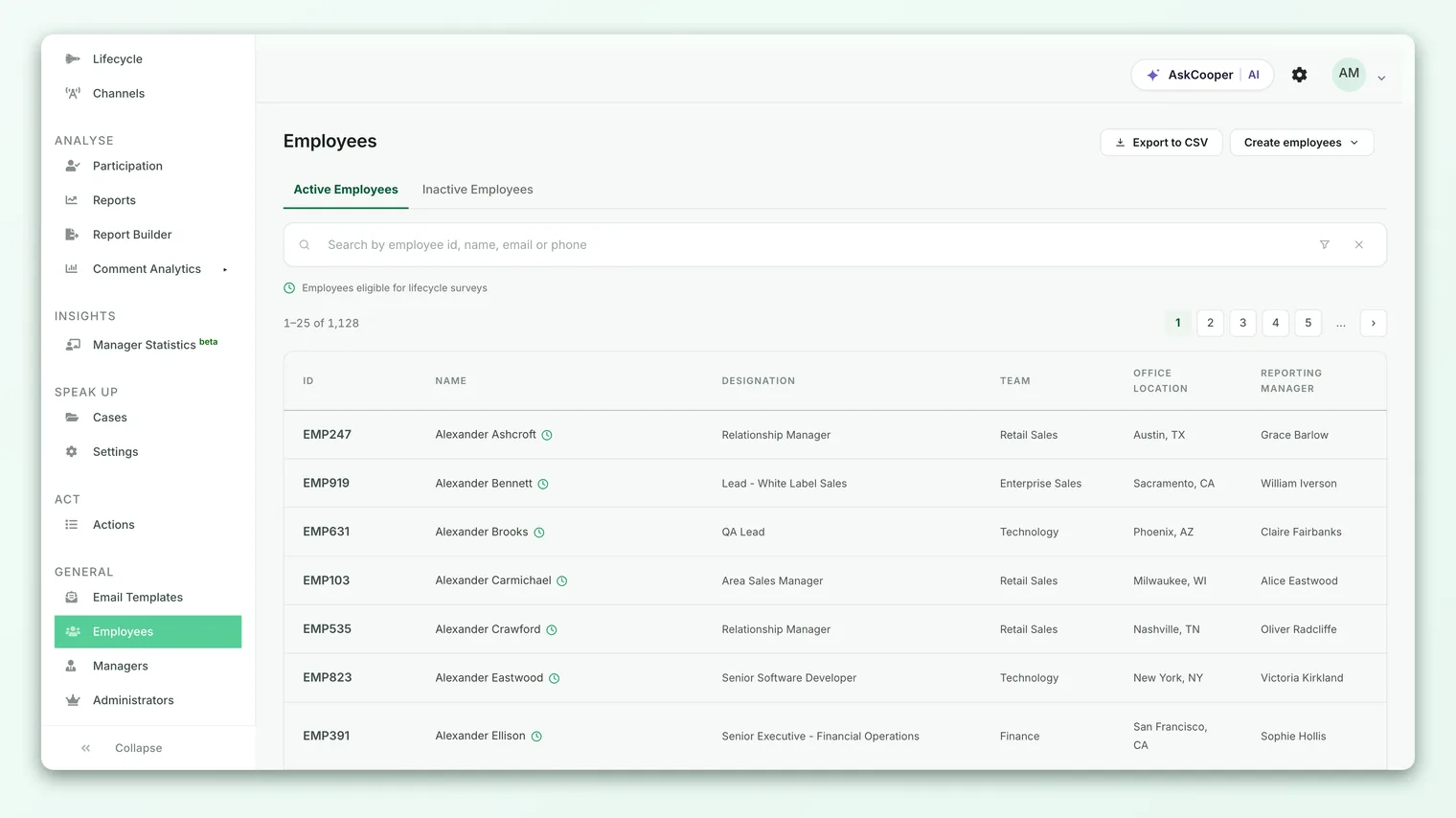
From this page you have three ways to bring people in:
- Add Employee - the manual form covered in this article, for adding one person at a time.
- Import - upload a CSV to add or update many employees at once. See Import employees from a CSV.
- HRMS / directory sync - for larger organizations, an integration keeps your roster in step with your source-of-truth system automatically.
For a single new hire or a quick fix, the manual form is the fastest route.
Adding a single employee, step by step
- 1Open the Employees page. Click Employees in the navigation to see your current roster.
- 2Click Add Employee. This opens the new-employee form at
app.culturemonkey.io/employees/new. - 3Fill in the required fields. At minimum you need a First Name, Email Address, Employee Id, Designation, Date of Birth and Gender. These are marked as mandatory on the form.
- 4Set the team and location. Every employee belongs to a team and a location, and the form preselects one of each - pick the right values so results are grouped correctly. Add a reporting manager and any other attributes you track while you're here.
- 5Fill in any custom attributes. If your account has custom employee attributes (like Department, Grade or Shift), those fields appear on the form too - set them now.
- 6Click Create Employee. CultureMonkey validates the details, saves the record, and returns you to the employee list with the confirmation "Employee added successfully."
That's it. The new person is now on your roster as an active employee and will be included the next time you run a survey.
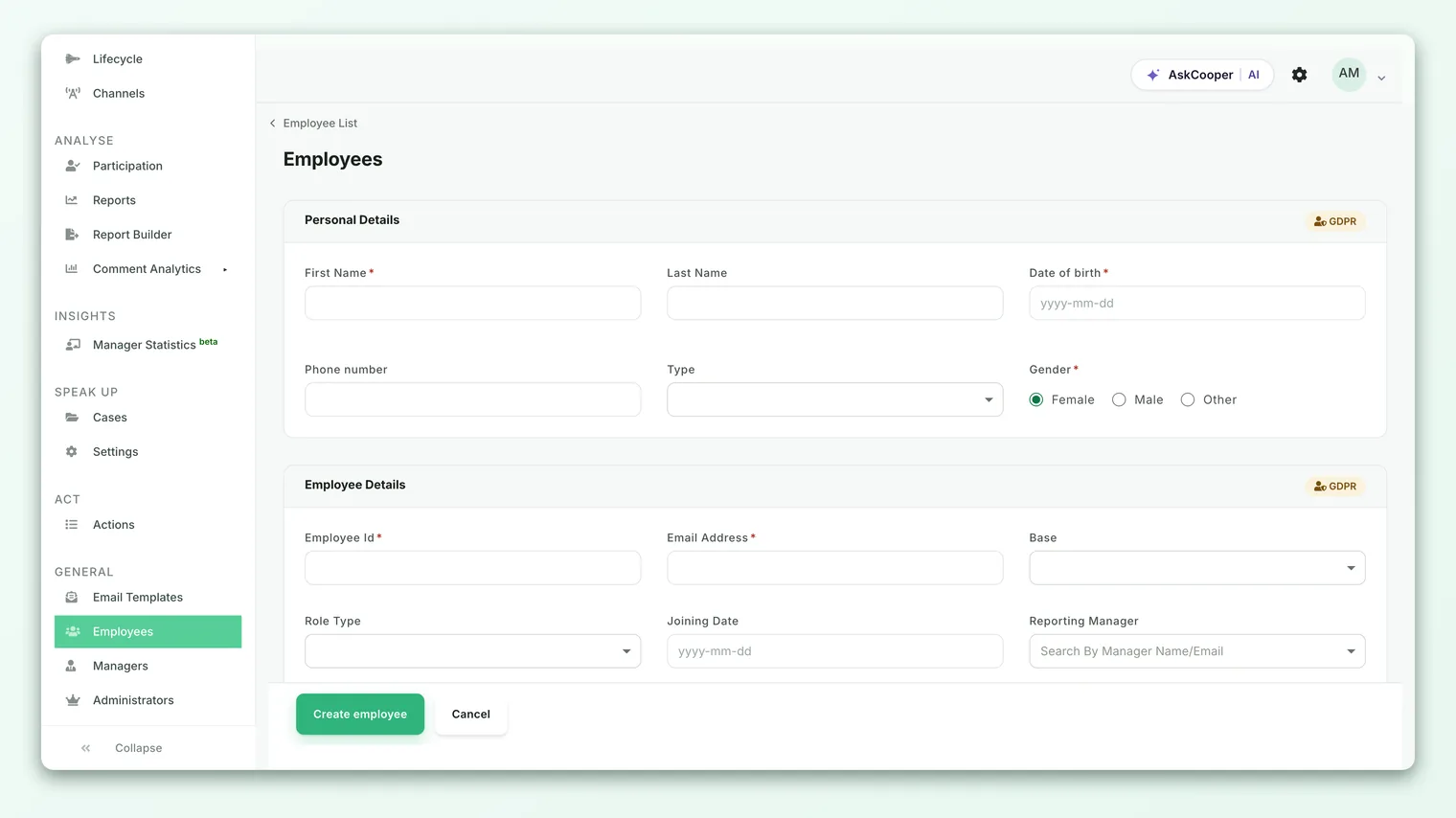
The fields on the employee form
The form is organized into two sections - Personal Details and Employee Details - both flagged with a GDPR badge as a reminder that this is sensitive personal data. Here's what each field is for and whether you need it.
| Field | Section | Required? | What it's for |
|---|---|---|---|
| First Name | Personal Details | Yes | The person's given name (2-50 characters). Used in survey greetings and throughout reports. |
| Last Name | Personal Details | No | Their family name. Helpful for identifying people but not mandatory. |
| Date of Birth | Personal Details | Yes | Used for age-based demographics. Entered as yyyy-mm-dd. |
| Phone Number | Personal Details | No | For accounts that survey over SMS or WhatsApp channels. |
| Gender | Personal Details | Yes | One of male, female or other. Powers gender-based demographic breakdowns. |
| Type | Personal Details | No | Employment type - Regular, Part-time, Shiftworker, Probation or Outworker. |
| Employee Id | Employee Details | Yes | Your internal identifier for the person. Must be unique across your account. |
| Email Address | Employee Details | Yes | The address surveys are sent to and the unique key for the record. Must be a valid, unique email. |
| Role Type / Base | Employee Details | No | Optional classification fields for organizations that use them. |
| Joining Date | Employee Details | No | When they started. Feeds tenure-based reporting and lifecycle surveys. |
| Reporting Manager | Employee Details | No | The person they report to. Enables manager-level dashboards and roll-ups. |
| Team | Employee Details | Yes | Their team - every employee belongs to one. One of the most useful fields for slicing engagement. |
| Sub Team / Business Unit / Business Group | Employee Details | No | Deeper org structure, shown only if your account uses them. |
| Designation | Employee Details | Yes | Their job title (2-200 characters). |
| Location | Employee Details | Yes | Their office or site - every employee belongs to one. Drives location-based reporting. |
| Timezone | Employee Details | No | Ensures surveys and reminders land at a sensible local time. |
| Salary per annum | Employee Details | No | Numeric only. Optional and used only if you analyze by compensation band. |
| Question Language | Employee Details | No | The language surveys are delivered in for this person. |
| Job Status | Employee Details | No | Employed, On-Notice or Relieved - used to pull people into lifecycle exit surveys. |
| Custom attributes | Employee Details | Depends | Any custom attributes you've defined appear here as extra fields. |
Both Email Address and Employee Id must be unique across your account, and CultureMonkey uses them to match records on future imports and syncs. If you'll be importing later, keep these values consistent so the system updates the existing person rather than creating a duplicate.
About demographics and custom attributes
The fields that make CultureMonkey powerful for segmenting results - team, location, reporting manager, tenure (from joining date), gender and employment type - are all standard demographics you can set right on this form. Alongside them, any custom attributes your organization has created (for example Department, Grade, Shift or Region) render automatically as additional dropdowns or text fields in the Employee Details section.
Every employee is assigned a team and a location, and the rest - manager, tenure, gender, employment type and your custom attributes - are optional but well worth filling in. They're what let you later ask questions like "How does engagement in the Sales team compare to Engineering?" or "Is advocacy lower at our Chennai site?" The richer each record, the more you'll get out of your reports. To set up new attributes, see Add custom employee attributes.
What happens after you add someone
When you click Create Employee, a few things happen behind the scenes:
- Validation runs first. CultureMonkey checks the required fields and formats - a valid, unique email; a unique Employee Id; a first name and designation of the right length. If something's off, the form reloads with the specific error highlighted so you can fix it.
- The record is created as active. New employees are active by default, which means they're eligible to receive surveys. (There's a Mark this person inactive option when you edit an employee, if you ever need to exclude them.)
- Your org structure updates. If you set a reporting manager, the person is slotted into the reporting hierarchy, and any relevant running surveys and roll-ups are refreshed so the new hire is reflected.
- You're returned to the list. You'll land back on the employee list with an "Employee added successfully." confirmation, and the new person visible in the roster.
Adding an employee simply puts them on your roster. It does not immediately email them. They'll be included the next time a survey goes out to a group they belong to. Login access (for managers and admins) is a separate step you grant when editing an employee - a plain employee doesn't need to log in to answer surveys.
Keeping employee records accurate
An employee list is only as useful as it is current. A few habits keep yours clean:
- Fill in demographics from the start. It's much easier to set a team, location and manager when you add someone than to backfill dozens of blank records later. Blank demographics create an "Unassigned" bucket that muddies your reports.
- Set the reporting manager. Manager dashboards and roll-ups depend on this field. A hire with no manager won't appear in anyone's team view.
- Use consistent Employee Ids and emails. These are the keys used to match people on future imports and syncs. Consistency here prevents accidental duplicates.
- Update, don't recreate. When someone changes teams or gets promoted, edit their existing record rather than adding a new one - this preserves their history.
- Deactivate leavers promptly. When someone leaves, mark them inactive (or set their job status) so they're excluded from future surveys. See Deactivate or delete employees.
Because email and Employee Id are unique, CultureMonkey will block a save that collides with an existing person. If you hit a "has already been taken" error, the person is probably already on your roster - search for them on the Employees page and edit that record instead of creating a new one.
When to add individually vs. import
Both routes end up in the same place - a person on your roster - so the choice comes down to volume and your source of truth.
| Situation | Best approach |
|---|---|
| A single new hire joined mid-cycle | Add manually - it's the fastest for one or two people. |
| You missed a few people in the last import | Add manually, or re-run a small import if you prefer. |
| Onboarding your whole company for the first time | Import a CSV - far quicker than typing everyone in. |
| Regular joiners and leavers at scale | HRMS / directory sync, so the roster stays current automatically. |
| Correcting one person's details | Edit the existing record on the Employees page. |
As a rule of thumb: reach for the manual form for one to a handful of people, and for anything larger, use import. Whichever you choose, the fields and their meaning are identical - a CSV import is essentially this same form, filled in for many people at once.
Frequently asked questions
Which fields are actually required to add an employee?
You need a First Name, a valid and unique Email Address, a unique Employee Id, a Designation, a Date of Birth and a Gender. Everything else - team, location, manager, phone number, salary and custom attributes - is optional, though filling them in makes your reporting much richer.
Does adding an employee send them a survey right away?
No. Adding someone only places them on your roster. They'll be included the next time a survey is sent to a group they belong to. Adding an employee also doesn't send a login invitation - regular employees don't need to log in to answer surveys.
Can I add someone without a manager?
Yes - a reporting manager is optional, so you can leave it blank. Team and location, however, are required: every employee is assigned to one of each. Bear in mind that a hire with no manager won't appear in anyone's team view, so it's best to set one whenever you can.
What if the email or Employee Id already exists?
CultureMonkey requires both to be unique and will show a "has already been taken" error if they collide with an existing person. That usually means the employee is already on your roster - search for them on the Employees page and edit the existing record instead of creating a duplicate.
Is a new employee active straight away?
Yes. Newly added employees are active by default, which makes them eligible for surveys immediately. If you need to exclude someone, open their record and use the Mark this person inactive option - inactive employees are left out of all future surveys.
I need to add a lot of people - is there a faster way?
Definitely. For more than a handful of employees, use a CSV import instead of the manual form. See Import employees from a CSV.
Where to go next
- Add many people at once: Import employees from a CSV
- Track your own fields: Add custom employee attributes
- Manage leavers and test accounts: Deactivate or delete employees
Your feedback helps us improve the Help Center.