

Deactivate or delete an employee
How to remove someone from your surveys the right way - the difference between deactivating and deleting, what happens to their past responses and your reports, the effect on active-employee counts and licensing, and how to do it one at a time or in bulk.
On this page
- Two ways to remove someone
- Deactivate vs. delete at a glance
- What happens to past responses and reports
- The effect on active-employee counts and licensing
- Where to manage employees
- Deactivate an employee
- Delete an employee
- Deactivate or delete in bulk
- Reactivating someone
- Handling leavers: good data hygiene
- Frequently asked questions
- Where to go next
People join and leave your organization all the time, and your employee list in CultureMonkey needs to keep up. When someone goes on extended leave, moves to a role that shouldn't be surveyed, or leaves the company entirely, you have two tools for handling them: deactivating and deleting. They sound similar, but they do very different things - and picking the right one protects both your data and your budget.
This guide explains exactly what each option does, what happens to a person's past survey responses and your historical reports, how the choice affects your active-employee count and licensing, and how to deactivate or delete people one at a time or in bulk. You'll also learn how to bring someone back, and how to fold all of this into a healthy data-hygiene routine.
Deactivating keeps a person's record and history but stops inviting them to surveys - it's reversible and ideal for leave or temporary exclusion. Deleting permanently anonymizes their personal details for GDPR compliance and can't be undone. Either way, the survey responses they already submitted are preserved, so your historical reports and trends stay intact. Only active employees count toward your CultureMonkey licensing.
Two ways to remove someone
Every employee record in CultureMonkey carries a status. Two flags govern whether a person is surveyed and whether their record still exists:
- Active vs. inactive - controlled by the Mark this person inactive setting. Inactive (deactivated) employees stay in your database with all their details intact; they're simply excluded from all future surveys.
- Deleted - a permanent action that anonymizes the person's personal information and removes them from your lists for good.
The most important thing to understand up front: deactivating is reversible, deleting is not. When you're unsure which to use, deactivate. You can always delete later, but you can never un-delete.
Deactivate vs. delete at a glance
| Deactivate (mark inactive) | Delete (GDPR encrypt) | |
|---|---|---|
| What it does | Flags the person as inactive; excludes them from future surveys | Permanently anonymizes their personal data and removes them from your lists |
| Reversible? | Yes - reactivate anytime | No - this cannot be undone |
| Personal details | Fully preserved (name, email, ID, team) | Erased - name becomes "deleted user", email and IDs are cleared |
| Past survey responses | Preserved | Preserved (and stay anonymous) |
| Historical reports | Fully intact | Fully intact |
| Future surveys | Excluded | Excluded |
| Counts toward licensing | No | No |
| Best for | Leave, secondment, temporary exclusion | A confirmed leaver, or a right-to-be-forgotten request |
The headline is that both options preserve the survey data you've already collected and neither one counts against your license. The real difference is reversibility and whether the person's personal details survive.
What happens to past responses and reports
This is the question most admins worry about, so let's be precise: removing someone does not delete the answers they've already given.
CultureMonkey stores survey responses anonymously and separately from the individual's profile. Because engagement surveys are anonymous by design, a submitted response is never tied back to a named person in your reports in the first place. So when you deactivate or delete someone:
- Responses to surveys that have already run stay counted. Your eNPS, engagement scores, participation rates and historical trends for past cycles do not change.
- Reports for completed and closed surveys are unaffected. Numbers you've already reported to leadership won't shift under your feet.
- The person is removed from surveys that haven't gone out yet. If a survey is still in draft or is currently live and collecting, the person is taken out of its participant list so they won't receive new invitations or reminders.
Deleting goes one step further than deactivating: it anonymizes the record itself. The person's name is replaced with a generic placeholder and their email, employee ID and other identifying fields are cleared, satisfying GDPR "right to be forgotten" requests. Even so, the anonymous responses they contributed to past surveys remain in your aggregate data.
Because responses are stored anonymously and independently of the employee record, you can clean up your people list without fear of "losing" data or breaking last quarter's report. Deactivation and deletion only affect future participation.
The effect on active-employee counts and licensing
Your CultureMonkey plan is sized by your number of active employees, and this is where getting the status right pays off directly.
The active-employee count that licensing looks at includes only people who are both active and not deleted. In practice that means:
- A deactivated (inactive) employee does not count toward your active total.
- A deleted employee does not count toward your active total.
- Only genuinely active employees consume a seat.
So if someone has left or is on long-term leave, deactivating them frees up their seat immediately. This matters most when you're near your contracted headcount: keeping your list tidy means you're paying for people you actually survey, not for stale records. Your Active and Inactive employee tabs give you a live view of each count.
Because licensing is based on active employees, a list full of leavers who were never deactivated can inflate your count. Do a quick pass to deactivate departed staff before your renewal or before launching a big survey, so your numbers reflect reality.
Where to manage employees
Everything below happens on the Employees page. You'll find it in the left-hand sidebar under General → Employees.
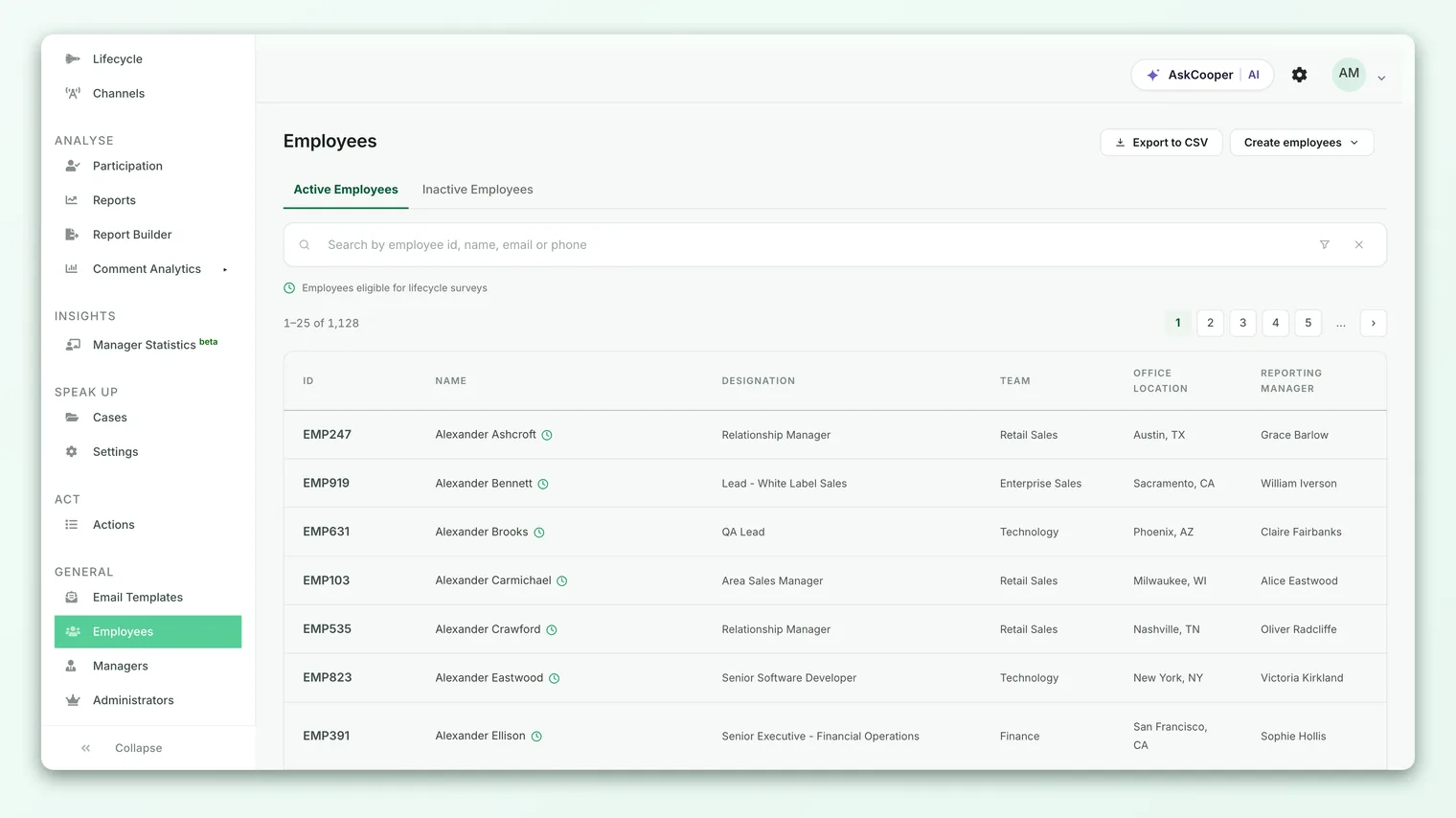
The page has two tabs - Active and Inactive - so you can switch between people who are being surveyed and people who've been set aside. From here you can open any individual to edit, deactivate, or delete them.
Deactivate an employee
Deactivating is the everyday tool for anyone who shouldn't be surveyed right now but whose record you want to keep.
- 1Open the Employees page - go to General → Employees in the sidebar and find the person on the Active tab.
- 2Open their record - click to edit the employee you want to deactivate.
- 3Mark them inactive - tick the Mark this person inactive checkbox. As the form notes, inactive employees will be excluded from all future surveys.
- 4Save - save the record. The person moves to the Inactive tab and stops counting toward your active total.
That's it. Their profile, history and past responses stay exactly where they are; they simply won't receive any more invitations until you reactivate them.
If the person had admin, sub-admin or manager login access, deactivating them also removes that access automatically. If you later reactivate them and re-grant a role, their access is restored.
Delete an employee
Deleting is for confirmed leavers or formal data-erasure requests. It permanently anonymizes the record, so use it deliberately.
- 1Open the person's record - from General → Employees, click to edit the employee.
- 2Choose Delete Employee - click Delete Employee (GDPR Encrypt) at the bottom of the form.
- 3Confirm - you'll be warned that this employee information will be encrypted and removed. Confirm only if you're certain - this can't be undone.
Once confirmed, the person's name is replaced with a placeholder, and their email, employee ID and other personal fields are cleared. They're removed from any surveys that haven't closed yet. Their anonymous responses to past surveys remain in your reports.
To protect your account, you can't delete yourself, an admin, or a manager who still has direct reports. Reassign the manager's reports (or remove their admin role) first, then delete. This guardrail prevents accidental loss of access or orphaned reporting lines.
Deactivate or delete in bulk
Handling people one at a time is fine for the occasional leaver, but when you're processing a batch - say, a monthly offboarding run - the CSV import is far faster.
Your import file supports an optional is_active column. Set it to false for anyone you want to deactivate and true for anyone you want to keep (or bring back) active. On import, CultureMonkey updates each matching person's status in one pass, so you can deactivate dozens of leavers by uploading a single spreadsheet.
- 1Export or prepare your file - start from a current export or the sample template so your columns line up. Match people by email address.
- 2Set the status column - put
falsein theis_activecolumn for each person you're deactivating; leave active people astrue. - 3Import the file - upload it from the Employees page and review the results. See Import employees from a CSV for the full walkthrough.
The same file can also carry job_status and date_of_separation columns, which are useful for tracking leavers formally and for triggering lifecycle (exit) surveys.
The import's is_active column deactivates and reactivates people - the safe, reversible operation. Because deletion is permanent and anonymizes data, it's done deliberately from each person's record rather than in a bulk sweep.
Reactivating someone
Because deactivation is reversible, bringing someone back is simple - handy when an employee returns from leave or rejoins.
- 1Find them on the Inactive tab - go to General → Employees and switch to the Inactive tab.
- 2Open and reactivate - edit the person and untick the Mark this person inactive checkbox.
- 3Save - they return to the Active tab and will be included in future surveys again.
You can also reactivate in bulk by setting is_active to true for those rows in a CSV import. Note that deletion has no equivalent - a deleted, anonymized record can't be restored, which is exactly why deactivation is the right default for anyone who might return.
Handling leavers: good data hygiene
Clean employee data makes every survey more accurate, keeps your reports trustworthy, and ensures you only pay for the people you actually survey. A simple, repeatable routine keeps things tidy:
- Deactivate promptly. When someone leaves or goes on long-term leave, mark them inactive so they stop receiving invitations and stop counting toward your license.
- Prefer deactivation over deletion. Deactivating preserves the record and is reversible. Reserve deletion for confirmed permanent departures or formal erasure requests.
- Batch it on a schedule. Fold offboarding into a monthly (or per-pay-cycle) CSV import so your list never drifts far from reality.
- Tidy up before big moments. Clean the list before a company-wide survey launch and before your renewal, so participation rates and license counts are based on real, current people.
- Capture the exit experience. For departing staff, consider a lifecycle (exit) survey to learn why people leave before you deactivate them.
Done consistently, this keeps your active count honest, your survey audiences accurate, and your historical data safe.
Frequently asked questions
Will deactivating or deleting someone change my past survey results?
No. CultureMonkey stores responses anonymously and independently of the employee record, so scores, trends and participation rates for surveys that have already run are unaffected. You're only changing whether the person is invited to future surveys.
Does an inactive employee still count toward my plan?
No. Licensing is based on your active employee count, which excludes both inactive (deactivated) and deleted people. Deactivating a leaver frees their seat right away.
Can I undo a deletion?
No. Deletion permanently anonymizes the record for GDPR compliance and cannot be reversed. If there's any chance the person will return, deactivate them instead - that's fully reversible.
Why can't I delete a particular employee?
For safety, CultureMonkey won't let you delete yourself, an admin, or a manager who still has direct reports. Reassign the manager's reports or remove the admin role first, then try again.
Can I deactivate lots of people at once?
Yes. Use a CSV import with the is_active column set to false for everyone you want to deactivate (and true to reactivate). It's the fastest way to process a batch of leavers. See Import employees from a CSV.
What's the difference between "inactive" and "deleted" in my counts?
Neither counts toward your active-employee total or your license. The difference is that inactive people keep their full records and can be reactivated, while deleted people are permanently anonymized and gone from your lists.
Where to go next
- Grow your list: Add employees
- Update people in bulk: Import employees from a CSV
- Learn why people leave: Set up lifecycle (exit) surveys
Your feedback helps us improve the Help Center.