

Browse and use survey templates
How to find, preview and launch CultureMonkey's ready-made survey templates - where the template library lives, what categories and template types exist, what's inside each one, and how to start a new survey from a template in a couple of clicks.
On this page
You don't have to write an employee survey from a blank page. CultureMonkey ships with a template library - dozens of research-backed surveys covering engagement, onboarding, exit, wellness, inclusivity, leadership and more. Each one arrives with its questions, sections and engagement drivers already filled in, so you can go from "I need to run a survey" to a working draft in a couple of clicks.
This guide covers the whole library: where it lives in the app, how templates are organized into categories, how to preview a template before you commit, exactly what's inside one, and how to turn a template into a live survey you can then customize.
Go to Listen › Templates. Browse the Library tab, optionally filter by category (Basic, Onboarding, Exit, Wellness and more), and Preview any template to take it as a participant would. When one fits, click Select this template - CultureMonkey copies its sections, questions and drivers into a brand-new draft survey and drops you straight into the builder to customize and launch.
Why start from a template
Building a good survey is harder than it looks. The wording of each question, how questions map to engagement drivers, and how many to ask before people tune out - all of that takes expertise to get right. Templates bake that expertise in.
Starting from a template gives you three advantages:
- Speed. The structure and questions already exist. You review and tweak rather than write from nothing.
- Rigor. Template questions are validated and pre-mapped to drivers, so your results roll up into meaningful themes and stay comparable across surveys and cycles.
- Coverage. The library spans the moments that matter - hiring, onboarding, the everyday employee experience, and offboarding - so there's usually a strong starting point for whatever you want to measure.
You're never locked in. A template is a starting point: once it opens in the builder you can add, remove, reword or reorder anything. If you'd rather build everything by hand, see Create a survey from scratch.
Where the template library lives
From the left-hand navigation, open the LISTEN section and click Templates. This is the template gallery, and it's the first stop in the survey-building flow.
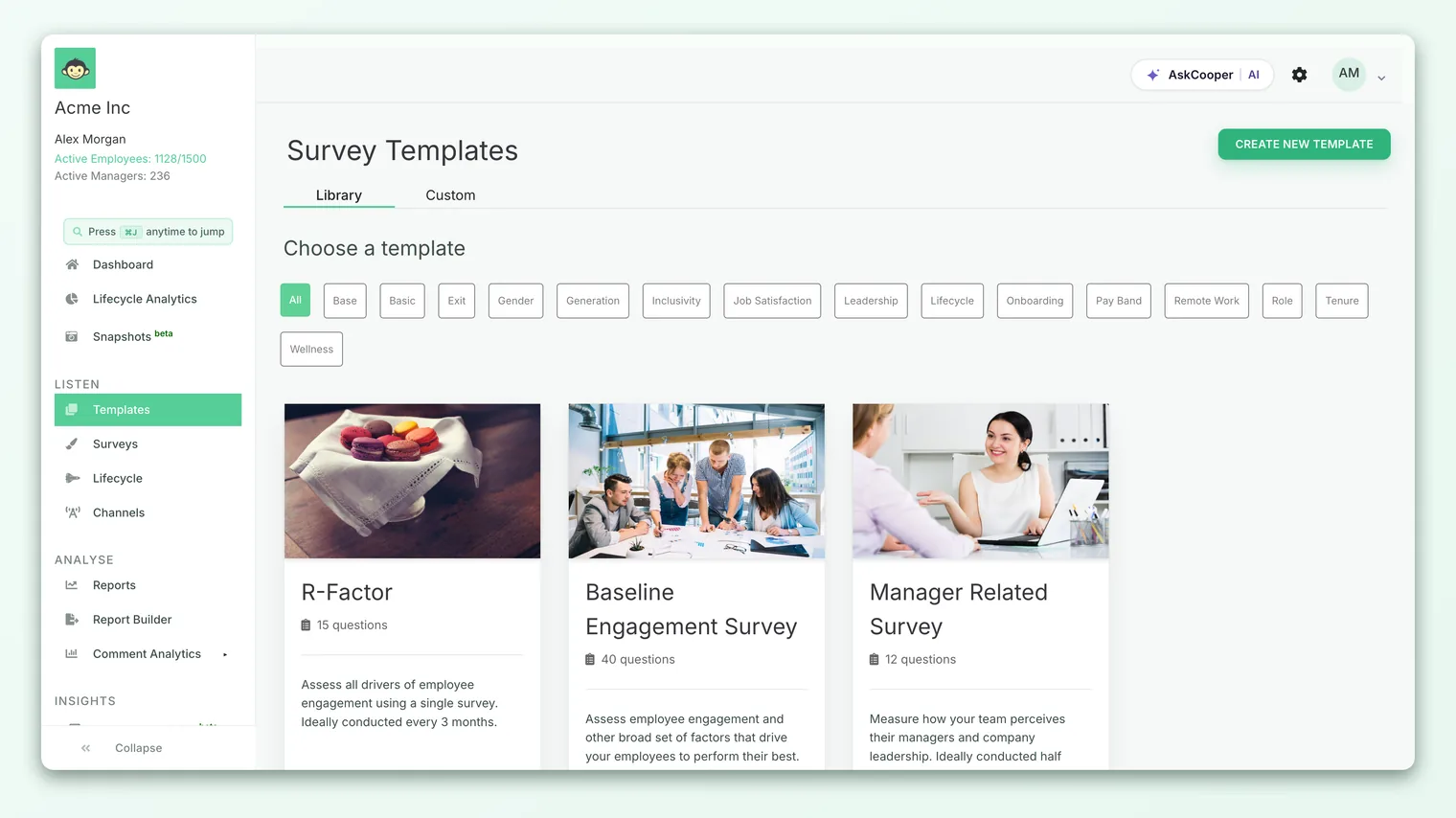
At the top of the page you'll see two tabs:
- Library - CultureMonkey's built-in, ready-made templates. This is where you'll spend most of your time.
- Custom - templates your account has created and saved for reuse (more on those below).
Below the tabs is a row of category pills - starting with All - and then a grid of template cards, one per template.
The Templates menu item is an admin-level capability, shown to roles that can create surveys - typically Survey Admin and Account Admin. If you're a manager or a view-only role, you may not see it at all; managers generally view results rather than build surveys. If Templates is missing from your menu, ask an administrator about your role.
How the library is organized
Every card in the Library tab belongs to a category, and the pills across the top let you filter down to just one. Click All to see everything, or a category name to narrow the grid to that theme. The category you've selected stays highlighted, and the URL reflects it (for example, /survey-templates?type=onboarding), so you can bookmark or share a filtered view.
The built-in categories cover the full employee lifecycle and the major engagement themes:
| Category | What it's for |
|---|---|
| Basic | Broad, foundational surveys - baseline engagement, a quick pulse, manager and culture checks |
| Onboarding | The experience of new hires, phased across the first weeks |
| Exit | Offboarding feedback, both during the notice period and post-separation |
| Wellness | Employee wellbeing, at work and in general |
| Inclusivity | Diversity, belonging and whether people feel included |
| Leadership | How teams perceive their managers and leaders |
| Job satisfaction | Morale, mood and overall satisfaction |
| Generation | Surveys tuned to Gen Z, Millennials, Gen X and Baby Boomers |
| Tenure, Role, Pay band, Base, Gender | Segment-focused templates for specific cohorts of your workforce |
| Remote work | Readiness and experience of distributed or off-site teams |
| Lifecycle | Stage-based templates used with CultureMonkey's automated lifecycle surveys |
If your account uses Snapshots, CultureMonkey will sometimes suggest a relevant category for you - for example, nudging you toward a generation survey to understand your dominant age group, or an inclusivity survey to probe for bias. Those suggestions link straight into the filtered library.
Reading a template card
Each card is a compact summary of one template so you can compare options at a glance. On every card you'll find:
- The template name - for example, "Baseline Engagement Survey", "Onboarding - Phase 1" or "Exit Survey - Notice Period".
- A question count - how many questions the template contains, shown next to a small clipboard icon. Counts range from short, focused templates of five or six questions to a comprehensive Baseline Engagement Survey of around forty.
- A short description - what the template measures and, often, a suggested cadence (for example, "Ideally conducted half yearly" or "two weeks post joining date").
Hover over a card (or tap it on touch devices) and two actions appear: Preview and Select this template.
Previewing a template
Before you commit to a template, take it for a test drive. Click Preview on any card and CultureMonkey opens the template in a new tab, rendered exactly as a participant would see it - the same survey-taking experience your employees would get, complete with sections, question wording, rating scales and any branching.
The preview is read-only and self-contained: nothing is sent to anyone, no survey is created, and no responses are recorded. It's purely a way to check the content and flow. The preview also shows an estimated completion time, calculated from the number of questions, so you can gauge how long the survey will take people to finish before you decide.
Previewing is completely safe. It opens a throwaway rendering of the template so you can read every question in context. You only create a draft survey when you click Select this template - see the next section.
Use the preview to sanity-check three things: does the wording suit your organization, is the length reasonable for your audience, and does the question set actually cover what you want to learn? If it's close but not perfect, that's fine - you'll be able to edit everything once you select it.
What's inside a template
A template is essentially a pre-built survey with the content already assembled. When you look inside one (either in the preview or once it's opened in the builder), you'll find:
- Sections - questions grouped into themed blocks so a longer survey feels structured rather than endless. Sections also make your reports easier to read, because results roll up by section.
- Questions - the actual items respondents answer, mostly rating questions with a few free text questions for color. These are validated, research-backed questions rather than ad-hoc ones.
- Drivers - every rating question is mapped to an engagement driver (the theme it measures, such as recognition or growth). This mapping is what lets CultureMonkey aggregate answers into driver scores. Most templates use CultureMonkey's default drivers; some define their own custom drivers, and the template carries that setting with it.
- Rating scales - templates come with an appropriate scale already chosen for each rating question (for example, an agreement scale), so you don't have to configure scales yourself.
Because all of this travels with the template, selecting one gives you a complete, coherent survey rather than a loose pile of questions. You can still change any of it afterward.
The classic "how likely are you to recommend us as a place to work?" eNPS question is turned on at the survey level rather than baked into most templates. After you select a template, you can toggle eNPS on in the builder's Basic step and place it at the top or bottom. To understand what it measures, see What is eNPS and how is it calculated?.
Starting a survey from a template
When you've found the right template, click Select this template on its card. Here's what happens under the hood:
- 1CultureMonkey copies the template - it creates a brand-new draft survey and copies the template's sections, questions, drivers and settings into it. Your original template is untouched and stays in the library for reuse.
- 2You land in the survey builder - you're taken straight to Step 1, Basic settings of the new draft, with all the template content already in place on the Questions step.
- 3You customize as needed - rename the survey, adjust branding and identity, add or reword questions, set your audience, choose a channel and schedule it. Everything in the builder is fully editable.
- 4You preview and publish - take the survey yourself, then launch it when you're ready.
From this point the flow is identical to building from scratch - the template just gave you a running start on the content. For the full walkthrough of every builder step, question type and setting, see Create a survey from scratch.
Selecting a template copies it into a new survey. Edits you make to that survey affect only the survey, not the library template - so you can safely reshape it. If you want to save your own reusable starting point, that's what Custom templates are for.
Custom templates
Beyond the built-in library, your account can keep its own custom templates on the Custom tab. These are templates your team has created - for example, by turning a survey you've refined into a reusable starting point, so next quarter's round begins from your own proven question set rather than a generic one.
Custom templates behave just like library templates once they exist: they show up as cards, you can preview them, and you can select one to spin up a new survey. If your account hasn't created any yet, the Custom tab simply shows an empty state inviting you to make one. Creating and managing custom templates is an admin task; the Create New Template button on the library page is where that begins.
Best practices
A few habits make the library work harder for you:
- Start from a template, then trim. The fastest good survey is usually a template with a few questions removed rather than one written from scratch. Shorter surveys get higher completion.
- Match the template to the moment. Use onboarding templates for new hires, exit templates for leavers, and a broad baseline or quick engagement template for your regular pulse. The right template already asks the right questions for that moment.
- Preview before you select. It takes thirty seconds and saves you from discovering awkward wording after you've built the draft.
- Keep drivers intact. The pre-mapped drivers are what make your reports comparable over time. Reword questions freely, but think twice before re-assigning or removing their drivers.
- Save your best surveys as custom templates. Once you've tuned a survey that works for your organization, turn it into a custom template so future rounds stay consistent.
Frequently asked questions
Where do I find the template library?
In the left navigation under LISTEN, click Templates. The Library tab holds CultureMonkey's built-in templates; the Custom tab holds ones your account has created.
Does previewing a template send anything to employees?
No. Preview opens a read-only rendering of the template in a new tab so you can experience it as a participant would. Nothing is sent, no survey is created, and no responses are recorded. A survey is only created when you click Select this template.
Can I edit a template's questions?
You edit them on the survey you create from the template, not on the template itself. Selecting a template copies it into a new draft survey where every question, section, driver and setting is fully editable. The original library template stays unchanged.
What's the difference between Library and Custom templates?
Library templates are CultureMonkey's built-in, research-backed surveys, available to every account. Custom templates are ones your own account has created and saved for reuse. Both work the same way once you select them.
Will a template include an eNPS question?
Not usually - eNPS is enabled at the survey level rather than inside most templates. After selecting a template, toggle eNPS on in the builder's Basic step and choose whether it appears at the top or bottom. See What is eNPS and how is it calculated?.
How many questions do templates have?
It varies by template. Focused ones (like a phase of onboarding) have as few as five or six questions; a comprehensive Baseline Engagement Survey can have around forty. Each card shows its question count so you can pick the right depth for your audience.
Where to go next
- Build and launch your chosen template: Create a survey from scratch
- Decide who can see responses: Set survey anonymity
- Understand your headline metric: What is eNPS and how is it calculated?
Your feedback helps us improve the Help Center.