

Set survey anonymity in CultureMonkey
How to choose Anonymous or Non-anonymous for a survey in CultureMonkey - what each mode changes in your reports, how it moves the response threshold, the one-way caution about switching back, and when to use each.
On this page
- Where the setting lives
- What "anonymous" changes
- What "non-anonymous" changes
- Anonymous vs non-anonymous at a glance
- How anonymity moves the response threshold
- The one-way caution: switching back doesn't preserve the higher threshold
- When to use each
- Communicate the mode to your people
- Frequently asked questions
- Where to go next
Every survey you build in CultureMonkey carries one decision that shapes everything downstream: is it anonymous or non-anonymous (identified)? It's a single radio button on the first step of the builder, but it determines what you'll be able to see in your reports, how many responses a group needs before results appear, and - most importantly - how honestly your people will answer.
This guide is the practical, setup-focused companion to How anonymity keeps your feedback safe. That article explains why anonymity matters and how the protection works across the product. This one is about the actual choice you make when configuring a survey: where the setting lives, what each mode changes, how it moves the response threshold, and how to pick the right one.
On Step 1 (Basic) of the CultureMonkey survey builder, under Identity Settings, choose Anonymous or Non-anonymous. Anonymous masks who answered and holds results back until at least 3 people in a group have responded. Non-anonymous lets admins see individual responses and uses your account's lower floor. The setting locks once the survey is live, so decide before you publish - and know that switching a survey back from anonymous to non-anonymous does not keep the higher threshold.
Where the setting lives
Anonymity is set when you build the survey, not afterward. In the survey builder, it's on Step 1 - Basic, in the Identity Settings section.
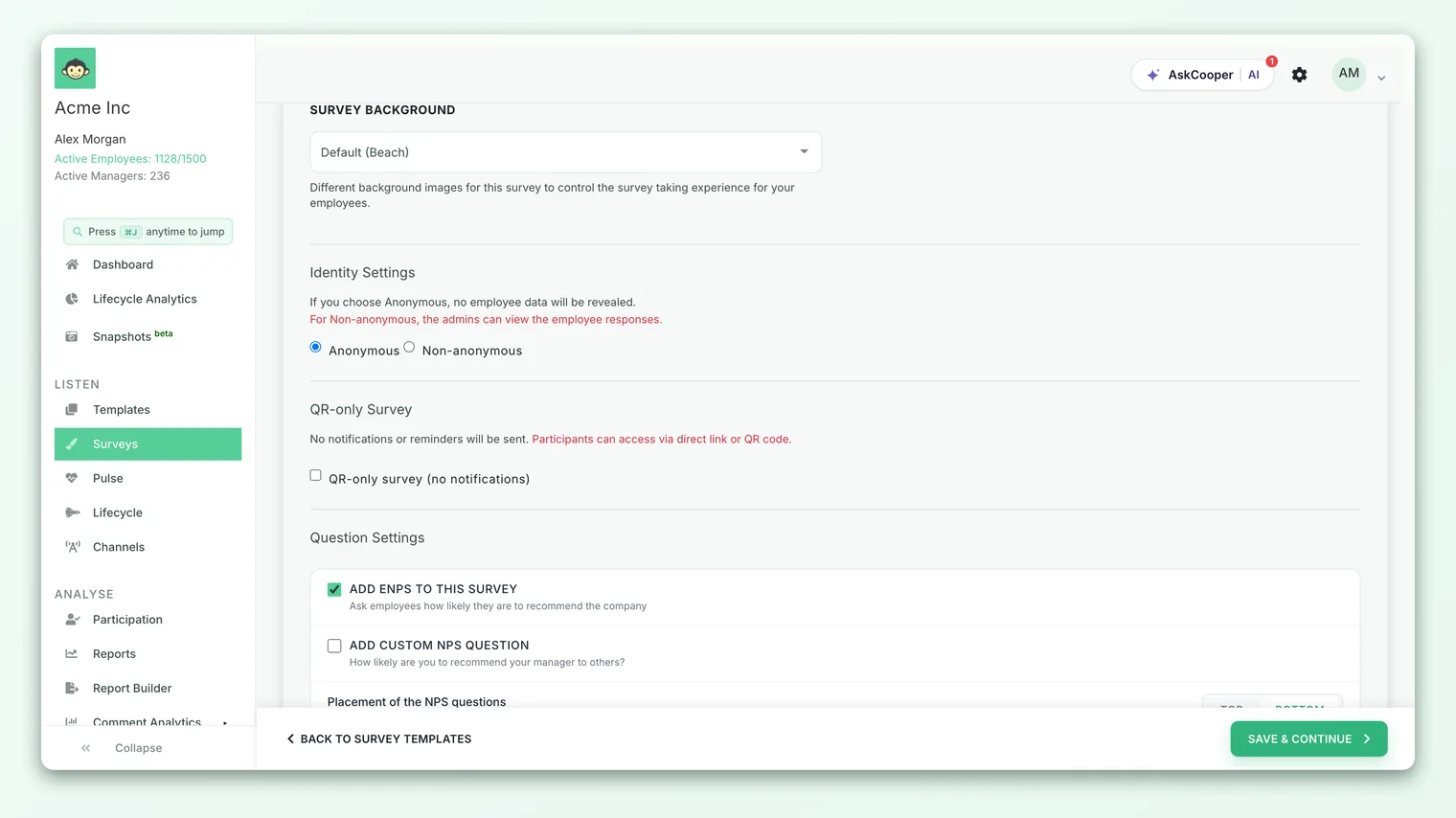
- 1Open the builder - Go to Listen › Surveys and either Create a survey or open an existing draft. Anonymity can only be changed while the survey is in Draft.
- 2Go to the Basic step - It's the first step in the builder, before Questions, Audience and Settings.
- 3Find Identity Settings - You'll see a short explanation: "If you choose Anonymous, no employee data will be revealed. For Non-anonymous, the admins can view the employee responses."
- 4Pick a mode - Select the Anonymous or Non-anonymous radio button. That's the whole control - one deliberate choice.
- 5Save & Continue - Your choice carries through the rest of the builder, and the matching response threshold is applied automatically.
Because this decision affects trust and reporting so directly, treat it as one of the first things you settle when planning a survey - not an afterthought on your way to publishing.
What "anonymous" changes
When a survey is anonymous, CultureMonkey masks the link between a person and their answers everywhere results are shown. Concretely:
- No individual responses. Admins and managers see scores, eNPS, driver breakdowns and comments pooled across a group - never a single named person's answers. There's no "who said what" view, because the data layer doesn't expose it.
- A protective threshold kicks in. Results for any group stay hidden until at least a minimum number of people in that group have responded (see the next section). Small teams and narrow filters stay blank rather than risk exposing someone.
- Comments and free-text are protected too. Open-ended answers are shown only in the aggregate, and exports drop any demographic combination that's too small to be safe.
Anonymous is the right default for engagement surveys, eNPS pulses, and anything touching sensitive ground - manager effectiveness, workload, culture, psychological safety. Those topics only produce honest data when people are certain their name can't be attached to what they say.
What "non-anonymous" changes
A non-anonymous (identified) survey deliberately keeps the connection between a respondent and their answers. As the builder's own helper text puts it, "the admins can view the employee responses." That means:
- Answers are attributed. Admins can see how a specific employee responded, so they can follow up with that person directly.
- A lower threshold applies. Because hiding identity isn't the goal, an identified survey uses your account's non-anonymous floor rather than the higher anonymous one.
- It's built for action on the individual. The whole point is being able to reach out - a new-hire check-in where a buddy or manager should respond personally, an exit conversation, a 1:1 follow-up.
Identified surveys aren't "less safe" - they're for moments where acting on one person's response is the entire purpose. The trust comes from being upfront that the survey is identified, not from pretending it's anonymous.
Anonymous vs non-anonymous at a glance
Here's the practical comparison as you decide:
| Anonymous | Non-anonymous (identified) | |
|---|---|---|
| Identity in reports | Masked - no names attached to answers | Visible - admins can view individual responses |
| Individual responses | Never shown; results are pooled only | Admins can see how a specific person answered |
| Response threshold | Higher floor - minimum 3 responses per group | Your account's non-anonymous floor (a lower minimum) |
| Best for | Engagement, eNPS, sensitive topics, honest sentiment | Onboarding check-ins, exit surveys, 1:1 follow-ups |
| What to tell employees | "Your individual answers can't be traced to you." | "Your responses are tied to your profile so we can follow up." |
| Trust posture | Safety through masking | Safety through transparency about being identified |
The golden rule sits underneath the whole table: tell people which mode they're in, in plain language, before they answer. Nothing erodes trust faster than someone believing a survey was anonymous when it wasn't.
How anonymity moves the response threshold
The identity choice isn't just about names - it's wired to the response threshold (internally, the survey's minimum answers). This is the number of responses a group needs before its results are revealed. It exists to stop anyone inferring an individual's answer from a tiny group.
CultureMonkey ties a floor to each mode and won't let you set the threshold below it:
- Anonymous surveys have a built-in floor of 3 responses. You can raise the threshold above 3 for extra caution, but you can't go lower.
- Non-anonymous surveys use your account's configured non-anonymous minimum as their floor, which admins set at the account level.
When you flip a draft survey to Anonymous, CultureMonkey automatically raises its threshold to the anonymous floor if it was sitting below it - you never end up with an anonymous survey that could expose a group of two. If you'd already set a higher number, that higher number is kept. Either way, anonymous means "at least 3."
For a full walk-through of setting and tuning this number, see Set the response threshold. If a report looks empty after launch, the threshold is almost always the reason - see Why can't I see results yet?.
The minimum isn't just for the top-line score. It gates every slice of a report - teams, locations, custom attributes, and combinations of them. Any group below the floor stays hidden, on screen and in exports alike.
The one-way caution: switching back doesn't preserve the higher threshold
This is the single most important thing to understand before you change a survey's identity mode, so it gets its own section.
When you switch a survey to anonymous, CultureMonkey protects you by raising the threshold to the anonymous floor. But the reverse is not symmetrical. If you switch a survey from anonymous back to non-anonymous, the platform resets the threshold down to your account's non-anonymous floor - it does not remember and preserve the higher number the anonymous survey was using.
A concrete example: say you set an anonymous survey with a threshold of 5 for extra caution. If you then flip that same survey to non-anonymous, the threshold does not stay at 5. It drops back to the account's non-anonymous minimum. That's a deliberate product rule, but it can surprise you if you assumed the higher, more protective number would carry over.
Switching a survey to anonymous raises its threshold automatically. Switching it back to non-anonymous resets the threshold to your account floor - the higher anonymous number is not kept. So decide identity mode early and deliberately, and if you ever move a survey from anonymous to identified, re-check the response threshold rather than assuming it held.
There's a second, closely related reason to get this right the first time: once a survey leaves Draft, identity mode and the threshold lock. You can't quietly re-anonymize a survey that shipped as identified, and you can't tighten the threshold on a running survey. Preview, confirm, then publish.
When to use each
A quick decision guide:
Choose Anonymous when:
- You're measuring engagement, eNPS, or sentiment and want honest, unfiltered answers.
- The topic is sensitive - manager effectiveness, culture, workload, trust, wellbeing.
- You care more about accurate group-level truth than about following up with specific individuals.
- You want the reassurance of a protective threshold on small teams.
Choose Non-anonymous when:
- You need to act on an individual's answer - a new-hire check-in, an exit survey, a personal follow-up.
- The value of the survey is the one-to-one conversation it enables, and employees expect that.
- You're comfortable telling people, clearly, that their responses are tied to their profile.
When in doubt, default to anonymous. Most engagement work benefits from candor, and you can always run a separate identified survey for the moments that genuinely need a name attached.
Communicate the mode to your people
The setting is only half the job. The other half is making sure employees know which mode they're in, in plain language, before they answer.
- 1Say it up front. In your survey description or launch message, state clearly whether the survey is anonymous or identified. One honest sentence is enough.
- 2For anonymous surveys, be concrete. "Your answers are pooled with your teammates' and we can't see which are yours" lands better than technical detail - and it's true.
- 3For identified surveys, explain the why. "Your responses are tied to your profile so we can follow up with you personally" turns identification from a worry into a benefit.
- 4Never mislabel. Telling people a survey is anonymous when it's identified is the fastest way to destroy trust in every survey that follows.
Frequently asked questions
Where exactly is the anonymity setting?
On Step 1 (Basic) of the survey builder, in the Identity Settings section. It's a radio choice between Anonymous and Non-anonymous. You can only change it while the survey is a draft.
What's the minimum number of responses for an anonymous survey?
3. Anonymous surveys in CultureMonkey carry a built-in floor of 3 responses per group - results stay hidden below that. You can raise the threshold higher, but not lower it beneath 3.
If I switch my survey from anonymous back to non-anonymous, does it stay protective?
No - and this catches people out. Switching back to non-anonymous resets the response threshold to your account's non-anonymous floor; the higher anonymous threshold is not preserved. If you make this change, re-check the threshold yourself. See the caution above.
Can I change anonymity after the survey has launched?
No. CultureMonkey locks identity mode and the response threshold once the survey leaves Draft status, so every respondent answers under the same rules. Decide before you publish, and use Preview to confirm.
Does anonymous mean I can't act on the feedback?
Not at all. On an anonymous survey you act on themes and group-level insights - the low driver score, the recurring comment topic, the department trend - never a specific person's answer. That's exactly how anonymity and action coexist.
Who sets the non-anonymous minimum?
Account admins configure your organization's non-anonymous floor at the account level. The anonymous floor of 3 is built in and can't be lowered. See Set the response threshold.
Where to go next
- Understand the protection behind it all: How anonymity keeps your feedback safe
- Tune the number: Set the response threshold
- Report looks empty? Why can't I see results yet?
- For the employees taking the survey: Is my feedback anonymous in CultureMonkey?
Your feedback helps us improve the Help Center.