

Business groups and business units in CultureMonkey
What business groups and business units are, how they differ from teams and locations, how to enable and manage them, assign employees, and use them as a filtering dimension across your reports.
On this page
- What business groups and business units are
- How they differ from teams and locations
- Enabling business groups
- Creating and managing business groups
- Assigning employees
- Using them as a filtering dimension in reports
- Business groups and admin access
- When the extra layer is worth it
- Frequently asked questions
- Where to go next
Most organizations are more than a flat list of teams. There's a shape to them - divisions, brands, legal entities, regions that roll several departments together. Business groups and business units are the two extra org layers CultureMonkey gives you to model that shape, so your survey results line up with how leadership actually thinks about the company.
This guide explains what these two layers are, how they differ from the teams and locations you already use, how to switch them on, how to create and manage them, how to assign employees, and how to turn them into a filtering dimension across your reports. It also covers the honest question of when an extra org layer earns its keep - because more structure isn't always better.
A business unit and a business group are additional attributes you can attach to each employee in CultureMonkey, alongside their team and location. Once enabled, they become another way to slice every report - so you can compare, say, the "Retail" business group against "Corporate," or one legal entity against another. They're optional, and best added only when your org is large or layered enough to need them.
What business groups and business units are
At its core, CultureMonkey describes each employee with a small set of demographic attributes: their team, their location, and - if you enable them - their business unit and business group. Each of these is just a label the platform hangs on a person so it can group answers later.
- A business unit is typically a mid-level division of the company - think "Sales," "Engineering," "Manufacturing," or a specific product line or legal entity. Every employee can belong to at most one business unit.
- A business group is usually a broader umbrella - think "North America," "Consumer Brands," or "Corporate Functions" - that sits above business units and teams. Each employee can belong to at most one business group, and you can even give a business group its own logo so branded surveys feel right for that part of the business.
Neither layer is required. They exist for organizations whose structure doesn't fit neatly into teams and locations alone. If your company is small or simple, you may never need them - and that's fine.
How they differ from teams and locations
This is the question that trips people up, because on the surface all four look like "ways to group people." Under the hood they behave the same way - each is a demographic dimension that survey answers get tagged with, and each becomes a filter in reports. The difference is what they mean and how deep the org layering goes.
| Team | Location | Business group / business unit | |
|---|---|---|---|
| What it models | The functional group someone works in day to day | The physical office, city, or country they work from | A broader organizational division - brand, region, entity, or product line |
| Typical example | "Customer Support," "Backend" | "London," "Bangalore," "Remote" | Group: "Consumer" · Unit: "Sales" |
| How many per employee | One team (optionally a sub-team beneath it) | One location | One business group and one business unit |
| Always available? | Yes, built in | Yes, built in | No - you enable them when you need them |
| Special extras | Sub-teams for a second level | - | Business groups can carry their own logo (see note) |
| Role in reports | Filter dimension | Filter dimension | Filter dimension |
The practical takeaway: teams and locations answer "where and in what function does this person work?" while business groups and units answer "which part of the wider organization do they belong to?" In a large, multi-brand or multi-entity company, that extra layer is what lets you compare divisions cleanly without contorting your team names to carry that meaning.
If you find yourself naming teams like "Retail - Support" and "Corporate - Support" just to keep divisions apart, that's the signal a business group would serve you better. Let the team be "Support" and let the business group carry "Retail" versus "Corporate."
Enabling business groups
Business groups and units are gated by an account setting, enable business group access, so they stay out of your way until you actually want them. When the setting is off, the business-group fields simply don't appear on the employee form and the pages aren't surfaced.
- 1Confirm the feature is on - business groups are controlled by the enable business group access account setting. If you don't see a Business Groups entry under Settings › Demographics, it hasn't been enabled for your account yet.
- 2Reach out if it's off - if the setting isn't available to toggle yourself, contact your CultureMonkey account team or support to have it switched on for your organization.
- 3Refresh once enabled - after the setting is on, the Business Groups management page, the employee-form dropdown, and the business-group filter in reports all become available.
Business units live under Settings › Demographics › Business Units and don't depend on the same switch - they're always available - but in practice you'll set both up together as part of modeling your org structure.
Creating and managing business groups
Once enabled, each layer has a simple management page where you create, rename, and delete entries.
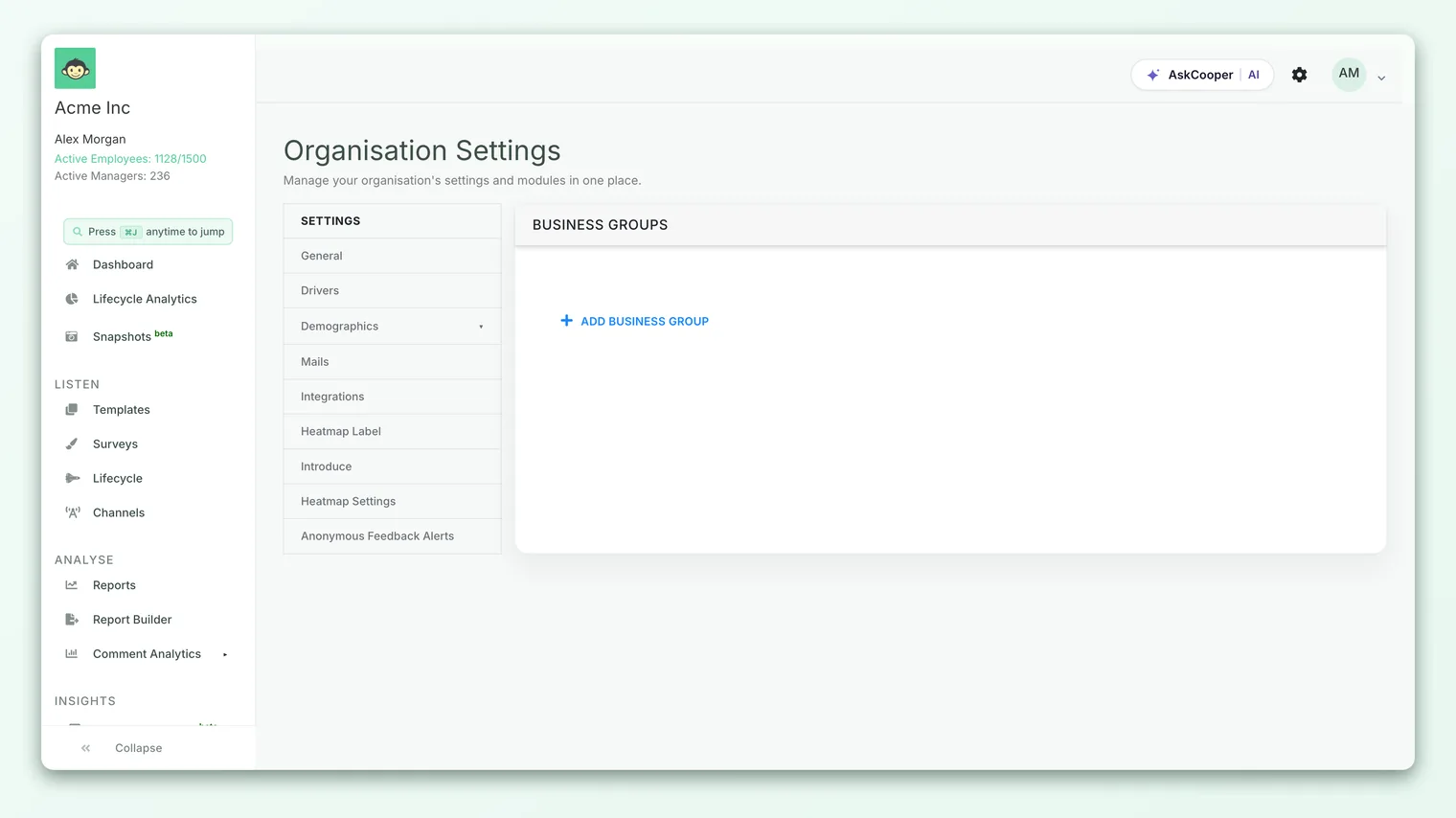
- 1Open the business groups page - go to Settings › Demographics › Business Groups, where all your existing groups are listed.
- 2Add a group - click Add Business Group, enter a Business Group Name, and optionally Upload Business Group Logo so surveys for that division carry the right branding. Save to create it.
- 3Add a business unit - under Settings › Demographics › Business Units, click Add Business Unit and enter a Business Unit Name. Unit names must be unique across your account.
- 4Rename as needed - edit an existing entry to update its name or logo. Changes apply going forward.
- 5Delete carefully - you can remove a group or unit, but only when it's safe to do so (see the caution below).
CultureMonkey won't let you delete a business group while employees are still assigned to it - you'll be asked to reassign those people first. It also blocks deletion if the group is linked with existing survey answers, so historical reports stay intact. And you can't delete your only business group. These guards are deliberate: they prevent orphaned data and broken past reports.
Assigning employees
A business group or unit only becomes useful once people are in it. Assignment happens on the individual employee record, and each employee can hold one business group and one business unit at a time.
- 1Open an employee - go to the employee's record in the Employees area under General.
- 2Set the business group - with the feature enabled, a Business Group dropdown appears on the employee form. Pick the right group (or leave it as Select to leave it unset).
- 3Set the business unit - assign the employee's Business Unit the same way, if you're using units.
- 4Save - the employee's answers to future surveys will now be tagged with these attributes and become filterable in reports.
Because both are standard employee attributes, they can also flow in through your employee import or HRIS sync - a business_unit_name column always, and a business_group_name column once business group access is enabled. That makes it practical to keep large employee lists in the right groups and units without editing each record by hand.
Assigning someone to a business group affects how future responses are grouped. Answers they gave before the assignment keep the attributes they had at the time. Set up your org structure before a survey goes out to get the cleanest breakdowns.
Using them as a filtering dimension in reports
This is where the setup pays off. Every survey answer in CultureMonkey is stored with the respondent's demographic attributes - team, location, sub-team, business unit, and business group - so any of them can be used to slice a report. Business groups and units simply add two more dimensions to filter and compare by.
Once your employees are assigned, you can:
- Filter a report down to a single business group or unit to see just that division's scores.
- Compare divisions - line up one business group against another to spot where sentiment diverges across the wider organization.
- Combine with other filters - narrow to, say, one business unit within one location to answer very specific questions.
For the full mechanics of applying and combining filters, see Filter reports by demographic.
Just like teams and locations, a business-group or business-unit filter respects your anonymity threshold. If a division is too small, its results stay hidden until enough people respond, so no individual's answer can be inferred. An empty breakdown usually means "not enough responses yet," not an error.
Business groups and admin access
There's a second, quieter use for business groups: scoping who can see what. When you grant someone sub-admin or manager access, you can limit them to specific business groups (alongside teams and locations). They'll then only access surveys, reports, and actions for the employees under those groups. For a multi-division company, that's a clean way to give each division's HR lead visibility into their own people without exposing the whole organization.
When the extra layer is worth it
More structure is tempting, but every dimension you add is one more thing to keep accurate. A good rule of thumb:
- Reach for business groups/units when your organization has genuine divisions that cut across teams and locations - multiple brands, legal entities, regions, or product lines that leadership routinely wants to compare, and where team and location alone can't express that.
- Skip them when you're small or simple, or when a team or sub-team already captures the distinction. Adding empty or half-populated layers just clutters your filters and dilutes your data.
The best test is a reporting question: "Will someone actually ask to see results split this way?" If yes, model it. If not, leave it off - you can always enable it later.
Frequently asked questions
What's the difference between a business unit and a business group?
Think of scale. A business unit is usually a mid-level division (a department, product line, or entity), while a business group is a broader umbrella above it (a brand, region, or corporate grouping). Each employee can have one of each. Use whichever layers match how your leadership actually talks about the company - you don't have to use both.
Do I have to use business groups?
No. They're optional and off by default. Teams and locations cover most organizations. Enable business groups only when you have divisions that teams and locations can't cleanly express.
Why can't I delete a business group?
Deletion is blocked in three cases: employees are still assigned to it (reassign them first), it's linked to existing survey answers (so past reports stay intact), or it's your only business group. CultureMonkey uses these guards to protect your historical data.
Can I assign an employee to more than one business group?
No - each employee belongs to a single business group and a single business unit at a time, much like they belong to a single location. Use teams and sub-teams if you need finer functional grouping.
Will enabling business groups change my past reports?
No. Turning the feature on adds new dimensions to CultureMonkey going forward. Existing responses keep the attributes they had when they were submitted, so nothing already reported changes.
Where to go next
- Set up your other org layers: Add and manage teams
- Model where people work: Add and manage office locations
- Put the dimension to work: Filter reports by demographic
Your feedback helps us improve the Help Center.