

Teams and sub-teams
A complete guide to teams and sub-teams in CultureMonkey - what they are, why they matter for segmentation and reporting, how to create, edit and delete them, how to assign employees, how they drive report filtering and manager scoping, and how to structure them well.
On this page
- What a team is
- What a sub-team is
- Why teams and sub-teams matter
- Where to manage teams
- Creating a team
- Assigning employees to teams
- Editing and deleting teams
- How teams drive report filtering
- How teams drive manager scoping and Sub Admin access
- Best practices for structuring teams
- Frequently asked questions
- Where to go next
Teams are the backbone of how CultureMonkey understands your organization. Every employee you upload belongs to a team, and that single fact powers a huge amount of what the product does - from who a manager can see, to how you slice a report, to which segment a Sub Admin is allowed to open. Get your teams right and the rest of the platform lines up neatly behind them.
This guide covers what teams and sub-teams are, why they matter, how to create, edit and delete them, how to assign employees, how they drive report filtering and manager scoping, and how to structure them so your data stays clean and useful as your organization grows.
A team is a group of employees - a department, function or unit. A sub-team is a second, independent grouping you can use for a finer cut (a squad within a department, say). Both are demographic attributes that live on the employee record: team is required, sub-team is optional. You manage them in CultureMonkey under Settings → Demographics (a Teams list and a Sub Teams list), and they become filters everywhere you read results.
What a team is
In CultureMonkey, a team is simply a named group of people. It usually maps to how your organization is really structured - Engineering, Sales, People Operations, Customer Success - but the product doesn't dictate what a team means. It only cares that every employee belongs to exactly one.
Team is one of CultureMonkey's core demographic attributes, alongside location, manager, business unit and business group. Demographics are the attributes attached to each employee that the platform uses to segment results. Because team is the most commonly used of these, it tends to be the first lens people reach for when reading engagement data.
Each employee is linked to exactly one team, and a team can hold any number of employees. That one-to-one link - one employee, one team - is what makes team such a reliable way to group and compare results.
Team is a required attribute. When you upload employees, each one must be assigned to a team; if you don't specify one, CultureMonkey will place them in a default team rather than leave the field empty. That guarantees no employee ever falls outside your segmentation.
What a sub-team is
A sub-team is a second, finer grouping. Where a team might be "Engineering," a sub-team could be "Platform," "Mobile" or "Data." It's the tool for organizations that need one more level of granularity than team alone provides.
The most important thing to understand - and the thing that surprises people - is that a sub-team is not a child record nested inside a specific team. Team and sub-team are two independent, parallel attributes on the employee. A sub-team is not "owned" by a team; it's just a separate label you can apply. In practice you use the two together to describe someone ("Engineering / Platform"), but CultureMonkey stores and filters them separately.
Unlike team, sub-team is optional. An employee can have a sub-team or not, and you're free to use sub-teams for only part of your organization - for example, giving Engineering sub-teams while leaving smaller functions ungrouped.
Think of team and sub-team as two dials you can turn independently. Team gives you the broad cut; sub-team gives you the fine one. Filtering a report to team = Engineering and sub-team = Platform narrows to exactly that squad - but you could also filter by sub-team alone across every team.
Why teams and sub-teams matter
Teams and sub-teams aren't just labels - they're the connective tissue that makes segmentation, reporting and access control work. Here's what they drive:
- Segmentation. Teams let you compare engagement across the organization. Is Sales more engaged than Support? Is one region's eNPS slipping? You answer these questions by grouping results by team.
- Team-level reporting. Every report in CultureMonkey can be broken down by team and sub-team, so you can move from the org-wide headline number to the specific groups behind it.
- Manager scoping. A manager's dashboard is built from the people who report to them, and teams are a large part of how that reporting structure is expressed and kept accurate.
- Sub Admin access. When you scope a Sub Admin to part of the organization, teams (and, if enabled, sub-teams) are how you define the slice they're allowed to see.
- Anonymity. Because results are grouped by team, the size of a team affects whether its results can be shown at all - small teams may be hidden to protect anonymity.
In short, almost every place you read or restrict data leans on your team structure. That's why it's worth setting up thoughtfully.
Where to manage teams
Teams and sub-teams live under Settings → Demographics, the area where you manage the organizational attributes attached to your people - team, sub-team, location, business unit and more. There you'll find a Teams list and a Sub Teams list.
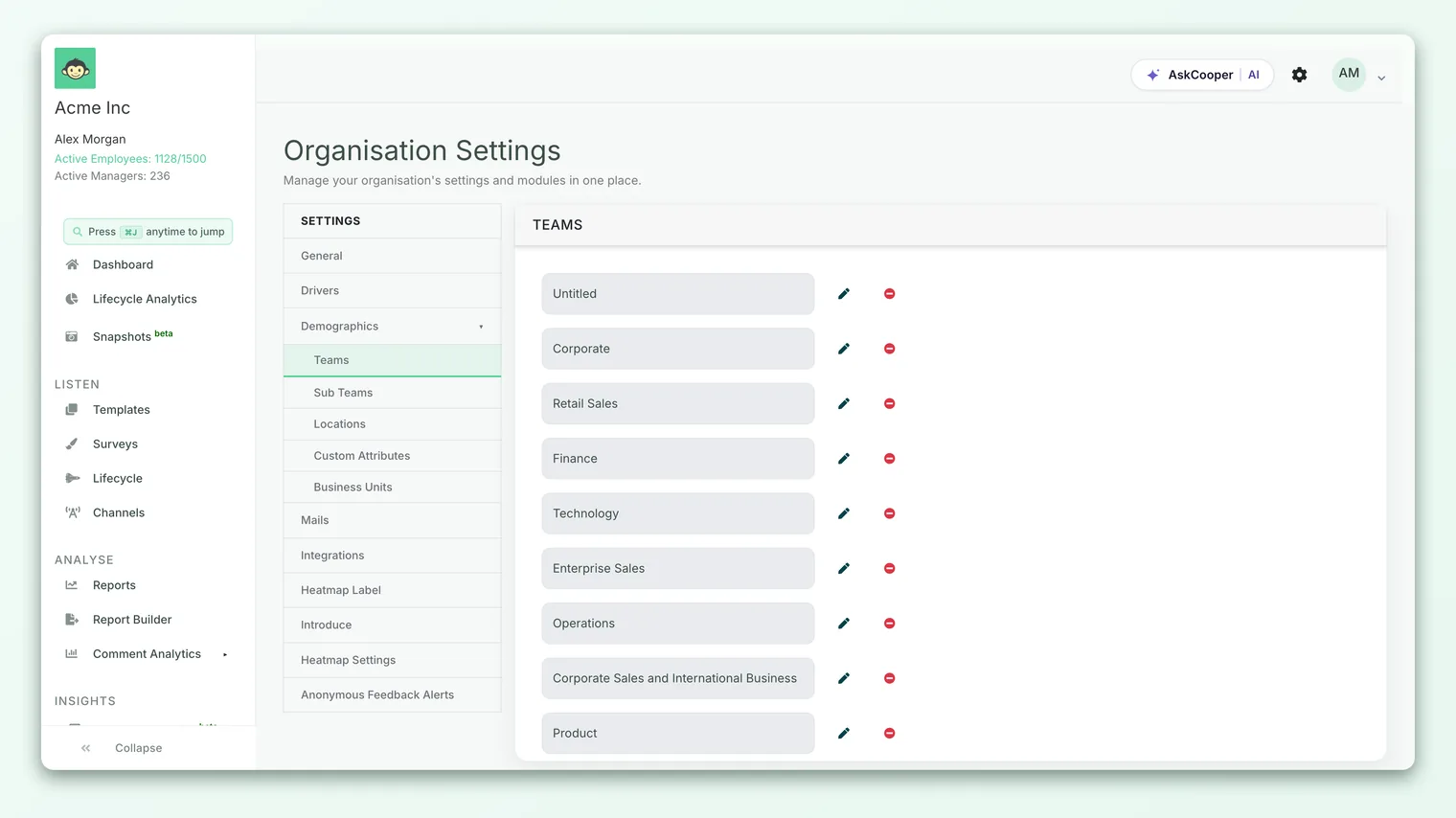
Each list shows your existing teams (or sub-teams) and gives you the controls to add a new one, rename an existing one, and delete one you no longer need. The two lists behave almost identically - anything below that applies to teams applies to sub-teams as well, unless we call out a difference.
Creating a team
Adding a team takes seconds. You give it a name, and it's immediately available as a segment everywhere in the product.
- 1Open the Teams screen - go to Settings → Demographics and open the Teams list.
- 2Add a team - click Add Team, which reveals a small form with a Team Name field.
- 3Name it - type the team name. Names must be 2-255 characters and unique (case-insensitive), so "Sales" and "sales" count as the same name.
- 4Save - confirm, and you'll see "Team created successfully." The new team appears in the list right away.
Creating a sub-team works the same way from the Sub Teams list - click add, enter a name (up to 255 characters, and unique), and save. You'll see "Sub team created successfully."
A team has just a name - there's no description, color or manager field to fill in. That simplicity is intentional: teams are pure segmentation labels, and the richer structure (who manages whom) comes from the reporting manager field on each employee, not from the team itself.
Assigning employees to teams
A team is only useful once people are in it. There are two ways employees get assigned:
- In bulk, via employee upload or sync. When you import employees - by spreadsheet or through an HRIS/SSO integration - each row carries a team name (and optionally a sub-team name). CultureMonkey matches or creates the team and links the employee to it. This is how most organizations populate teams: the team structure simply mirrors the source data. Teams synced from an external system also carry an external ID so they stay matched to the source record on the next sync.
- Individually, on the employee record. You can also set or change an employee's team (and sub-team) directly on their profile in the Employees list - handy for one-off moves like a transfer.
When an employee's team changes, CultureMonkey re-computes the downstream structure - for example, refreshing manager mappings so dashboards stay correct. That propagation runs in the background and can take a few minutes to settle.
If your employees sync from an HRIS, the cleanest way to manage teams is to fix names there and let them flow in. Because team names must be unique and matching is case-insensitive, consistent naming at the source prevents duplicate or near-duplicate teams from appearing.
Editing and deleting teams
Renaming a team is safe and instant: open the team, edit its name (respecting the 2-255 character, must-be-unique rules), and save. You'll see "Team updated successfully." Renaming doesn't move anyone - the same employees stay in the newly named team, and historical results follow along.
Deleting a team is more guarded, because a team can be tied to real people and real survey history. CultureMonkey blocks a delete in three situations:
| Situation | What happens | How to proceed |
|---|---|---|
| Employees are still in the team | Delete is blocked: "There are employees associated with this team." | Move those employees to another team first, then delete. |
| The team is linked to survey answers | Delete is blocked: the team "is linked with survey answers." | The team is preserved so historical reports stay intact. Leave it in place. |
| It's your only team | Delete is blocked: "That is your only team and hence it cannot be deleted." | Every account must keep at least one team. |
Sub-teams follow the same rules - you can't delete a sub-team that still has employees, one linked to survey answers, or your only remaining sub-team.
Because teams are tied to survey history, the platform intentionally makes them hard to remove once they hold data. If you're restructuring, rename teams and reassign employees rather than trying to delete and recreate - that keeps your historical trends continuous and comparable.
How teams drive report filtering
This is where your team structure pays off. Every report and dashboard in CultureMonkey can be filtered by demographic, and team and sub-team are two of the most-used filters.
Filtering by team lets you take any headline number - engagement score, eNPS, participation, a driver score - and see it for one team at a time, or compare teams side by side. Sub-team gives you a finer cut within (or across) teams. Because team and sub-team are independent attributes, you can combine them freely, or use either one on its own.
- 1Open a report - from Analyse → Reports, open the survey you want to explore.
- 2Apply a filter - choose team (or sub-team) from the demographic filters and pick the value you want.
- 3Read the segment - the report recalculates for just that group, so you can see how that team compares to the whole.
- 4Layer filters - combine team with sub-team, location or a custom attribute to narrow to a very specific slice.
For a full walkthrough of the filtering controls, see Filter reports by demographic.
When you filter down to a small team, its results may be hidden behind CultureMonkey's anonymity threshold - the group is simply too small to show without risking that an individual's answer could be identified. That's expected, not a bug. If a team's report looks empty, see Why can't I see results yet?.
How teams drive manager scoping and Sub Admin access
Teams don't just shape what you see - they help control what other people are allowed to see.
Managers get a dashboard scoped to their reporting line, and CultureMonkey can surface the teams (and sub-teams) that fall within a manager's accessible group of employees. Keeping team assignments accurate is part of keeping each manager's view correct.
Sub Admins are defined by their scope: when you create one, you choose which teams, locations and other segments they can access. Team is always available as a scoping dimension. Sub-team is available as a Sub Admin scoping dimension only when your account has sub-teams enabled for Sub Admin access - with it off, sub-teams still work everywhere else (upload, filtering, reporting) but aren't offered as an access boundary for Sub Admins.
To learn how scoping fits into the bigger access picture, read Understanding roles in CultureMonkey.
Best practices for structuring teams
A little discipline here saves a lot of cleanup later. A few principles that hold up well:
- Mirror how you actually operate. Base teams on real functions or departments, not aspirational org charts. If a manager thinks of a group as "one team," that's usually the right unit.
- Don't go too granular with teams. Very small teams get hidden by anonymity thresholds, so their results never show. If you find yourself creating teams of two or three people, that's a sign to group them up - and use sub-teams for the finer detail instead.
- Use sub-teams for the second level. Reach for sub-teams when a team is large enough to warrant an internal split. Keep the two-level model simple: team for the department, sub-team for the squad.
- Keep naming consistent. Agree a convention ("Sales - EMEA," not "EMEA Sales" in one place and "Sales EMEA" in another). Consistent names keep filters clean and prevent accidental duplicates.
- Manage from the source of truth. If teams come from an HRIS, maintain them there and let them sync, rather than editing in two places.
- Rename, don't delete. When you reorganize, rename and reassign to preserve historical trends. Deleting is for genuinely retired teams with no people and no survey history.
Frequently asked questions
Is a sub-team a child of a team?
No. Team and sub-team are independent demographic attributes on the employee. A sub-team isn't nested inside a particular team - you apply both labels separately, and CultureMonkey filters on each on its own. In everyday use you pair them (e.g. "Engineering / Platform"), but there's no enforced parent-child link in the data.
Can an employee be in more than one team?
No. Each employee belongs to exactly one team. If you need people to appear in multiple groupings, that's what other demographics are for - such as sub-team, location, business unit or custom attributes, which can each be set independently.
Why can't I delete a team?
CultureMonkey blocks a delete if the team still has employees, if it's linked to survey answers, or if it's your only team. Move the employees out first; teams tied to survey history are kept on purpose so your past reports stay accurate.
Do sub-teams work without any extra setup?
Yes for uploading, filtering and reporting - sub-teams work out of the box. The only gated part is using a sub-team to scope a Sub Admin's access, which depends on an account-level setting.
What happens to results when I rename a team?
Nothing is lost. Renaming changes only the label; the same employees stay in the team and their historical results carry forward under the new name, so trends remain continuous.
Will a small team's results always show?
Not necessarily. If a team is smaller than the anonymity threshold, its results are hidden until enough people respond. This protects individual anonymity and is expected behaviour. See Why can't I see results yet?.
Where to go next
- Add another layer of geography: Add and manage office locations
- Group teams into larger units: Add and manage business groups
- Put teams to work in your data: Filter reports by demographic
- Control who sees which teams: Understanding roles in CultureMonkey
Your feedback helps us improve the Help Center.