

Add case notes and message the reporter
How Speak Up separates investigator-only internal notes from the anonymous two-way message channel with the reporter, exactly who can see what, and how the reporter replies without revealing their identity.
On this page
When you open a case in Speak Up, you have two very different ways to write into it, and it's worth being precise about the difference before you type a single word. One is a private space for your investigation team. The other is a live conversation with the person who raised the report. They look similar in the interface, but they behave in opposite ways, and confusing them is the fastest way to break a reporter's trust.
This guide explains both: internal case notes (visible only to your investigation team) and the anonymous two-way message channel with the reporter. You'll learn who sees what, where each one lives, how the reporter replies while staying anonymous, and the rules that govern when each channel is open.
Internal notes are visible only to your case team and are never sent, broadcast, or shown to the reporter. Replies in the Conversations tab go straight to the reporter and appear in their CultureMonkey Speak Up portal. The reporter answers through a report number and password, so on an anonymous case there is no name, email, or identity attached to anything they send. If you would not want the reporter to read it, it belongs in Notes, never in Conversations.
Two channels, one case
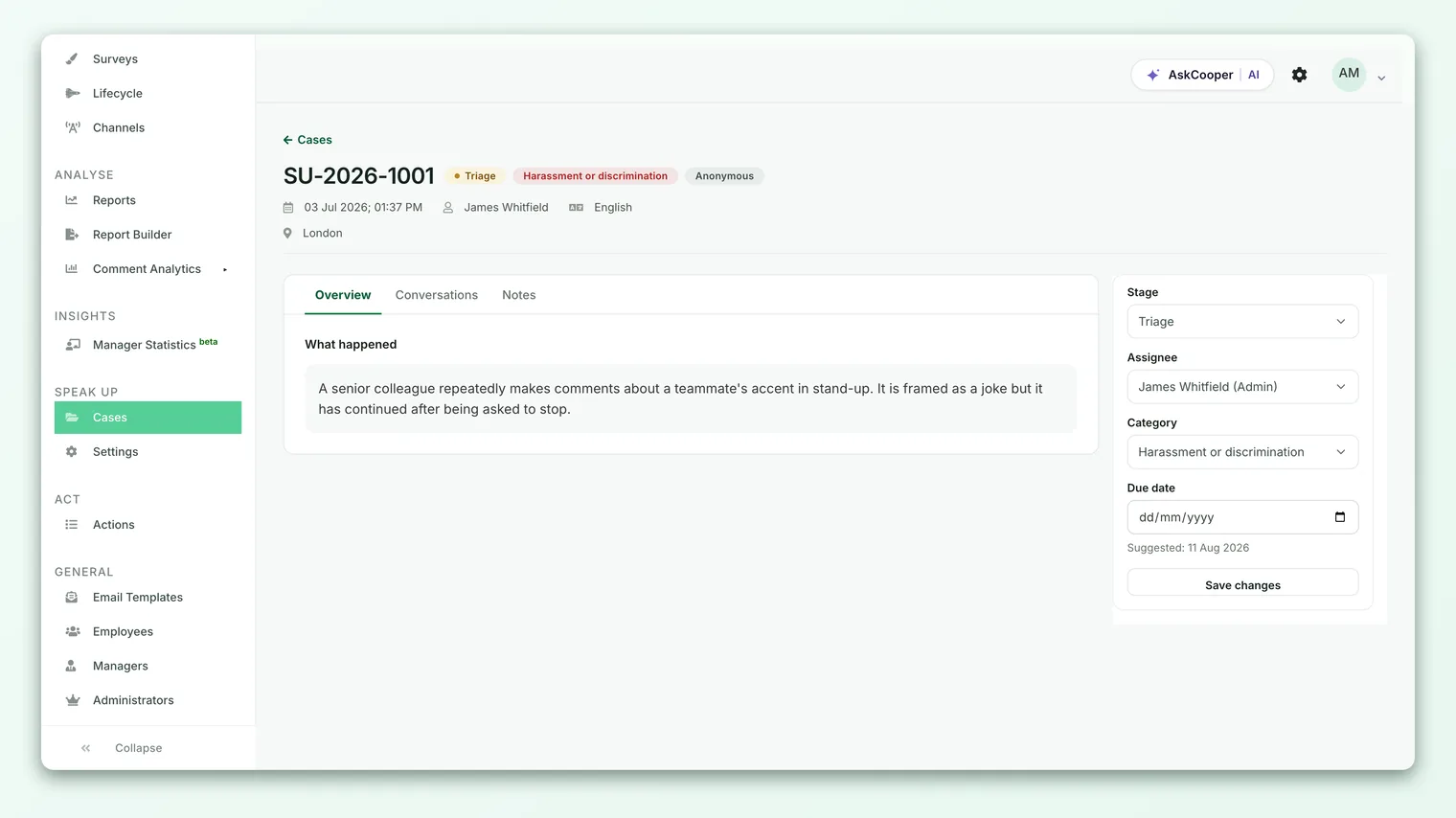
Open any case from the Speak Up queue and you'll see three tabs across the case detail: Overview, Conversations, and Notes.
- Overview holds the original report: the reporter's description, their answers to your guided intake questions, attachments, location, and language. This is read-only context.
- Conversations is the two-way channel with the reporter. Anything you post here reaches them.
- Notes is your team's private workspace. Anything you post here stays inside the investigation.
Each message is either a note or a reply, and that single distinction decides whether it is delivered to the reporter and shown in their portal, or stays sealed inside your team's view. Everything below follows from it.
Internal case notes
A case note is a private comment for the people investigating the case. Use notes to capture findings, hand context to a colleague, or log a decision so there's a trail. Notes are where the real investigative work gets written down.
To add one, open the Notes tab, type into the composer at the bottom (the placeholder reads "Add an internal note (not visible to the reporter)…"), and choose Post note. The note is saved against the case, stamped with your name and the time, and appears in the Notes thread for your team immediately.
Who can read a note
Notes are visible only to team members who can already open the case. Speak Up loads them through a separate query from the reporter conversation, and they render in their own Notes panel that has no reporter-facing equivalent. In practice that means:
- Your Speak Up team members with access to the case can read and add notes. There are three access roles: Admin, Member, and Viewer. Any active team member who can see the case can post a note.
- The reporter never sees a note. There's no path, in the portal, in email, or over the real-time connection, that shows an internal note to the reporter. When Speak Up decides whether to deliver a message, it stops immediately if the message is internal.
"Internal" means invisible to the reporter, not invisible to everyone. Colleagues who share access to the case can read your notes. Keep them professional, factual, and free of speculation you would not want a co-investigator, an auditor, or a future reviewer to read.
Because notes never leave your team, they're the right home for anything sensitive: your working theory, the identity of anyone you suspect, references to other cases, or legal considerations. When in doubt about whether something should go to the reporter, put it in Notes first.
The anonymous two-way message channel
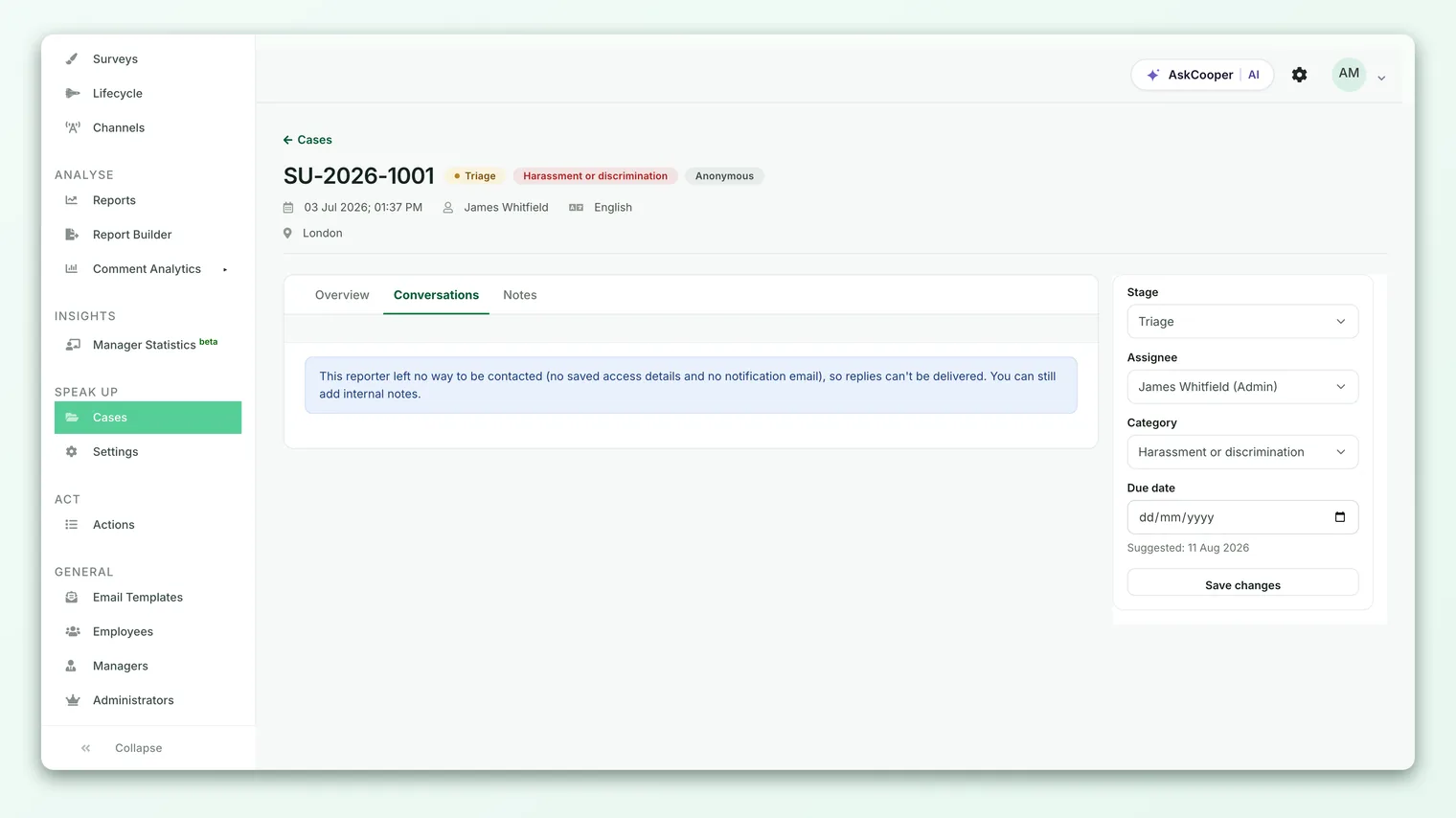
The Conversations tab is a genuine two-way channel. You post a reply, it reaches the reporter; they reply, it comes back to you. This is how you ask clarifying questions, acknowledge the report, and eventually tell the reporter what happened, all without either side needing to know who the other person is.
To message the reporter, open Conversations, type into the composer (the placeholder reads "Send an anonymous reply to the reporter…"), and choose Post Reply. A few things happen the moment you post:
- 1The reply is delivered to the reporter. It appears in their case portal the next time they open it, and in real time if they have the portal open.
- 2The reporter is notified. If they saved a private notification email, Speak Up emails them that there's a new message. That email address is encrypted and is never shown to your team, so the notification goes out without exposing who they are.
- 3The acknowledgment clock stops. Your first reply to the reporter (or your first stage change, whichever comes first) marks the case as acknowledged and stops the acknowledgment SLA timer. See Move a case through its stages for how that fits into the case lifecycle.
- 4The action is logged. Every message, note, reply, and stage change writes an entry to the case audit trail, so there is always a record of who communicated and when.
Replies you post are attributed to you on your side, but the reporter's portal presents them as coming from the case team, not from you by name. From the reporter's point of view, they're talking to "the investigation team," which keeps individual investigators out of the exchange.
How the reporter stays anonymous while replying
This is the part that makes Speak Up trustworthy, so it's worth understanding how it works.
When someone submits a report, they do so in one of two modes: anonymous or identified. That mode is fixed at submission and can never be changed afterward, by anyone, including your team. An anonymous case stays anonymous for its entire life.
Instead of an account, the reporter receives a report number and a password. That pair is their only key to the case. When they return to the portal, they sign in with that pair and Speak Up opens their case. There's no name, no email, and no login identity tied to an anonymous reporter anywhere in the conversation.
So when a reporter posts a reply, the message is saved as coming from the reporter with no author identity attached, and your case detail labels it simply as Reporter. There's no name to show, because none was ever collected. If the reporter saved a private notification email so they get alerted to new messages, that address is encrypted at rest and deliberately never exposed to the admin side. It can't leak through the case view, an export, or any report.
The result is a real conversation with a person you cannot identify. You can go back and forth as many times as the investigation needs, and the reporter stays completely anonymous throughout. For the fuller picture, see How Speak Up protects reporter anonymity.
If a reporter chose to identify themselves, their name and email appear in the case Overview and the channel works identically. The only difference is that you can see who you're talking to. Everything about notes versus replies is unchanged.
Who can see and do what
Here is the visibility and permission picture in one place.
| Action | Reporter sees it? | Who can do it |
|---|---|---|
| Read the original report | It's their own report | Any team member with access to the case |
| Add an internal note | No, never | Any team member with access to the case |
| Read internal notes | No, never | Any team member with access to the case |
| Post a reply to the reporter | Yes | Any team member with access to the case |
| Move the case to a new stage | Sees a simplified status | Admin and Member (Viewer cannot) |
Two points worth calling out. First, any team member who can open a case can both add notes and reply to the reporter, so messaging isn't restricted the way stage changes are. Second, the reporter never sees your internal stage names. Your case might be in "triage" or "investigation," but the reporter's portal shows a friendlier status like "received" or "under review."
Read receipts and real-time delivery
Speak Up tracks read state on both sides. When you open a case, any unread messages the reporter sent are marked as read for your team automatically. When the reporter opens their portal, any unread replies you sent are marked as read for them. Internal notes are excluded, because they were never theirs to read.
Delivery is real-time when it can be. If the reporter has their portal open when you post a reply, the message appears in their thread without a refresh, and their replies appear in your case the same way. Internal notes are never pushed over this real-time channel, so there's no risk of a note flashing onto the reporter's screen.
When the channel is open (and when it closes)
The two-way channel stays open while the case is active. Once a case is closed, replies are switched off on both sides: your reply composer disappears from the case detail, and if the reporter tries to send a message, they're told the case is closed and replies are disabled.
This matters for how you wrap up. Before you close a case, post your final message to the reporter, telling them the outcome as far as you're able to share it, while the channel is still open. If you close first and realize you forgot something, you'd need to reopen the case (a closed case can move back to investigation) to reach them again. It's cleaner to close the loop before you close the case.
Notes follow the same rule: the note composer is also hidden on a closed case. Existing notes stay readable as part of the case record; you just can't add new ones until the case is reopened.
Best practices
- Decide the channel before you type. Is this for my team, or for the reporter? Notes for the former, Conversations for the latter.
- Never paste sensitive investigation detail into a reply. Names of accused parties, links to other cases, and legal reasoning belong in Notes, not the reporter thread.
- Acknowledge early. A short first reply ("Thank you, we've received your report and are reviewing it") reassures the reporter and stops the acknowledgment clock.
- Write notes as if they'll be audited. They're logged and shared with your team, so keep them factual.
- Close the loop before you close the case. Send your outcome message while the channel is still open.
Frequently asked questions
Can the reporter ever see an internal note?
No. CultureMonkey excludes internal notes from every reporter-facing path: the portal, email notifications, and the real-time channel. There is no setting that exposes a note to the reporter.
If the report is anonymous, how do I reply to someone with no email?
You reply into the case itself, and the reporter reads it when they log back into their portal with their report number and password. If they saved a private notification email, they also get an alert, but that address stays encrypted and hidden from you.
Who on my team can read my notes and replies?
Any active Speak Up team member with access to that case: the Admin, Member, or Viewer role. Access can be scoped by category, so team members only see the cases they're meant to handle.
Why can't I message the reporter on this case?
The most likely reason is that the case is closed, which disables replies on both sides. Reopen the case (move it back to investigation) to message the reporter again. See Move a case through its stages.
Does the reporter see my name when I reply?
No. CultureMonkey presents replies to the reporter as coming from the case team, not from an individual investigator. On your side, replies are attributed to whoever posted them, but that attribution never reaches the reporter.
Where to go next
- Move the case forward: Move a case through its stages
- Understand the anonymity guarantees: How Speak Up protects reporter anonymity
- See the bigger anonymity picture: Anonymity in CultureMonkey
- The deadlines behind feedback to reporters: Whistleblowing software and the EU Directive
Your feedback helps us improve the Help Center.