

Transition a case through stages
How a case manager moves a Speak Up case through its workflow - changing the stage, what the system records automatically, the immutable audit trail every move creates, and which notifications go out to the reporter.
On this page
Every Speak Up report moves through a defined workflow, from the moment it lands to the moment it's resolved and closed. Transitioning a case means changing its stage - and in CultureMonkey that single action does a lot more than update a label. It stamps timestamps, writes a permanent entry to the case's audit trail, and (when you have it switched on) notifies the reporter that something has changed.
This guide walks through exactly how a case manager moves a case forward, which moves are allowed from where, what the platform records for you automatically, and what the reporter sees on the other side. If you want the meaning of each stage first, read The Speak Up case stages and come back here for the mechanics of moving between them.
Open a case, pick a new value in the Stage field, and save. CultureMonkey validates that the move is allowed, updates the stage, records the time of your first action and a resolution date when you close, and writes an immutable stage-change entry to the audit trail. Unless the notification is turned off, the reporter is emailed that their case status changed. Only the Admin and Member roles can transition a case.
Who can transition a case
Moving a case through stages is a case-management action, and it's restricted. When a case detail page loads, the platform checks your Speak Up role before it shows you the editable form.
| Speak Up role | Can change stage? |
|---|---|
| Admin | Yes |
| Member | Yes |
| Viewer | No - read-only on stage and assignee |
If your role is HR, you can still open the case, read the intake, and follow the conversation, but the stage, assignee, category, and due-date controls appear as plain read-only rows rather than an editable form. Attempting the action anyway is blocked server-side, so there's no way around it in the UI. This split keeps the people who run investigations in control of the workflow while still giving HR the visibility they need.
If you believe you should be able to move cases but can't, your role needs to be Admin or Member. That's managed under your Speak Up access settings, not on the case itself.
The workflow: which moves are allowed
A Speak Up case is always in exactly one of five stages, and you can't jump around freely. Each stage defines the specific stages you're allowed to move to next. This is a deliberate guardrail: it stops a case from skipping triage, and it makes the lifecycle predictable for everyone reading the audit trail later.
| From stage | You can move to |
|---|---|
| New | Triage, or Closed |
| Triage | Investigation, or Closed |
| Investigation | Concluding, or Closed |
| Concluding | Closed, or back to Investigation |
| Closed | Investigation (reopen only) |
Two things are worth calling out. First, you can close a case directly from any open stage - you don't have to march it all the way to Concluding first. A report that turns out to be out of scope, or a duplicate, can go straight to Closed. Second, a closed case can be reopened by moving it back to Investigation. That's the only move available from Closed, and it exists so that new information arriving after closure doesn't force you to create a fresh case.
Because of these rules, the Stage dropdown never shows every stage. It only ever offers the current stage plus the stages you're allowed to move to from here. If a stage isn't in the list, the move isn't permitted from where the case stands right now.
If you expected to see a stage in the dropdown and it isn't there, that's the guardrail working. For example, from New you'll only ever see New, Triage, and Closed - not Investigation - because a case has to pass through Triage first.
Change the stage step by step
Stage changes happen on the case detail page, in the panel on the right that holds the case's working attributes: stage, assignee, category, and due date.
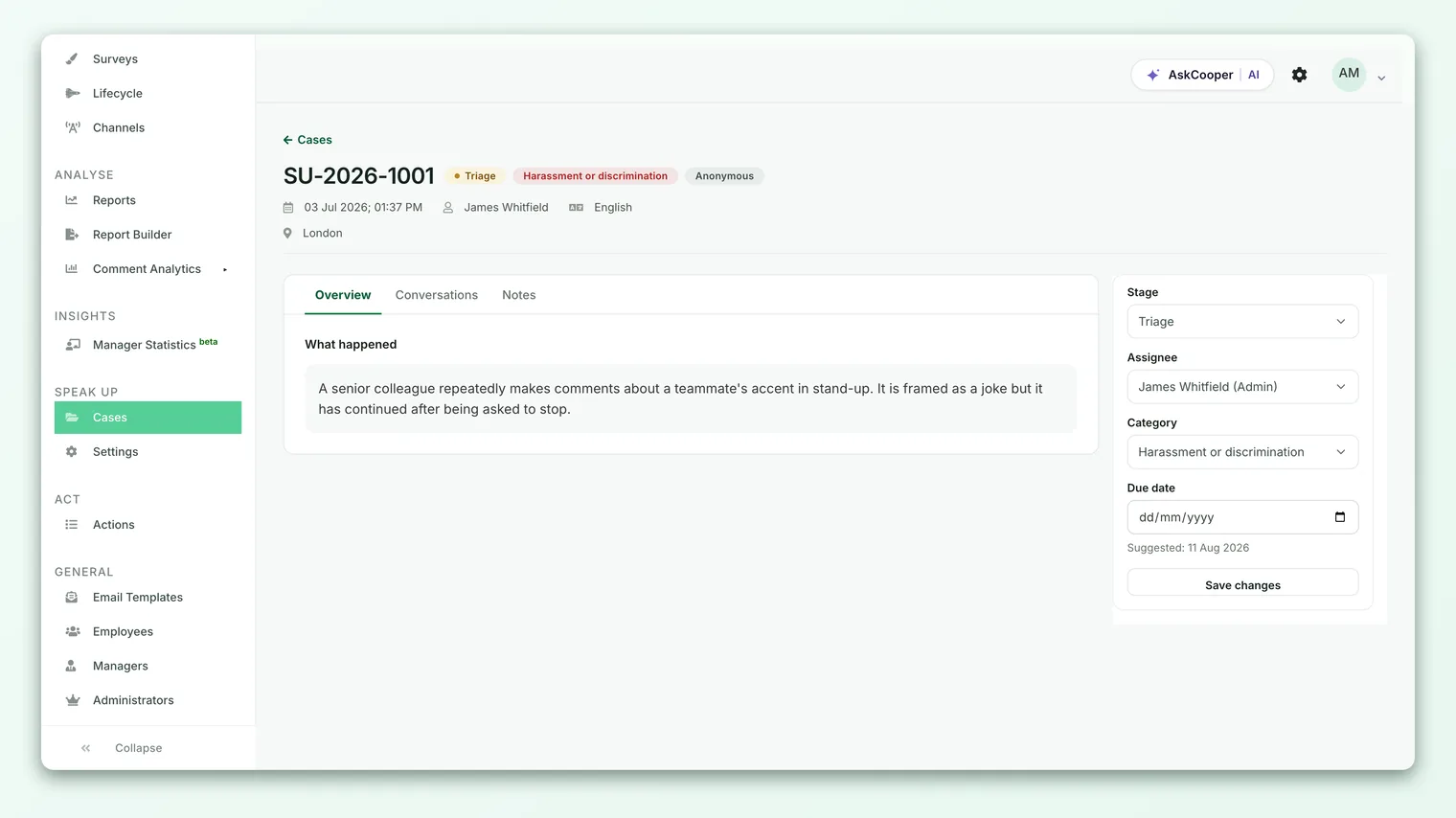
- 1Open the case - from the case queue, click into the report you want to move. You'll land on the case detail view with the conversation on the left and the working attributes on the right.
- 2Pick the new stage - open the Stage dropdown. It shows the current stage plus every move allowed from here. Choose where the case should go next.
- 3Set a due date if you're starting work - when you move into Triage or Investigation, it's good practice to set or update the Due date so the case shows up on time-bound views. The field suggests a date two weeks out as a sensible default.
- 4Save changes - click Save changes to commit. The stage updates immediately, the audit trail is written, and any reporter notification is queued.
- 5Confirm the result - you'll see a confirmation that the case moved (for example, "Case moved to Investigation."). The stage badge at the top of the case updates to match.
You change the stage in the same form that holds assignee, category, and due date, so a single Save changes can move the case forward and hand it to an investigator at the same time. If you only want to reassign without moving the stage, see Assign a case to an investigator.
What happens the moment you save
A stage change is not a simple field update. When you save, CultureMonkey runs the whole transition as a single, all-or-nothing transaction. Either every part of it succeeds or none of it does, so you can never end up with a case whose stage moved but whose audit trail didn't.
Here's what the platform does for you, in order, inside that transaction:
- Validates the move. It checks the new stage against the allowed transitions for the current stage. If the move isn't permitted, the whole thing stops before anything changes and you get an error message instead. Nothing is left half-done.
- Updates the stage. The case's stage is set to its new value.
- Stamps the first-action timestamp. If this is the first admin action on the case and the case hasn't been acknowledged yet, the first-action time is set to the current time. This matters for your acknowledgment SLA: the clock stops the moment a case manager first touches the case, and a stage change counts as touching it. You don't have to send a message to acknowledge - moving the case does it.
- Stamps the closed timestamp. If the new stage is Closed, a resolution date is recorded as well, giving you an accurate resolution date for reporting.
- Writes the audit event. A stage-change entry is added to the case's audit trail, capturing who moved it, when, and the exact from-stage and to-stage.
Only after all of that commits successfully does the platform send the reporter notification. So a failed transition never emails a reporter about a change that didn't actually happen.
The acknowledgment SLA timer stops on the first admin action, and both a stage change and the first non-internal message to the reporter qualify. Whichever comes first stops the clock. If a stage change is your first interaction with a case, that's what stops the acknowledgment clock.
The audit trail every transition creates
Speak Up keeps a complete, tamper-evident history of every case. A stage change is one of the events it records, alongside case creation, messages, attachments, assignee changes, and closure. Every one of these becomes an entry in the case's audit trail, shown in chronological order on the case detail page.
For a stage transition, the recorded entry captures:
| Field | What it holds |
|---|---|
| Event type | Stage changed |
| Actor | The case manager who made the move (their admin identity, or their Speak Up access record for member sessions) |
| When | The exact timestamp the transition occurred |
| From and to | The stage the case left and the stage it entered, stored together in the event's metadata |
The single most important property of this trail is that it cannot be edited or deleted. The audit event model actively refuses any attempt to update or destroy a record after it's written - the platform raises an error rather than allow it. There is no "edit history" button and no delete. Once a transition is logged, that entry is permanent.
This is exactly what you want from a whistleblowing system. If a case is ever reviewed, disputed, or audited, the trail is a faithful, chronological record of how the case was handled and by whom, with no possibility that someone quietly rewrote the story after the fact.
Because audit entries can't be altered, plan your moves rather than "undo" them. There's no way to erase a transition. If you move a case by mistake, correct it with a further allowed transition (the correction is itself logged), rather than expecting to remove the original entry.
Notifications: what the reporter sees
Reporters don't see your internal stage names. Behind the scenes, the five workflow stages map to four simpler, reporter-facing statuses so the person who came forward gets a clear, reassuring picture without the operational detail.
| Internal stage | What the reporter sees |
|---|---|
| New or Triage | Received |
| Investigation | Under review |
| Concluding | Resolved |
| Closed | Closed |
When you transition a case, CultureMonkey decides whether to email the reporter based on the new stage and your notification settings:
- Moving to any open stage (Triage, Investigation, Concluding) can trigger a status-update email, telling the reporter their case status changed and inviting them to log in for details. Because New and Triage both map to "Received," a move between those two won't feel like a change to the reporter, but a move into Investigation flips them to "Under review."
- Moving to Closed triggers a separate case-closed email. If you've chosen to share the outcome with the reporter (either on this case or as your account default) and a resolution summary is present, that summary is included in the closing note.
Every one of these emails is optional and controlled by your notification rules. Three toggles govern reporter mail: new message, status change, and case closed. All are on by default, but if you've turned the status-change or case-closed notification off, the transition still happens and is still audited - the reporter simply isn't emailed about it. Notifications are a courtesy layer on top of the workflow, never a requirement for it.
How the email reaches an anonymous reporter without revealing who they are is handled by the portal's secure messaging, not by an ordinary email address. For the messaging side of a case, see Case notes and reporter messaging.
Reopening a closed case
Sometimes a case that looked finished isn't. New evidence surfaces, or the reporter comes back with more. Rather than starting over, you reopen the case by moving it from Closed back to Investigation - the one transition available from Closed.
Reopening behaves like any other transition: it's validated, it writes a stage-change audit entry (from Closed to Investigation), and, if the status-change notification is on, the reporter is told their case is under review again. The original closure and its timestamp stay in the audit trail, so the full arc of the case - closed, then reopened - is preserved and visible.
Best practices
- Move the case as the work moves. Keep the stage honest so the queue, SLAs, and reporter status reflect reality. A case sitting in Triage while an investigation is clearly underway confuses everyone reading it.
- Set a due date when you start. Transitioning into Triage or Investigation is a natural moment to set the Due date so the case appears on time-bound views and doesn't drift.
- Acknowledge quickly. Your first action stops the acknowledgment clock, and a stage change counts. Moving a New case into Triage promptly is a clean way to acknowledge it within SLA.
- Close directly when a case doesn't belong. For out-of-scope, duplicate, or clearly unactionable reports, close straight from New or Triage rather than manufacturing an investigation.
- Think before you move. The trail is permanent. There's no penalty for a corrected mistake, but a considered move keeps the history clean.
Frequently asked questions
Do I have to fill in a reason before I can change the stage?
No. A stage transition doesn't require a mandatory reason field - you pick the new stage and save. What CultureMonkey always records automatically is the from-stage, the to-stage, who made the move, and when. If you want to leave context for your team, add an internal note on the case; internal notes are never shown to the reporter. See Case notes and reporter messaging.
Why can't I see the stage I want in the dropdown?
Because it isn't a permitted move from the case's current stage. The dropdown only offers the current stage plus the moves allowed from it. For example, you can't go from New straight to Investigation - the case has to pass through Triage first.
Can I undo a transition?
Not directly. The CultureMonkey audit trail is immutable, so a logged transition can't be removed. Instead, make a further allowed move to correct course. If you closed a case too early, reopen it by moving from Closed to Investigation; both the closure and the reopening remain in the history.
Does moving a case always email the reporter?
Only if the relevant notification is switched on. Status-change and case-closed emails are on by default but can be turned off in your notification rules. When they're off, the transition and its audit entry still happen - the reporter just isn't notified. Note too that moving between New and Triage won't feel like a change to the reporter, since both map to the "Received" status.
What's the difference between changing the stage and changing the assignee?
Changing the stage moves the case through its workflow and is logged as a stage-change event. Changing the assignee hands the case to a specific investigator and is logged as an assignee-change event, which notifies that person directly. You can do both in the same save, or each on its own. For assignment, see Assign a case to an investigator.
Can HR change a case's stage?
No. Only the Admin and Member roles can transition a case. The Viewer role is read-only on the workflow controls, though a Viewer can still read the case and its history.
Where to go next
- Understand each stage's meaning: The Speak Up case stages
- Hand a case to an investigator: Assign a case to an investigator
- Talk to the reporter and keep internal notes: Case notes and reporter messaging
Your feedback helps us improve the Help Center.