

Connect Slack to CultureMonkey
How to connect your Slack workspace to CultureMonkey - the OAuth install flow, the permissions the CultureMonkey bot requests, what it can and cannot do, enabling survey notifications, and how to disconnect when you're done.
On this page
Slack is one of the fastest ways to reach your people. When teams live in Slack all day, a survey invite that arrives as a direct message tends to get opened and answered far sooner than one sitting in a crowded inbox. Before any of that can happen, though, you connect your Slack workspace to CultureMonkey once. That connection installs a CultureMonkey bot into your workspace and hands CultureMonkey a token it uses to find employees and message them.
This guide is about the connection itself: the authorization flow, the permissions CultureMonkey asks for and why, what the bot can and cannot do once it's in, how notifications get enabled, and how to disconnect cleanly. It's a one-time account-level setup. If you're looking for how a survey actually lands in someone's Slack (email matching, the DM experience, per-survey selection, anonymity), that lives in Send surveys via Slack - this article stops at the point where Slack becomes available as a channel.
An account admin connects Slack from Integrations - Channels by clicking Activate on the Slack card. That kicks off Slack's OAuth flow, where you pick a workspace and approve four permissions. CultureMonkey stores a bot token for your workspace, the Slack card flips to Active, and Slack is ready to use as a survey channel. You can disconnect at any time, which uninstalls the bot and stops Slack delivery.
What connecting Slack actually does
It helps to know what you're setting up before you click anything. Connecting Slack is a single OAuth authorization, the same standard "Sign in with…" style flow you've approved for other apps. When you complete it, three things happen:
- A CultureMonkey bot is installed into the workspace you choose. This bot is what later sends survey invites and reminders as direct messages.
- CultureMonkey receives a bot access token. This token is the credential that authorizes every later action, looking up an employee by email and posting a message to them. It's stored against your account and reused for every survey and reminder.
- Your workspace is identified. CultureMonkey records your Slack team (workspace) ID and name so it can tie the connection to your account and, later, revoke it cleanly.
The important mental model: connecting is a permission grant, not a data sync. Nothing about your Slack conversations, channels, or files flows into CultureMonkey. The connection simply gives the bot the ability to find the right person and send them a message when a survey goes out.
Before you start
A couple of prerequisites make this smooth:
- You're an account admin in CultureMonkey. Connecting a channel is an account-level action, so it's handled by an admin, not a manager or a survey-only role.
- You can install apps in your Slack workspace. Many Slack workspaces restrict who can add apps. If yours does, you either need to be a Slack workspace admin yourself, or have one approve the CultureMonkey app request that Slack raises during the flow.
- Slack is enabled on your CultureMonkey plan. The Slack card appears as available when Slack is switched on for your account. If the card shows a Contact Us button instead of Activate, Slack isn't enabled yet for your plan, and your CultureMonkey contact can turn it on.
Slack delivery works by matching each employee's work email to their Slack profile email. Connecting the workspace won't surface mismatches, but they'll cause skipped messages later. It's worth confirming your employee emails match Slack before you launch your first Slack survey. The matching mechanics are covered in Send surveys via Slack.
The connection flow, step by step
Connecting is quick and lives under Integrations.
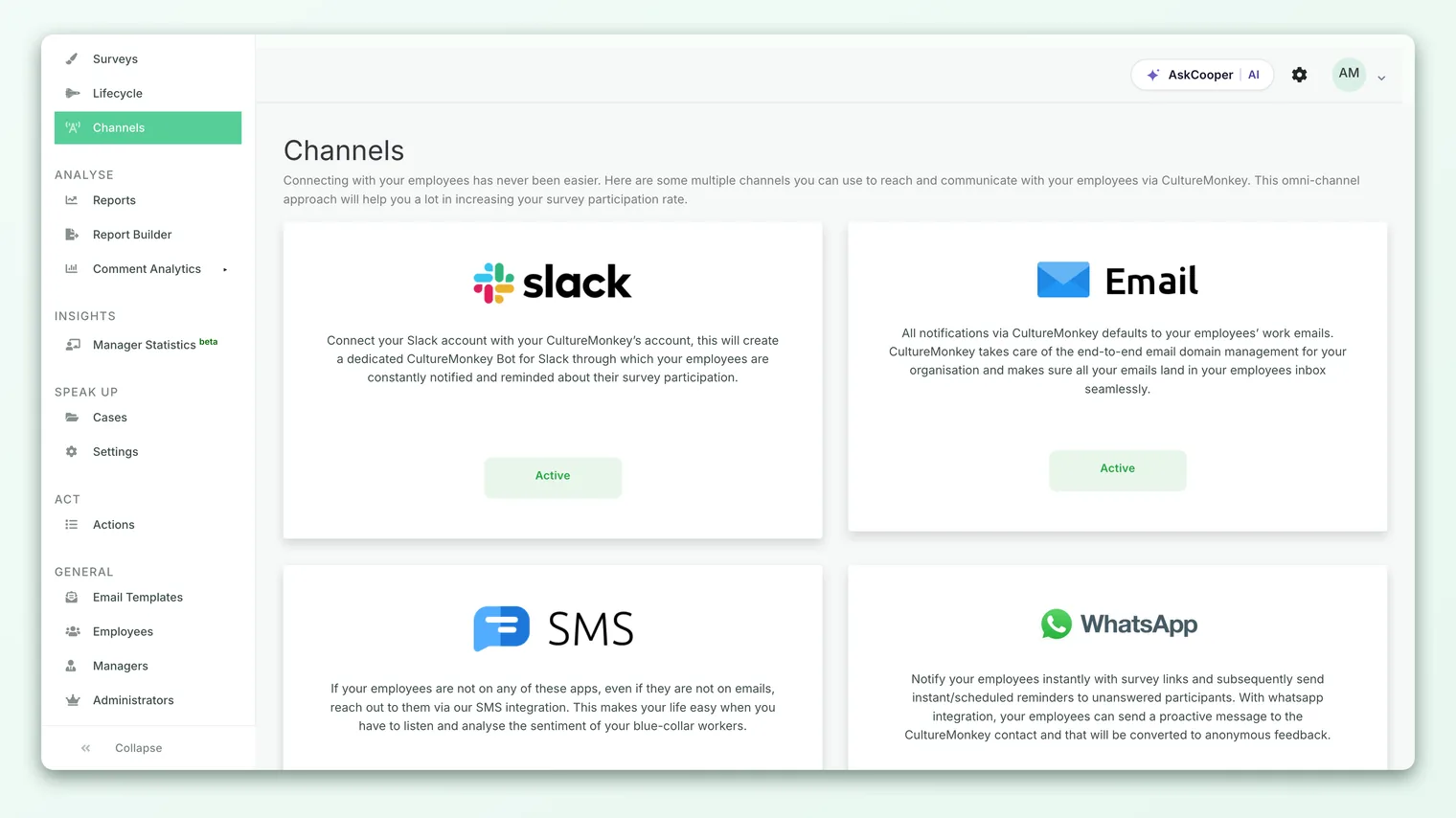
- 1Open Channels. Go to Integrations in the left navigation and open the Channels page. Each available channel has a card with a short description of what it does. Find the Slack card.
- 2Click Activate on the Slack card. This starts Slack's OAuth authorization and sends you over to Slack to approve the connection. (If the card instead reads Contact Us, Slack isn't enabled for your account yet.)
- 3Choose your workspace. In Slack, pick the workspace you want to connect. If you're signed in to more than one, make sure you select the right one, this is the workspace the bot will be installed into.
- 4Review and approve the permissions. Slack shows you exactly what CultureMonkey is requesting. Read them (they're explained in the next section) and click Allow.
- 5Return to CultureMonkey. Slack redirects you back and you'll see a "Slack channel configured successfully!" confirmation. The Slack card now shows as Active.
If something goes wrong during the exchange, for example the authorization is cancelled or the tokens don't come back, CultureMonkey shows a "Slack Authorisation failed." message instead, and the card stays inactive. In that case, just start the flow again from Activate.
Once the card reads Active, Slack is available as a delivery channel on your surveys. You don't repeat any of this for individual surveys; you simply choose Slack per survey from then on.
The permissions CultureMonkey requests
During the flow, Slack asks you to approve a specific set of permissions (Slack calls them scopes). CultureMonkey requests four, and they're deliberately narrow. Here's each one and why it's needed:
| Permission (scope) | What it lets the bot do | Why CultureMonkey needs it |
|---|---|---|
users:read | Read basic profile info of people in the workspace | To resolve a person to their Slack user ID |
users:read.email | Look up a user by their email address | This is the join: it matches an employee's work email to their Slack account |
chat:write | Send messages as the CultureMonkey bot | To deliver survey invites and reminders as direct messages |
chat:write.public | Post without first being manually added to a conversation | So the bot can DM each participant directly, without a person having to add it every time |
Notice what's not on the list. CultureMonkey does not request access to read your channel messages, your files, your calls, or the content of conversations. The permissions are scoped to two jobs only: find the right person by email, and send that person a message. Nothing more.
The connection grants a bot token tied to your workspace, not a token tied to your personal Slack account. That means the connection keeps working regardless of who set it up, and messages come from the CultureMonkey bot rather than from any individual.
What the CultureMonkey bot can and cannot do
Once installed, the bot's abilities follow directly from the permissions above. It's a good idea to be able to explain this clearly to your security team or to employees who ask.
The bot can:
- Look up an employee's Slack user ID from their work email address.
- Send that employee a direct message containing a survey invitation or reminder.
- Send a one-time welcome message the first time a person opens the CultureMonkey app in Slack, introducing itself and explaining it will send survey reminders.
The bot cannot:
- Read your channels, DMs, files, or any conversation content.
- See or store how anyone answered a survey. Slack is only the delivery pipe; responses are collected in CultureMonkey and are subject to the same anonymity protections as every other channel. Delivery works person by person, but who received a DM is never linked to what they answered. See Send surveys via Slack for the full anonymity explanation.
- Post to public channels on its own initiative. It messages individual participants, not broadcast channels.
In short, the bot is a one-way, one-to-one notifier. It knows just enough to reach the right person, and nothing about what that person says back.
Enabling notifications
Connecting the workspace is what enables Slack notifications. There's no separate on/off switch to hunt for, once the Slack card is Active, the platform can deliver over Slack, and Slack appears as a channel option when you build a survey. The actual choice of Slack for a given survey happens on the survey itself, which is covered in Send surveys via Slack.
Three kinds of message travel over this connection, and each one can be tailored so the wording sounds like your organization rather than a generic tool:
- Installation (welcome) message - a one-time greeting sent the first time an employee opens the CultureMonkey app in Slack.
- First notification - the survey invitation itself, sent when a survey launches on the Slack channel.
- Reminder - the nudge sent to people who haven't responded yet.
All three support personalization placeholders such as the employee's first and last name, your account name, the survey title, and the survey link, so a DM reads as a personal message rather than a bulk send.
The default messages work out of the box, so you don't have to change anything to start. If you want to adjust the exact wording of the welcome, invite, or reminder text, that's configured for your account rather than being a self-serve toggle on the Channels page.
Disconnecting Slack
You can disconnect Slack at any time. Doing so uninstalls the CultureMonkey bot from your workspace and stops all Slack delivery, invites and reminders will no longer go out over Slack until you reconnect.
- 1Go to Integrations - Channels. Open the same Channels page you used to connect.
- 2Click Deactivate on the Slack card. When Slack is connected, the card shows a Deactivate option in place of Activate.
- 3Confirm. CultureMonkey warns that this will "revoke Slack permissions and disable delivery of notifications." Confirm to proceed.
- 4Done. CultureMonkey uninstalls the app from your workspace and clears the stored connection. The card returns to its unconnected state, ready to Activate again later if you want.
After you disconnect, any survey set to use Slack will no longer reach people through it. Make sure another channel (usually email) is in place so no one is missed. You can always reconnect later by running the Activate flow again.
There's a second, equally valid way this connection can end: from the Slack side. If a Slack admin removes the CultureMonkey app from your workspace, Slack notifies CultureMonkey (via an app-uninstalled or token-revoked event) and CultureMonkey automatically clears the stored token on its end. The net effect is the same as clicking Deactivate: the connection is gone and Slack delivery stops.
The self-serve Deactivate option is shown for accounts where it's enabled. If your Slack card reads Active but offers no Deactivate button, disconnection is handled a little differently for your account.
Frequently asked questions
Who can connect Slack?
An account admin in CultureMonkey who also has permission to install apps in your Slack workspace. If Slack restricts app installation, a Slack workspace admin may need to approve the CultureMonkey app during the flow, or install it on your behalf.
Does connecting Slack give CultureMonkey access to our messages?
No. The permissions are limited to looking up a user by email and sending that user a direct message. CultureMonkey cannot read your channels, DMs, files, or any conversation content. It also never sees how anyone answers a survey.
Do I have to reconnect Slack for every survey?
No. Connecting is a one-time account-level setup. Once the Slack card is Active, Slack is available as a channel on any survey, and you just select it per survey. See Send surveys via Slack.
What happens if a Slack admin removes the app?
CultureMonkey is notified automatically and clears its stored connection, so its records stay in sync. The result is the same as deactivating from CultureMonkey: Slack delivery stops until you reconnect.
The Slack card says "Contact Us" instead of "Activate". Why?
That means Slack isn't enabled for your account's plan yet. Reach out to your CultureMonkey contact to have it switched on, after which the card will offer Activate.
Will people get a message the moment I connect?
Not from connecting alone. The one-time welcome message is sent when an employee first opens the CultureMonkey app in Slack. Survey invites only go out when you launch a survey with Slack selected as the channel.
Where to go next
- Deliver surveys over Slack: Send surveys via Slack
- See every integration: Integrations overview
- Compare all delivery channels: Distribution channels overview
Your feedback helps us improve the Help Center.