

Send CultureMonkey surveys via Slack
How to deliver CultureMonkey surveys inside Slack - connecting your workspace, how employees are matched by email, how the survey lands as a direct message from the CultureMonkey bot, enabling Slack on a survey, and why responses stay anonymous.
On this page
Email is the default way CultureMonkey reaches your people, but it isn't always the fastest. If your teams live in Slack all day, a survey invitation that arrives as a direct message (right where they already work) tends to get opened and answered far sooner than one sitting in a crowded inbox. Slack delivery is one of the most reliable ways to lift participation, especially for desk-based teams.
This guide walks through the whole flow: connecting your Slack workspace to CultureMonkey, how the CultureMonkey bot matches each employee to their Slack account, how the invite appears to an employee, how to turn Slack on for a specific survey, and how anonymity is preserved even though messages are delivered person by person.
Connect your workspace once from Integrations - Channels, which installs a CultureMonkey bot into Slack. When you launch a survey with Slack selected as the channel, the bot looks up each participant by their work email, then sends them a private direct message with a personal survey link. Responses are anonymous: Slack is only the delivery pipe, not a way to see who answered what.
Why deliver surveys in Slack
A survey only works if people actually see it and respond. Slack delivery helps on both counts:
- It meets people where they are. For teams that treat Slack as their primary workspace, a direct message from a bot is hard to miss and easy to act on in the moment.
- It feels personal, not bulk. Each invite is a one-to-one DM addressed to the employee, which reads very differently from a mass email.
- It speeds up participation. Because the notification is immediate and visible, response curves tend to be steeper in the first few hours, giving you a healthier participation rate sooner.
- It pairs well with reminders. Follow-up nudges for people who haven't responded can also go out over Slack, so the entire cycle stays in one channel. See Set up survey reminders.
Slack works best as part of an omni-channel approach rather than a full replacement for email. For a broader comparison of every way CultureMonkey can reach employees, see Distribution channels overview.
How Slack delivery works, end to end
Before the setup steps, it helps to understand what happens under the hood. There are two distinct stages: a one-time connection and a per-survey delivery.
- Connect once. An admin authorizes CultureMonkey to install its Slack app (a bot) into your workspace. This grants the permissions the bot needs to find users by email and to send them direct messages.
- Match by email. When a survey launches on the Slack channel, CultureMonkey takes each participant's work email and asks Slack, "which user is this?" Slack returns that person's Slack user ID.
- Deliver a private DM. Using the returned user ID, the CultureMonkey bot posts a direct message to that individual containing a personal, single-use survey link.
- Respond anonymously. The employee clicks the link and answers in CultureMonkey. Their identity is used only to route the invitation, never attached to their responses.
The key thing to notice is that email is the join key. Slack delivery depends entirely on the email address CultureMonkey holds for an employee matching the email on that person's Slack profile. More on what happens when they don't match below.
Connecting your Slack workspace
Connecting Slack is a one-time job for an account admin, done from the Channels area under Integrations.
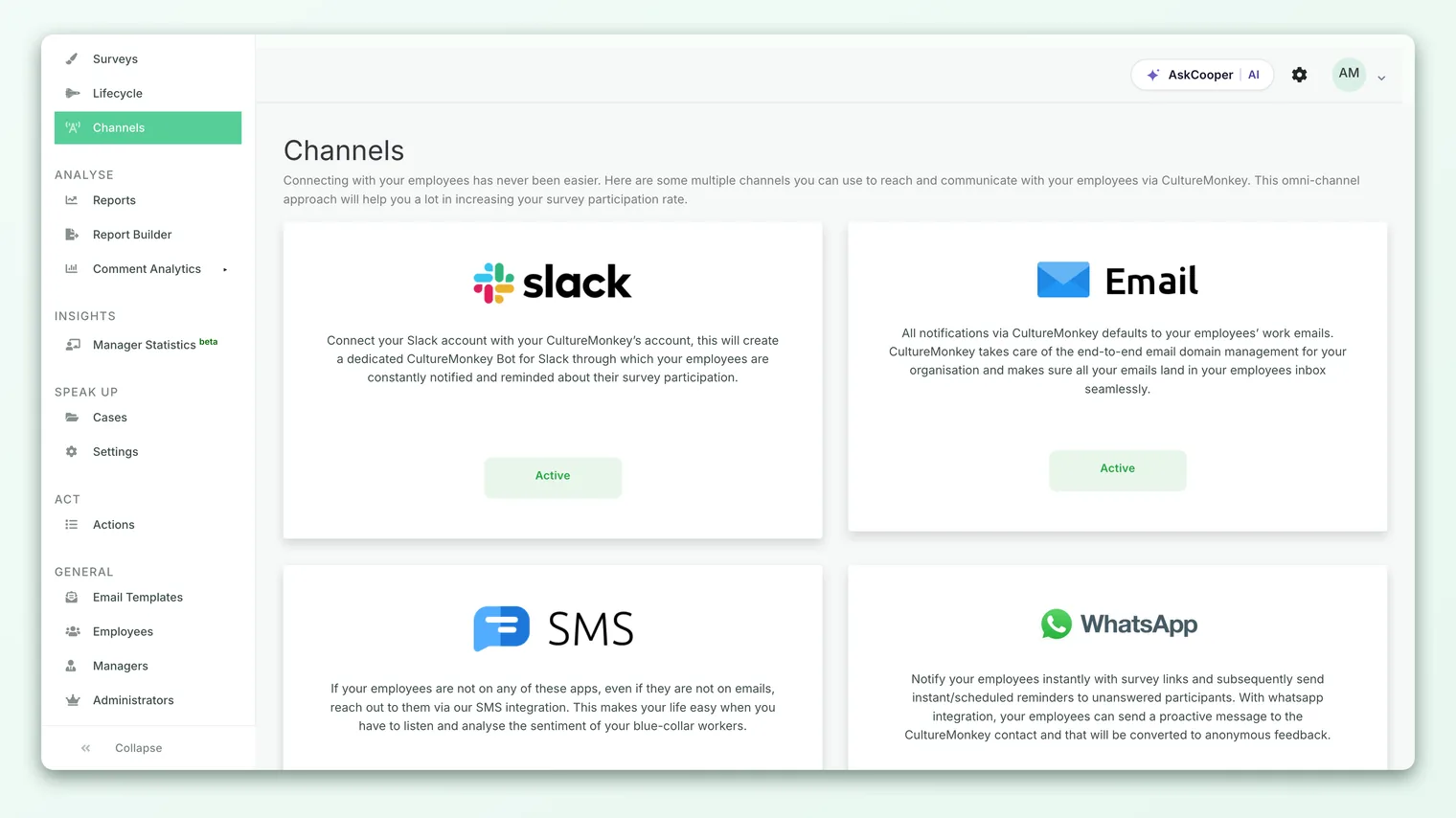
- 1Open Channels. Go to Integrations in the left navigation and open the Channels page. You'll see a card for each available channel, including Slack, with a short description of what it does.
- 2Click Activate on the Slack card. This starts Slack's standard OAuth authorization flow and sends you to Slack to approve the connection.
- 3Choose your workspace and approve. In Slack, pick the workspace you want to connect and review the permissions CultureMonkey is requesting (finding users by email, and sending messages). Approve to continue.
- 4Return to CultureMonkey. Slack redirects you back and you'll see a "Slack channel configured successfully!" confirmation. The Slack card now shows as Active.
Behind the confirmation, CultureMonkey stores a bot access token for your workspace and records your Slack team details. That bot token is what every later survey and reminder uses to look up employees and post messages. Once the card reads Active, Slack is available as a channel on your surveys.
Connecting a workspace is an account-level action, so it's typically handled by an account admin who also has permission to install apps in your Slack workspace. If your Slack workspace restricts app installation, a Slack workspace admin may need to approve the CultureMonkey app first.
Meeting the CultureMonkey bot
The first time an employee opens the CultureMonkey app in Slack, the bot sends a friendly welcome direct message introducing itself and explaining that it will deliver survey reminders. This is a one-time greeting per person, so people aren't surprised later when a survey invite arrives from the same bot. You can customize this welcome message, along with the survey invite and reminder text, from your account settings.
How employees are matched by email
This is the single most important thing to get right, so it's worth spelling out.
When a Slack survey launches, CultureMonkey processes participants one at a time. For each person, it calls Slack's lookup-by-email method using the employee's work email address. Slack searches your workspace for a user whose profile email matches:
- If a match is found, Slack returns that user's ID, and the bot delivers the survey invite as a direct message to that person.
- If no match is found, delivery to that individual is skipped for the Slack channel. The lookup simply fails for that email, and no Slack DM is sent.
Because the match is exact, the email you have for an employee in CultureMonkey must be the same email on their Slack profile. Common reasons a match fails:
| Situation | What happens | How to fix it |
|---|---|---|
| Employee's CultureMonkey email differs from their Slack email | No match, no Slack DM | Align the two addresses (update either the Employee record or the Slack profile) |
| Employee isn't a member of the connected workspace | No match | They'll need to be added to Slack, or rely on another channel |
| Personal vs work email mismatch | No match | Ensure the work email in CultureMonkey matches Slack |
| Guest or deactivated Slack account | Lookup may fail | Confirm the account is active in Slack |
Because Slack delivery quietly skips anyone it can't match, it's good practice to make sure email remains a fallback. If a Slack invite can't reach someone, you don't want them to fall through the cracks. Review notification results after launch to confirm coverage.
How the survey appears to an employee
From the employee's side, the experience is simple and personal. They receive a direct message from the CultureMonkey bot in Slack. The message greets them, explains that a survey is waiting, and includes a link to open and complete it.
The invitation text is customizable. By default the first notification reads along the lines of "Hi [first name]! You've been invited to complete a CultureMonkey survey for [company]. We truly appreciate your feedback. Please submit your response here: [link]." You can tailor the wording, and CultureMonkey supports personalization placeholders such as the employee's first and last name, your account name, the survey title, the estimated time to complete, and the survey link itself. That lets the DM feel like it came from your organization rather than a generic tool.
When the employee clicks the link, they land in the CultureMonkey survey experience in their browser and answer as normal. Reminders for anyone who hasn't responded can be sent over Slack too, using a similar (and separately customizable) reminder message.
Enabling Slack for a specific survey
Connecting your workspace makes Slack available; you still choose it per survey. Slack only appears as an option once the workspace is connected and active.
- 1Build or edit your survey. Create a survey as usual, or open an existing draft. See Create a survey from scratch if you're starting fresh.
- 2Go to the settings or channel step. In the survey settings, find the channel selection where you choose how invitations are delivered.
- 3Select Slack. Pick Slack as the delivery channel. This option is only shown when your Slack workspace is connected and active; if you don't see it, the workspace hasn't been connected yet.
- 4Schedule and launch. Finish scheduling and launch. When the survey goes out, CultureMonkey matches each participant by email and delivers the invite over Slack.
A survey is delivered on the channel you select for it. Choose the channel that best fits the audience for that particular survey. For teams that live in Slack, Slack is usually the strongest choice; for a mixed or deskless audience, email or another channel may reach more people.
After launch, you can track how delivery went. CultureMonkey records notification results per channel, so you can see how many Slack messages were sent successfully and how many failed (for example, because an email couldn't be matched to a Slack user). That's your signal for whether your email data and Slack membership are well aligned.
Anonymity on Slack
A fair concern with any personalized delivery is: if the bot messages me directly, can someone see how I answered? The answer is no.
Slack is only the delivery mechanism. CultureMonkey uses each employee's identity solely to route the invitation to the right person, exactly as it uses an email address to send an email. Once someone opens the survey and responds, their answers are subject to the same anonymity protections as every other channel:
- Responses aren't tied to a Slack identity. The fact that a DM was delivered to a particular Slack user is not connected to the content of their answers.
- Small-group thresholds still apply. Results for any team, location, or filter are hidden until enough people respond, so no individual's answers can be inferred. This is the same anonymity threshold that governs all CultureMonkey reporting.
- Delivery logs are operational, not analytical. The system records whether a message was sent for troubleshooting and coverage, but that operational record is separate from survey responses and is not used to reveal who said what.
In short, delivering over Slack does not weaken anonymity in any way. It's the same protected, confidential feedback experience, just reaching people through a channel they already use.
If a breakdown looks empty, it's usually the anonymity threshold protecting a small group, not a Slack problem. That behavior is by design. See Why can't I see results yet?.
Frequently asked questions
Do I need to connect Slack for every survey?
No. Connecting your workspace is a one-time setup in Settings > Channels. After that, Slack is available as a delivery option on any survey, and you just select it when you want to use it.
What happens to employees who aren't on Slack?
If CultureMonkey can't match an employee's work email to a Slack user, that person is simply skipped for the Slack channel and no DM is sent to them. Make sure email data is accurate, and keep another channel available so no one is missed.
Why did some people not receive their Slack invite?
The most common cause is an email mismatch: the email in CultureMonkey doesn't match the email on the person's Slack profile. Other causes include the person not being a member of the connected workspace, or a deactivated Slack account. Check the notification results for the survey to see which deliveries failed.
Can I customize the Slack message?
Yes. The welcome message, the survey invitation, and the reminder text can all be customized from your account settings, and they support personalization placeholders like the employee's first name, your account name, the survey title, and the survey link.
Can I send reminders over Slack too?
Yes. Reminders to participants who haven't responded can be delivered over Slack, keeping the whole cycle in one channel. See Set up survey reminders.
How do I disconnect Slack?
An admin can revoke the connection from the Channels page using the Deactivate option on the Slack card, which removes CultureMonkey's access and stops Slack delivery.
Where to go next
- Compare every delivery option: Distribution channels overview
- Explore all integrations: Integrations
- Deliver via Microsoft Teams instead: Send surveys via Microsoft Teams
- Keep participation high: Set up survey reminders
- Slack at a glance: Slack integration for CultureMonkey
- Browse every integration: CultureMonkey integrations
Your feedback helps us improve the Help Center.