

Exclude specific surveys from your CultureMonkey dashboard
How dashboard survey exclusions work - keeping test runs and one-off pulses out of your rolled-up dashboard numbers while their own reports stay intact, why you'd use it, how to configure the excluded set, and how to reverse it.
On this page
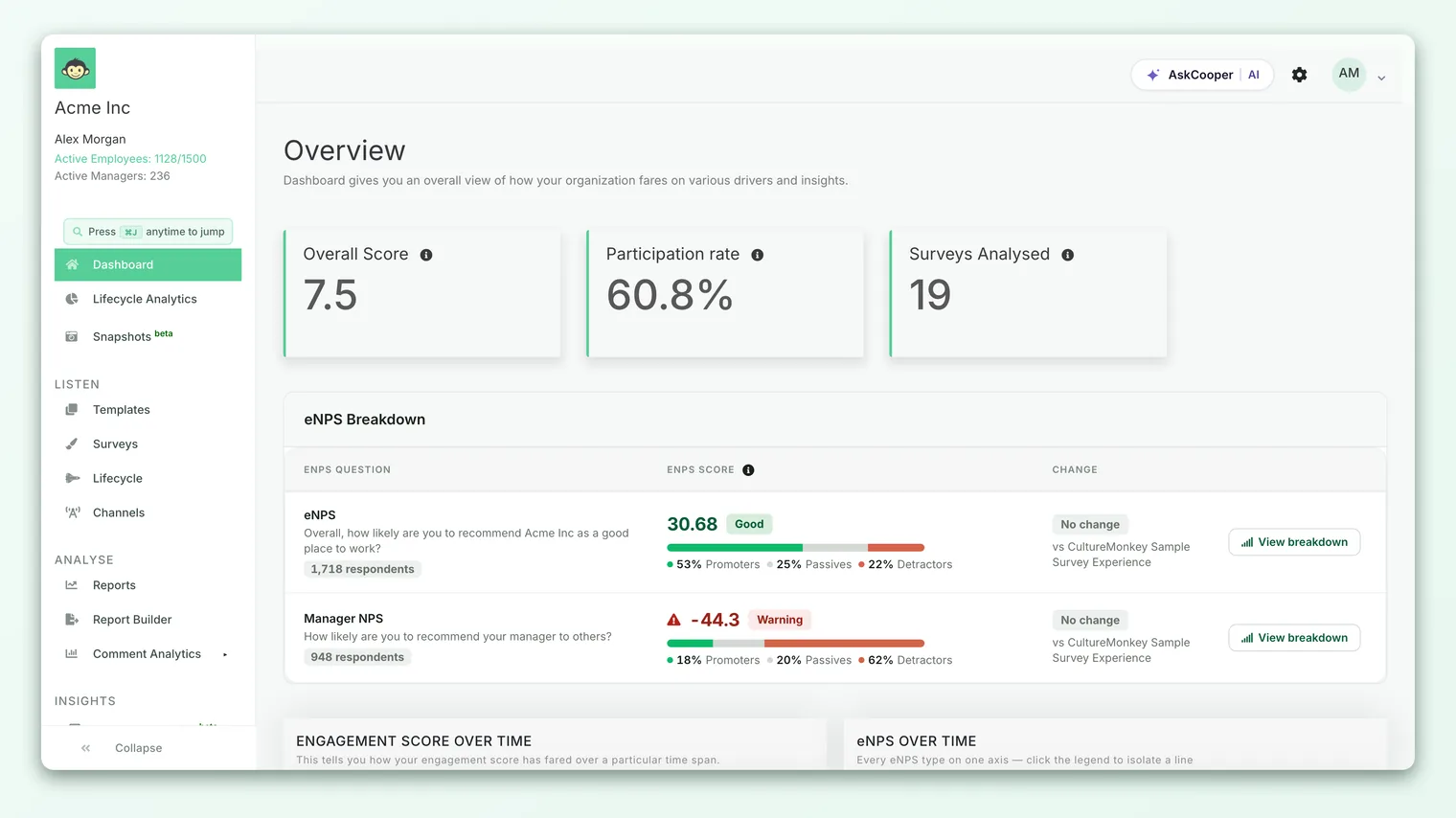
Your Dashboard is the rolled-up view of engagement across your organization - a single overall score, an eNPS, participation, driver trends, and more, all combined from the surveys you've run. That summary is only as trustworthy as the surveys feeding into it. If a test run, a training demo, or a narrow one-off pulse is quietly mixed into those numbers, the headline figures can drift away from reality.
Dashboard survey exclusions let you keep specific surveys out of the rolled-up dashboard totals - without deleting the survey and without touching its own report. This guide explains what the feature does, when to reach for it, how the excluded set is configured, exactly how it changes your dashboard metrics (and what it deliberately leaves alone), and how to reverse it whenever you like.
Excluding a survey removes its responses from the aggregated dashboard analytics - the overall score, eNPS, participation, and driver rollups. The survey itself is untouched: it still exists, and its individual survey report still shows every response. Exclusion is fully reversible: switch it back on and CultureMonkey adds the survey back into the dashboard totals.
What a dashboard exclusion actually does
Think of your Dashboard as an average-of-averages across many surveys. Every survey you run normally contributes its responses to that combined picture. A dashboard exclusion tells CultureMonkey: "Count this survey's own report, but leave it out of the organization-wide rollup."
Excluded surveys are left out when CultureMonkey assembles the aggregated numbers, it explicitly skips any survey you've marked as excluded, so their responses never reach the overall score, the combined eNPS, the participation rollup, or the trended driver averages.
Crucially, this is a dashboard-level filter, not a deletion and not an archive. The survey keeps all of its data. Anyone who opens that survey's report sees exactly what they'd see if it had never been excluded. You're changing one thing only: whether the survey is included when CultureMonkey combines everything into the top-level summary.
Why you'd exclude a survey
Most accounts accumulate a few surveys that were never meant to represent the organization's real sentiment. Folding those into the headline numbers muddies the signal. Common reasons to exclude a survey:
- Test and sandbox runs. Surveys you created to trial a template, check branching logic, or preview the employee experience. Their "responses" are usually a handful of admins clicking through - noise, not signal.
- Training and demo surveys. Sessions you ran to onboard managers or walk a stakeholder through the product. Real people answered, but not as a genuine reflection of how they feel.
- One-off or niche pulses. A quick pulse aimed at a single team, event, or project. Useful on its own, but not representative of the whole company - and capable of skewing a company-wide average if the audience is small or unusual.
- Legacy or migrated data. Older surveys imported during onboarding that used a different question set or scale, which you want to keep for reference without letting them distort current trends.
- Duplicate or superseded runs. A survey you re-ran after fixing a problem, where the first attempt shouldn't count twice.
The common thread: the survey has value as its own report, but including it in the rolled-up totals would mislead more than it informs.
When a survey is skewing your dashboard, reach for exclusion before deletion. Deleting throws the data away permanently; excluding keeps the survey and its report intact while simply removing it from the summary. If you change your mind - or need that data for an audit - it's still there.
How to configure the excluded set
Dashboard exclusions are managed from your account settings, in the Advanced settings area. The screen presents a list of your surveys, each with an on/off toggle, so you choose exactly which surveys to keep out of the rollup.
- 1Open Advanced settings - go to your account Settings and open the Advanced page. You'll see the Manage Survey Visibility section, described as "Select surveys to exclude from dashboard analytics."
- 2Find the surveys - the section lists every survey with its title, status, and start date. Use the search box to filter by survey name or status, or use Select All / None to work quickly across the whole list.
- 3Toggle exclusion on - flip the switch next to each survey you want to keep out of the dashboard rollup. A survey with its toggle on is excluded; a survey with its toggle off is included as normal.
- 4Save your choice - click Update Visibility to apply. CultureMonkey saves the full set of excluded surveys and confirms with a success message. Your dashboard totals recalculate to reflect the change.
The setting stores the complete list of excluded surveys, so each time you save you're defining the whole excluded set - not just adding one survey. To exclude another survey later, return to this screen, toggle it on alongside the others already excluded, and save again.
The effect on dashboard metrics vs individual reports
This is the most important distinction to understand, because the two views behave differently on purpose.
| Rolled-up Dashboard | Individual survey report | |
|---|---|---|
| What it shows | Combined overall score, eNPS, participation, and driver trends across surveys | The results of one specific survey |
| Effect of excluding a survey | That survey's responses are removed from every aggregated figure | No effect - the report is unchanged |
| Data still exists? | Yes; it's filtered from the rollup, not deleted | Yes; every response remains visible |
| Who it's for | Leaders wanting the organization-wide headline | Anyone analyzing that particular survey |
In other words, exclusion is surgical. It narrows the population that the Dashboard averages over, and does nothing else. If you excluded a demo survey with three admin responses, those three responses stop nudging your company-wide overall score and eNPS - but if someone opens that demo survey's own report, all three responses are still right there.
A before-and-after example
Suppose your account has run five real engagement surveys plus one training survey. The training survey had 8 responses, all from managers clicking through during an onboarding session, and it happened to produce an unusually high eNPS.
- Before excluding it: your Dashboard blends all six surveys. The training survey's small, unrepresentative sample pulls the combined eNPS up by a few points and adds 8 "participants" to the participation rollup - flattering, but false.
- After excluding it: the Dashboard recalculates across the five genuine surveys only. Your overall score, eNPS, and participation now reflect real employee sentiment. The training survey still exists, and its own report still shows all 8 responses for whoever needs them.
Nothing was lost. The headline simply got honest.
Exclusion affects metrics that combine surveys - the dashboard rollups. It doesn't retroactively change any single survey's own numbers, because those were never an average across surveys in the first place.
Reversing an exclusion
Exclusions are never permanent. To bring a survey back into your dashboard totals, return to the Manage Survey Visibility section, toggle that survey's switch off, and click Update Visibility. The survey immediately rejoins the aggregated calculations, and your dashboard figures update to include it again.
Because the setting always stores the full excluded set, removing one survey from exclusion is just a matter of toggling it off and saving - the other exclusions you've configured stay exactly as they were. There's no cleanup and no data recovery step, because the data never went anywhere.
Whenever you exclude or re-include a survey, expect your rolled-up overall score, eNPS, and participation to move - sometimes noticeably if the survey had many responses. That shift is the feature working as intended. If a stakeholder asks why the headline changed, an exclusion change is a good first thing to check.
Best practices
- Exclude test and demo surveys early. Make it part of wrapping up any trial run, so noise never reaches your headline numbers in the first place.
- Keep the excluded set intentional. Review it occasionally. A survey excluded a year ago for a good reason may no longer need to be - or an old exclusion might be hiding data you actually want counted.
- Document why. Since the toggle itself doesn't record a reason, keep a short internal note of which surveys you've excluded and why, so a future admin isn't left guessing.
- Prefer exclusion over deletion for anything you might want later. Exclusion is reversible and non-destructive; deletion is neither.
- Sanity-check after big changes. After excluding or re-including a survey with a large audience, glance at the Dashboard to confirm the numbers moved the way you expected.
Frequently asked questions
Does excluding a survey delete it or its responses?
No. Exclusion only removes the survey from the aggregated dashboard analytics. The survey, its questions, and every response remain intact, and its individual report is completely unaffected.
Can people still open the report for an excluded survey?
Yes. Excluding a survey changes nothing about its own report. Anyone with access to that survey sees all of its results exactly as before - the only thing that changes is whether it's counted in the organization-wide rollup.
Will excluding a survey change my overall score and eNPS?
It changes them on the Dashboard, because those figures are combined across surveys. Removing a survey removes its responses from that combination, so CultureMonkey recalculates the rolled-up overall score, eNPS, and participation. The excluded survey's own scores don't change.
Is exclusion reversible?
Completely. Toggle the survey's switch back off in Manage Survey Visibility, save, and it rejoins the dashboard totals immediately. No data is lost in either direction.
How many surveys can I exclude?
There's no fixed limit - the setting stores the full list of surveys you've marked as excluded. Just remember that every save defines the entire excluded set, so keep all the surveys you want excluded toggled on when you update.
Who can change which surveys are excluded?
This control lives in Advanced account settings in CultureMonkey and is intended for administrators managing account-wide configuration.
Where to go next
- Understand the rolled-up view: Read the admin dashboard
- Get oriented on the Dashboard: A quick tour of your Dashboard
- Configure the rest of your account: Set up your account
Your feedback helps us improve the Help Center.