

Download an actions report
How to export your full action list from CultureMonkey - where the Download Actions button lives, what the file contains, the exact columns, and when a raw export beats the in-app view.
On this page
The Actions area gives you a live, filterable board of every action plan in your account. Most of the time, working inside that board is exactly what you want. But every so often you need the raw list itself: to build a custom pivot, share progress with someone who doesn't use CultureMonkey, keep an offline record for an audit, or slice actions in ways the in-app filters don't support.
That's what the Download Actions export is for. In one click it hands you a spreadsheet with every action you're allowed to see, plus a second tab with the full comment history. This guide covers where to find it, exactly what's in the file, and how to use it well.
Go to Act - Actions, click Download Actions in the top-right, and CultureMonkey generates a spreadsheet with two tabs: one row per action (with owner, driver, deadline, status, and collaborators) and one row per comment. The export respects your access level, so you only get the actions you're already allowed to see.
Where to find the export
The export lives on the main Actions board, not inside any individual action.
- 1Open the Actions area - from the left navigation, go to Act, then Actions. This is the same board where you create and track action plans.
- 2Find the button top-right - look for the Download Actions button in the header, next to Create an action. It carries a small download icon.
- 3Click it - your browser downloads the file straight away. There's no dialog, no column picker, and no email step - the file is built on the spot and sent to you.
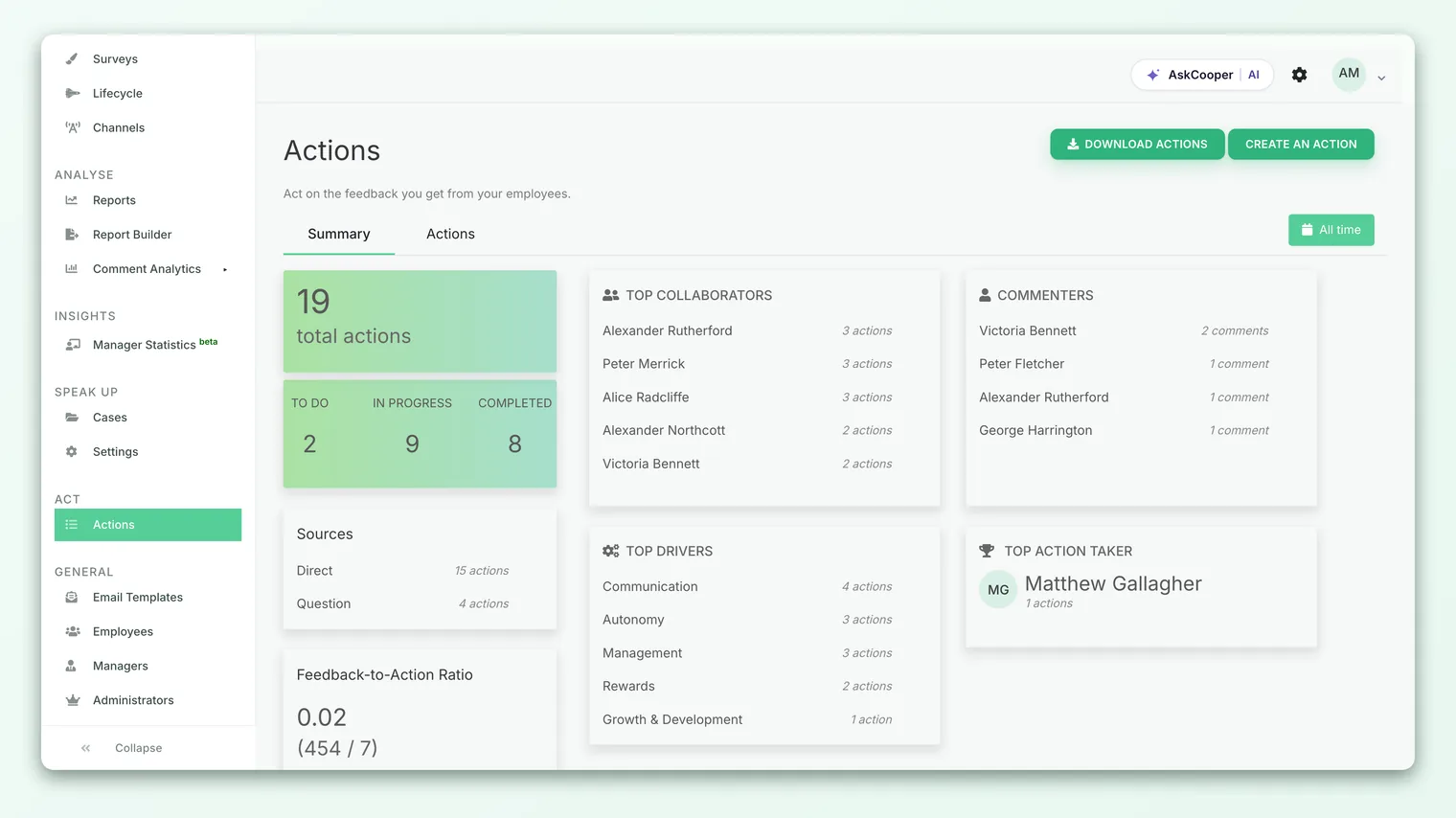
On some accounts the single button is replaced by an Export dropdown with two choices: Actions (the file described in this guide) and Owner status report (a driver-and-owner rollup). If that's what you see, choose Actions. The Owner status report is covered in See driver-wise action stats.
What the export contains
The download is a spreadsheet workbook with two worksheets:
| Worksheet | One row per | What it's for |
|---|---|---|
| Actions | Action (or action-collaborator pair) | The core list: every action with its owner, driver, deadline, and status |
| Comments | Comment | The full running commentary left on every action |
The two tabs are linked by Ticket ID, the unique identifier each action gets when it's created. If you want to see an action alongside its comment thread, filter or look up both tabs by the same Ticket ID.
The export is an Excel-style workbook (an .xls file with named tabs), not a flat CSV. That's why it can carry two separate sheets in one download. It opens directly in Excel, Google Sheets, Numbers, or any tool that reads spreadsheets.
The Actions worksheet, column by column
The first tab is the one you'll spend the most time in. Here's every column and what it holds:
| Column | What it contains |
|---|---|
| Ticket ID | The unique identifier for the action, shared with the Comments tab |
| Created At | When the action was created, in your account's timezone (for example, 12 Jun 2026; 14:30:05) |
| Name | The action's title |
| Description | The full description, converted to plain text |
| Driver | The engagement driver the action is tied to (labelled Category on some accounts) |
| Created By - Name | The admin who created the action |
| Created By - Employee ID | That creator's employee ID |
| Owner | The person responsible for the action |
| Owner - Employee ID | The owner's employee ID |
| Team (Owner) | The owner's team |
| Sub Team (Owner) | The owner's sub-team |
| Business Unit (Owner) | The owner's business unit |
| Deadline | The due date (for example, 30 Jun 2026), or blank if none is set |
| Status | The action's current status |
| Collaborator Name | A collaborator invited to the action |
| Collaborator Employee ID | That collaborator's employee ID |
| Team (Collaborator) | The collaborator's team |
| Sub Team (Collaborator) | The collaborator's sub-team |
| Business Unit (Collaborator) | The collaborator's business unit |
| Initial Comment | The note left when that collaborator was added |
The Status column mirrors the workflow states on the board: To Do, In Progress, Completed, On Hold, and Cancelled. Because the export writes them in Title Case, they sort and filter cleanly in a spreadsheet.
If an action has more than one collaborator, it gets one row per collaborator. The action's own details (name, owner, status, and so on) repeat on each of those rows, with the collaborator columns changing. When you count actions in the export, count unique Ticket IDs, not rows, or you'll overcount any action that has multiple collaborators. Actions with no collaborators get a single row.
The Business Group columns
If your account has business group access turned on, the export adds two extra columns: Business Group (Owner) and Business Group (Collaborator). If that setting is off, those columns simply don't appear, and every other column keeps its place. So don't be surprised if a colleague's export has a slightly different column count than yours.
The Comments worksheet
The second tab captures the conversation on each action. It has five columns:
| Column | What it contains |
|---|---|
| Ticket ID | Links the comment back to its action on the first tab |
| Ticket Name | The action's name, repeated for convenience |
| Content | The comment text |
| Commented By | The name of the person who left it |
| Commented By Email | Their email address |
This is useful when you want an audit trail of how a piece of work progressed, or when you're pulling quotes and context into a leadership update without clicking into each action one at a time.
What's included, and what's filtered out
The export isn't a blanket dump of your whole database. It respects the same access rules as the board itself:
- You get the actions you're allowed to see. If you're an Account Admin with full access, that's every action. If your access is scoped (for example, to specific teams or as a manager acting on a limited set), the file contains only the actions within your reach - the same set you'd see on the board.
- It ignores your on-screen filters. The export always pulls your full accessible set. If you've filtered the board down to, say, overdue actions for one team, the download will still include everything you can see, not just the filtered view. To narrow the file, filter it in your spreadsheet tool after downloading.
- It's a point-in-time snapshot. The file reflects the state of your actions at the moment you clicked Download. Re-download later to capture changes.
The export lists action owners, creators, and commenters by name, and the Comments tab includes email addresses. This is by design (it's a management report, not an anonymous survey result), but it means the file is not anonymous. Store and share it with the same care you'd give any spreadsheet of employee data.
When to export instead of using the board
The in-app board is better for day-to-day tracking, and the action summary report is better for a quick read on completion rates. Reach for the export when you need to leave CultureMonkey or reshape the data:
- Custom analysis - build your own pivot tables to break actions down by owner, driver, business unit, or any combination the built-in views don't offer.
- Offline and audit records - keep a dated file for compliance, board packs, or historical reference.
- Sharing with non-users - hand progress to a stakeholder who doesn't have a CultureMonkey login.
- Cross-referencing - join the action list against other HR data (headcount, attrition, survey scores) in a spreadsheet or BI tool.
- Reading the full comment trail - pull every comment on every action into one place for a project retrospective.
For a ready-made rollup of totals and completion rates without touching a spreadsheet, use the action summary report instead. The two are complementary: the summary answers "how are we doing overall?" and the export answers "give me the raw list so I can slice it myself."
Frequently asked questions
Who can download the actions report?
Account Admins can. The button is available to full admins and to scoped admins with action access. Managers can download it only if your account has the download actions for managers setting enabled - otherwise the button won't show for them. If you can see the Actions board but not the button, ask your Account Admin to check that setting.
Is the download an Excel file or a CSV?
It's an Excel-style workbook (.xls) with two named tabs, so a single download carries both the action list and the comment history. It opens in Excel, Google Sheets, and Numbers just like any spreadsheet.
Why does one action appear on several rows?
Because the Actions tab writes one row per collaborator. An action with three collaborators appears three times, with its core details repeated. Count unique Ticket IDs, not rows, to get an accurate action count.
Does the export follow the filters I set on the board?
No. CultureMonkey always exports your full accessible set of actions, regardless of any filters you've applied on screen. Filter the file in your spreadsheet tool after downloading if you need a subset.
Are the dates in my timezone?
Yes. CultureMonkey converts the Created At timestamp to your account's configured timezone before writing it to the file, so it matches what you see in the app.
Can I choose which columns to export?
Not at the moment. The export always includes the full set of columns (plus the Business Group columns if that access is enabled for your account). Delete any columns you don't need after opening the file.
Where to go next
- The whole process in one page: How action planning works in CultureMonkey
- Want totals and completion rates instead of a raw list? View the action summary report
- Need a driver-and-owner rollup? See driver-wise action stats
- Turning feedback into tracked work? Create an action from feedback
Your feedback helps us improve the Help Center.