

Employees aren't receiving survey emails
A step-by-step troubleshooting guide for when survey invitations or reminders don't reach inboxes - how to check the survey channel and status, sender and SMTP configuration, invalid addresses, spam filtering, and SPF/DKIM, and how to fix each cause.
On this page
- First, narrow down the problem
- Check 1: Is the survey actually launched?
- Check 2: Is email one of the survey's channels?
- Check 3: Do the recipients have valid email addresses?
- Check 4: Which sender is your account using?
- Check 5: Is your SMTP configuration correct?
- Check 6: Are emails being filtered as spam?
- Check 7: Is your sender domain authenticated (SPF and DKIM)?
- Check 8: Confirm what actually happened in Participation
- Frequently asked questions
- Where to go next
You launched a survey, but people are telling you the invitation never arrived - or your Participation view shows almost nobody has been reached. This is one of the most common support questions, and the good news is that it's almost always one of a small handful of causes, each with a clear check and fix.
This guide is a troubleshooting checklist. Work through it in order, from the most common and easiest to confirm (was the survey even launched on the email channel?) down to the more technical (sender domain authentication and SMTP). By the end you'll know exactly where the emails are stalling and what to change.
Start at the top: confirm the survey is launched and that email is one of its channels, then check the recipients' email addresses, then your sender configuration in CultureMonkey (Default, Custom Email, or SMTP), and finally spam filtering and domain authentication (SPF and DKIM). Nine times out of ten the problem is one of the first three.
First, narrow down the problem
Before you change anything, figure out the shape of the problem. The fix is very different depending on the answer.
- Is it everyone, or just some people? If nobody received the email, the cause is usually at the survey or sender level (not launched, no email channel, a broken SMTP setup). If only some people are affected, the cause is usually per-recipient (invalid addresses, one company's spam filter, a specific domain blocking you).
- Is it just this survey, or every survey? A problem isolated to one survey points to that survey's setup. A problem across all surveys points to your account-wide sender or domain configuration.
- Did it used to work? If delivery worked before and suddenly stopped, something changed: a new SMTP password, an expired domain record, a recipient's IT team tightening filters, or a switch in your sender mode.
Keep those answers in mind as you work through the checklist below.
Check 1: Is the survey actually launched?
The single most common cause is the simplest: the survey is still a draft and was never sent.
In CultureMonkey a survey moves through statuses (draft, running, ended). Invitations only go out once a survey is launched and enters the running state. A survey sitting in draft, or one that's scheduled for a future date and time, hasn't sent anything yet.
- 1Open the survey from Listen > Surveys.
- 2Check its status. If it reads Draft, it hasn't been launched - finish setup and launch it.
- 3Check the schedule. If you scheduled it, confirm the launch date and time have actually passed, and that the time zone is what you expected.
From the survey's notification setup you can send a test email to yourself. If the test lands in your inbox but the real launch doesn't reach employees, you've confirmed the sender works and the problem is elsewhere (channel, addresses, or a recipient-side filter).
Check 2: Is email one of the survey's channels?
CultureMonkey can deliver a survey over several channels - email, SMS, Slack, Microsoft Teams, and WhatsApp. A survey only emails people if email was selected as one of its distribution channels. If the survey was set up to go out over Slack or Teams alone, no email is ever generated, no matter how healthy your sender settings are.
- 1Open the survey's channel setup. Confirm Email is enabled as a channel.
- 2Check per-employee channel routing. If your account routes different employees to different channels (for example, deskless staff by SMS and office staff by email), make sure the people who are missing emails are actually assigned to the email channel.
If email wasn't a channel, re-launch or add email as a channel. For a full walkthrough of the email channel, see Send surveys via email.
Check 3: Do the recipients have valid email addresses?
If email is on and the survey is running but specific people are missing, look at their email addresses in your employee list. CultureMonkey can only send to an address it has, and only if that address is well-formed.
By default, CultureMonkey validates each employee's email address against a standard format check when the record is created or imported. Addresses with obvious problems (a missing @, a trailing space, a typo like .con instead of .com, or an internal-only alias that isn't a real mailbox) either fail to import or fail to deliver.
- 1Open General > Employees and find the affected people.
- 2Check for a missing or malformed address. Look for blank email fields, typos, and copy-paste errors (leading or trailing spaces are a classic culprit).
- 3Confirm the mailbox actually exists. A perfectly formatted address still won't deliver if the mailbox was deprovisioned when someone left, or if it's a distribution list rather than a personal inbox.
- 4Correct and re-send. Fix the address, then use a manual reminder to re-send to just those employees.
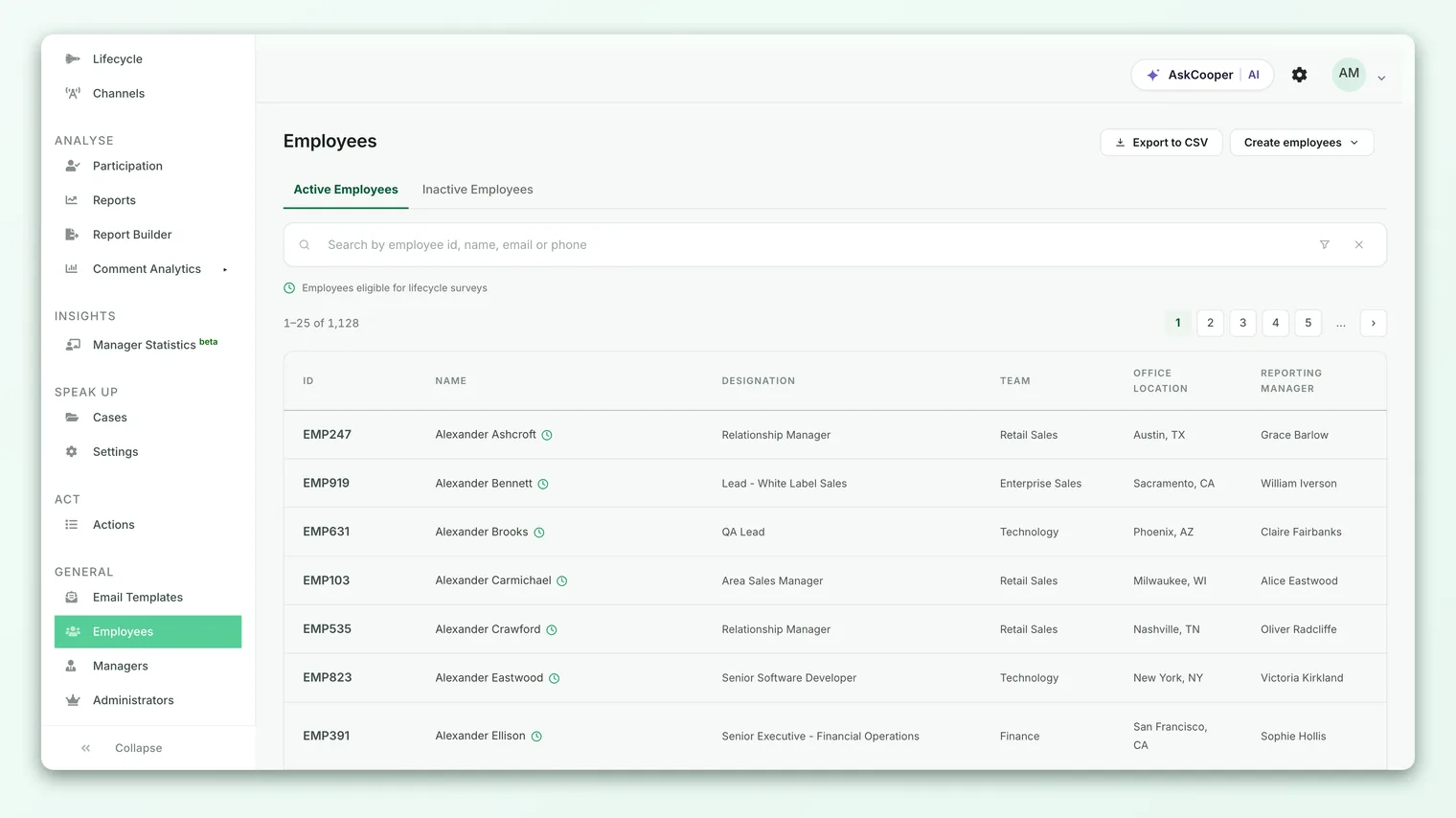
Malformed addresses that slipped in during a bulk import can look valid in your list but silently fail to deliver. If you suspect this, review the affected records carefully by hand.
Check 4: Which sender is your account using?
If nobody is receiving email across every survey, the problem is almost always your sender configuration. CultureMonkey offers three sender modes, set under General > Email Templates (Mail settings):
| Mode | Emails are sent from | Best for |
|---|---|---|
| Default | surveys@ the CultureMonkey mail domain | Most customers; nothing to configure |
| Custom Email | A prefix you choose, on the CultureMonkey mail domain (or the app. sub-domain) | Showing a recognizable sender without running your own mail server |
| SMTP | Your own mail server / provider | Full control and delivery from your own domain |
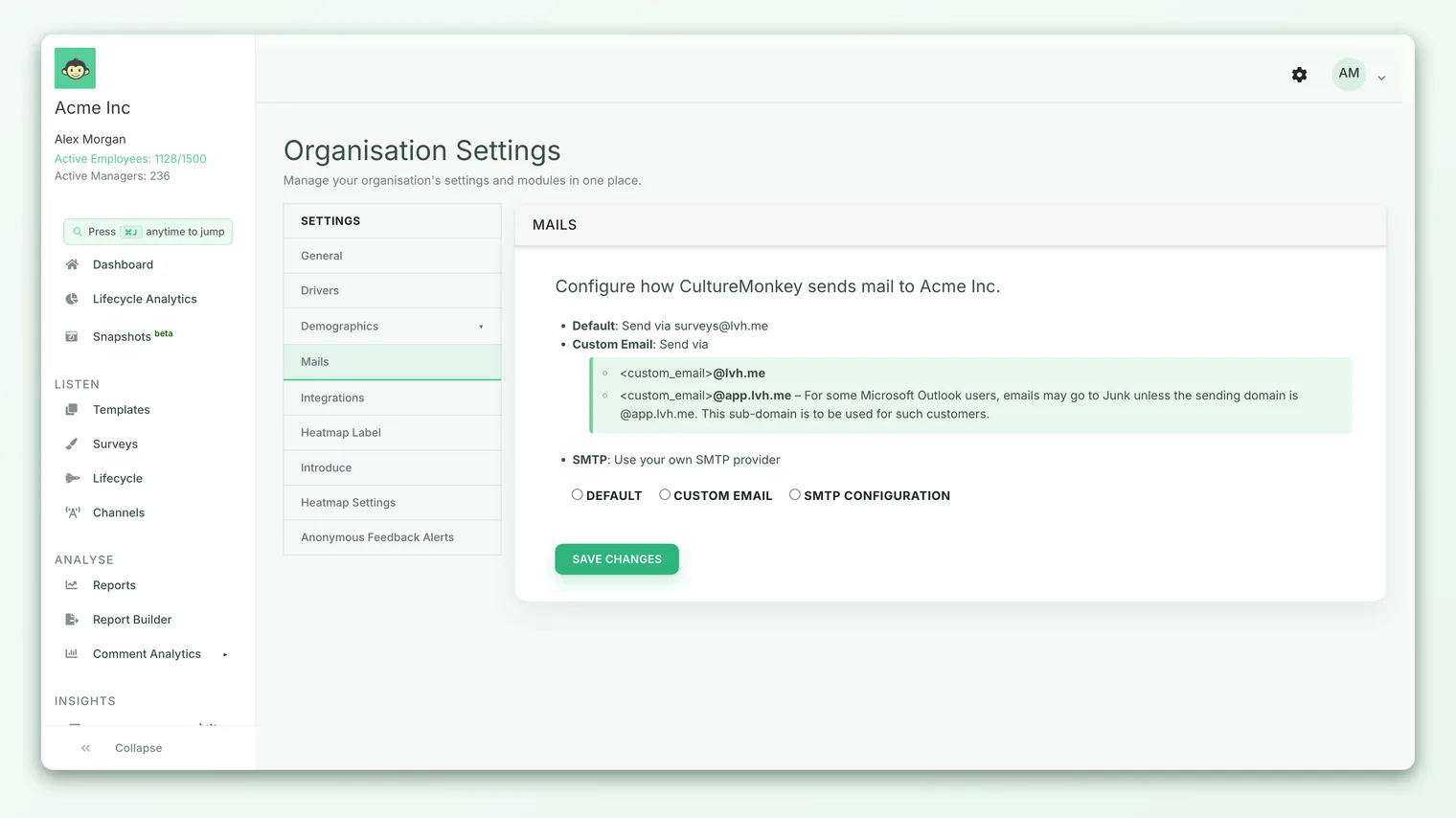
The Default sender is the most reliable option because CultureMonkey's mail domain is already fully authenticated. If you're on Default and email still isn't arriving, skip ahead to spam filtering (Check 6) and domain authentication (Check 7). If you're on Custom Email or SMTP, keep reading.
Custom Email lets you send from either the main mail domain or its app. sub-domain. For some organizations using Microsoft Outlook, messages land in Junk unless the sending domain is the app. sub-domain. If your Outlook users report emails going to spam, switching to the app. sub-domain often resolves it.
Check 5: Is your SMTP configuration correct?
If you've chosen SMTP so that survey emails go out through your own provider, a single wrong field will stop every email silently. This is the most common cause of a total delivery failure on accounts that use their own mail server.
Open the SMTP form under Mail settings and verify each field against what your email provider gave you:
| Field | What it is | Common mistakes |
|---|---|---|
| User name | The login for your SMTP account | Using a display name instead of the login; wrong casing |
| Password | The SMTP password or app-specific key | Expired or rotated password; a regular login password where an app password is required |
| Address | Your provider's SMTP host (for example smtp.yourprovider.com) | A typo, or the IMAP host instead of the SMTP host |
| Port | The SMTP port (commonly 587 or 465) | Wrong port for the encryption mode |
| Authentication | The auth method (for example plain or login) | A method your server doesn't support |
| Domain | Your sending domain | Mismatched with the sender email |
| Sender email | The from address - must be one your provider is authorized to send | An address the SMTP account isn't allowed to send as |
| Enable TLS | Whether to use STARTTLS | Off when your provider requires it (or on when it isn't supported on that port) |
- 1Re-enter the password. A rotated or expired SMTP password is the single most frequent SMTP failure. Many providers also require an app-specific password rather than the normal account password.
- 2Match port and TLS. Port 587 usually pairs with STARTTLS (Enable TLS on); port 465 with implicit TLS. A mismatch causes silent failures.
- 3Confirm the sender is authorized. The Sender email must be an address your SMTP provider explicitly allows you to send as, or the provider will reject the message.
- 4Save and send a test. Re-save the settings and send a test email to confirm the connection works end to end.
For the complete field-by-field setup, see Send survey emails from your own domain (custom SMTP).
If your organization sends through Microsoft with modern authentication (OAuth) rather than a username and password, a revoked or expired consent will stop delivery even though the other fields look fine. If you use this path and delivery suddenly stopped, re-authorizing the connection is the first thing to check.
Check 6: Are emails being filtered as spam?
If emails leave CultureMonkey successfully but never appear in inboxes, the recipient's mail system is likely filtering them. This is especially common the first time you send to an organization, and it usually affects a whole company or domain at once rather than random individuals.
Signs it's a filtering problem:
- The email lands in Junk / Spam rather than not arriving at all - ask a few affected people to check those folders.
- It affects everyone at one company but nobody at another.
- Delivery worked, then a recipient's IT team tightened their filters and it stopped.
The most durable fix is to have the recipient organization's IT team allowlist (safelist) the sending address and domain, so messages are trusted. Sending a genuine, well-formed survey invitation (rather than repeatedly re-sending) also helps you build a positive sending reputation over time.
Tell the recipient's IT team the exact from address and domain you're sending from (it depends on your sender mode from Check 4). Allowlisting the specific sender is far more reliable than asking employees to fish messages out of Junk one by one.
Check 7: Is your sender domain authenticated (SPF and DKIM)?
When you send from your own domain (via Custom Email on a domain you own, or via SMTP), mail providers check whether CultureMonkey is allowed to send on your behalf. Two DNS records govern this:
- SPF (Sender Policy Framework) lists which servers are permitted to send email for your domain. If CultureMonkey's (or your SMTP provider's) sending servers aren't included, receiving servers may treat the message as spoofed.
- DKIM (DomainKeys Identified Mail) cryptographically signs your messages so the recipient can verify they weren't forged or tampered with in transit.
Missing or incorrect SPF and DKIM records are a leading reason mail from a custom domain gets quarantined, junked, or rejected outright. These records live in your domain's DNS, not in CultureMonkey, so fixing them is a job for whoever manages your DNS.
- 1Confirm which domain you send from. This follows from your sender mode in Check 4.
- 2Ask your DNS administrator to verify SPF and DKIM. They should confirm the correct records exist for the sending path you use and that they pass validation.
- 3Allow time to propagate. DNS changes can take a while to take effect; re-test after they've propagated.
The Default CultureMonkey sender is fully authenticated out of the box - you don't manage SPF or DKIM for it. Domain authentication only becomes your responsibility once you send from a domain you control (Custom Email on your own domain, or SMTP).
Check 8: Confirm what actually happened in Participation
Once you've made a change, use the Participation view to confirm whether emails are now going out. It shows how many people were sent an invitation versus how many received and responded, and you can slice it by team or demographic to see exactly which group is affected.
If the sent count is climbing but the received or response count stays flat, that points back toward filtering or bad addresses. If the sent count itself is stuck at zero, the survey or sender configuration is still the issue. For a full tour, see Track participation in real time.
Frequently asked questions
Emails work for most people but a few never get them. Why?
This is almost always per-recipient. The usual causes are a typo or blank email address (Check 3), a mailbox that no longer exists (someone left the company), or a single individual's mailbox filtering the message. Fix the address if it's wrong, and ask that person to check their Junk folder.
Nothing is arriving for anyone, on any survey. Where do I start?
Start with your sender configuration (Check 4). A broken SMTP setting - most often an expired password - or a misconfigured Custom Email will stop every email account-wide. Switching temporarily to the Default sender is a quick way to confirm whether the sender is the problem.
Emails are landing in Junk. How do I fix that permanently?
Ask the recipient organization's IT team to allowlist your exact sending address and domain (Check 6), and make sure your SPF and DKIM records are correct if you send from your own domain (Check 7). For Outlook users specifically, the Custom Email app. sub-domain often resolves Junk-folder placement.
I changed my SMTP password. Do I need to update it in CultureMonkey?
Yes. If you rotate the password on your mail account, the old one stored in your SMTP settings stops working and every email fails silently until you enter the new one under Mail settings.
How do I test delivery without launching to everyone?
Use the test email option in the survey's notification setup to send an invitation to yourself first. If the test arrives but the launch doesn't reach employees, the sender is fine and the problem is with the channel, the addresses, or a recipient-side filter.
Where to go next
- Set up email as a channel: Send surveys via email
- Send from your own domain: Send survey emails from your own domain (custom SMTP)
- Confirm delivery is working: Track participation in real time
Your feedback helps us improve the Help Center.