

Send CultureMonkey surveys via email
How email survey invitations are set up and sent in CultureMonkey - choosing email as the launch channel, picking the launch template, controlling the sender and reply-to address, what the recipient actually receives, and the deliverability basics that get your invitations into inboxes.
On this page
Email is the default way CultureMonkey gets a survey in front of your people, and for most organizations it's the workhorse channel. When a survey goes live, each employee receives a personal invitation in their inbox with a link that's unique to them. It's familiar, it reaches everyone with a work email, and it leaves a clear paper trail that a reminder can follow up on.
This guide is for the survey admin who's about to send a survey by email. It covers how to pick email as the launch channel, how to choose the launch template that shapes the invitation, who the email appears to come from (sender and reply-to), exactly what lands in an employee's inbox, and the deliverability basics that decide whether your invitation reaches the inbox or the spam folder.
Email is CultureMonkey's default launch channel. On the survey's Settings step you confirm Email as the channel, and in the survey's email notification settings you attach a Launch Template (the invitation) and a Reminder Template. When the survey starts, CultureMonkey emails every eligible participant a personalized invitation with their own survey link. The email comes from your account's configured sender; leave everything on defaults and it just works.
Why email is the default channel
Every survey needs a way to reach the people it's asking. CultureMonkey supports several delivery channels - email, SMS, WhatsApp, Slack, and Microsoft Teams - but email is the default, and it's selected automatically unless you choose otherwise.
There are good reasons it's the default:
- Reach. Almost every employee has a work email address, so email is the one channel you can count on to reach the whole audience without extra setup.
- A personal, trackable link. Each recipient gets their own unique survey link, which is how CultureMonkey knows who has and hasn't responded, so it can send reminders only to the people who still need a nudge.
- Room to explain. An email has space for context - what the survey is for, how long it takes, and a clear anonymity statement - in a way a short SMS or chat message doesn't.
- No integration required. Slack and Teams need their integrations connected first; email works out of the box.
That said, email is one option among several. If your workforce is deskless or lives in chat, another channel may reach them better. For the full picture, see Distribution channels overview. This article focuses on email, the default.
Choosing email as the launch channel
Every survey is launched on a single channel, chosen on the builder's final Settings step. You'll see a "Choose a channel to launch the survey" control with Email listed first and selected by default.
- 1Open the survey's Settings step. In the survey builder, move to the final Settings step where launch options live.
- 2Confirm the launch channel. Under Choose a channel to launch the survey, leave Email selected. Other channels (SMS, WhatsApp, Slack, Teams) appear here only if they're enabled for your account.
- 3Continue setting up the launch. Set your start and end dates and run your pre-launch checklist, then publish. See Launch or schedule a survey for the full go-live flow.
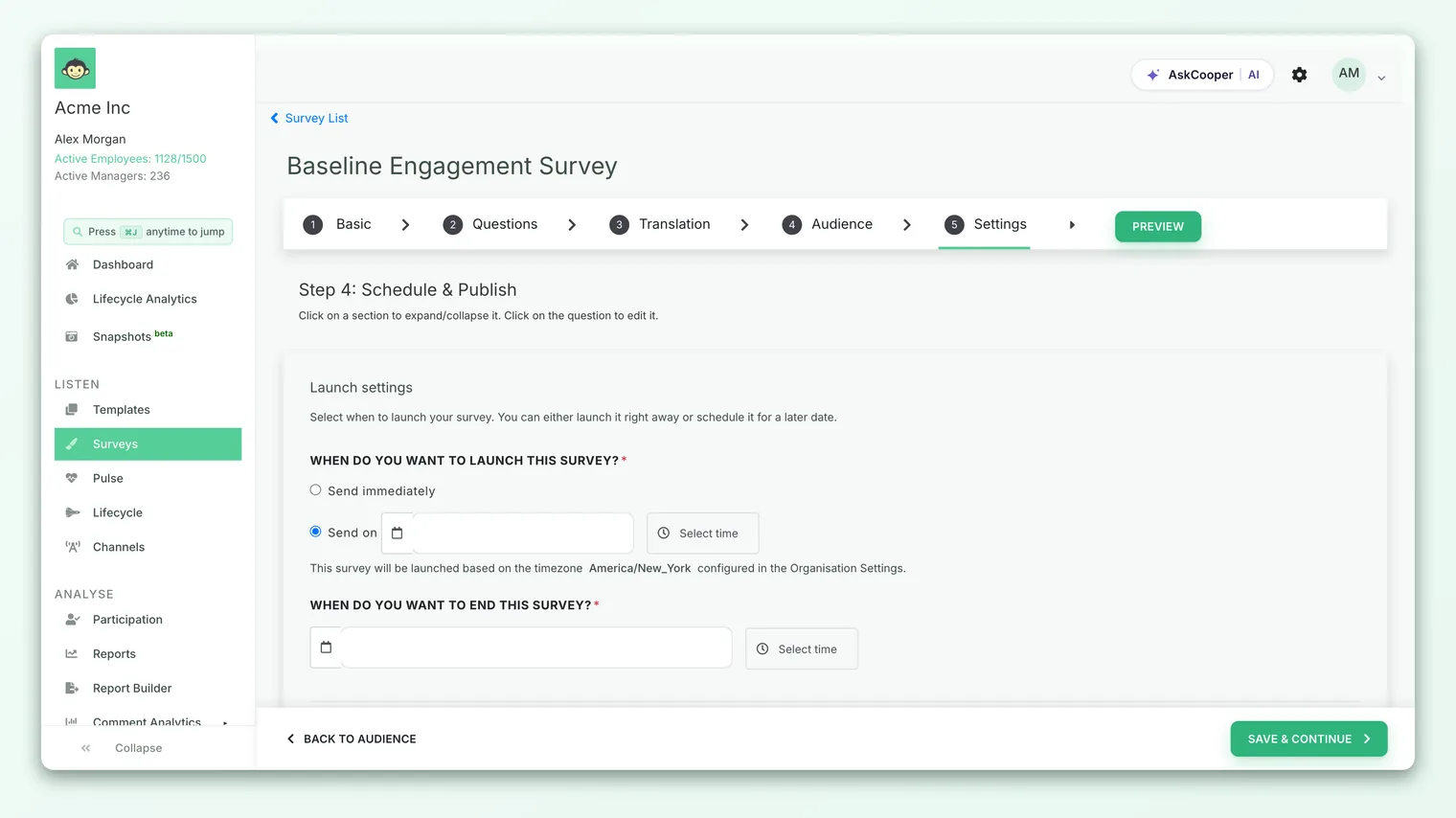
If you don't pick a channel, CultureMonkey defaults the survey to email so it still has a way to reach people. You never end up with a survey that has no delivery channel. This is a deliberate safety net, not a bug.
Choosing the launch email template
The launch channel decides how the survey is delivered; the launch template decides what the invitation says. If email templates are enabled for your account, each survey has two template slots in its email notification settings:
- Launch Template - used for the survey launch (invitation) email. The in-app hint reads: "This template will be used for the survey launch e-mail."
- Reminder Template - used for all email reminders that follow.
- 1Open the survey's email notification settings. In the survey's settings, find the Email Template section with the Launch Template and Reminder Template dropdowns.
- 2Pick a launch template. Choose one of your templates from the Launch Template dropdown. This is the invitation employees receive when the survey opens.
- 3Pick a reminder template. Choose a template in the Reminder Template dropdown for the follow-up nudges.
- 4Send yourself a test. Each dropdown has a Send a test Email link so you can check the exact template attached to this survey in a real inbox.
- 5Save changes. Save to attach the templates to the survey.
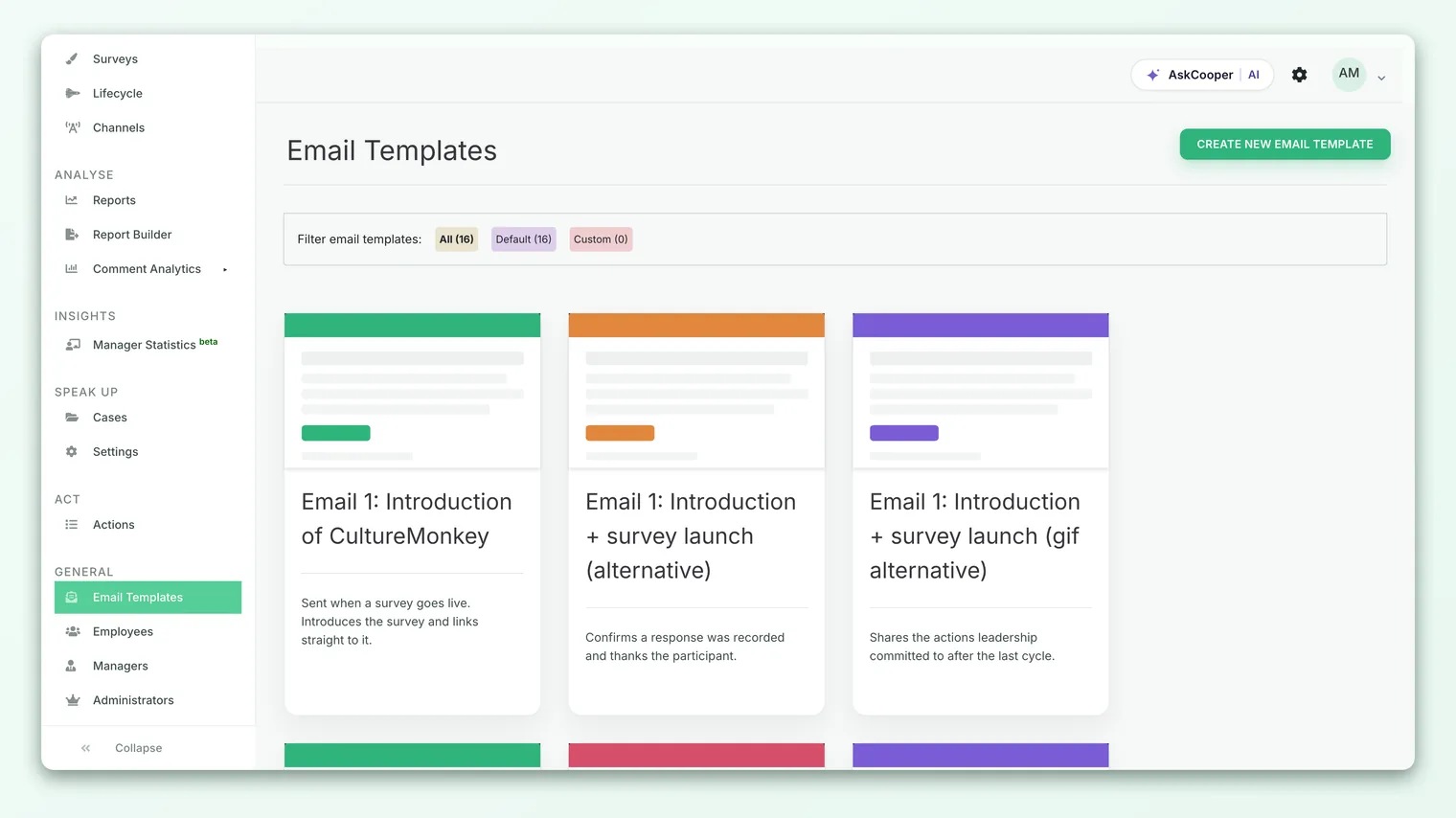
If a slot is left on the default, CultureMonkey sends its standard, well-crafted message for that email, with a subject like "CultureMonkey Survey: [survey name]". You don't have to build a template to send by email - defaults work fine - but a template in your own voice, with your branding, consistently lifts response rates. Writing and editing templates is covered in depth in Customize your survey email templates.
Once a survey is running or ended, the Launch Template is locked, because the invitation has already gone out and there's nothing left to change. The Reminder Template can still be updated while a survey is running, since reminders are still to come. Finalize your invitation before you go live.
Who the email comes from: sender and reply-to
The from line is the first thing an employee sees, and a recognizable sender is one of the simplest ways to earn opens and trust. CultureMonkey builds the sender identity from two things: your account's mail configuration and the template you attached.
The sender name and address. When email templates are on, a template can carry a Sender name (the display name in the inbox) and a From email prefix. CultureMonkey combines them into a from line like "People Team <surveys@yourcompany>". If a template doesn't set these, the platform falls back to a sensible default sender on CultureMonkey's own sending domain.
How your account is configured to send. Behind the scenes, your account sends email in one of three modes:
| Send mode | What the "from" address is | Set up by |
|---|---|---|
| Default | CultureMonkey's own trusted sending domain | No setup needed; works out of the box |
| Custom email | A custom "from" address on your account | Configured with your CultureMonkey contact |
| Custom SMTP | The sender address from your own mail server | An account admin, in mail settings |
For most teams the default is the right call - CultureMonkey's domain is warmed and authenticated, so invitations deliver reliably with zero configuration. If you specifically want emails to arrive from people@yourcompany.com instead, that's the custom SMTP path, covered fully in Send survey emails from your own domain.
The from address doubles as the address employees would reply to. Because the sender is drawn from your template's From email (or your account's configured sender), point it at a monitored mailbox if you expect employees to reply. A no-reply-style address is fine when you don't want replies, but a real inbox reassures people there's a human on the other end.
What the recipient receives
When the survey starts, CultureMonkey emails each eligible participant individually. Here's what lands in their inbox:
- A personal greeting. The email is addressed to the employee by name, and the body can greet them by name too if the template uses the
{{employee_name}}merge field. - The subject line. Either your template's subject or the default "CultureMonkey Survey: [survey name]".
- Your invitation copy. The body of your launch template - context, tone, and branding - with merge fields filled in for that person and that survey.
- A unique survey link. Every recipient gets their own link (
{{survey_response_url}}) that opens their copy of the survey. This is what ties a response back to whether that person has answered, so reminders skip anyone who's already done. - An anonymity statement. If your template includes
{{survey_identity}}, the appropriate confidentiality disclaimer is inserted so people know how their responses are handled. - The deadline. If your template uses
{{survey_ends_on}}, recipients see when the survey closes.
Because the link is personal, employees should not forward their invitation to a colleague - the other person would end up answering as them. Each person needs their own invitation. If someone can't find theirs, a reminder resends the same personal link.
CultureMonkey tracks that a launch email has been sent to each participant on the email channel, so nobody gets the invitation twice. If a send fails (a temporary mail-server hiccup, say), the platform automatically retries a few times before giving up, so transient glitches usually sort themselves out without you doing anything.
Deliverability basics
An invitation only works if it reaches the inbox. On the default sender, CultureMonkey handles deliverability for you - its sending domain is authenticated and warmed, and there's nothing to configure. If you move to custom SMTP and send from your own domain, deliverability becomes partly your responsibility, and a few fundamentals matter:
- SPF and DKIM. These DNS records let receiving mail servers confirm the email genuinely came from your domain. Without them, mail from your own domain is far more likely to be flagged as spam. Your IT team adds them. See Send survey emails from your own domain for the details.
- A recognizable sender. A from name employees know (your People team, a named leader) earns more opens and fewer spam reports than a faceless address.
- A clean, link-light invitation. Emails stuffed with images and links look more like marketing spam to filters. A clear message with one obvious survey link performs best.
- A real test send. Before a big launch, send yourself the invitation and confirm it lands in the inbox (not spam), the link works, and your branding renders on both desktop and mobile.
The single biggest cause of survey emails going to spam is switching to your own domain without valid SPF and DKIM records. If you send on the default, you don't have to think about any of this. If you send custom SMTP, coordinate the DNS records with your IT team before you go live, and verify with a test send.
Testing before you launch
The mechanics of an email send are easy to get right and easy to skip checking. Don't skip. The two-minute test that catches almost every problem:
- 1Send a test of the launch template. From the survey's email notification settings, use the Send a test Email link next to the Launch Template dropdown to deliver a live copy to yourself.
- 2Open it in a real inbox. Check the from name and address, the subject line, the branding, and that merge fields resolved (no stray
{{employee_name}}showing as literal text). - 3Tap the survey link. Confirm it opens the survey. In a test, the link points to a sample survey rather than a live one, which is expected.
- 4Check on your phone. A large share of employees open invitations on mobile, so make sure the subject isn't cut off and the link is easy to tap.
Frequently asked questions
Is email always the default channel?
Yes. Email is CultureMonkey's default launch channel, and it's pre-selected on the survey's Settings step. If you don't choose a channel at all, the survey defaults to email so it always has a way to reach people. Other channels appear as options only when they're enabled for your account.
Do I have to create an email template to send by email?
No. If a survey's Launch Template is left on the default, CultureMonkey sends its standard invitation with a subject like "CultureMonkey Survey: [survey name]". Templates are for when you want your own voice, branding, and copy. See Customize your survey email templates.
Who does the survey email come from?
By default, a trusted CultureMonkey sending address. If your template sets a Sender name and From email, employees see those instead. And if your account uses custom SMTP, the email comes from your own domain's sender address. See Send survey emails from your own domain.
Can I change the invitation after the survey has launched?
No. Once a survey is running or ended, the Launch Template is locked, because the invitation has already been sent. You can still change the Reminder Template while the survey is running. Always finalize your launch email before you publish.
Will every employee get the same link?
No. Each recipient gets a unique survey link tied to them. That's how CultureMonkey knows who has responded and can send reminders only to non-responders. Employees shouldn't forward their invitation, since the recipient would answer as them.
What happens if a survey email fails to send?
CultureMonkey automatically retries failed sends a few times over a short window, so temporary mail-server issues usually resolve on their own. Persistent failures are worth investigating - often a deliverability or custom-SMTP configuration problem. A test send before launch catches most of these early.
Can I send by email and another channel at the same time?
A survey is launched on a single channel chosen on the Settings step. Email is the default. If you need to reach people who don't check email, consider which single channel reaches them best, or see Distribution channels overview for how the channels compare.
Where to go next
- Shape the invitation itself: Customize your survey email templates
- Send from your own domain: Send survey emails from your own domain
- Take the survey live: Launch or schedule a survey
- Compare all the channels: Distribution channels overview
Your feedback helps us improve the Help Center.