

Fixing employee import errors
A practical guide to the validation errors CultureMonkey reports when you import employees by CSV or HRIS - what each one means, why it happens, and exactly how to correct your file.
On this page
Importing your people is usually a quick job: upload a CSV, let CultureMonkey validate it, and confirm. But sometimes the validation step comes back with a red banner and a downloadable error file instead of a clean success. That's not a bug - it's the import checking your data before it touches your live employee list, so a messy row never quietly corrupts your directory.
This guide walks through the validation errors you're most likely to see, what each one really means, and the precise change that fixes it. Whether you're uploading a hand-built CSV or troubleshooting a sync from your HRIS, the underlying rules are the same.
CultureMonkey validates every row before importing. The most common failures are a missing required field, an invalid email address, a duplicate email or ID, a manager that doesn't exist yet, and a file encoding or format problem. When validation fails, you get an error file with two extra columns - status and errors - telling you exactly which rows failed and why. Fix those rows, re-upload, and you're done.
How import validation works
When you upload a file, CultureMonkey runs two checks in sequence. First it validates the file as a whole: is it really a CSV, is it valid UTF-8, is it under the size limit, and do the column headers match the expected order? If any of those fail, nothing is imported and you get a single banner explaining the problem.
If the file passes, CultureMonkey validates it row by row. Every row is checked against the same rules that protect your live employee records: required fields must be present, emails must be well-formed and unique, referenced teams, locations and managers must resolve, and so on. Valid rows are counted as "will be added or updated"; invalid rows are flagged.
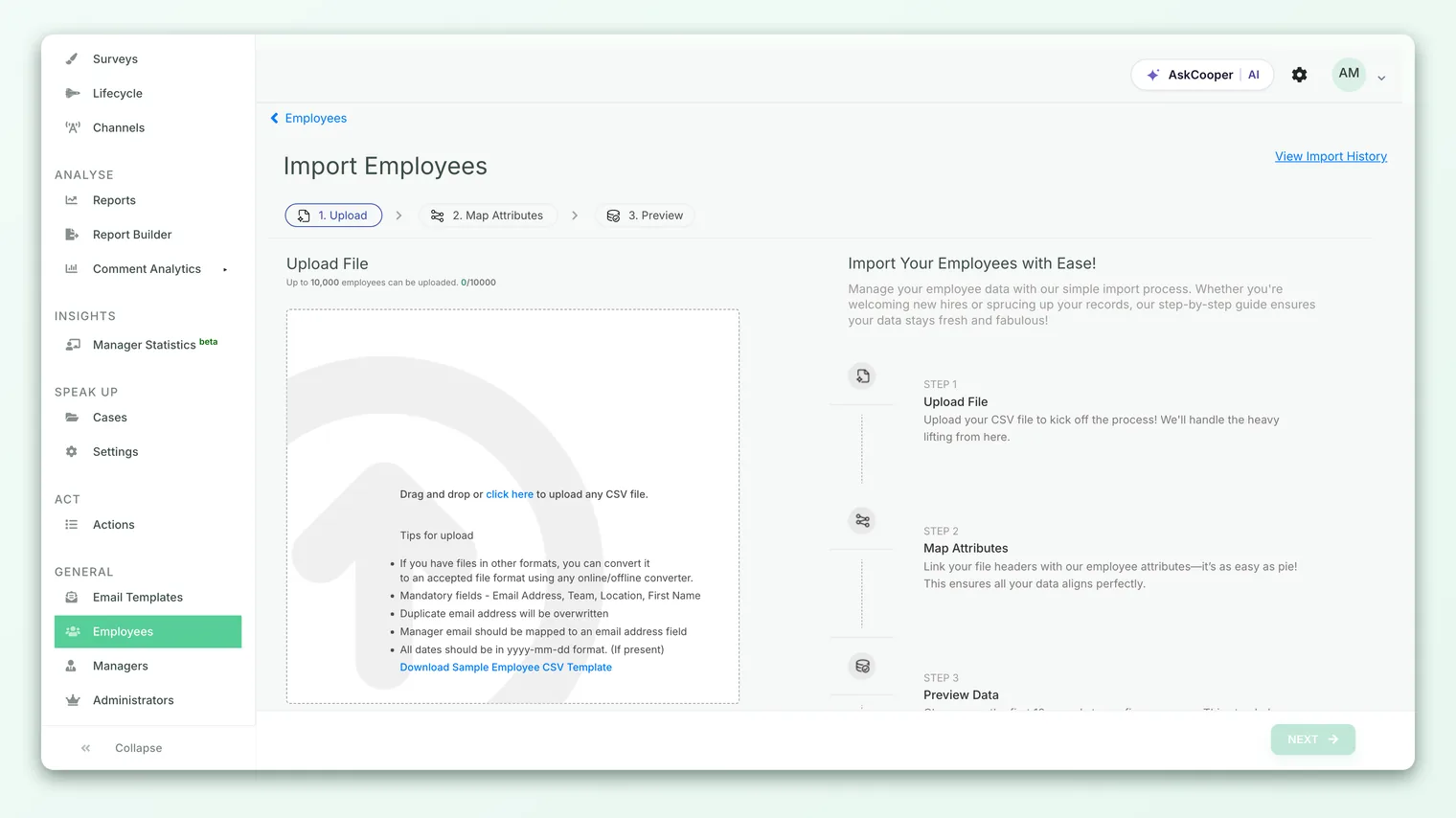
The key output is the error file. It's a copy of your upload with two columns added at the front:
- status - blank for valid rows,
ERRORfor rows that failed. - errors - a human-readable list of what went wrong in that row.
Open that file, filter to the ERROR rows, read the errors column, correct those rows in your original sheet, and re-upload. You never have to guess.
The error file is for reading, not editing. Make your corrections in your original spreadsheet (or fix the mapping if you're syncing from an HRIS) so your next export is clean too. Editing only the error file tends to reintroduce the same problems next cycle.
The required fields
Before anything else, your file needs the right columns in the right order. CultureMonkey expects this exact header row for a standard CSV import, and it checks both the names and the order:
first_name, last_name, date_of_birth, phone_number, gender, employee_id, email_address, date_of_joining, manager_email_id, team_name, location_name
If a header is missing, misspelled, reordered, or blank, you'll see:
> Invalid headers! Please refer to the sample file and preserve the order of the columns.
The safest fix is to download the sample file from the import screen and paste your data into it, rather than building the header row by hand. That guarantees the names and order match.
Not every column needs a value in every row, but a core set of fields must be filled in for the row to import. In practice the fields you can't leave blank are first_name, email_address, team_name, and location_name. A blank in one of those produces a row-level error like first_name - can't be blank or email_address - Can't be blank.
You can leave date_of_birth, phone_number, annual_salary and most other columns empty. The validation only insists on the handful of fields that identify a person and place them in your org structure.
Invalid email address
Email is the field CultureMonkey uses to identify each person, so it's validated strictly. An address must be well-formed - a local part, an @, a domain, and a top-level domain. Addresses with spaces, a missing @, a trailing dot, or stray characters fail with:
> email_address - Invalid email address
Common culprits and their fixes:
| What's in the cell | Why it fails | Fix |
|---|---|---|
harvey@acme | No top-level domain | harvey@acme.com |
harvey @acme.com | Space in the address | Remove the space |
harvey(at)acme.com | Missing @ | Use a real @ |
harvey@acme.com (trailing space) | Usually cleaned automatically, but visible spaces can slip through | Trim the cell |
| blank | Email is required | Provide a valid address |
CultureMonkey also enforces a minimum length, so a one or two character address won't pass. If your organization has a specific reason to relax email formatting or uniqueness (some accounts do), that's controlled by an account-level setting - contact support before assuming it's on.
Duplicate email or ID
CultureMonkey keeps one record per person, and it uses email address as the anchor. If the same email appears twice in your file, or matches an existing employee, the row that would create a second copy fails with:
> email_address - has already been taken.
Two things worth knowing:
- Re-importing an existing person is expected and safe. If a row's email matches someone already in your directory, CultureMonkey updates that person rather than erroring. Duplicate errors are about collisions within your file (or a genuine second record), not about re-uploading your roster.
employee_idandexternal_idmust also be unique. If two rows share anemployee_id, or anexternal_idcollides with another record, you'll seeemployee_id has already been taken.orexternal_id - has already been taken.These IDs are how CultureMonkey and your HRIS keep records matched, so a duplicate almost always signals a copy-paste slip or two systems assigning the same ID.
The fix is to find the duplicated value (sorting your sheet by email, then by employee_id, makes duplicates jump out) and either merge the rows or correct the value that's wrong.
Duplicate checks are case-insensitive, so Harvey@acme.com and harvey@acme.com count as the same person. A trailing space, on the other hand, can make two values look identical to you but different to a strict export. When in doubt, normalize your email column to lowercase and trim it.
Manager not found
The manager_email_id column links an employee to their manager. CultureMonkey checks that the email you list there belongs to someone who already exists - either elsewhere in the same file or already in your directory. If it can't find a match, the row fails with:
> manager_email_id: jessica@acme.com Should be an existing manager
This trips people up most often when a manager appears below their report in the file, or isn't in the file at all. Because CultureMonkey reads the whole file's emails when it validates, order within the file doesn't strictly matter - but the manager's own row does need to be somewhere in the file or already in your directory.
Fixes:
- Include the manager's own row in the same import, so their email is known.
- Import top-down as a habit: leaders first, then their teams. It avoids surprises even though it isn't strictly required.
- Leave
manager_email_idblank for anyone whose manager you're not ready to map yet. Blank is always valid; a wrong email is not.
There's one more manager rule worth calling out: a person cannot be their own manager. If manager_email_id equals email_address on the same row, you'll get:
> Self reference for manager is invalid (email_address and manager_email_id cannot be the same). Provide blank values instead.
Set that cell to blank.
Bad encoding or file format
Sometimes the whole file is rejected before any row is checked. These are format-level problems:
- Wrong file type. The upload must be a
.csvfile. Exporting as.xlsxand renaming it to.csvdoes not work - it's still a spreadsheet inside. Use your spreadsheet tool's "Save as" or "Export" and choose CSV explicitly. You'll see Invalid file type! Please upload a CSV file. - Bad encoding. CultureMonkey reads files as UTF-8. A file saved in another encoding (or with characters that don't survive the round trip) fails with Invalid CSV file! Please upload a CSV file encoded in UTF-8. This is common when names include accented or non-Latin characters and the file was saved as ANSI or Latin-1. Re-save with UTF-8 encoding.
- A stray invisible character. Some editors add a byte-order mark (BOM) to the start of the file, which can attach itself to your first header (turning
first_nameinto an invisible-prefixed version). CultureMonkey strips the common BOM automatically, but if headers still read as invalid, re-saving as plain UTF-8 (without BOM) clears it. - File too large. A standard CSV import is capped at a small size (a couple of megabytes), so an oversized file is refused. The usual cause isn't too many people - it's empty rows or columns padding the file. Delete blank trailing rows and unused columns, and the size drops sharply.
If encoding problems keep recurring, paste your data into Google Sheets and use File - Download - Comma-separated values. It reliably produces clean, UTF-8 CSV without a BOM, which sidesteps most encoding and format errors in one move.
Value must be from an allowed list
A few columns only accept specific values. If you enter something outside the allowed set, that row fails with a message naming the accepted values:
| Field | Accepted values |
|---|---|
| gender | male, female, other |
| employee_type | Regular, Part-time, Shiftworker, Probation, Outworker |
| role_type | Top-level, Mid-level, Operation level |
| base | Expat, Local, Non local |
| job_status | (your account's configured statuses, e.g. Employed, Relieved) |
| annual_salary | Numeric digits only, no currency symbols or commas |
These fields are optional, so leaving them blank is fine. The errors only appear when a cell has a value that isn't on the list, for example role_type: should be Top-level or Mid-level or Operation level or annual_salary - Only numeric values are allowed. Strip out currency symbols and thousands separators from salary, and match the spelling of the list values exactly.
There's also a rule tying date_of_separation to job status: if someone's status marks them as having left, their separation date must fall after their joining date. A separation date earlier than the joining date will fail.
The error → fix cheat sheet
| Error you see | What it means | How to fix it |
|---|---|---|
| Invalid headers! Please refer to the sample file... | Column names or order don't match | Start from the sample file; keep names and order intact |
| Invalid file type! Please upload a CSV file. | File isn't a real CSV | Export as CSV, not renamed XLSX |
| Invalid CSV file! ...encoded in UTF-8 | Wrong encoding or unreadable characters | Re-save the file as UTF-8 |
| File size is more than Nmb... | File too large, often from blank rows/columns | Delete empty rows and unused columns |
| first_name - can't be blank (or email/team/location) | A required cell is empty | Fill in the required field |
| email_address - Invalid email address | Malformed email | Provide a well-formed name@domain.tld |
| email_address - has already been taken. | Duplicate email within the file | Remove the duplicate row or correct the address |
| employee_id / external_id has already been taken. | Duplicate ID | Give each person a unique ID |
| manager_email_id: ... Should be an existing manager | Manager email not found | Include the manager's row, or blank the cell |
| Self reference for manager is invalid... | Someone is listed as their own manager | Blank the manager_email_id cell |
| role_type / base / gender ... is not in the list | Value outside the allowed set | Use one of the accepted values |
| annual_salary - Only numeric values are allowed | Salary has symbols or commas | Use digits only |
Errors when syncing from an HRIS
If you connect an HRIS instead of uploading a file by hand, the same validation rules apply - the sync builds a CSV behind the scenes and runs it through the identical checks. So the error messages you see in a sync report map onto everything above.
The difference is where you fix them. Rather than editing a spreadsheet, you correct the data at the source or adjust how fields are mapped:
- Missing required field usually means an HRIS field isn't mapped to
first_name,email_address,team_name, orlocation_name. Check your field mapping. See Map your import fields. - Invalid email often means the HRIS is sending a personal or placeholder value; fix it in the HRIS record.
- Manager not found typically means the manager exists in the HRIS but wasn't included in the sync scope, or their record is inactive.
For how the connection and mapping work end to end, see Connect an HRIS.
Frequently asked questions
Does a failed import change anything in my directory?
No. Validation runs before any data is written. If rows fail, nothing is imported until you confirm a clean file. Your live employee list is never partially updated by a broken upload.
Can I import just the valid rows and ignore the failures?
The safest path is to fix the flagged rows and re-upload the whole file, so no one is silently left out. The error file makes this quick: it isolates exactly which rows need attention.
Why did a person I already have come back as a duplicate?
Re-importing an existing person is not a duplicate error - CultureMonkey updates them by email. A duplicate error means the same email (or employee_id / external_id) appears twice within the file you uploaded, or a second record is trying to claim an ID that's already used.
My names have accents and the file keeps failing. What's wrong?
That's almost always an encoding issue. Save the file as UTF-8 (Google Sheets' CSV export does this cleanly) so accented and non-Latin characters are preserved.
The manager is in my file but still shows "not found." Why?
Check for a typo or case difference between the manager's email_address in their own row and the manager_email_id you referenced. The two must match (matching is case-insensitive, but a stray space will break it).
Where to go next
- Run a clean import: Import employees from a CSV
- Line up your columns: Map your import fields
- Automate it: Connect an HRIS
Your feedback helps us improve the Help Center.