

Enable PDF and PowerPoint report exports in CultureMonkey
How to turn on PDF and PowerPoint (PPTX) report exports for your account, control who can generate them across admins, sub-admins and managers, and where those exports appear once enabled.
On this page
Survey reports in CultureMonkey are built to be read on screen - interactive, filterable, always up to date. But sooner or later someone will ask for "the deck" or "a PDF I can send to the board." That's what report exports are for: a PDF you can attach to an email, and a PowerPoint (PPTX) you can drop into a leadership presentation.
Both export formats are turned on at the account level, and they're controlled independently for each type of user - full admins, sub-admins, and managers. This guide walks through what the export toggles do, how to decide which ones to switch on, and where the export buttons appear for your users once they're live.
PDF and PowerPoint exports are account-wide settings that CultureMonkey enables for you. PDF export is available to your full Account Admins. PowerPoint export has three separate switches - one for admins, one for sub-admins, and one for managers - so you can decide exactly who gets to generate a deck. Once enabled, the export options live under the Share button on any completed survey report.
What "enabling exports" actually does
CultureMonkey reports are living dashboards. An export freezes a report into a static, shareable file:
- A PDF report is a formatted document - scores, driver breakdowns, and highlights laid out for reading or printing.
- A PowerPoint (PPTX) report is a slide deck built from the same data, ready to present or to fold into a wider leadership pack.
Neither format is on by default. Turning it on doesn't change your survey data or your on-screen reports in any way - it simply makes an Export to PDF or Export to PPTX option appear in the report's Share menu for the users you've chosen. Think of it as unlocking an output channel, not creating new numbers.
Enabling the setting doesn't produce a file on its own. It puts the button in place; a user still opens a specific completed survey report and clicks to generate that report's export. See Export a report to PDF and Export a report to PowerPoint for the step-by-step.
The export toggles at a glance
There are four independent switches. PDF export is a single toggle that applies to your full admins. PowerPoint export is split into three, one per role, so you can be as generous or as restrictive as you like.
| Export format | Role it applies to | What the toggle does |
|---|---|---|
| Account Admin (full admin) | Shows Export to PDF in the Share menu for full admins | |
| PowerPoint (PPTX) | Account Admin (full admin) | Shows Export to PPTX for full admins |
| PowerPoint (PPTX) | Sub-admin | Shows Export to PPTX for sub-admins |
| PowerPoint (PPTX) | Manager | Shows Export to PPTX for managers on their own reports |
A few things worth reading off that table:
- PDF is admin-only by design. There isn't a separate PDF switch for sub-admins or managers - PDF export is intended for your full Account Admins. If you need a wider audience for a report, PowerPoint is the format with per-role controls.
- The three PowerPoint switches are fully independent. Turning on PowerPoint for admins does nothing for sub-admins or managers; each role has to be enabled explicitly. This lets you, for example, give managers a deck of their own team's results while keeping the format off for everyone else.
- Manager exports are scoped to a manager's own view. A manager only ever exports the report they're allowed to see, respecting the same visibility and anonymity rules that apply on screen.
Before you enable exports
These are account-level settings, so switching one on affects every completed report for the relevant role, not a single survey. A quick checklist before you flip them on:
- 1Decide who genuinely needs exports. Exports create shareable files that can travel outside the platform. Match each toggle to the people who actually present or circulate results.
- 2Know your roles. Confirm who in your account is a full Account Admin, a sub-admin, and a manager. If you're unsure how these differ, see Understanding roles.
- 3Remember anonymity still applies. Exports respect the same anonymity thresholds as on-screen reports. A file will never expose a small group's answers that the report itself hides.
- 4Pick your format per audience. PDF is the clean read-and-send document for admins; PowerPoint is the presentation format, and it's the one you can extend to sub-admins and managers.
How to enable each export
Because these are account-wide switches, they're managed centrally for your account. Turning one on makes the matching export option appear for the chosen role the next time they open a completed report.
- 1Enable PDF export to give your full Account Admins the Export to PDF option on completed reports.
- 2Enable PowerPoint for admins to add Export to PPTX for full Account Admins.
- 3Enable PowerPoint for sub-admins to give sub-admins the same Export to PPTX option.
- 4Enable PowerPoint for managers to let managers export their own team's report as a deck.
The four export switches are configured at the account level. Depending on your plan, they may be available in your account settings or enabled by the CultureMonkey team on request. If you don't see the export options after they should be on, reach out to your CultureMonkey contact.
Where exports appear once enabled
Exports live on the report itself, not in a separate downloads area. Once a toggle is on, the relevant user opens a completed survey report and finds the option under the Share button in the top-right of the report.
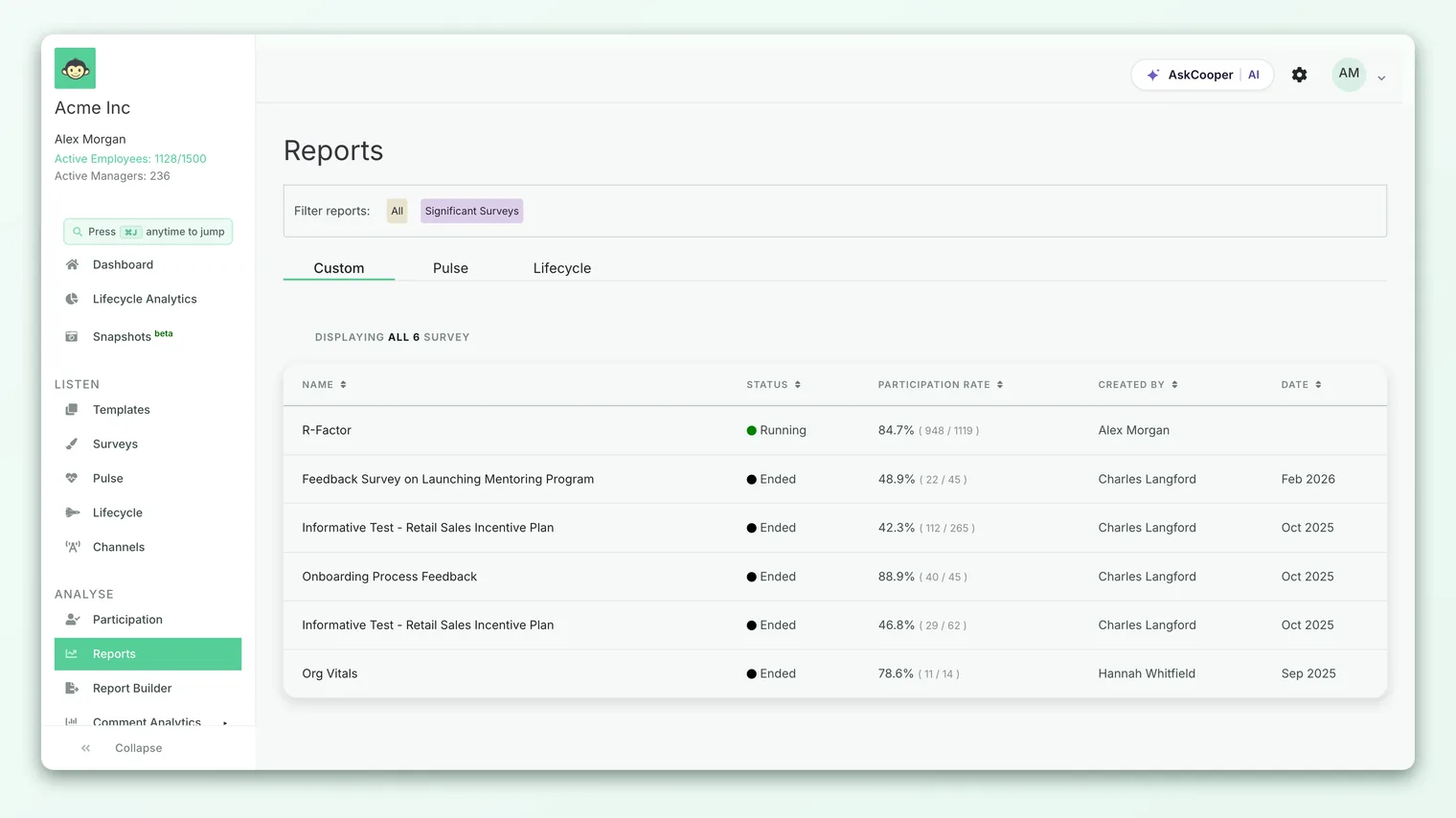
Clicking Export to PDF or Export to PPTX generates that report's file. Larger reports are prepared in the background - the option shows an In Processing state while it builds, and the finished file is made available to download or is sent to you when it's ready. For the full walkthrough of generating and retrieving each file, see Export a report to PDF and Export a report to PowerPoint.
The export options only appear once a survey has ended. A live, in-progress survey won't show export buttons, because the report is still changing. This is expected - wait for the survey to close, then generate the export.
When to enable each toggle
There's no single right configuration - the goal is to match each format to the people who need it. Some common patterns:
- Board and leadership reporting. Enable PDF for admins so your HR or People team can send a polished, read-only document upward. Add PowerPoint for admins when leadership wants results as slides in a wider deck.
- Empowering sub-admins. If sub-admins own reporting for a division or region, enable PowerPoint for sub-admins so they can build their own presentations without routing everything through a full admin.
- Manager-led team conversations. Enable PowerPoint for managers when you want managers to walk their teams through results in a team meeting. Because manager exports are scoped to what each manager can already see, this stays within your visibility rules.
- Keeping things tight. If exports aren't part of your process, leave them off. On-screen reports and the shareable report link already cover most needs, and fewer downloadable files means fewer copies of results floating around.
PDF and PowerPoint exports currently carry a beta label in the product. They're fully usable - the tag simply signals that the export formats are still being refined. Expect the output layouts to keep improving over time.
Things to keep in mind
- Exports are a snapshot. A generated file reflects the report at the moment it was created. If the underlying report later changes - a filter is added, more responses come in on a re-opened survey - you'll need to regenerate the export to reflect it.
- A rating question is required. Reports built entirely from open-text or other non-rating questions may not have enough scored data to produce a meaningful export, and the option will be unavailable for that report.
- Enabling a role is all-or-nothing for that role. There's no per-user override within a role. If you enable PowerPoint for managers, every manager sees the option on the reports they can access.
- Files can leave the platform. Once exported, a PDF or deck is an ordinary file that can be forwarded. Enable exports for roles you trust to handle results responsibly, and lean on anonymity thresholds to protect small groups.
Frequently asked questions
Why can't a manager see the PDF export option?
PDF export is intended for full Account Admins - there isn't a separate PDF toggle for managers or sub-admins. If you want managers to have a shareable file, enable PowerPoint for managers instead, which is the export format with per-role controls.
I enabled PowerPoint for admins, but sub-admins still can't export. Why?
The three PowerPoint switches are independent. Enabling it for admins doesn't affect sub-admins or managers - you need to turn on the sub-admin toggle separately. This is deliberate, so you can control each role on its own.
Why don't I see any export button on a report?
Two common reasons: the survey hasn't ended yet (export options only appear on completed reports), or the setting for your role isn't enabled. If the survey is closed and you're sure the toggle is on, check that the report contains rating-scale questions, since those provide the scored data an export needs.
Do exports respect anonymity?
Yes. Exports use the same anonymity thresholds as on-screen reports. A file will never reveal the responses of a group too small to display, so exporting can't be used to work around anonymity protections.
Are exports available on every plan?
These are account-level settings, and availability can depend on your plan. If the export options aren't showing when they should be, contact your CultureMonkey representative to confirm they're enabled for your account.
Where to go next
- Generate a PDF: Export a report to PDF
- Build a deck: Export a report to PowerPoint
- Know who gets what: Understanding roles
Your feedback helps us improve the Help Center.