

Export a CultureMonkey report to PDF
How to generate a PDF of a completed CultureMonkey survey report - where the export lives, what it includes, how long it takes to build, and who is allowed to create one.
On this page
CultureMonkey reports are designed to live on screen: interactive, filterable, and always up to date. But at some point someone will ask for "a PDF I can email to the board" or "a copy for the file." A PDF export turns a completed survey report into a single, formatted document you can attach to an email, print, or archive.
This guide covers the practical side of generating one: where the export option sits, what the finished document contains, how long it takes to build and how it reaches you, and who is allowed to create it. If you are an admin trying to turn the feature on for your account, start with Enable PDF and PowerPoint report exports instead. This article assumes the feature is already enabled and walks through actually producing a file.
Open a completed survey report, click Share in the top-right, and choose Export to PDF. CultureMonkey builds the file in the background and emails it to you when it is ready, usually within a few minutes. The option only appears when PDF export is enabled for your account and you have the right role. PDF export is currently intended for top-level admins and carries a beta label.
What the PDF export is for
An on-screen report is a living dashboard: change a filter and the numbers update instantly. An export does the opposite. It freezes the report into a static file at the moment you generate it, so you have a fixed, shareable artifact that will not change underneath you.
A PDF report is a formatted document - overall scores, eNPS, participation, driver breakdowns, and highlights laid out for reading or printing. It is the clean "read and send" format, the one you attach to an email or hand to a leadership team. If you want the same data as editable slides you can drop into a wider presentation, use the PowerPoint export instead. If you want a short narrative overview rather than the full report, look at the executive summary.
Think of the PDF as an output channel, not a new set of numbers. Generating one never changes your survey data or your on-screen report. It simply captures what is already there.
Before you can export
A few conditions all have to be true before the Export to PDF option will appear. If you do not see it, one of these is almost always the reason.
| Requirement | Why it matters |
|---|---|
| PDF export is enabled for your account | It is an account-level setting, off by default. See Enable PDF and PowerPoint report exports. |
| The survey has ended | Exports only work on completed reports, because a live survey is still changing. |
| You have the right role | PDF export is scoped to specific administrators (see below). |
| The report contains rating-scale questions | The PDF is built from scored data. A report made entirely of open-text questions has nothing to chart. |
| The report is a regular survey, not an autopilot report | Autopilot reports do not offer the PDF export. |
The export option appears only once a survey has ended. While a survey is still collecting responses, the report is still moving, so there is nothing stable to freeze into a file. Wait for the survey to close, then generate the export.
Who can export a PDF
This is the part worth reading carefully, because PDF export is more tightly scoped than most report features.
In the product today, the Export to PDF option is shown only to top-level administrators (the full Account Admins who sit at the top of your account, with no restricted role attached). Sub-admins and managers do not see a PDF option, even when PDF export is enabled for the account. If you need a shareable file for a wider group, PowerPoint is the format with per-role controls: you can extend it to sub-admins and managers. See Enable PDF and PowerPoint report exports for how those role controls work.
There is no separate PDF switch for sub-admins or managers, and no per-user override. If a colleague cannot see the PDF option, it is usually because their role is not the top-level admin role, not because something is broken. Give them the PowerPoint export instead, which does have role-level controls.
How to export a report to PDF
Once the feature is enabled and you are on a completed report as the right kind of admin, generating the file is quick.
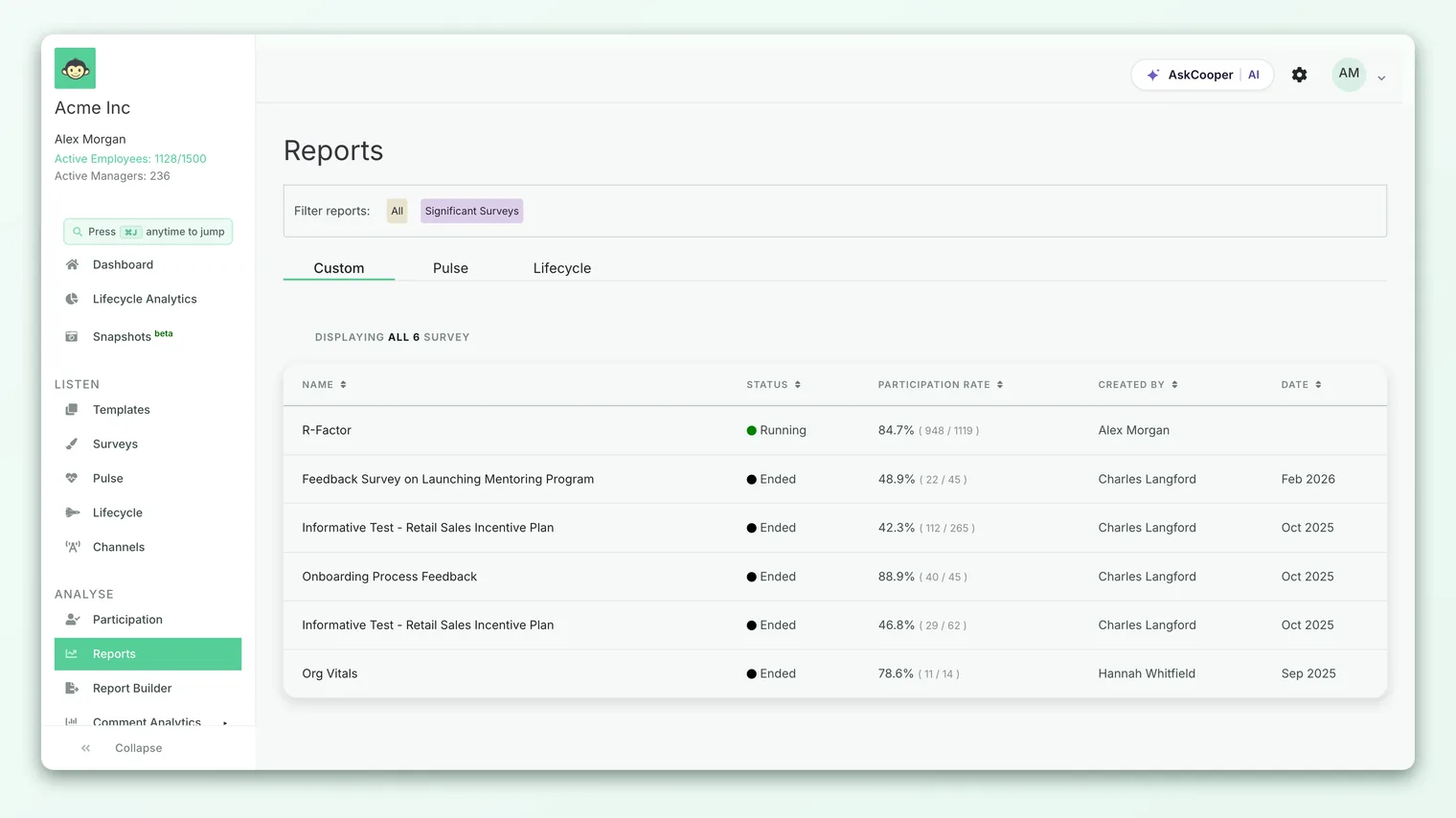
- 1Open the completed report. Go to Analyse > Reports and open the survey report you want. Confirm the survey has ended.
- 2Open the Share menu. Click the Share button in the top-right of the report. The export options live inside this dropdown, alongside XLS export and the shareable link.
- 3Choose Export to PDF. Select Export to PDF (it carries a small beta tag). CultureMonkey hands the report to its generation service and starts building the file.
- 4Wait for the email. You do not have to keep the page open. The finished PDF is emailed to you when it is ready, and the report also offers a direct download link once the file exists.
That is the whole flow. There is no separate downloads area to visit and no configuration screen to fill in for a standard export. You click once, and the file comes to you.
How generation and delivery work
A PDF report is not produced instantly in your browser. CultureMonkey sends the request to a background generation service, which assembles the document from your report data and renders it. This is why the experience is "click and wait for an email" rather than an immediate download.
Here is what happens behind the button:
- 1You click Export to PDF. CultureMonkey records that a generation job has started for this report and this user.
- 2The file builds in the background. The generation service lays out the scores, drivers, and charts into a formatted PDF. Larger reports naturally take a little longer.
- 3The option shows In Processing. While a job is running for you, the menu item switches to Export to PDF (In Processing) and is disabled, so you cannot accidentally kick off a duplicate build for the same report.
- 4The finished file arrives by email. When the PDF is ready, CultureMonkey emails it to the address on your account. Once the file exists, the Share menu also turns the item into a direct link you can click to open the PDF.
Most reports build within a few minutes. The confirmation message tells you to expect the file within about 30 minutes, and if it has not arrived by then to check your spam folder or contact support@culturemonkey.io. The 30-minute figure is the outer bound, not the typical wait.
If you trigger an export and then immediately look for the button again, seeing In Processing is normal and expected. It means your file is already being built. Wait for the email rather than clicking repeatedly.
What the PDF includes
The PDF mirrors the substance of your on-screen report, laid out for reading rather than clicking. Depending on your survey and account configuration, a generated report typically includes:
- Headline scores - overall engagement score, eNPS, and participation for the survey.
- Driver breakdowns - how each engagement driver scored, so the reader can see strengths and the areas that need attention.
- Highlights and distributions - the key charts that summarize how people responded.
Two optional additions are worth knowing about, because they change what the file contains:
- Insights. If your account has report insights enabled for PDF, the export can include an insights section that adds narrative context to the numbers. When this is available, choosing Export to PDF may first offer the choice of whether to include insights.
- Demographic breakdowns. Some accounts can generate PDFs broken down by demographic segment (for example, one report per department or location) rather than a single overall file. In that mode, you pick which segments to generate, CultureMonkey builds a PDF for each, and you can download them together as a single ZIP archive once they are ready. This batch mode is available to top-level admins on accounts where it is enabled.
A PDF export uses the same anonymity thresholds as the on-screen report. If a group is too small to display safely on screen, it stays hidden in the PDF too. Exporting can never be used to reveal responses that anonymity protections are hiding, so you can share a generated file without worrying that it exposes a small team's answers.
Keep in mind
- A PDF is a snapshot. The file reflects the report exactly as it stood when you generated it. If the underlying report changes later - a filter is applied, or a re-opened survey collects more responses - you will need to generate a fresh PDF to capture the new state.
- The file leaves the platform. Once exported, a PDF is an ordinary document that can be forwarded, printed, or stored anywhere. Because it can travel outside CultureMonkey, treat it with the same care you would any sensitive report, and lean on the anonymity thresholds that protect small groups.
- PDF export is in beta. The option carries a beta label in the product. It is fully usable; the tag simply signals that the layout and formatting are still being refined, so expect the output to keep improving over time.
- Rating questions are required. A report built entirely from open-text or other non-rating questions will not have the scored data a PDF needs, and the option will be unavailable (or disabled with an "insufficient data" note) for that report.
Frequently asked questions
Why don't I see the Export to PDF option?
Work through the checklist above. The three most common reasons are that the survey has not ended yet, that PDF export is not enabled for your account, or that your role is not the top-level admin role that PDF export is scoped to. If the survey is closed and the feature is on, also check that the report contains rating-scale questions.
Where does the finished PDF go?
CultureMonkey emails it to you when generation completes. Once the file exists, the Share menu also shows a direct link so you can open the PDF straight from the report without hunting through your inbox.
The button says "In Processing" - did my export fail?
No. That state means your file is currently being built. It also stops you from starting a duplicate job for the same report. Wait for the email; if nothing arrives within about 30 minutes, check your spam folder or contact support.
Can a manager or sub-admin export a PDF?
Not today. PDF export is intended for top-level admins. If you want managers or sub-admins to have a shareable file, enable the PowerPoint export for those roles instead, since that format has per-role controls.
What is the difference between the PDF and the executive summary?
The PDF is the full formatted report. The executive summary is a shorter, higher-level overview aimed at leaders who want the story rather than every chart. They come from the same underlying data and are generated in a similar way.
Do I need to keep the page open while it builds?
No. CultureMonkey generates the file in the background, so you can navigate away or close the tab. The finished file will still be emailed to you.
Where to go next
- Turn the feature on: Enable PDF and PowerPoint report exports
- Prefer slides? Export a report to PowerPoint
- Want the short version? Export the executive summary
Your feedback helps us improve the Help Center.